Turn Off Duet and Stitch on All Your TikTok Videos
TikTok gives each video you post its own Allow reuse of content setting. Leave it on and people can Duet the clip, Stitch it, make stickers from it, or add it to their Story. Turning it off means opening every video's privacy settings, one post after another. Redact works through that list for you, across the whole profile or only the videos your filters pick, and it doesn't delete anything.
Available on
Plan
Action *
Delete, or revoke sharing permissions
Permissions to revoke *
Which permissions to revoke on each video
Date Range
Only videos posted in this window
Free for recent uploads
Anything you uploaded in the past 30 days can be locked down at no cost. Older videos need Premium.
Why switch reuse off
Your clips can end up inside other people's posts
Duets, Stitches and stickers are how one TikTok turns into many. That's half the fun of the app, until it's your face or your living room in a post you didn't make, on a profile you don't run.
The new post belongs to them
A Duet plays your video beside theirs, and a Stitch cuts part of yours into theirs. Either way the result lives on their profile, and TikTok's Duet help says their privacy settings decide who can watch, comment on, or download it.
TikTok's account setting only narrows it
Settings and privacy has a Reuse of content page, but its only choices are Everyone or Friends. Switching reuse off completely happens one video at a time, in each post's own privacy settings, unless you make the whole account private.
Existing Duets and Stitches outlast the setting
Turning reuse off stops new ones. The ones already posted stay put, and TikTok's tool for clearing them, in Reuse of content history, permanently deletes your original video along with them. Switching reuse off early is the gentler fix.
Defaults can change without asking
In April 2026 TikTok began adding an AI remix setting to videos, already on for uploads that were years old, then paused the feature and pulled the setting after creators pushed back. It pays to set your videos' permissions yourself.
How the run works
The videos stay up and the switch goes off
Pick Videos in Redact and set the Action to Revoke permissions instead of Delete videos. Redact gathers your uploads with the same controls a delete run uses. It then opens each matched video, goes into its privacy settings, turns Allow reuse of content off, and taps Done. When a video's setting is already off, Redact leaves it alone and says so.
Your TikTok account must use English because Redact finds the setting by its English label. Nothing gets removed or hidden. Every video keeps its views, likes, comments and audience setting, and its row in Redact shows what changed on it.
- Nothing deleted
- Duet and Stitch off
- A result on every row
- Desktop app
Action *
Delete, or revoke sharing permissions
Permissions to revoke *
Which permissions to revoke on each video
Date Range
Only videos posted in this window
The AI remixing box
Built for a switch TikTok has since removed
Redact's form has a second permission, Disable AI remixing. It targets the AI remix setting TikTok began adding to video privacy settings in April 2026 and took out again when it paused the feature. While that setting is missing, the box has nothing to turn off.
If TikTok brings the setting back, the box turns it off on every video the run covers. Until then, leave it unticked, or tick it together with Revoke reuse of content. When both boxes are ticked, Redact still turns off reuse and reports that the AI remix setting was missing. When only the AI remix box is ticked, the video fails because TikTok has no setting for Redact to change.
Neither box is an AI training opt-out. TikTok said the remix tool never fed videos into training, and these settings don't change what its privacy policy lets TikTok do with your content.
- Switch removed by TikTok
- Tick it with reuse
- Missing switch reported
- Not a training opt-out
Revoking permissions
Reuse of content and AI remixing both ticked
desk setup tour
Reuse of content untoggled · AI remix toggle not found
thrift haul, part two
Reuse of content was already off · AI remix toggle not found
sunset from the ferry
Reuse of content untoggled · AI remix toggle not found
Choose the videos
Every video, or just the ones that matter
Revoking shares its controls with deleting, so you can switch reuse off across the whole profile or narrow the batch first. Preview Mode shows what matched before any switch moves.
Date range
Match videos by upload date, like everything from the year your account took off.
Public or private
Include public uploads, private ones, or both. The private-videos page covers that filter in more depth.
Protect Pinned Videos
Off unless you turn it on. Turn it on and the videos pinned to your profile keep the permissions they have now.
View count
Set a minimum and a maximum, for instance to lock down only the clips that reached the most people.
Check it, then run it
Preview the batch, run it, or repeat it
Preview Mode
Lists every video your filters matched without opening one privacy panel, so you can adjust the batch before anything moves.
Deletion Mode
The app keeps this name for the real run, but with Revoke permissions chosen it only flips switches. No video is deleted.
Schedule Deletion
Save the revoke setup as a schedule and it repeats on the interval you pick, catching new uploads that match. It needs Premium.
Walkthrough
How to turn off Duet and Stitch on your TikTok videos with Redact
Setup is a few minutes of clicking. On a big profile the run takes longer, because Redact paces it to stay inside TikTok's limits.
- 1
Download Redact for free
Download for your device →Install Redact on your computer and create a free account. TikTok cleanups run in the desktop app on Windows, macOS, and Linux.
- 2
Connect your TikTok account
Open Redact, choose TikTok, and link your account securely. Your credentials are sent straight to TikTok and never touch a Redact server.
- 3
Choose Videos and switch the Action to Revoke permissions
Open the Videos category and change Action from Delete videos to Revoke permissions. The date range, privacy, Protect Pinned Videos and view count controls all still apply, so narrow the batch here or leave it open to cover every video.
- 4
Tick Revoke reuse of content
Under Permissions to revoke, tick Revoke reuse of content. It's the setting TikTok labels Allow reuse of content, and it covers Duets, Stitches, stickers and adding your video to someone else's Story. Your TikTok account must use English so Redact can find the setting by its label.
Leave Disable AI remixing unticked while TikTok's AI remix setting is gone. If you want the run ready in case TikTok restores the setting, tick both boxes. Don't tick only Disable AI remixing while its setting is missing.
- 5
Preview, then run
Run Preview Mode to see which videos matched, then start the run. Each video's row reports whether its setting was turned off, was already off, or was not found.
Revoking on videos posted in the last 30 days is free. Older videos need Premium.
Every switch is flipped from your computer
You sign in to TikTok in a window Redact opens on your own machine, and the run works through your videos from there. Redact's servers never see your login or your videos, so there's nothing on our side to leak or sell. Disconnect TikTok whenever you like.
Try Redact Today
We are frequently adding support to other social network services. You can receive direct updates from us in Redact's Discord Channel.

Frequently asked questions
No. The run only turns settings off inside each video's privacy settings. Your videos stay on your profile with their views, likes, comments and audience setting exactly as they were.
No. Turning reuse off stops new Duets and Stitches, and the ones already posted stay on the profiles of the people who made them. TikTok's own way to clear them is Reuse of content history in the app's privacy settings, and removing them there permanently deletes your original video as well. TikTok's Stitch privacy help walks through it.
Partly. The Reuse of content page in Settings and privacy only chooses whether Everyone or just Friends can reuse your posts. Making your account private stops reuse altogether, but it also hides your videos from everyone you haven't approved. To stay public and still switch reuse off, you need the setting on each video, and that's the one Redact flips.
No. These switches control what other people can make from your videos. They don't change how TikTok itself can use your content under its privacy policy, and TikTok has said its paused remix feature didn't feed anyone's videos into AI training.
Yes, in TikTok. Open the video, tap More options, go to Privacy settings and switch Allow reuse of content back on. Redact only ever turns permissions off, so turning one back on is up to you.
The video's row names each setting Redact found or could not find. If one selected setting is missing, Redact still changes the other selected setting. If every selected setting is missing, Redact marks the video as failed and changes nothing.
It's free for videos you posted within the last 30 days. Older videos need Premium, and so does Schedule Deletion, which repeats your revoke setup on an interval so new uploads that match get their setting turned off too. Don't use Disappearing Mode for this, because it deletes videos as they pass your age limit instead.
More TikTok features
Delete All TikTok Videos at Once
Wipe every video in one pass, or filter by date, view count, and privacy first. Pinned videos stay protected and a preview shows the batch before it runs.
Delete All Liked Videos on TikTok
Clear every liked video in a single run or scope it by date range, with a preview pass before anything is permanent.
Delete All Private Videos on TikTok
Clear every private video in one sweep while your public uploads stay untouched, or flip the filter and do the reverse.
Delete All TikTok Reposts at Once
Bulk-remove the videos you've reposted, by date range or all at once, without touching the original creators' posts.
Remove All Saved Videos on TikTok
Unsave your whole Favorites list or just one date range of it, then clear every collection you've made in a separate Premium run.
Mass Unfollow Everyone on TikTok
Clear your whole TikTok following list, or keep your mutuals and drop only the accounts that don't follow you back.
Mass Remove Your TikTok Followers
Work through your whole TikTok followers list, bots and spam included, after previewing exactly who is on it, without touching anyone's videos.
Schedule TikTok Deletion or Make Videos Disappear Automatically
Recurring cleanups on your schedule, or a rolling age limit that keeps stale videos and likes off your profile.
TikTok guides
See all
TikTok Returns After Going Dark, Credited to US President
TikTok is back online after a brief U.S. outage, with its return linked to promises from Donald Trump. What it means for users and digital privacy.
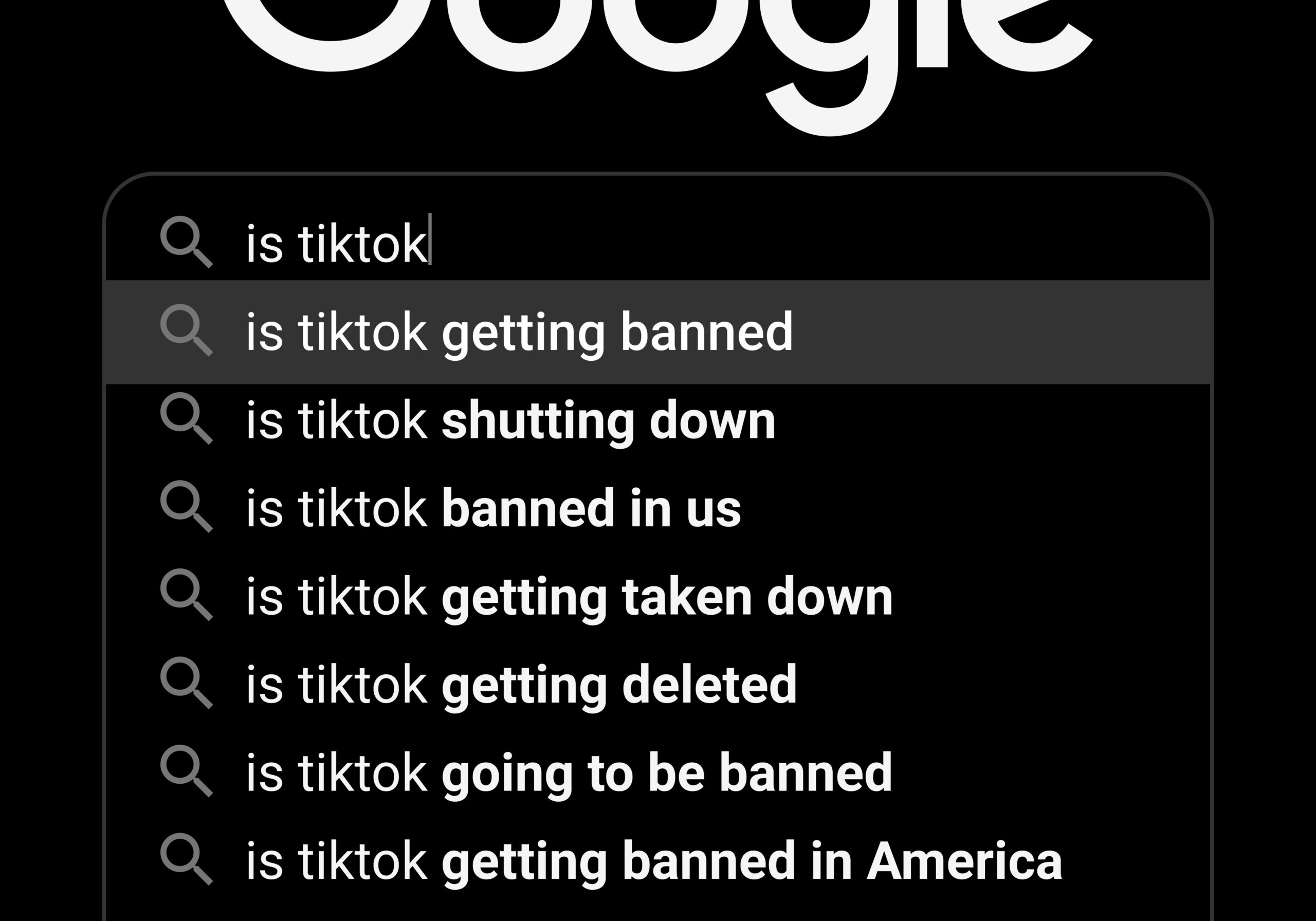
What a Potential TikTok Ban Means for Your Digital Privacy
A potential TikTok ban in the U.S. raises concerns about data privacy and digital freedom. Here is what it means for your digital presence.

How to Opt Out of TikTok's AI Training
TikTok has no account-wide opt-out from AI training. See where its video settings and legal objection form stand, and why a private account won't help.
Related services
See allVimeo
Delete your videos
- videos
YouTube
Delete your YouTube comments, history, playlists, likes, and uploads
- Comments
- watch & search history
- playlists
- Watch Later
- +3 more
SoundCloud
Mass delete your SoundCloud tracks, likes, comments, and reposts, with filters for date range and keywords, plus a preserve list for the uploads you keep.
- Tracks
- likes
- comments
- reposts
DeviantArt
Remove comments, favorites, or even your own old art posts.
- Comments
- Favorites
- Posts
Mass unpin images and delete boards.
- Pins
- Boards
Gyazo
Delete your images
- images