Instagram Wrapped
Drop in your Instagram data download and see your year: likes, posts, stories, your busiest month and your Instagram type.
- What it reads:
- Likes
- Comments
- Posts and stories
- Saved
- Messages
- 1Request the download
- 2Drop it in
- 3See your year
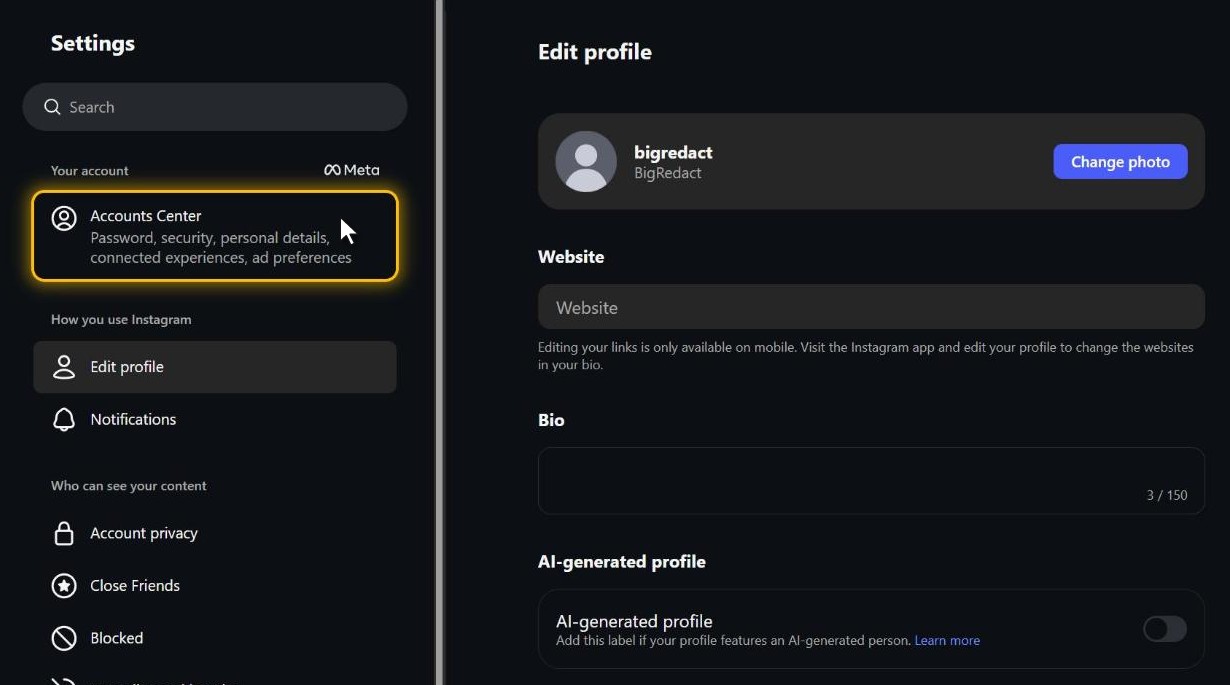
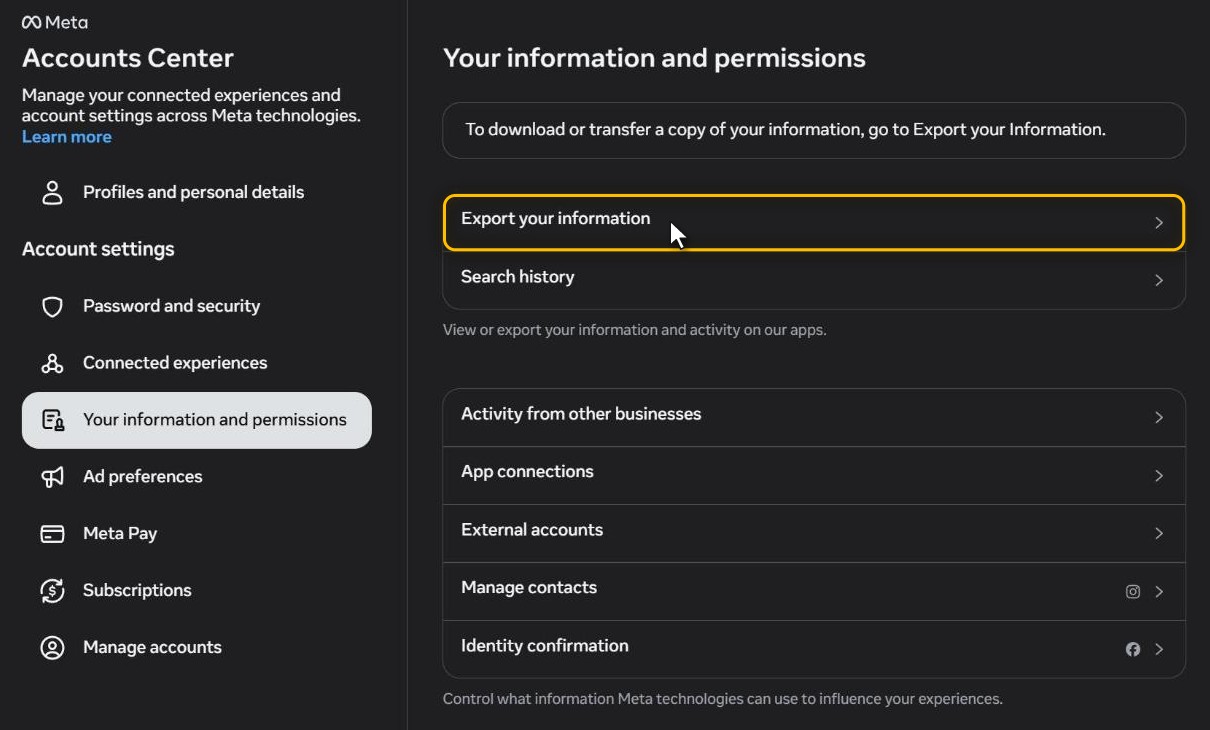
- In Settings, open Accounts Center, then Your information and permissions.
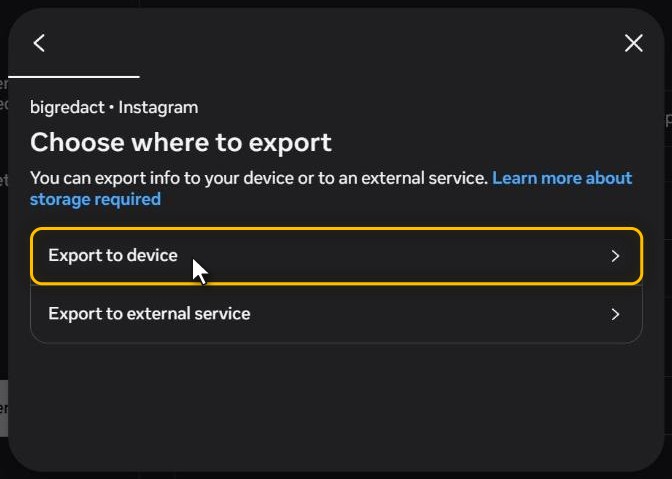
- Choose Export your information, then Create export, then Export to device.
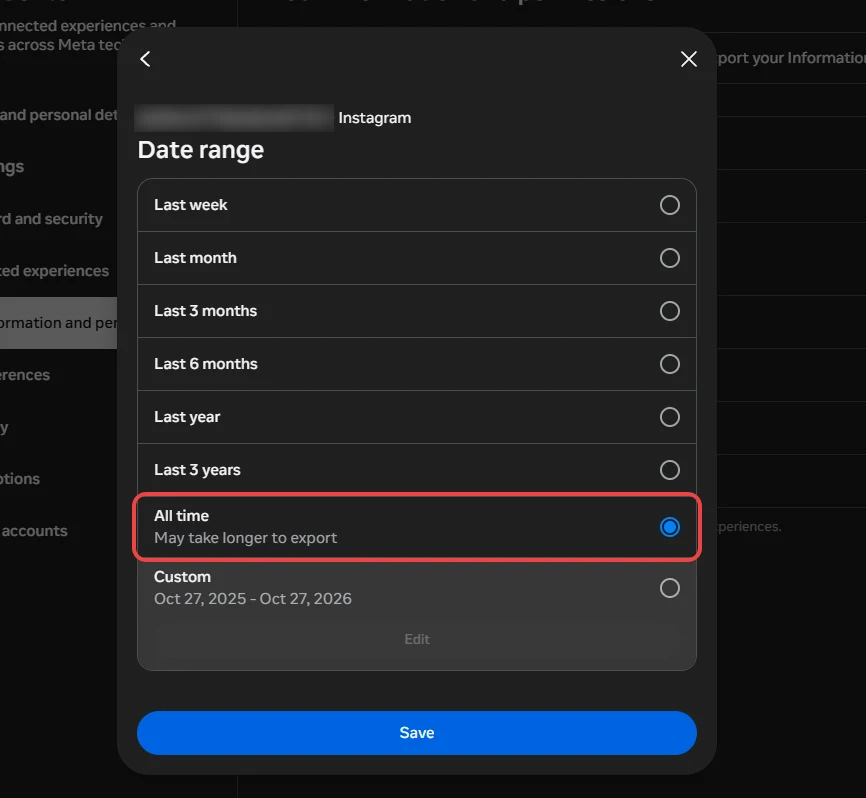
- Set Date range to All time and start it. Instagram emails you when it's ready.
A recap that never needs your password
Everything here is calculated on your device from the file Instagram sent you.
More free tools
- Instagram Data ViewerRead and search every Instagram chat from its first message, from your own download.
- TikTok WrappedSee your year on TikTok from your own data download, then save a card. Nothing is uploaded.
- Discord WrappedSee your year on Discord from your own data package, then save a card. No login, nothing uploaded.
- Not Following Back CheckerJust the list: everyone you follow who doesn't follow you back.
Instagram Wrapped: common questions
No. As of November 2026, Instagram offers year-end collage and Reel templates, but no recap of your personal stats. Redact built this one, working from the data download anyone can request from Instagram, and your browser opens that file without sending it anywhere.
In Instagram's settings, go to Accounts Center, then Your information and permissions, then Export your information, where you choose Create export, select your profile and Export to device. Set the date range to All time and click Save, set the media quality to Low, choose HTML or JSON, then begin the export. The guide on this page walks through each screen.
Meta gives itself up to 30 days, though small downloads usually arrive much sooner, so request it early. When it's ready you get an email from Instagram, and the file sits under Available downloads for 4 days before it expires and you have to request it all over again.
Last year means the 12 months before the day you request it, not January to December, so if you request it in November 2026, it begins in November 2025 and a 2025 recap would lack most of that year. All time covers every year, and the recap lets you choose one.
Either works, since the recap reads both and tallies the same things from each. HTML pages show every time at the offset Instagram used on the day it made the download, and the recap reads that offset from each page, so times can be an hour off from JSON around a daylight saving change.
No, and be careful with any app that claims it can. Instagram's download doesn't track profile visits, who took a screenshot or how long you kept the app open, so the recap only tallies what's in the file: what you posted, liked, commented on, saved and sent.
The download only lists the likes you still have, so if you undo a like or have the post removed, it disappears from the file, which happens to comments and saves as well.
No. The people you messaged most and the accounts you liked most stay on this page, and while your card can include message counts if you tick them, it never shows names.
It comes from your own numbers for that year, and the reason sits right below it. Someone who sends plenty of posts and reels in DMs is a Reel dealer, for instance, while someone who's mostly online late at night is a Night owl.
Step-by-Step Guide
How to download your Instagram data for your recap
Your recap is built from the download Instagram lets anyone request, and these are the steps on a computer as of November 2026.
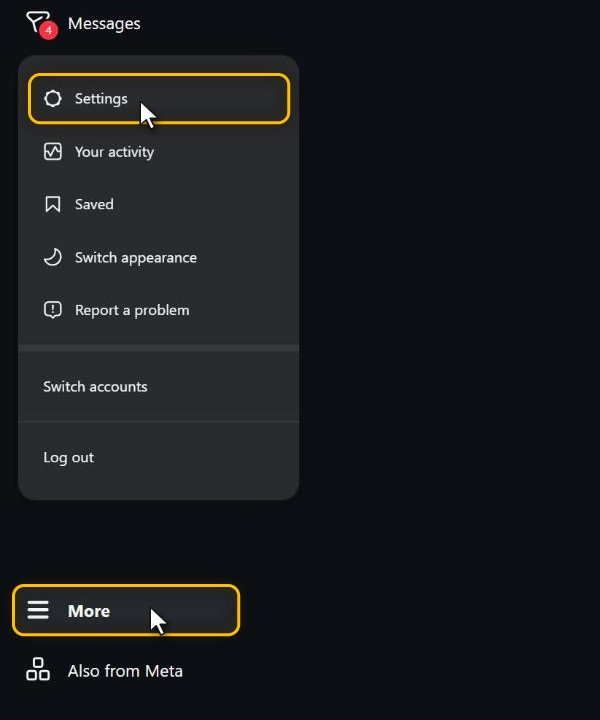
Step 1 Open your settings
- A On a computer, go to instagram.com, click More in the bottom left, then Settings.
- B In the app, tap your profile picture in the bottom right, then the three lines in the top right.
Step 2 Find Export your information
- A Click Accounts Center at the top of the Settings menu. Meta is renaming it to Meta Account a few people at a time, so yours may say that instead.
- B Open Your information and permissions, then Export your information.
Step 3 Start a new export
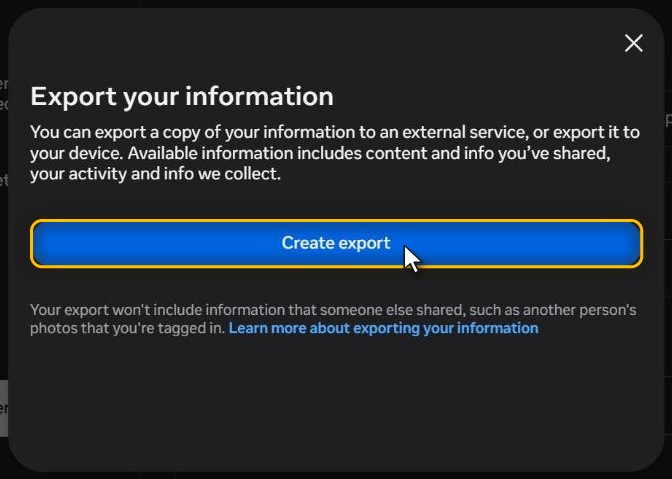
- A Click Create export and pick your Instagram profile.
- B Choose Export to device, so the file comes to your computer.
Step 4 Leave every category ticked
- A On the Confirm your export screen, leave Customize information alone, since every category begins ticked.
- B If you untick one, the recap misses it, and messages and followers are the ones people often leave out even though the recap counts from both.
Step 5 Change the date range to All time
- A Open Date range, which begins on Last year.
- B Choose All time and click Save.
- C Last year means the 12 months before the day you request it, so if you request it in November 2026, it begins in November 2025 and a 2025 recap would lack most of that year.
Step 6 Choose a format and begin the export
- A Keep Format on HTML or change it to JSON, since the recap reads both and tallies the same things from either.
- B Set Media quality to Low, because the recap never opens your photos or videos and a lower quality makes the file far smaller.
- C Click Start export. Instagram might request your password on its own screen, though this page never will.
Step 7 Request it early
- A Meta gives itself up to 30 days to prepare an export, though small ones usually arrive much sooner.
- B Request it now, and the file will be waiting by the time you want your recap.
Step 8 Download the ZIP
- A You'll get an email and an Instagram notification when it's ready. Meta says that can take up to 30 days, though small exports usually come much sooner.
- B Download it from Available downloads on the Export your information screen. It stays there for 4 days, and after that you'll need to ask for a new one.
Step 9 Add it to the recap
- A Drag the ZIP into the box at the top of this page without unzipping it.
- B If Instagram broke it into several ZIPs, add them all at once.
- C Your recap starts on the newest year in your download, and you can change years at the top.
Try Redact for Free
We are frequently adding support to other social network services. You can receive direct updates from us in Redact's Discord Channel.
