How to Opt Out of AI Training on Pinterest
 Dan Saltman3 min read
- Last verified
- September 8, 2026
- Not working?
- Let us know
- Difficulty
- Easy
- Steps
- 4
- Time required
- 2 to 3 minutes
Direct link to the Pinterest AI training setting
One checkbox, at the very bottom of the page under a heading of its own, and a Save button that only appears once you've touched it.
How to find the setting manually
Pinterest gives you a genuine say over model training, which puts it in a small minority of the services we cover. The setting is Use your data to train Pinterest Canvas, and Canvas is Pinterest's own generative image tool.
Two things make it easy to miss. It's ticked from the start, and it sits below six advertising options that have nothing to do with it.
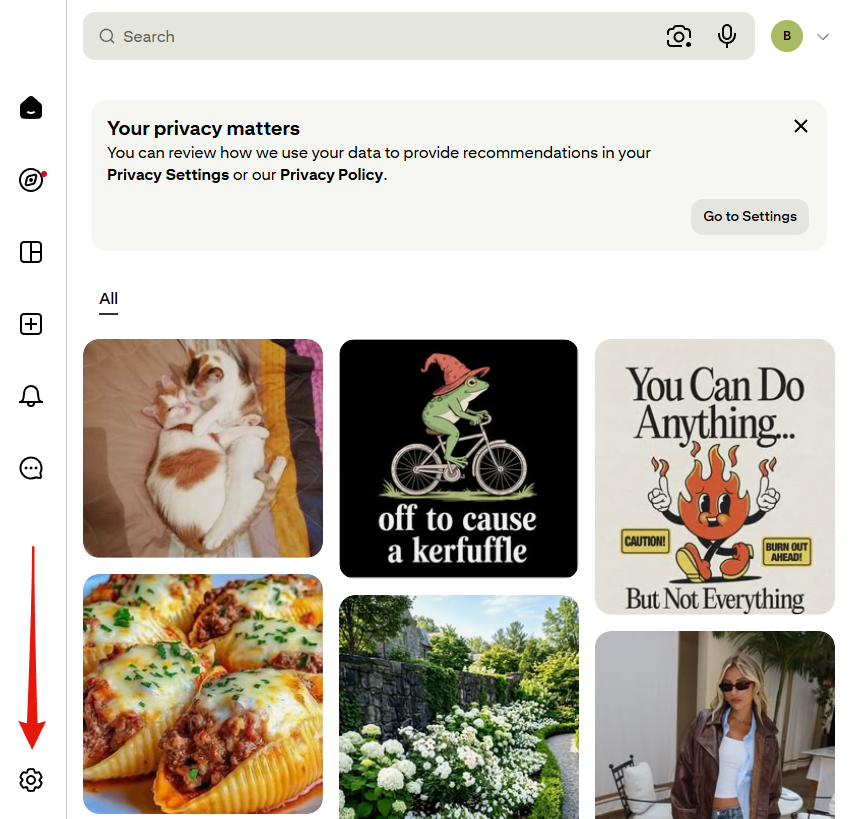
1. Find the settings gear
Pinterest keeps its settings entrance at the foot of the left-hand rail, not behind your avatar in the top corner.
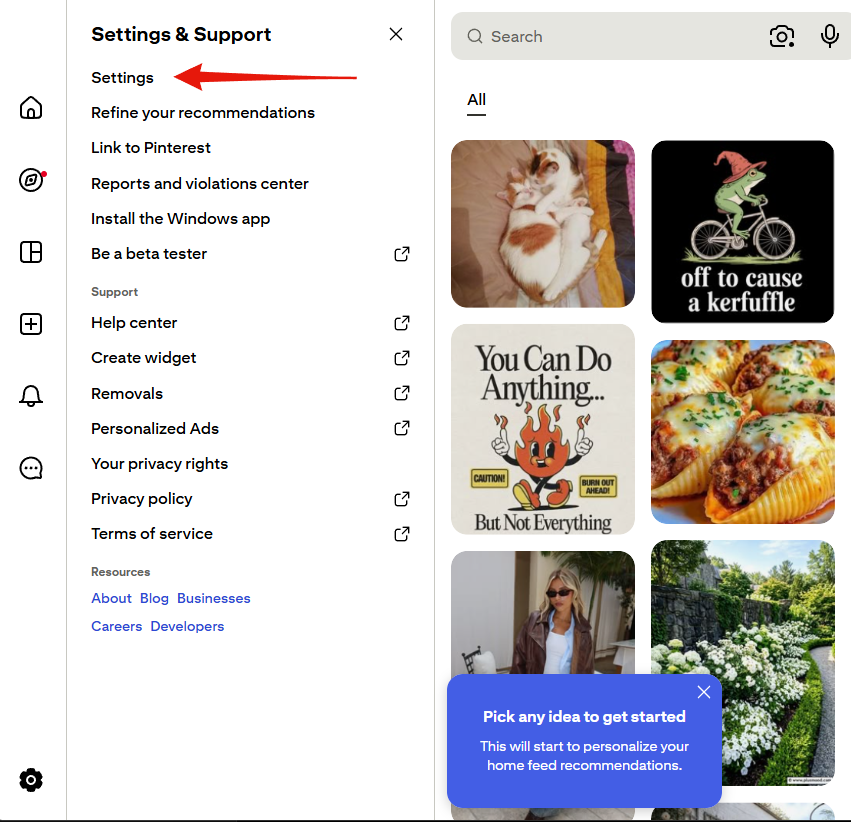
2. Pick Settings from the panel
Take the first entry, Settings. Personalized Ads and Your privacy rights both sound relevant and neither reaches the box you want.
3. Open Privacy and data, then scroll past everything
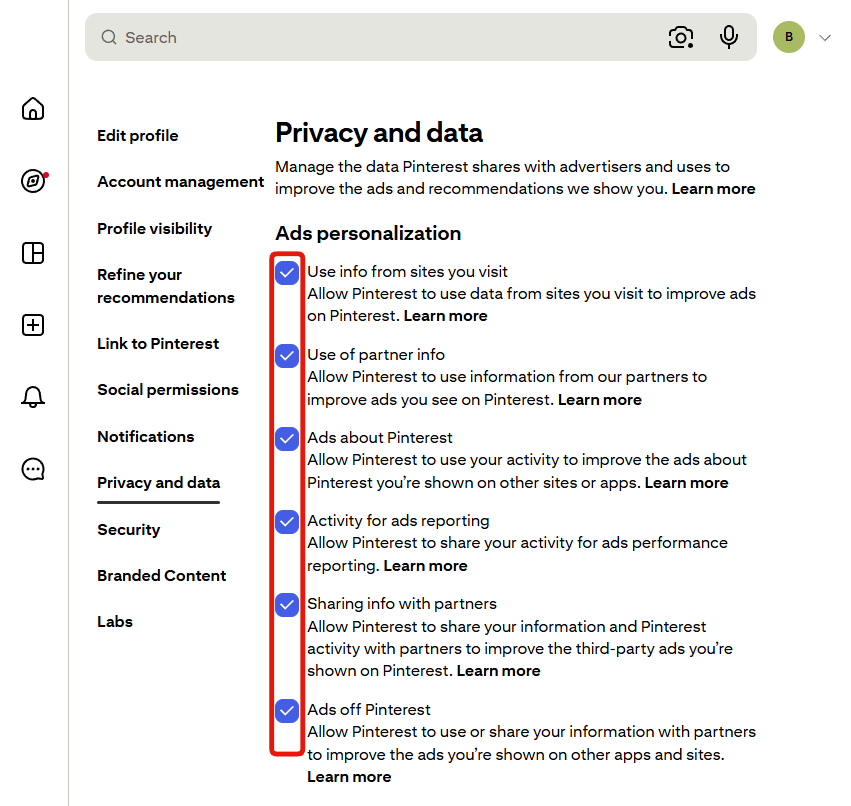
The screen opens on six advertising checkboxes. Keep going to the foot of the page.
4. Clear the box under GenAI, then save
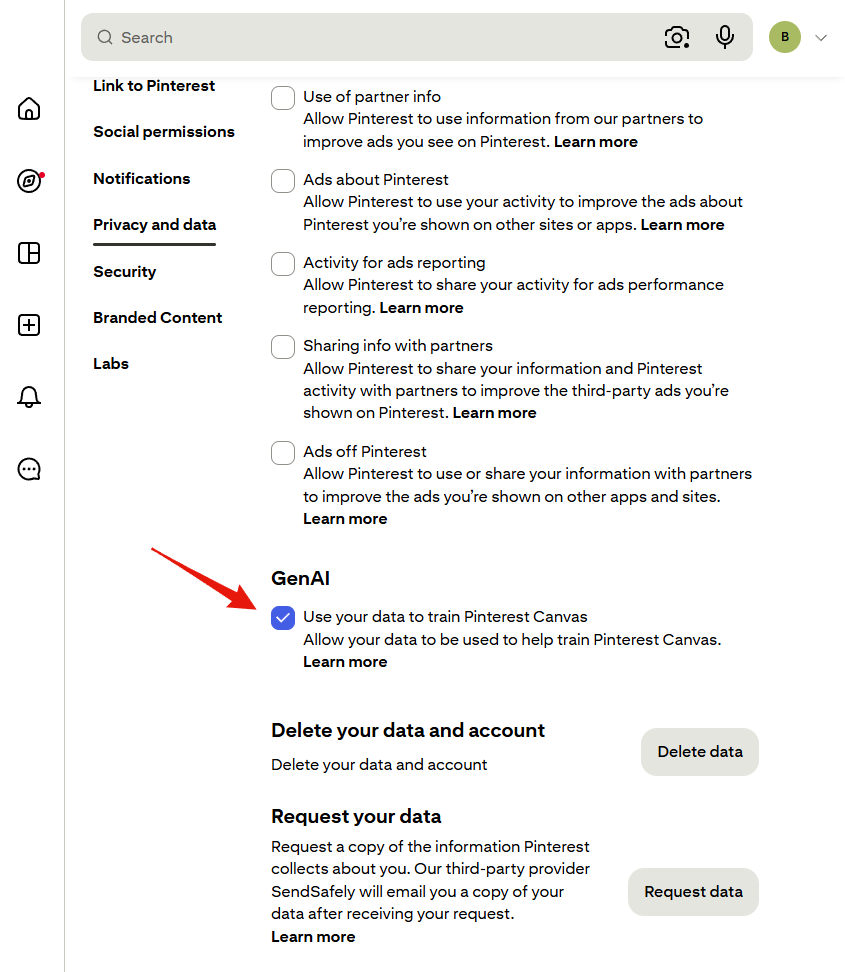
Under its own GenAI heading sits a single ticked box, Use your data to train Pinterest Canvas. Untick it and a bar with Reset and Save slides in along the foot of the page. Press Save. Nothing changes until you do, and leaving the page without it puts the tick straight back.
What clearing the box doesn't cover
The wording names one product rather than AI at Pinterest in general, so treat it as covering the thing it names. It also only governs what happens from now on, and nothing here withdraws work already used.
The six checkboxes above are a separate job. They govern who receives your data and which ads follow you around, and none touches model training. They're covered in how to lock down your Pinterest privacy settings.