Skip to content

Opt out of AI training

Most platforms train AI on what you post, upload or type, and most start you opted in. See what each one uses and how to turn it off.

  • Facebook and Meta AI
    Facebook's sign-in homepage
    What it trains on
    Your public posts and photos, what you say to Meta AI, plus public web data and licensed content.
    How to opt out
    There's no training opt-out. Go private, and limit who sees past posts under Settings & privacy > Settings > Audience and Visibility > Posts.
    Watch out
    Meta's Generative AI data request form only reports your data showing up in an AI answer. In the EU or UK, GDPR lets you object, and Meta must honor that in most cases.
    Read the full Facebook guide
  • X (Twitter) and Grok

    X's sign-up homepage
    What it trains on
    Your public posts and everything you type into or get back from Grok.
    How to opt out
    More > Settings and privacy > Privacy and safety > Grok & Third-party Collaborators, then untick the training box.
    Watch out
    Rating a Grok answer with a thumbs up or down still hands that chat over for training.
    Read the full X guide
  • Google Gemini

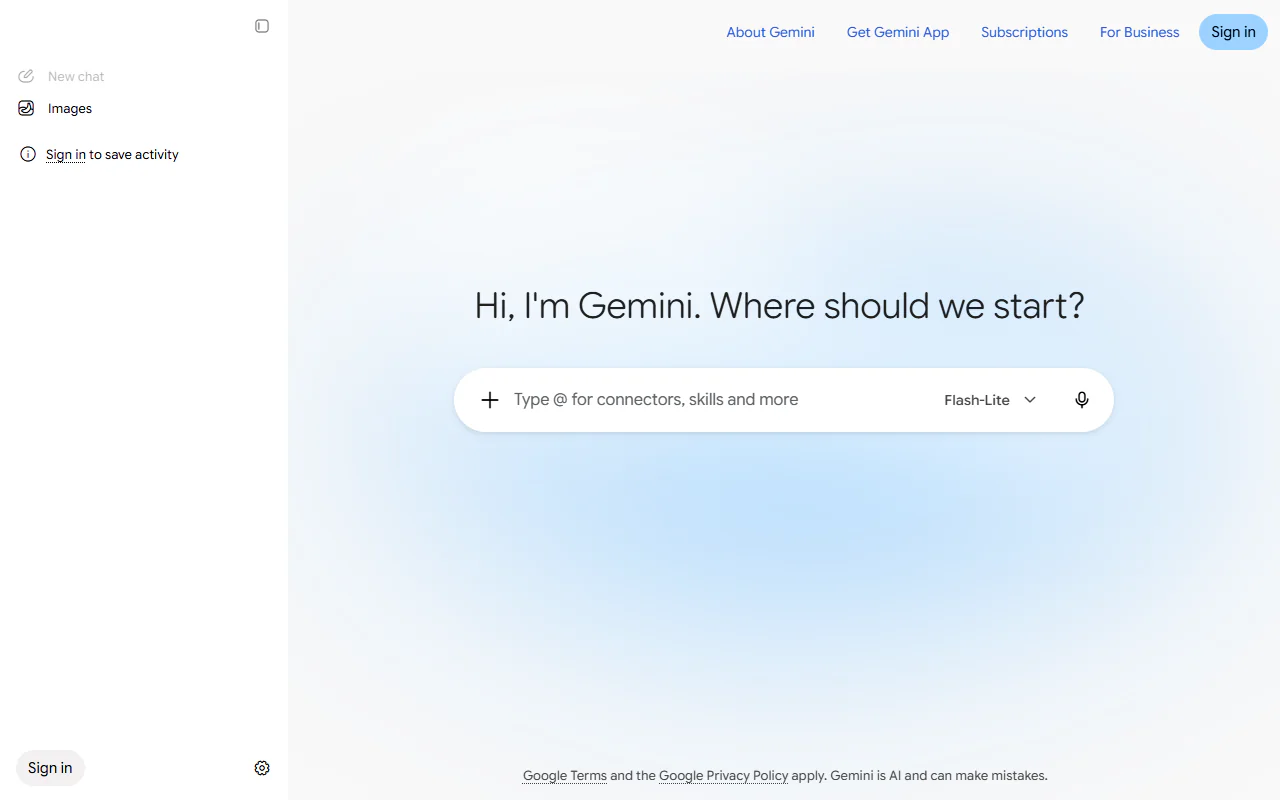
    The Gemini app's start page
    What it trains on
    Your Gemini chats and the files and photos you upload. Audio, Live video and screen shares need a separate opt-in.
    How to opt out
    In Gemini, Settings & help > Activity, then turn off Gemini Apps Activity (now called Keep Activity).
    Watch out
    Google still holds every chat for 72 hours, and keeps any a reviewer has read for up to three years.
    Read the full Gemini guide
  • Google Search, Gmail and YouTube

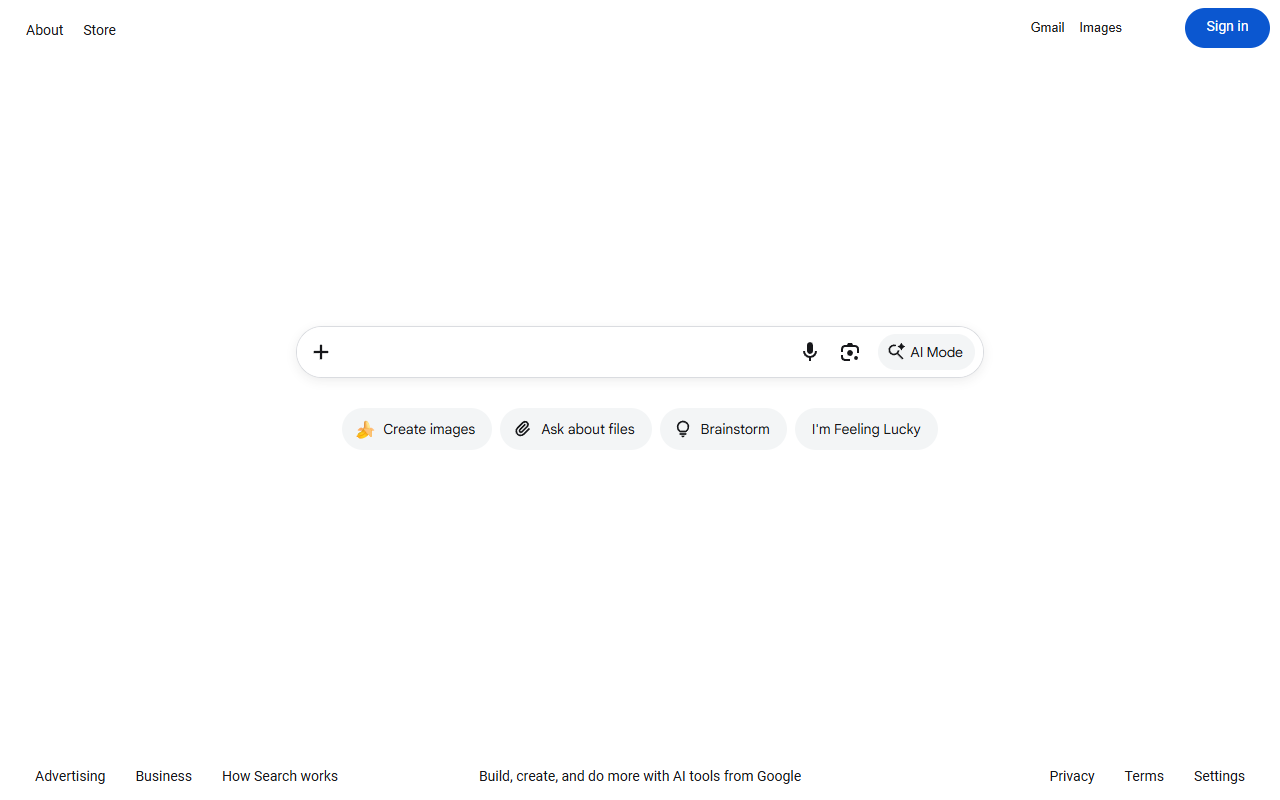
    Google Search's homepage
    What it trains on
    Searches and AI Mode chats, what you connect for Personal Intelligence, and your YouTube videos. Gmail's smart-feature data can improve smart features.
    How to opt out
    Google Account > Data & privacy > My Activity for history, then each service's own setting, such as Gmail's Smart features.
    Watch out
    AI Overviews and AI Mode can't be turned off, and Google's own training on YouTube has no opt-out.
    Read the full Google guide
  • TikTok

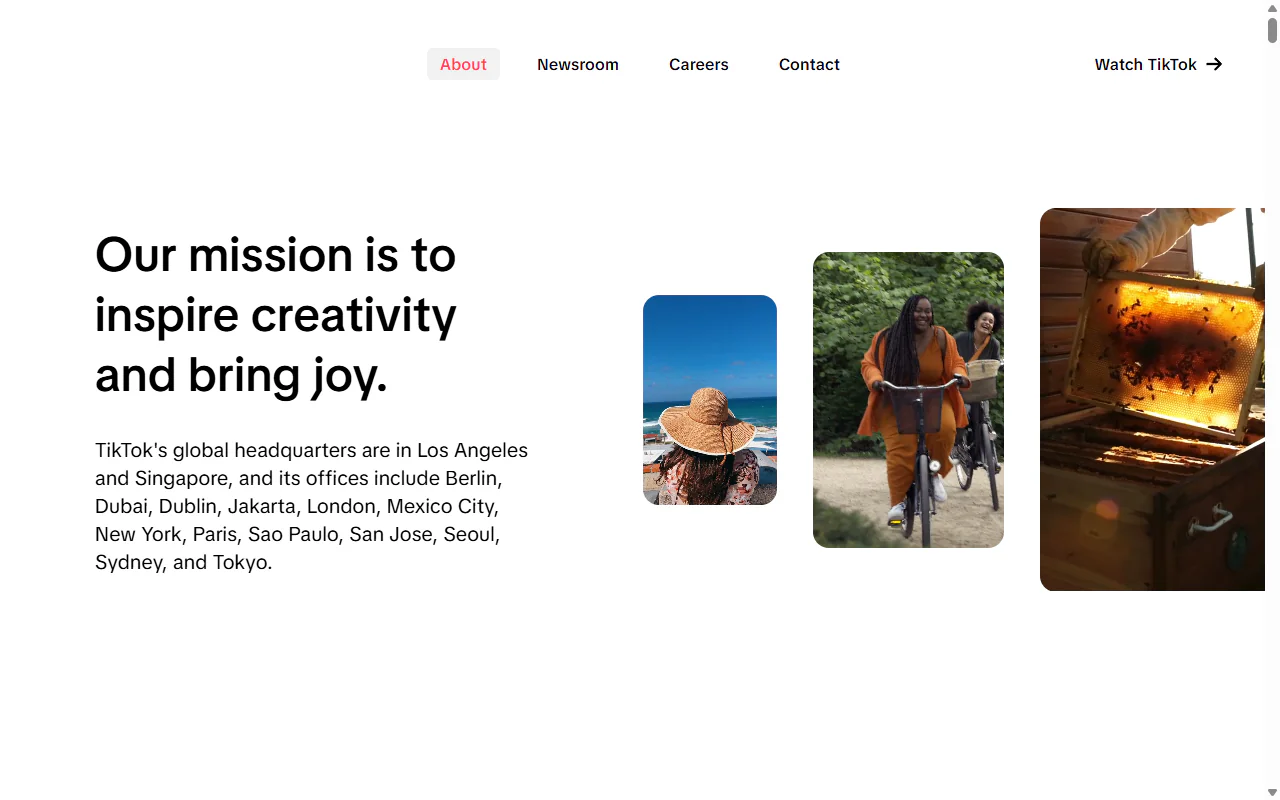
    TikTok's About page
    What it trains on
    Your videos, messages and AI interactions. It can also collect clips you never post, and doesn't say whether it trains on them.
    How to opt out
    There's no training opt-out. In the EEA, UK or Switzerland you can object to TikTok using your data. Turning off Reuse of content on a video only stops other people reusing it.
    Watch out
    A private account hides your videos from other people. TikTok can still use them.
    Read the full TikTok guide
  • Pinterest

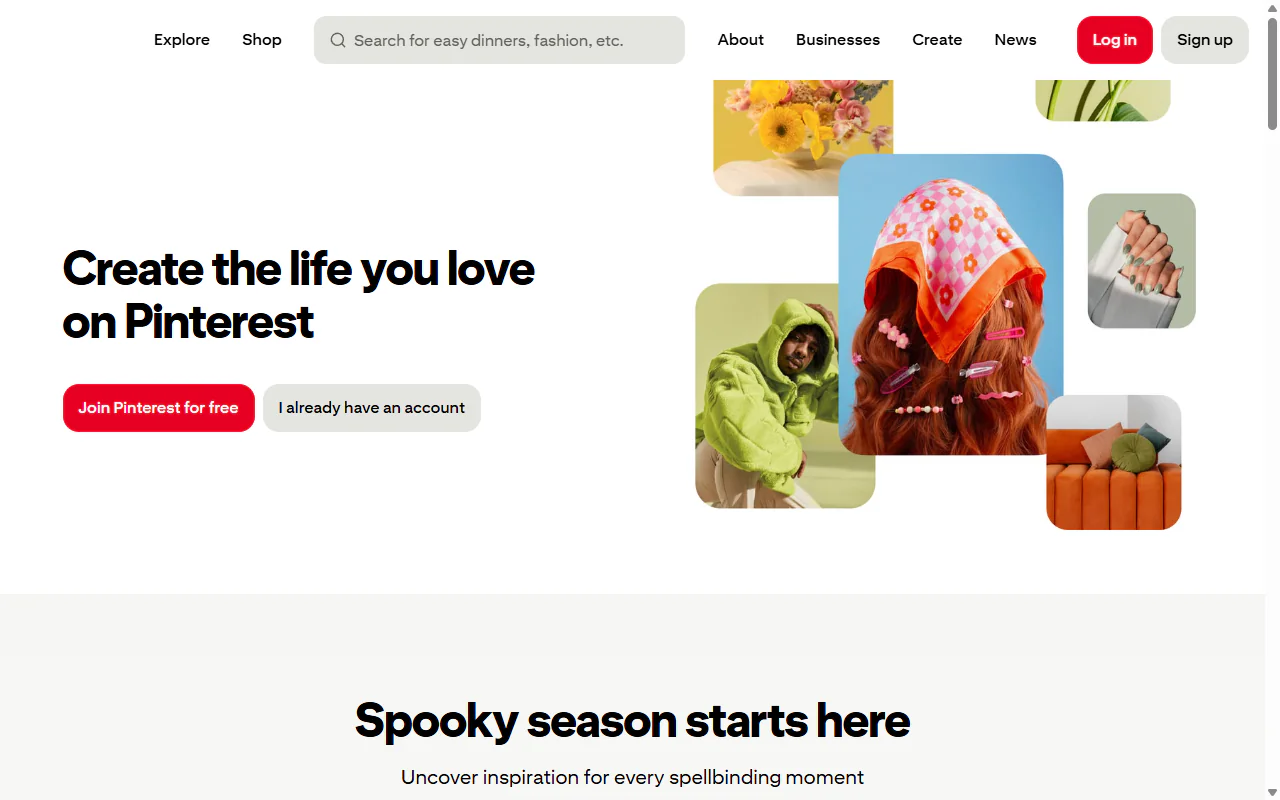
    Pinterest's homepage
    What it trains on
    Your Pinterest data, to train Pinterest Canvas, its image generator.
    How to opt out
    Settings > Privacy and data, then under GenAI untick Use your data to train Pinterest Canvas and press Save.
    Watch out
    Leave the page without pressing Save and the tick comes back.
    Read the full Pinterest guide
  • GitHub Copilot

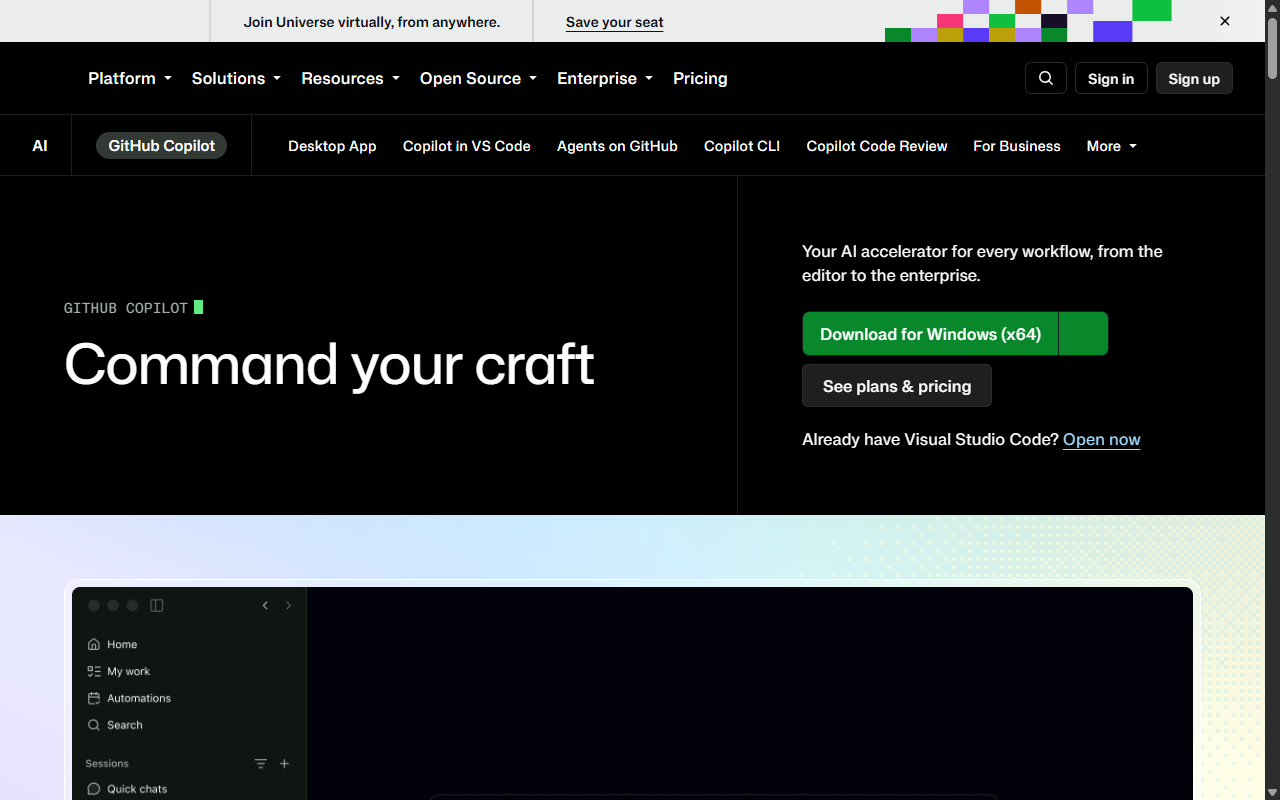
    GitHub's Copilot page
    What it trains on
    Your Copilot prompts, the suggestions you keep, the code around your cursor and your file names.
    How to opt out
    Settings > Copilot > Features, then set Allow GitHub to use my data for AI model training to Disabled.
    Watch out
    Restart your editor, or the change can take up to 30 minutes to apply.
    Read the full GitHub guide
  • Slack

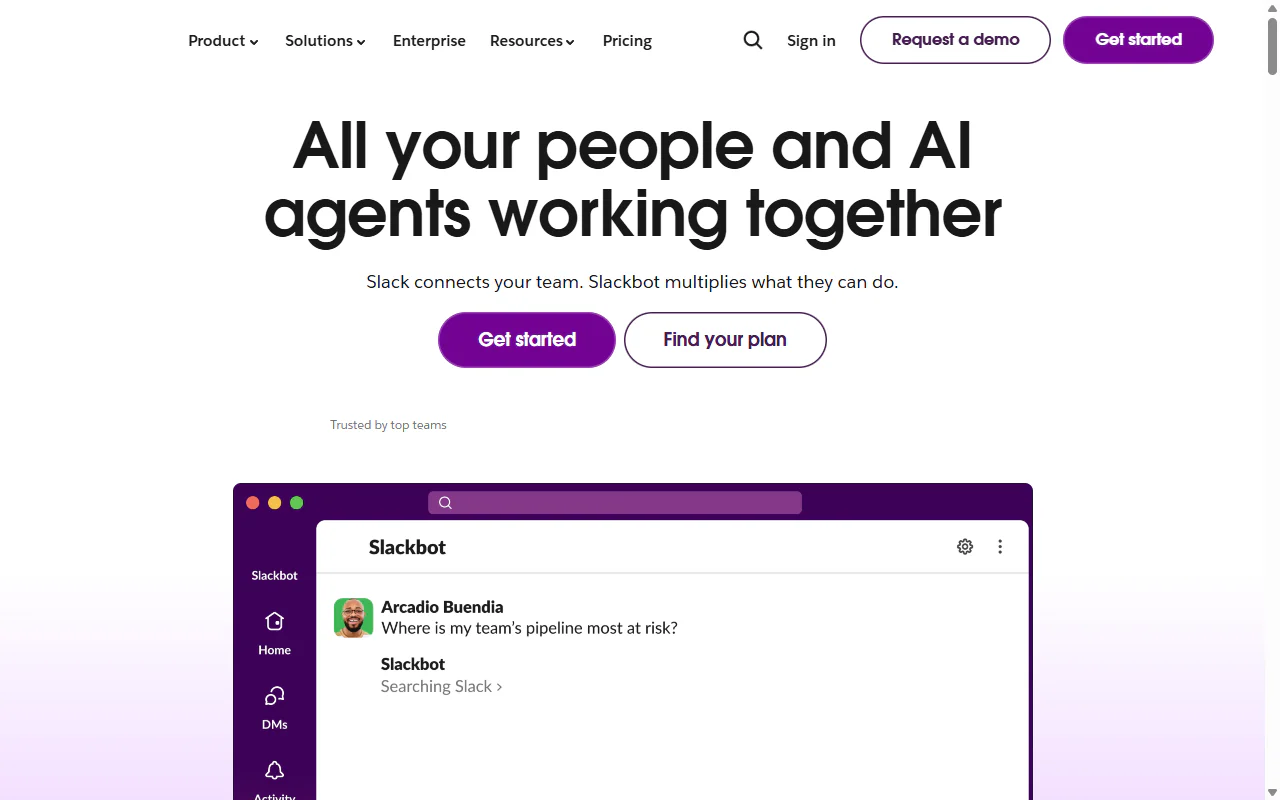
    Slack's homepage
    What it trains on
    Workspace messages and files, for channel suggestions, emoji suggestions and search ranking.
    How to opt out
    Only a Workspace Owner or Primary Owner can do it, by emailing feedback@slack.com with the subject Slack Global model opt-out request and the workspace URL.
    Watch out
    It stops future training. It doesn't delete what Slack already holds.
    Read the full Slack guide
  • Figma

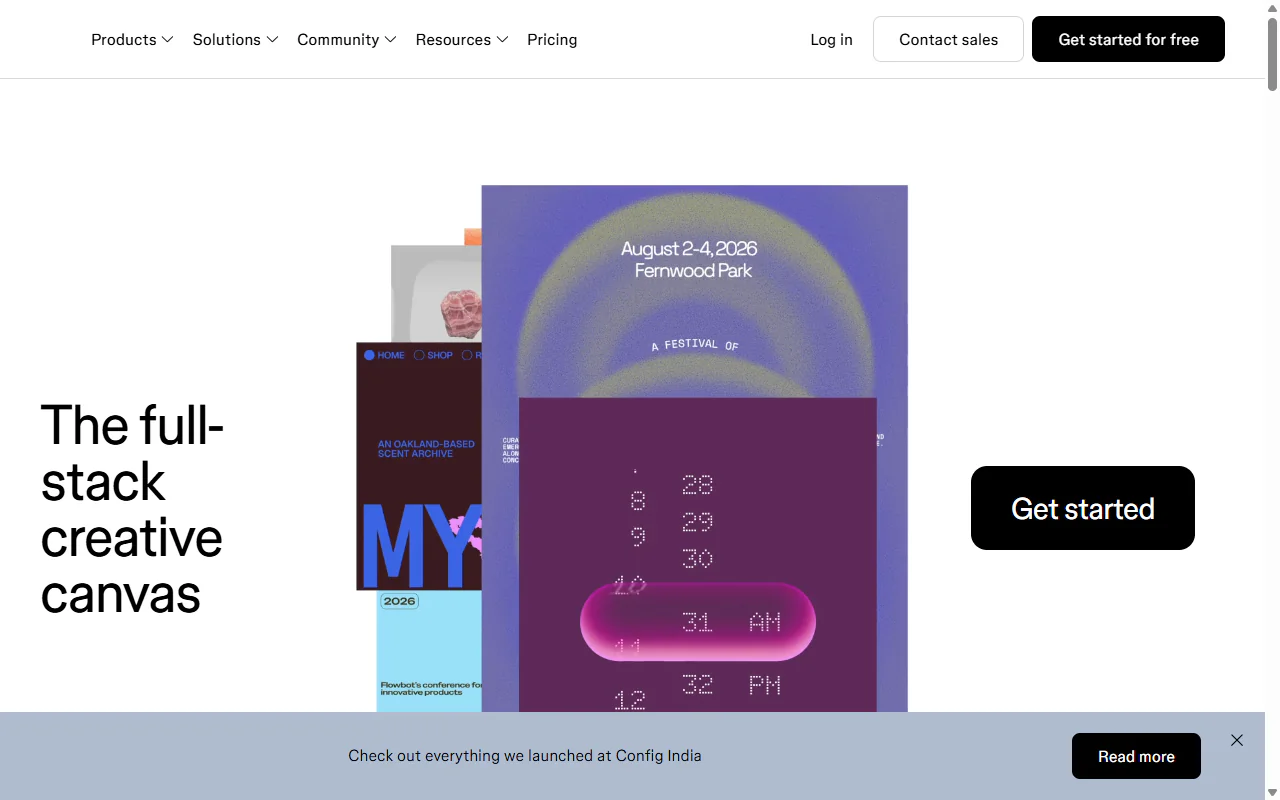
    Figma's homepage
    What it trains on
    Everything you make or upload in Figma, down to comments and layer names.
    How to opt out
    In the team's settings, open AI and turn off Content training.
    Watch out
    It covers new content only. Teams you don't run keep their own setting.
    Read the full Figma guide
  • Canva

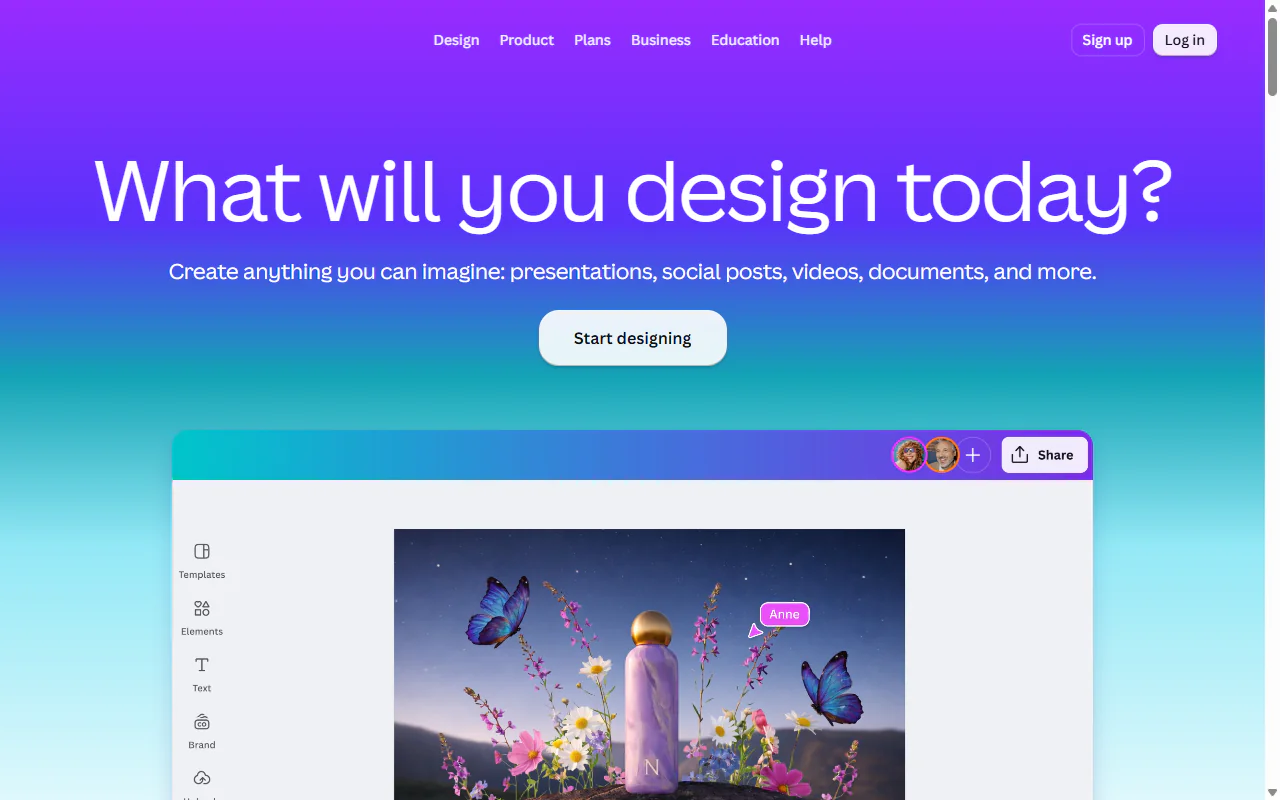
    Canva's homepage
    What it trains on
    The text in your designs, your uploads, and how you use the editor.
    How to opt out
    Your account > Privacy controls, then turn off both AI-powered features can learn and improve settings.
    Watch out
    Memories in Canva AI is a separate setting, under AI personalization.
    Read the full Canva guide
  • Microsoft Recall

    Microsoft's Windows PC page
    What it collects
    Snapshots of your screen every few seconds. They stay on your PC, where Recall's AI search reads them.
    How to opt out
    Windows Settings > Privacy & security > Recall & snapshots, then turn it off.
    Watch out
    Turning it off only stops new snapshots.
    Read the full Microsoft Recall guide

Frequently asked questions

Opting out doesn't delete what you've already posted

Redact bulk deletes your old posts, comments, messages and likes, so there's less of you left for the next model to learn from.