How to Stop Adobe Analyzing Your Files and Reporting Your App Use
 Dan Saltman3 min read
- Last verified
- August 12, 2026
- Not working?
- Let us know
- Difficulty
- Easy
- Steps
- 3
- Time required
- 1 to 3 minutes


Direct link to your Adobe privacy settings
Both switches sit on one page, filed under Account and security.
How to turn off content analysis and usage reporting
1. Open your privacy settings
Go to account.adobe.com/privacy and sign in. It lands on Data and privacy settings.
2. Turn off Desktop app usage
The switch reads "Share information on how I use Adobe desktop apps." It does not cover beta apps, which report separately.
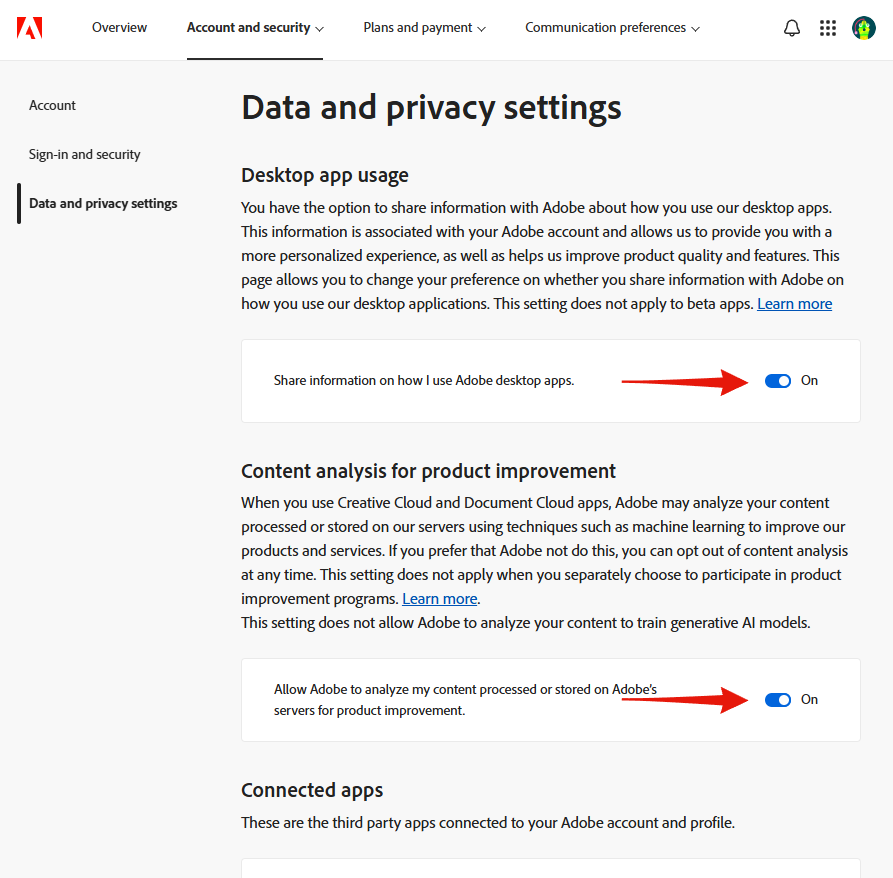
3. Turn off Content analysis for product improvement
Directly below the first one, reading "Allow Adobe to analyze my content processed or stored on Adobe's servers for product improvement." Both save as you flip them.
This is not the Firefly switch
Adobe states under Content analysis:
This setting does not allow Adobe to analyze your content to train generative AI models.
So the toggle governs analysis for product improvement of what Adobe processes or stores while you use Creative Cloud and Document Cloud, and Adobe says its generative models are not trained through it. Turning it off is still worth doing, but nothing on this page is labeled generative AI training, and no control here covers it either way.
Adobe also names cases the switch does not reach, all of them content you hand over on purpose: images submitted through the Photoshop Improvement Program, content sent as feedback, anything put through a beta, prerelease or user study, and work uploaded as an Adobe Stock contributor. It says the same of content you run through Adobe while signed out. Those stay analyzable for product improvement whether the switch is on or off, and Adobe Stock is the one case Adobe says can train generative models.
On a company or school account the switch works the other way round. Adobe opts those profiles out of content analysis itself and does not show the toggle at all, so finding no switch on that page means it is already off, not that someone turned it on for you.
The reliable lever
What you control outright is how much you send Adobe. It says plainly that it does not analyze content processed or stored locally on your device, so a file sitting on your own drive is outside the setting right up until you run it through an Adobe cloud feature. At that point it counts as processed, whether or not Adobe keeps it afterwards. Desktop app usage from step 2 is separate and keeps reporting wherever your files live, which is why it's worth turning off in its own right.