How to Delete All Your TikTok Reposts at Once (fast method)
 Dan Saltman8 min read
On this page
Your Reposts tab is a running list of every video you have ever re-shared, sitting on your profile right next to your own uploads. Most people fill it up without thinking about it. A tap on the Share arrow, a clip pushed to every follower's feed, and then they discover there is no way to clear it out.
This guide covers all three things people are actually looking for: where your reposts live, how to remove one by hand, and how to clear the entire tab in a single pass.
Can you delete all your TikTok reposts at once?
Not with TikTok alone, you have to use a 3rd party app like Redact. TikTok has no select-all, no multi-select, and no bulk action anywhere in the Reposts tab. The only native way to remove a repost is to open the video, open the Share menu, and undo the re-share, one video at a time, however many hundreds you have.
You can clear them all in one pass with a tool like Redact. Our app connects to your TikTok account, reads your Reposts tab, and un-shares everything that matches a date range you choose. Or everything, full stop.
How to find your reposts on TikTok
Reposts do not appear in your Posts. They get their own tab:
- Open TikTok and tap Profile.
- Look at the row of tabs under your bio: Videos, Reposts, Favorites, and Liked. Reposts is the repeat-arrow icon, second from the left.
- Tap the Reposts tab.
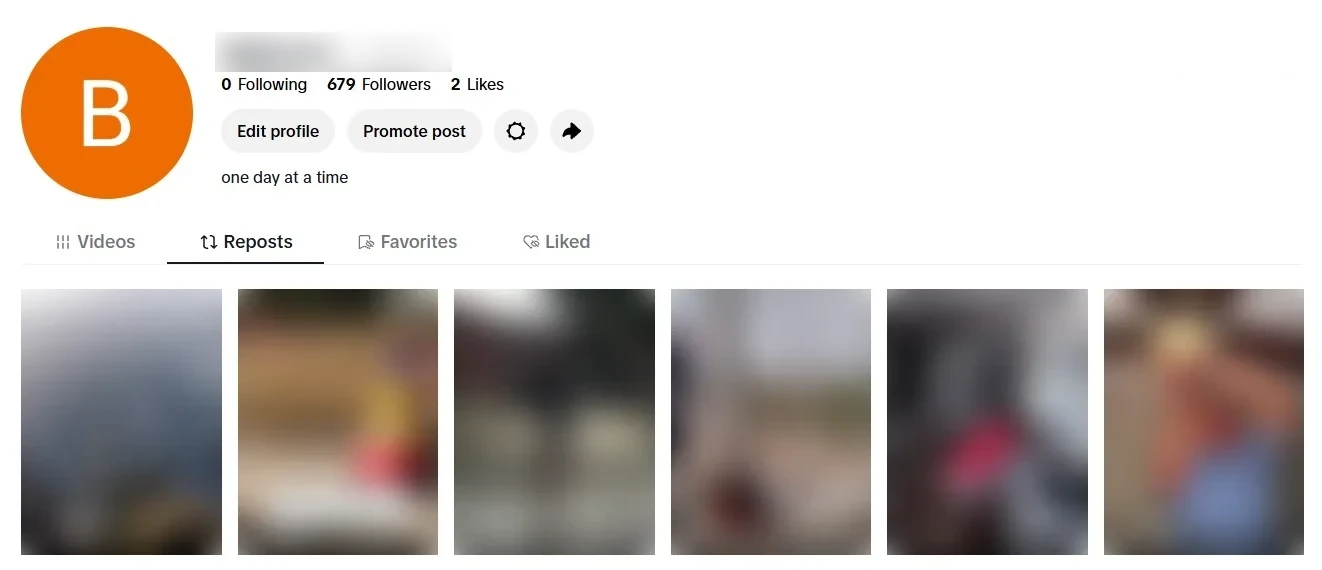
The tab only shows your own re-shares. Your uploads stay in Videos, your saves stay in Favorites, and your likes stay in Liked, so clearing reposts never touches any of them.
How to delete a TikTok repost manually
If you only need to remove one or two, do it natively:
- Open the reposted video from your Reposts tab.
- Tap the Share arrow on the right-hand side.
- Tap Remove repost (it appears in place of the Repost button once a video has been re-shared).
The video disappears from your Reposts tab and stops being distributed to your followers. It stays live on the original creator's account. You are undoing your own share, not deleting their post.
That is the whole native flow. It works fine for a handful. For a tab with hundreds of entries built up over years, it is an evening of tapping.
How to delete all your TikTok reposts at once with Redact (fully automated)
Redact is a local-first desktop app that mass-deletes social media history. It handles the repetitive part for you: pick a category, pick a window, and it works through your history one item at a time so you do not have to.
- 1
Download Redact and create an account
Install Redact on your Windows, macOS, or Linux machine. Sign-in is passwordless. You get a code by email, and there is no password to store or leak.
Redact downloads from the button in the site header, for Windows, macOS, and Linux. - 2
Connect your TikTok account
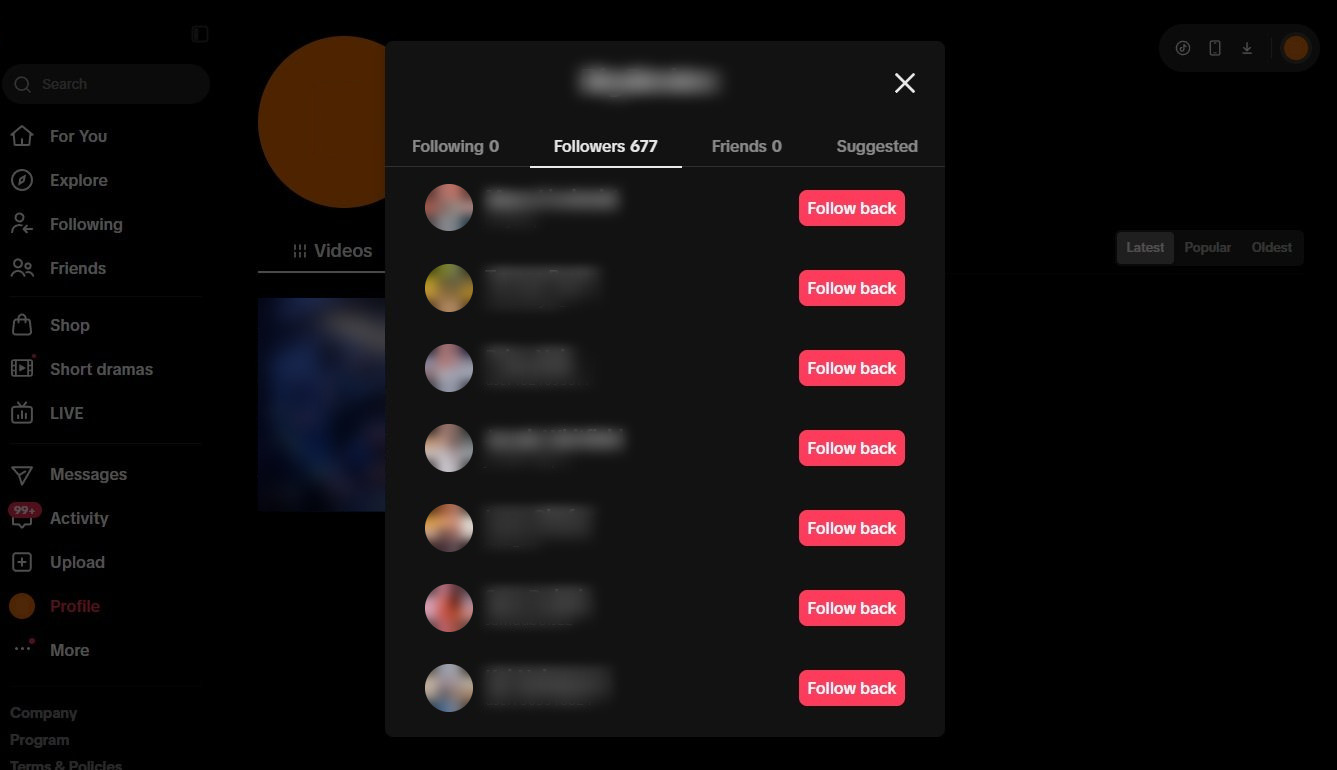
Choose TikTok in Redact. A browser window opens for you to log in to TikTok normally, and Redact detects the session once you are in. Your TikTok login goes straight to TikTok; it never touches a Redact server.
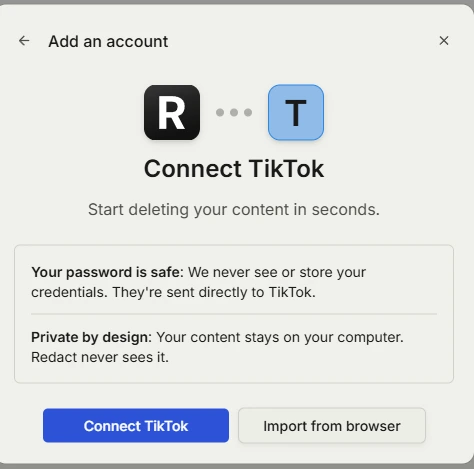
Connecting TikTok: your login goes straight to TikTok, and your content never leaves your computer. - 3
Pick the Reposts category and a date range
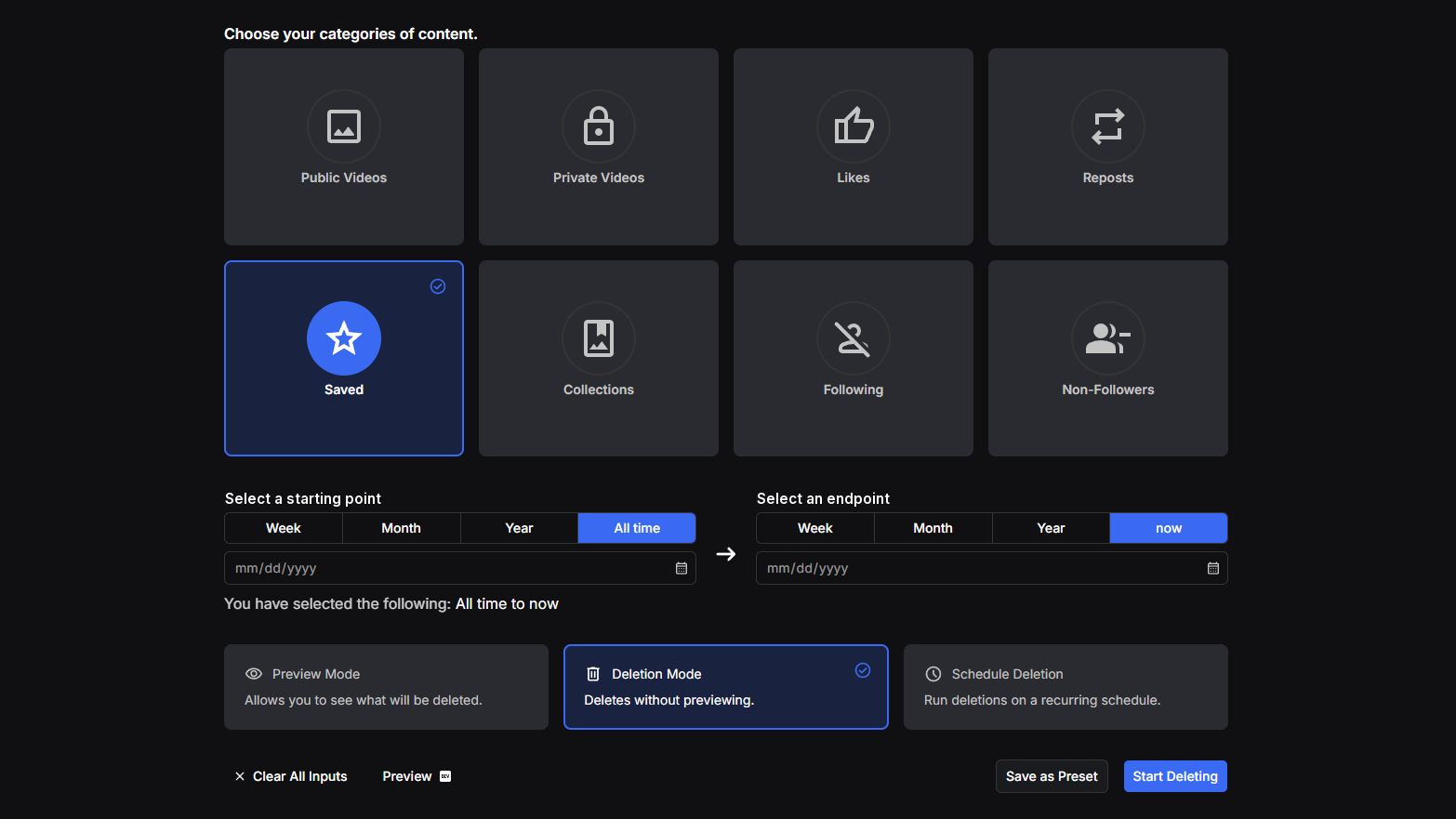
Redact sorts your TikTok account into categories: videos, likes, reposts, saved, collections, following, and followers. Choose Reposts to target only your re-shares, and every other category, your own uploads and your likes included, is left alone.
Then narrow the sweep to a specific week, month, or year, or leave the default at all time to clear the entire tab.
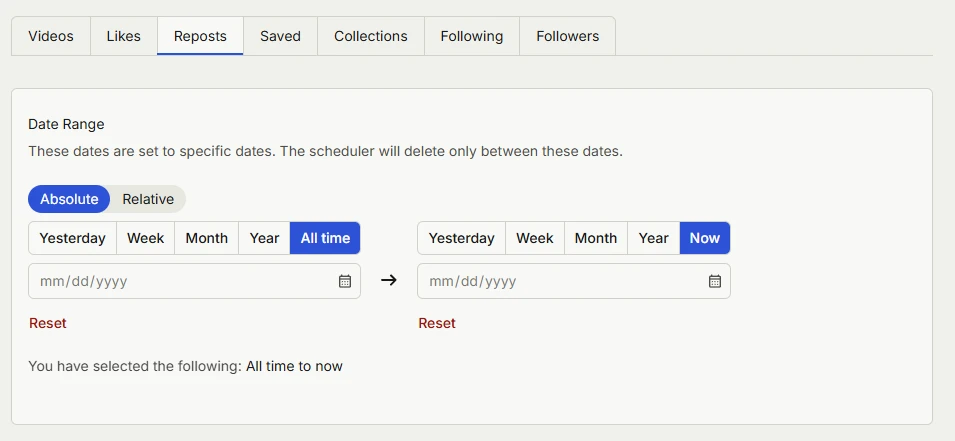
Redact's TikTok form with Reposts picked: the date range defaults to all time, which clears the whole tab. TikTok stores no date for the re-share itself, so Redact matches the range against when the original video was posted, not when you reposted it. Re-sharing a five-year-old clip last week puts it at the old end of the range, not the recent one. To catch everything regardless, leave the range at all time.
- 4
Preview, then delete
Run Preview Mode first to see exactly which reposts match before anything is removed. When the list looks right, switch to Deletion Mode. If you repost often, turn on Schedule Deletion to re-run the cleanup on a recurring basis so the tab stays clear.
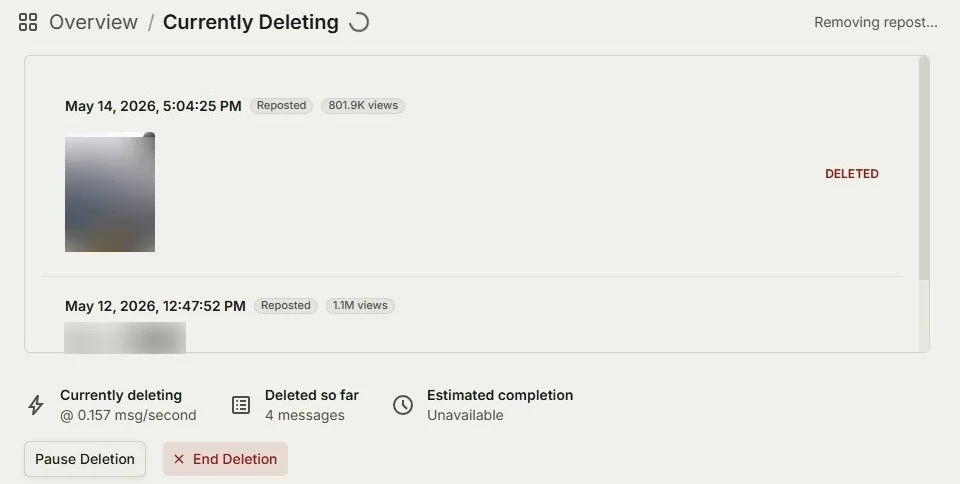
A run under way: each repost is marked DELETED as it goes, and you can pause or stop at any point.
TikTok limits how fast changes can be made to an account, so Redact paces removals to stay inside that limit rather than firing them all at once. A large Reposts tab takes a while, so it is fine to leave it running, and a scheduled cleanup can keep working through it over time.
Cleaning up the rest of your TikTok account
Reposts are only one tab. If you are tidying up the account as a whole, the same tool covers the rest:
- Delete all your liked videos on TikTok: clear the Liked tab in bulk.
- Delete all your saved TikTok videos: empty the Favorites tab, and delete the collections you filed those saves into. Collections are a Premium feature.
- Delete all your TikTok videos: your own uploads, filtered by date, view count, or public vs private.
- Mass unfollow everyone on TikTok: clear your Following list, or only the accounts that don't follow you back. A Premium feature.
- Remove all your TikTok followers: reset your Followers list in one sweep. A Premium feature.
FAQ
What counts as a repost on TikTok?
A repost is a video you re-shared, not one you made. When you tap the Share arrow on someone else's TikTok and choose Repost, it goes to your followers' feeds under your name and shows up on the Reposts tab of your profile. It does not live in your Posts, because it is not your upload.
Does removing a repost delete the creator's original video?
No. Removing a repost only un-shares it from your account. It comes off your Reposts tab and stops appearing in your followers' feeds, but the original creator's video stays live and completely untouched.
What does the creator see when I remove a repost?
Nothing is posted or sent on your behalf. The re-share comes off your Reposts tab and stops appearing in your followers' feeds, and their video stays live either way. TikTok does not document what it does or does not notify a creator about, so that is as far as anyone outside the company can say.
Can I delete all my reposts at once?
Yes, with a tool like Redact. Leave the date range at all time to clear every repost in one batch, or narrow the window if you only want to remove part of your history. Note that TikTok records no date for a re-share, so a narrowed range is matched against when each original video was posted rather than when you shared it. TikTok itself offers no bulk option.
Does this run on my own device?
Yes. Redact is local-first, so the work happens on your machine and your login and TikTok data never touch a Redact server. Sign-in is passwordless through a secure email code, and you can disconnect TikTok whenever you want.
Can I keep my Reposts tab clear automatically?
Yes. Alongside a one-time run, Redact offers Schedule Deletion, which repeats the cleanup on a recurring basis. It is useful if you repost often and do not want to do a manual pass every few months.
Redact for TikTok
Banish your cringe TikTok videos to the shadow realm.