How to Export Your Telegram Chat History & Read Your File
Save every chat, photo and contact from Telegram Desktop, then open the file and search it in your browser.
 Dan Saltman

On this page
Telegram keeps your chats in the cloud, so they sync across every device you sign in on. That's convenient until you lose access to your number, delete the account, or simply want a copy that doesn't depend on Telegram. The built-in export tool gives you that independent copy as a folder on your own drive.
This is one of the download-your-data guides we maintain for major platforms.
You'll need Telegram Desktop
The export tool is in the official Telegram Desktop app (Windows, macOS, or Linux), not the iPhone or Android apps. That's the version Telegram's own documentation points to, and even the Android app's delete-account warning tells you to use Telegram Desktop to export first.
If you currently only use the mobile app, install Telegram Desktop, then link it by scanning the QR code it displays (on your phone: Settings > Devices > Link Desktop Device).
Note on security waits: Telegram may make you wait before the download can start. The message will say something like "For security reasons, you will be able to begin downloading your data in" a specific number of hours, and it will notify your other devices. Come back on the date shown and run the export again from the same computer. If you see that alert on your phone but didn't start an export yourself, check Settings > Devices and end any unrecognized sessions.
How to export all your Telegram data
Step 1 Open the export tool
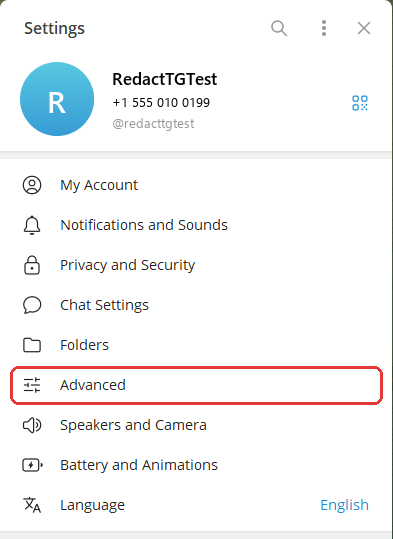
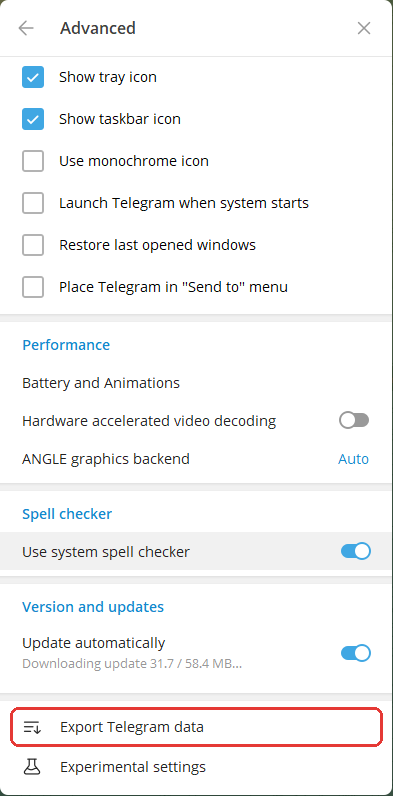
In Telegram Desktop, click the menu icon at the top left and open Settings > Advanced. Scroll near the bottom and click Export Telegram data, and a window titled "Export Your Data" opens.
Step 2 Choose what to save
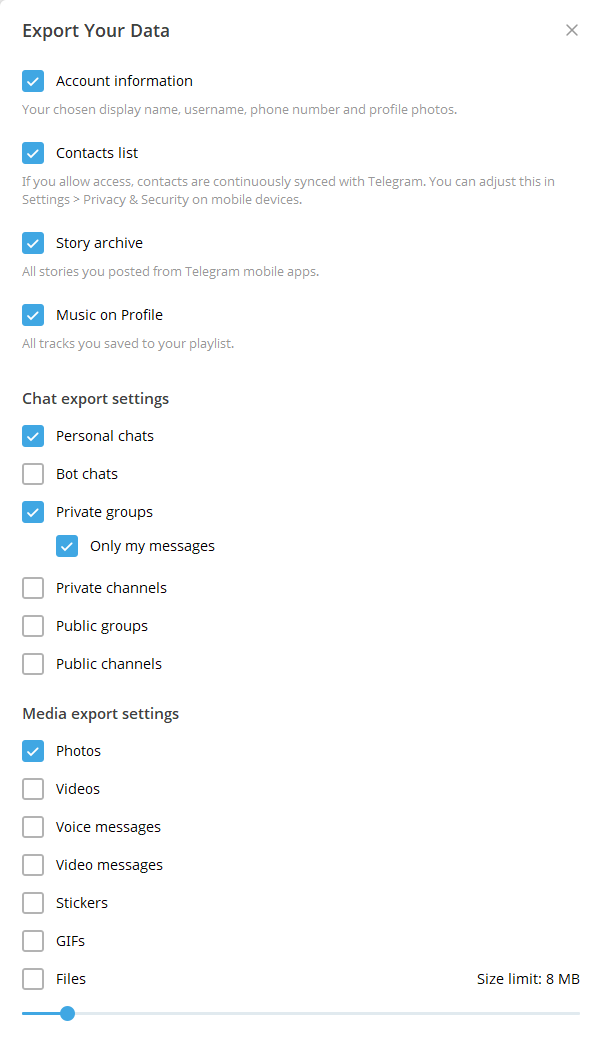
The window shows a long list of checkboxes, and the defaults leave a lot out, so go through it carefully.
| Checkbox | Starts | Good to know |
|---|---|---|
| Account information | On | Name, username, phone number, profile photos |
| Contacts list | On | Contacts your phone synced to Telegram |
| Story archive, Music on Profile | On | |
| Active sessions, Miscellaneous data | Off | Miscellaneous is beta |
| Personal chats | On | Your one-on-one chats |
| Bot chats | Off | |
| Private groups | On | Only your messages, unless you untick it |
| Private channels | Off | Only your messages, unless you untick it |
| Public groups and channels | Off | Always only your own messages |
| Photos | On | Every other media type starts off |
Untick all media if you only want the text. Years of chat text takes up little space, and it's the photos and videos that make exports large and slow.
Step 3 Set a size limit for files
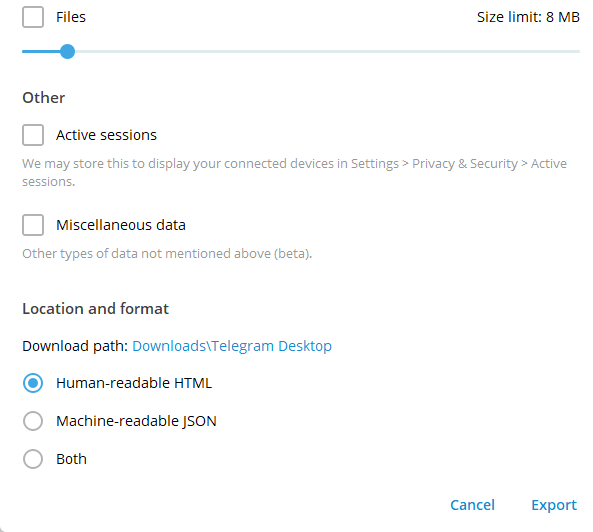
Below the media options is a Size limit slider (starts at 8 MB), and anything larger is skipped. Drag it higher (up to 4000 MB) if you want long videos or large files. In an HTML export, skipped files appear as a note that they "exceed maximum size."
Step 4 Pick a format and folder
Under Location and format, choose:
Human-readable HTML
Opens in any browser and looks like a plain version of your chats. Best for reading.
Machine-readable JSON
One structured file of every message. Best for a script, a spreadsheet or another tool.
Not sure? Pick Both. It uses a bit more space.
Telegram saves to a Telegram Desktop folder inside Downloads unless you change the Download path.
Step 5 Export and leave Telegram running
Click Export. You can close the progress window, but don't quit Telegram until it finishes. If a large file stalls the process, click Skip this file, and when it's done, click Show my data to open the folder.
How to export a single chat
You don't need a full account export for one conversation, group, or channel.
A Open the chat in Telegram Desktop.
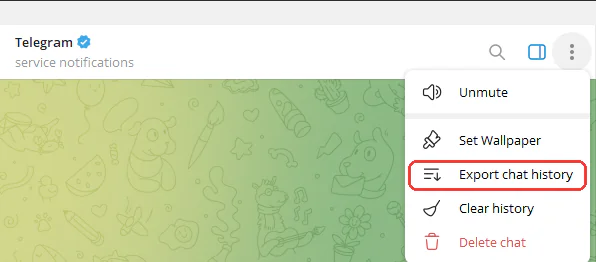
B Click the ⋮ menu at the top right and choose Export chat history. (In a group with topics, you can also export a single topic via Export topic history.)
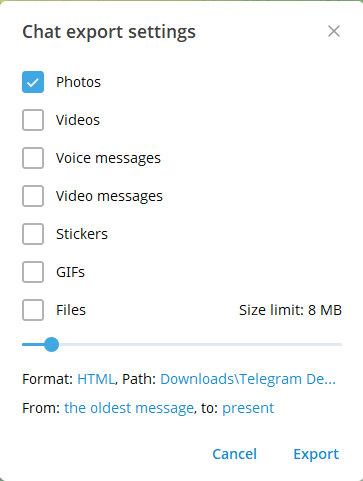
C Pick the media and size limit, then check the Format and Path links. The From and to links start at the oldest message and run to the present, so click either one to save only part of the chat. The full export doesn't have these date links.
D Click Export.
It's a quick way to keep proof of a specific conversation (for example, a deal agreed in a DM or a group's announcements before it's shut down).
What the export won't include
- Secret chats. These aren't stored on Telegram's servers and exist only on the two devices involved, so the export can't access them. Screenshot anything you need to keep.
- Already-deleted messages. Anything you or the other person deleted, or that a self-destruct timer removed, is gone from Telegram's cloud.
- Files above your size limit. Raise the limit in Step 3 if you need them.
- Anything you left unticked. Bot chats, channels, and most media types are off by default, so double-check Step 2 if something is missing.
What's in the folder
A full HTML export opens from export_results.html. That page links to your account info, contacts, sessions, and a list of every chat, and each chat opens on its own page. A single-chat or single-topic export opens straight from messages.html, and a long chat carries on in messages2.html and so on. Media lives in subfolders next to the chat it came from, so keep the whole folder together if you move it.
A JSON export is one result.json file plus the same media folders. It's not meant for casual reading, but it's the format most tools expect.
Keep the export somewhere safe
Your export is your full message history in plain, unencrypted files that anyone who opens the folder can read. Store it on an encrypted drive or in an encrypted archive, and don't leave it sitting in Downloads on a shared computer.
If you're exporting before leaving Telegram, see our guide on how to delete your Telegram account for the next steps. If you'd rather keep the account and clean it up, Redact can bulk-delete your Telegram messages once you have your copy.
Redact for Telegram
Delete your messages from Telegram.