How to Delete Instagram Reels in Bulk
 Dan Saltman6 min read
On this page
Reels have taken over Instagram, offering short-form video content that can go viral fast. But over time, not every reel ages well. Maybe you were testing out trends, posting edgy content, reposting videos from other apps, or just having fun with filters. Cleaning them up helps you stay professional and in control of what your profile says about you.
Manually removing Instagram Reels one by one is frustrating and time-consuming. That’s where Redact’s bulk reel deletion comes in.
Why Clean Up Your Instagram Reels?
Reels are public by default and often reach far beyond your usual followers. This extra reach can be great, but it also means old or off-brand content sticks around longer than you might expect.
A few of the usual culprits.
- Reels made for trends that are now outdated
- Content created in a rush or as a joke
- Posts that no longer match your personal or professional brand
- Low-performing videos cluttering your profile
- Videos with sensitive or personal info
If your account has grown or changed, your old Reels might not reflect who you are anymore. Deleting them in bulk is the fast way to take back your public profile.
How to Bulk Delete Instagram Reels with Redact
Redact removes Reels based on your own rules. You don’t need to scroll through hundreds of videos or guess which ones to remove. Just log into Redact, connect your Instagram account, and follow these steps.
A quick note on pricing. Deleting your last 30 days of reels is free. Clearing older reels needs a premium subscription. You can try Redact for free on Instagram, Twitter/X, Discord, Facebook, TikTok and many more platforms!
1. Download Redact.dev
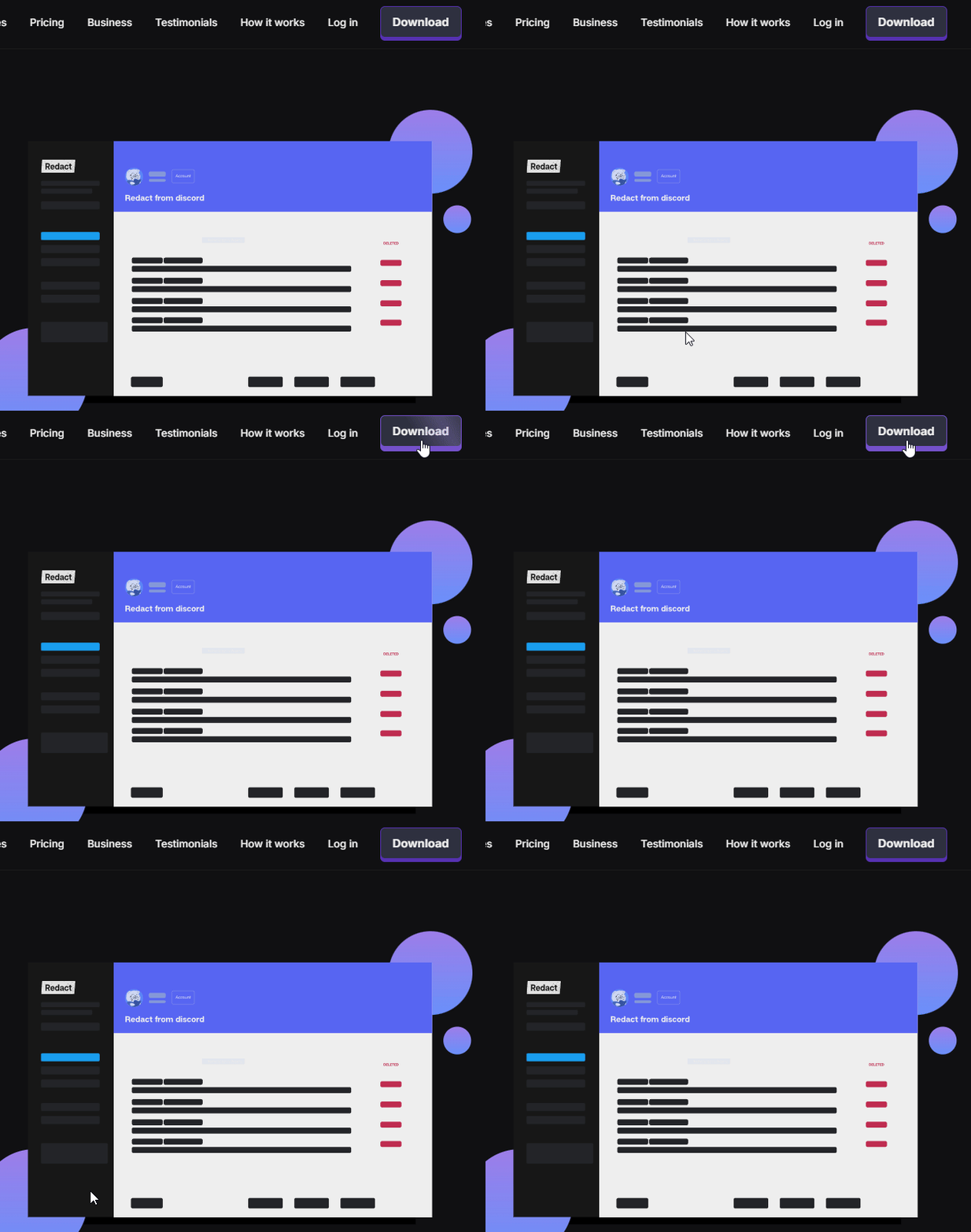
Go to redact.dev and download the app for Windows, macOS, or Linux. Create an account for free.
2. Connect Your Instagram Account
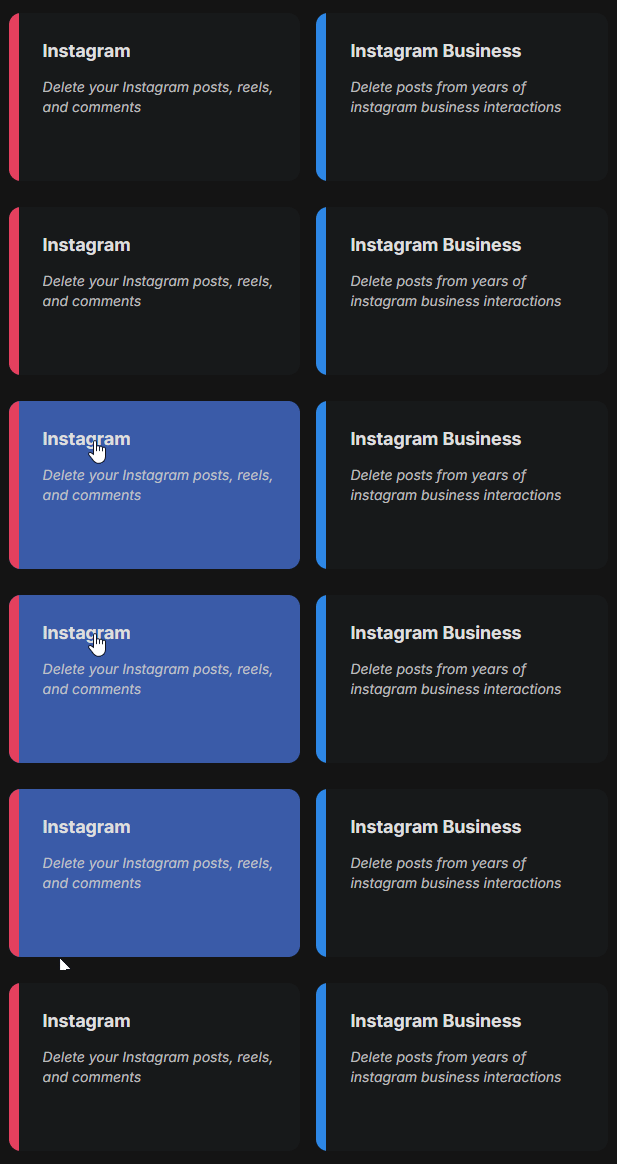
Once you launch Redact and log in, choose Instagram from the list of supported sites.
You’ll be prompted to log in through Instagram. Your login details are never seen or stored by Redact. They’re sent directly from your device to Instagram, just like a saved login in your browser. Everything stays local to your device.
3. Choose Reels as the Content Type
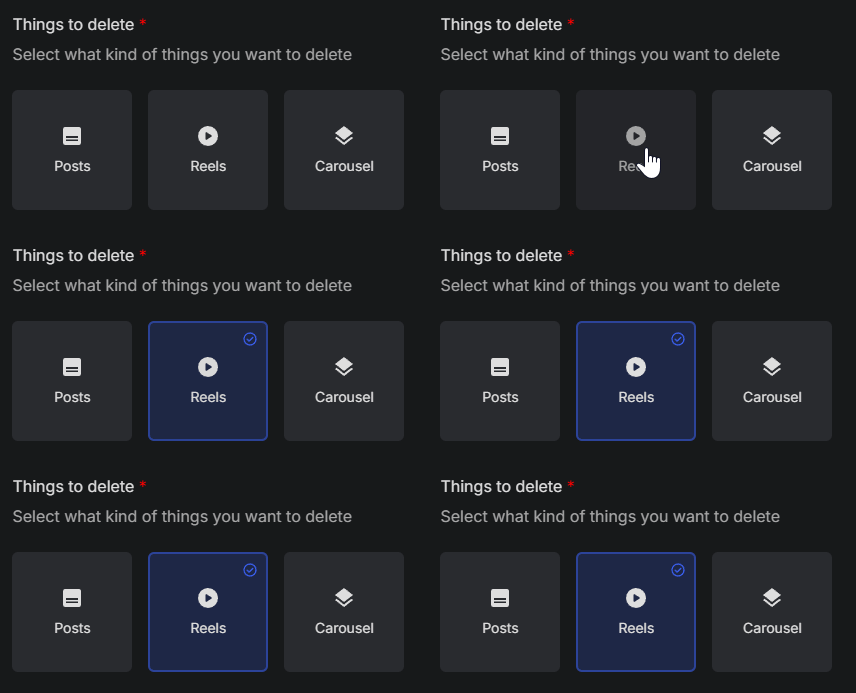
After logging in, select “Reels” as the content type you want to target. This tells Redact to only look at video posts created through Instagram’s Reels feature, keeping your photo posts, carousels, and stories untouched.
Fine-Tune Your Deletion With Filters
Redact gives you powerful options to narrow down which Reels you want to delete.
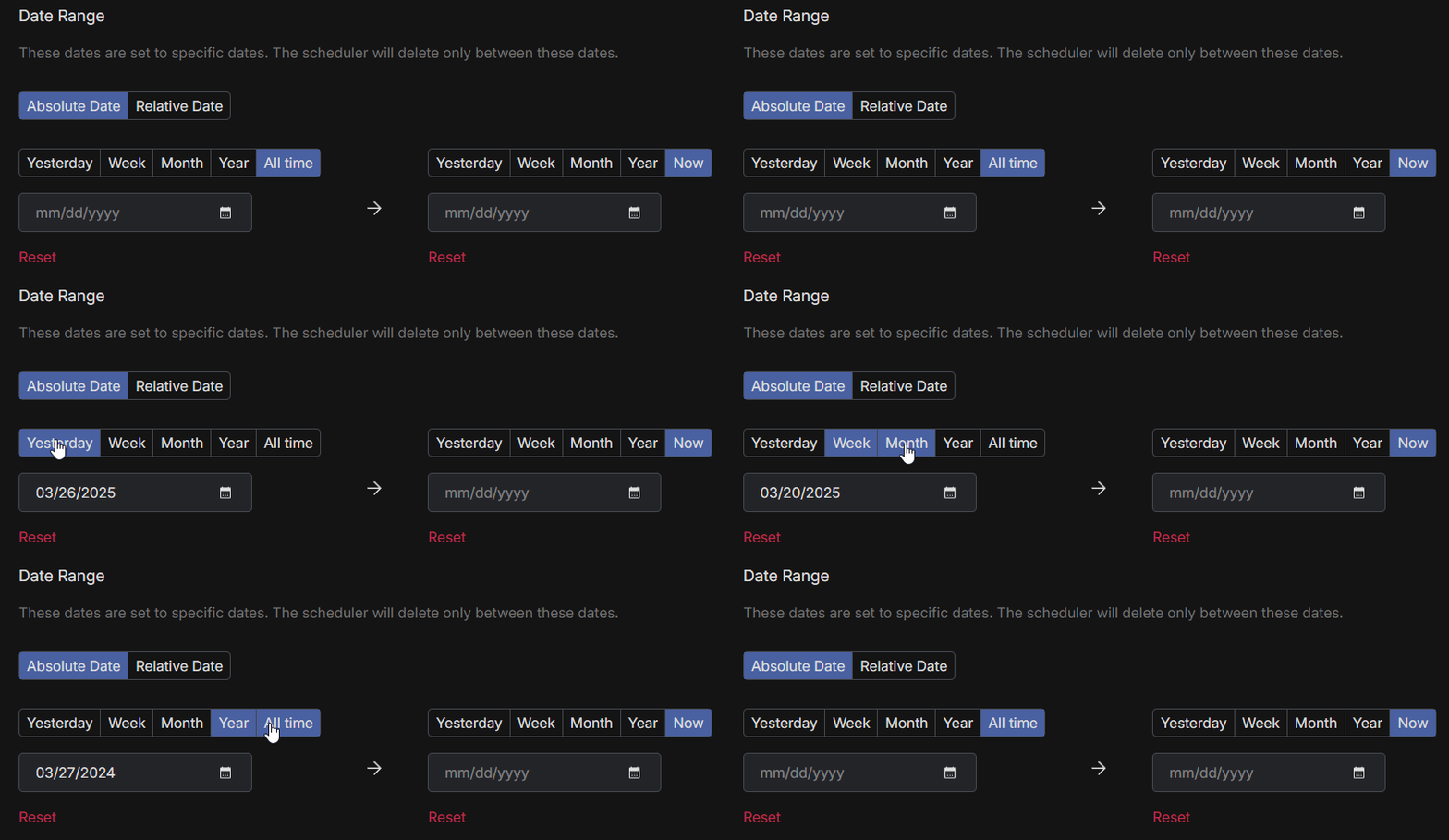
1. Filter by Date Range
Want to erase just one chapter? Limit the deletion to a time period.
- Choose a start date to delete content made after that point
- Choose an end date to delete content made before that point
- Use the calendar tool to quickly pick a specific day, month, or year
To reset the filter, click the red “Reset” button.
2. Delete Reels by Caption Text
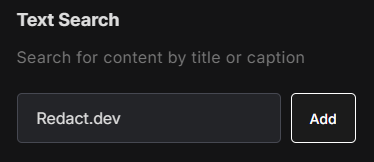
The Text Search filter (“Search for content by caption”) removes Reels that include specific words or phrases in the caption. This is useful for deleting videos tied to certain hashtags, locations, or events.
Anything captioned “meme” or “2022” can go in one pass, along with whatever else you’d rather not have on your profile.
3. Delete Reels by Like Count
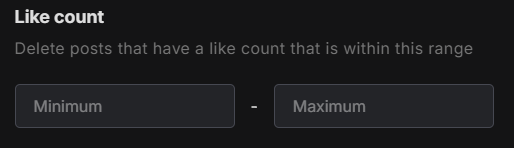
Redact lets you target Reels based on the number of likes they received. You can set a minimum or maximum threshold to delete low-performing or overly viral content, depending on your goals.
Under 25 likes? That trend clip didn’t land, and this filter clears every reel like it.
4. Delete Reels by Comment Count
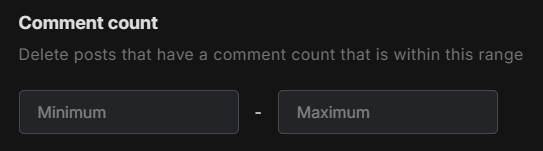
Just like likes, you can also filter Reels by how many comments they received. This can help you remove posts that became too noisy or received unwanted attention.
A reel that racked up 100+ comments for the wrong reasons is exactly what this filter is for.
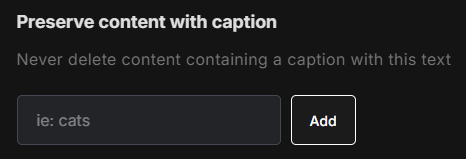
5. Preserve Reels with Certain Words in the Caption
Not everything needs to go. Redact can preserve Reels that include specific keywords in the caption, so you can protect meaningful or successful content.
Tag “collab” and “#ad” as preserved and your sponsored work stays up while the rest clears out.
6. Choose Your Deletion Mode
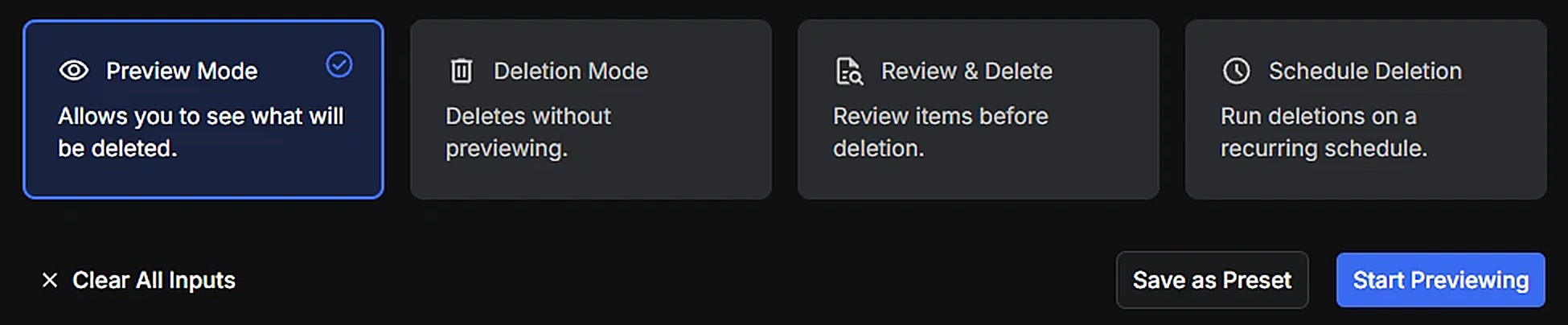
Four deletion modes let you decide how carefully to run the cleanup.
- Preview Mode shows the full list of matching Reels before anything is removed.
- Review & Delete lets you tick off exactly which Reels to erase from the matched list.
- Deletion Mode clears every matching reel as soon as you start the run.
- Schedule Deletion keeps the cleanup going automatically on whatever cadence you set.
Do a Preview run first; it’s the easiest way to make sure a reel you love doesn’t get caught in the batch.
Why Use Redact for Reel Deletion?
Instagram doesn’t offer a built-in way to delete Reels in bulk, or any way to sort them by likes, comments, or caption content. Doing it manually takes time, effort, and lots of scrolling.
Redact gives you an efficient way to clean up your Reels without the headache. You can preview the content before it’s deleted, schedule regular cleanups, and use advanced filters to make smarter choices. And reel deletion is just one part of Redact’s Instagram toolkit.
Personal account or business profile, the goal is the same. You decide what stays in front of people.
Ready to Clean Up Your Instagram Reels?
If your Reels stopped matching the direction of your profile, clean them out and move on. And Reels are only one content type. Redact clears your regular posts and carousels the same way.
Visit Redact.dev to start cleaning your Instagram Reels today.