How to Mass Delete Carousel Posts on Instagram
 Dan Saltman6 min read
On this page
Carousel posts on Instagram are a great way to share multiple photos or videos in one post, but over time, they can clutter your profile or include content you no longer want visible. If you’re cleaning up your online image, or just want a more intentional feed, Redact makes it easy to delete Instagram carousel posts in bulk, on your terms.
This guide will show you how to quickly find and remove carousel posts based on captions, likes, comments, or specific filters, all without endless scrolling.
A quick note on pricing. Your last 30 days of posts, reels, and carousels are free to delete. Anything older needs a premium subscription. You can try Redact for free on Instagram, Twitter/X, Discord, Facebook, TikTok and many more platforms!
What Is a Carousel Post?
A carousel post on Instagram includes two or more images or videos that users can swipe through in a single post. They’re commonly used for sharing multiple angles of a moment, tutorials, or photo dumps, and they can build up quickly and become a headache to manage manually.
How to Use Redact to Delete Carousel Posts
Redact’s Instagram integration includes dedicated filters to help you clean up carousel content quickly.
1. Download Redact.dev
Head to redact.dev, grab the app for Windows, macOS, or Linux, and create a free account.
Redact runs on iOS and Android too, all from a single account and subscription.
2. Connect Your Instagram Account
Once you launch Redact and log in, choose Instagram from the list of supported sites.
You’ll be prompted to log in through Instagram. Your login details are never seen or stored by Redact. They’re sent directly from your device to Instagram, just like a saved login in your browser. Everything stays local to your device.

3. Select “Carousel” in the Content Filter
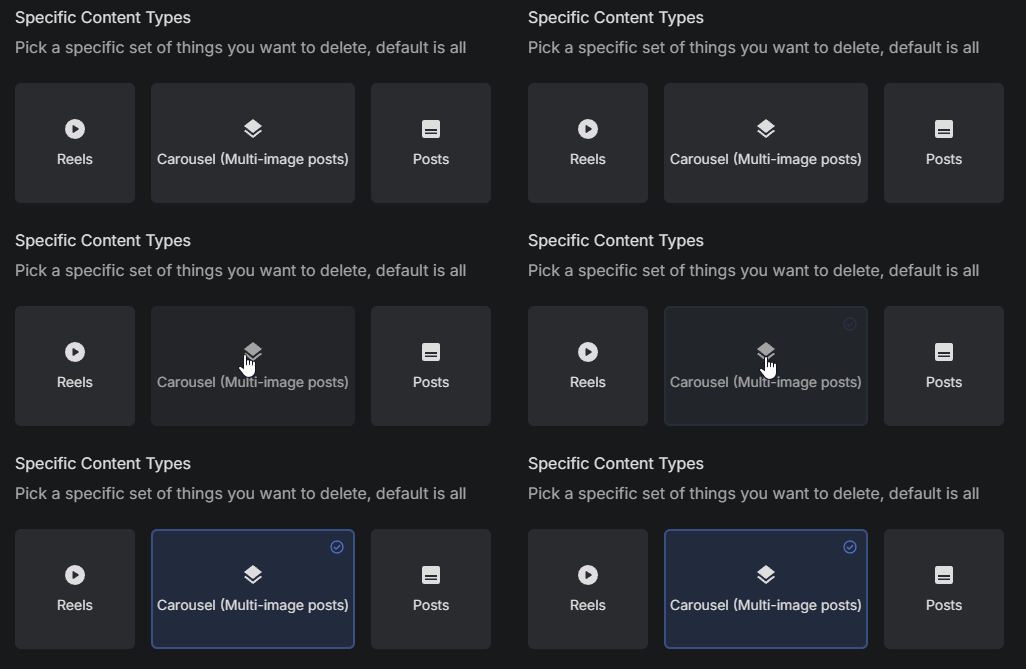
When setting up a deletion task in Redact, choose “Carousel” as the content type. This limits the cleanup to posts that include multiple photos or videos.
This is a useful first step if you want to delete only carousel-style posts while keeping single-image or video posts intact.
Additional Filters You Can Use
Once you have selected Carousel, you can apply several other filters to fine-tune your deletion. You’ll find the deeper options under the “Advanced Form” toggle.
1. Filter by Date Range
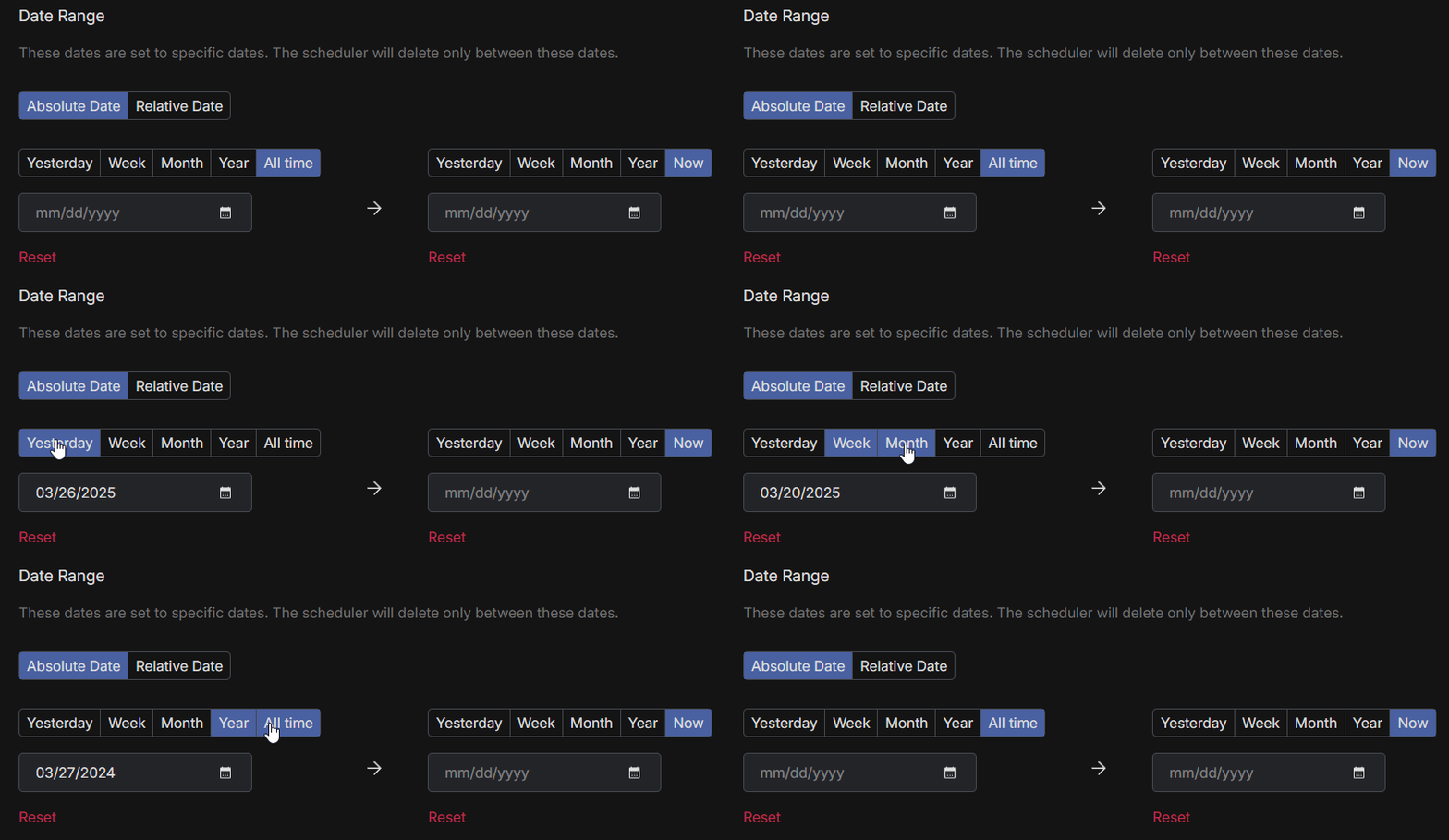
To target carousels from a specific era, set a date range.
- Choose a start date to delete content made after that point
- Choose an end date to delete content made before that point
- Use the calendar tool to quickly pick a specific day, month, or year
To reset the filter, click the red “Reset” button.
2. Filter by Caption Text
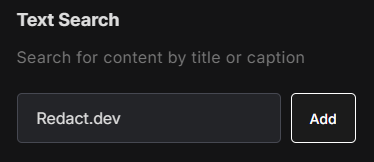
You can choose to delete posts that contain specific words or phrases in the caption. This is helpful for removing posts from past trends, events, or specific hashtags.
Captions like “Throwback” or “2018 trip” make easy targets when those posts no longer match your current brand or lifestyle.
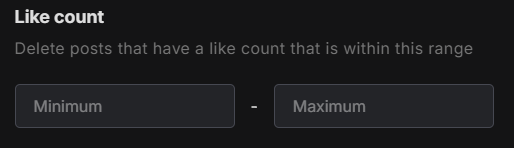
3. Filter by Number of Likes
Redact also lets you filter posts by engagement. You can delete carousel posts with a minimum or maximum number of likes.
Cap it at 10 likes, for instance, and the underperformers disappear while your hits stay up.
4. Filter by Comment Count
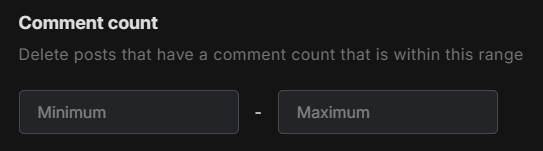
In the same way, you can set filters based on the number of comments on each post. Target the high-activity posts, the ignored ones, or anything in between.
Zero-comment carousels are easy cuts, and so are the ones that blew past 100 comments for the wrong reasons.
5. Preserve Posts with Specific Captions
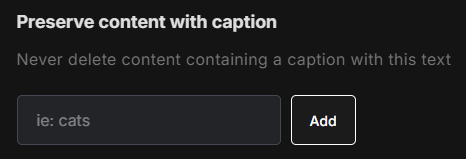
Not everything needs to go. Redact lets you preserve posts that contain specific words or phrases in the caption. This way, you can protect meaningful content while still removing clutter.
Add “wedding” or “graduation” to the preserve list and those posts stay put no matter what else your filters catch.
6. Choose Your Deletion Mode
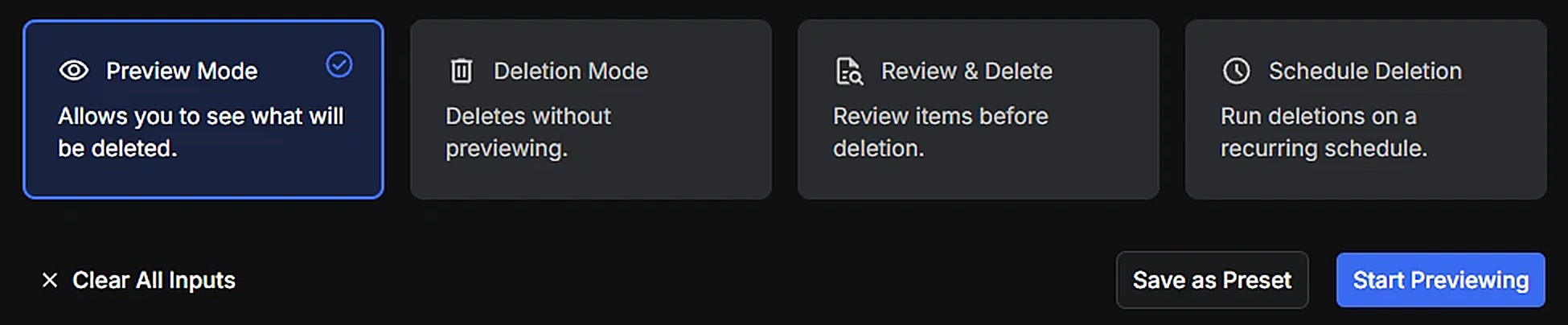
Redact has four deletion modes, so you can clear carousels with as much or as little precision as you want.
- Preview Mode runs your filters and shows every match without deleting a thing.
- Review & Delete gives you the matched list so you can hand-pick which carousels go.
- Deletion Mode wipes every match in one pass.
- Schedule Deletion reruns your filters on a schedule so clutter never builds back up.
Run a Preview first so nothing important gets swept up by accident.
Why Use Redact Instead of Doing It Manually?
Manually going through your Instagram feed and deleting posts one by one takes time, energy, and endless scrolling. Instagram doesn’t offer bulk deletion natively, and there are no filters to sort content by likes, comments, or captions. Redact’s Instagram tools give you full control over what stays and what goes, all in one place.
You can preview everything before deleting, use advanced filters, and run cleanups on a schedule to keep your profile sharp over time.
Start Cleaning Up Your Carousel Posts Today
A feed full of outdated photo dumps doesn’t have to stay that way. Reset your brand, cut the low-engagement posts, or just clean house, and let Redact handle the tedious part. If your Reels need the same treatment, Redact bulk-deletes those too.
Visit Redact.dev to get started and clean up your Instagram content today.