How to Opt Out of AI Training in Figma
 Dan Saltman8 min read
On this page
Ever since August 15th of 2024, Figma has had the self-granted permission to train its AI models on the files people create in it. The setting is called Content training and it's on by default for the free Starter plan AND the paid Professional plan until a team admin shuts it off. You won't find it in your personal account settings, so the steps depend on your plan, and on Professional only the admins can reach it.
"Content", as Figma defines it, is basically anything you create in Figma or upload to it, down to comments and layer names, and Figma's AI terms add the prompts you give its AI tools and whatever comes back. Figma says it "de-identifies" what it trains on, so its models learn design patterns rather than your ideas. To keep your work out of its claws, the steps below get you there.
On the free Starter plan
Every Figma account can hold one free Starter team, and a team always has at least one admin, so if you're the only person on yours, you're its admin. Drafts follow the setting of the team they're in. Since October 9, 2025, every draft has lived inside a team, and where Figma moved the stragglers depends on the account. Most went into a Starter team, either one the account already had or a new free one. On a domain-captured organization with external collaboration controls, and on Figma for Government, they went to the organization's own Drafts space.
-
Sign in to Figma and open your Starter team in the file browser. If you belong to more than one team, you can move between them with the down arrow next to the team name.
-
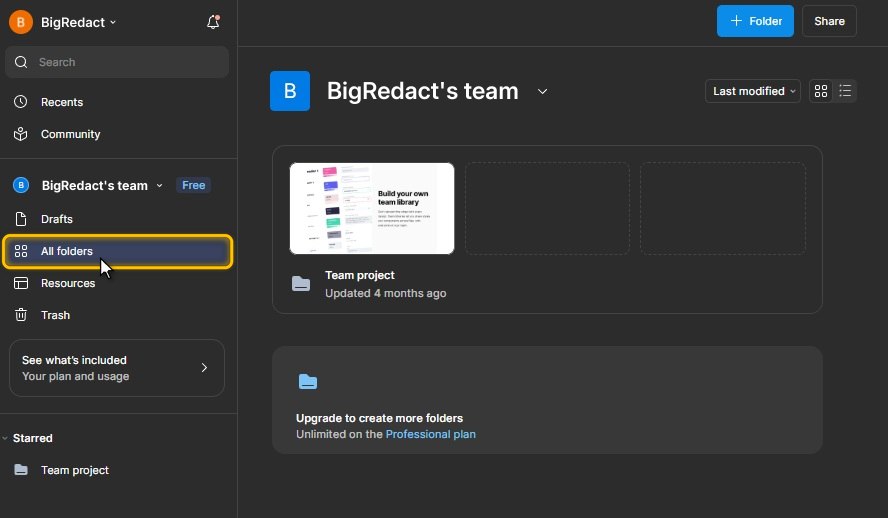
Click All folders in the left sidebar.
-
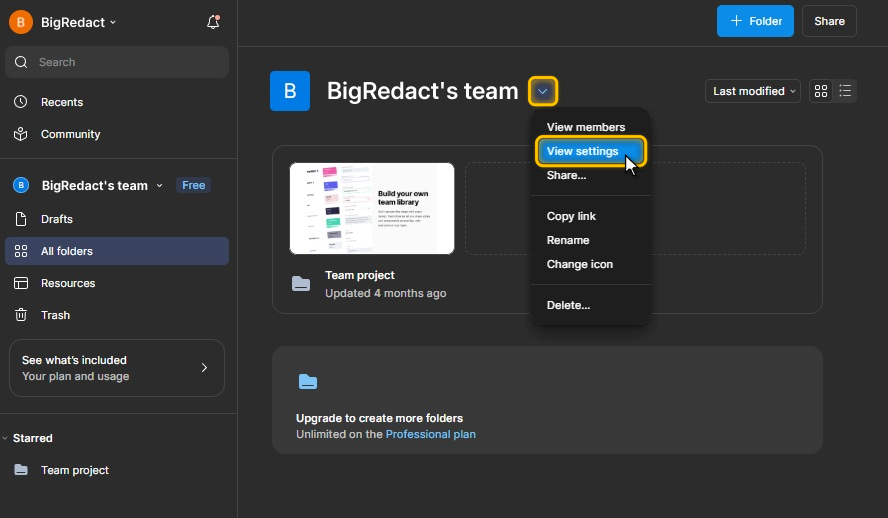
Click the down arrow next to your team name and choose View settings.
-
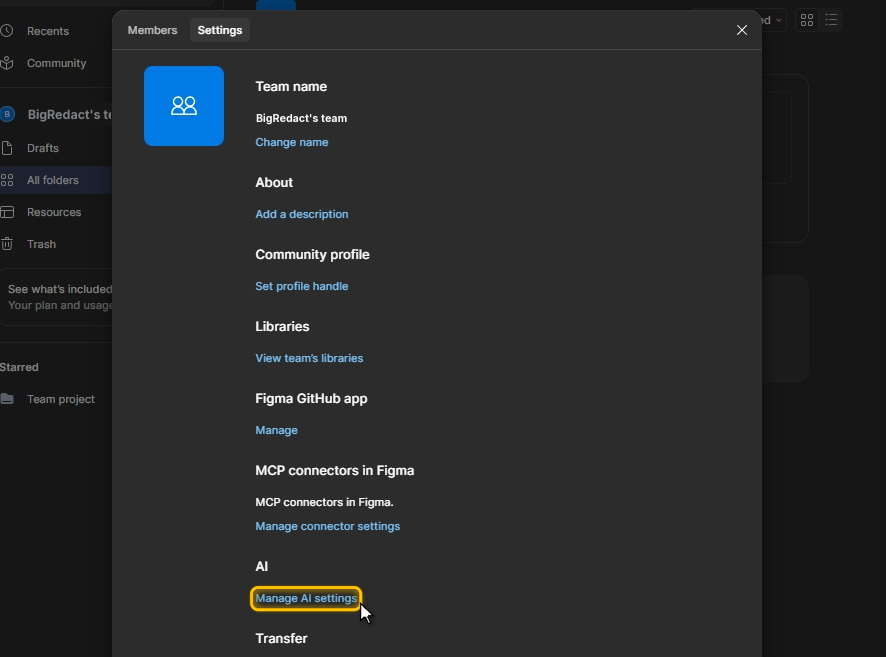
Open the Settings tab, scroll to AI and click Manage AI settings.
-
Turn off Content training. Its label reads "Let Figma use your team's content to train AI models."
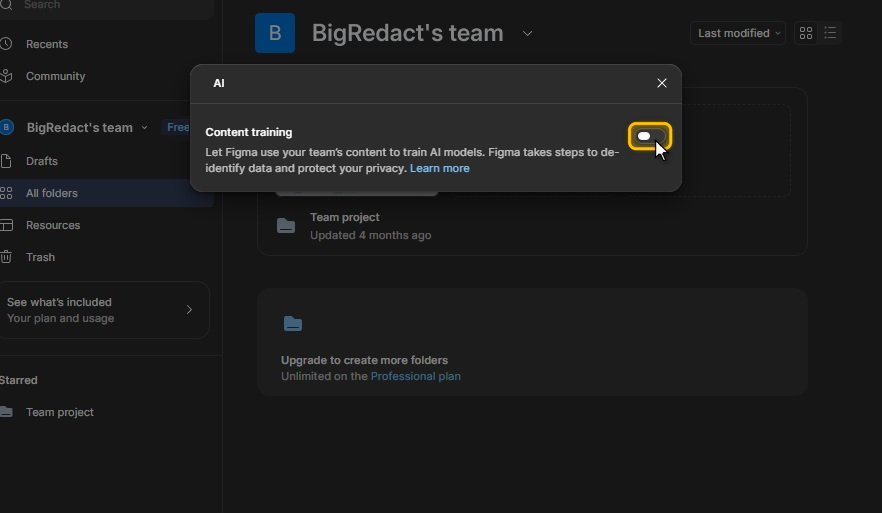
Figma describes one setting for the whole team, with nothing separate for FigJam, Slides, Sites, Buzz or Make, so it covers every file and draft the team holds.
On a Professional team
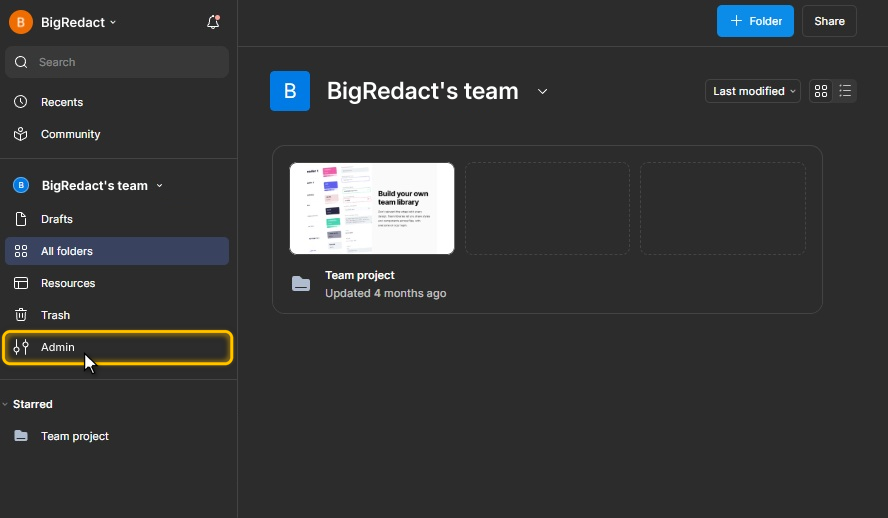
A paid Professional team starts from the same default. Its setting sits in Admin, which only the team's admins can open.
-
Sign in to Figma and open the team in the file browser.
-
Click Admin in the left sidebar.
-
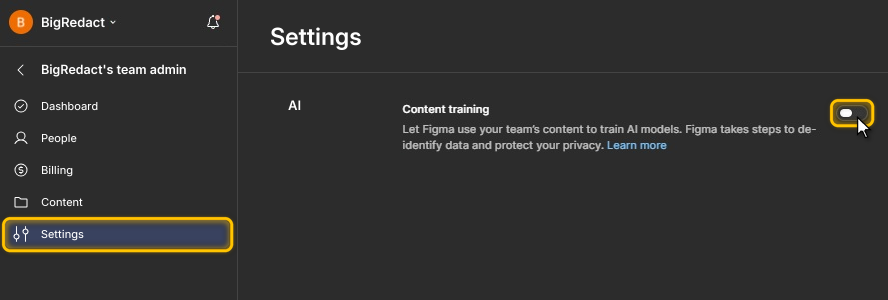
Click Settings and scroll down to AI.
-
Turn off Content training.
If you're not an admin
If Admin isn't in your sidebar, you aren't an admin on that team, and there's no setting in your own account that does the same job. Click the down arrow next to the team name and choose View members to see who the admins are, since Figma marks them in the list. A team can have several, and any one of them can turn it off.
Figma also suggests moving your drafts into a team where content training is already off, such as your own Starter team once you've turned it off there. Right-click a draft in the file browser, choose Move file…, open the All tab, pick that team and its Drafts, then click Move. Starter drafts can only be shared with viewers, so the move suits work you do alone. Anything in the team's folders stays under the team's setting.
Who can turn "content training" off within each plan
| Plan | Default | Who can change it | Where it lives |
|---|---|---|---|
| Starter (free) | On | The team's admins | Team settings, under Manage AI settings |
| Professional | On | The team's admins | Admin, then Settings |
| Organization and Enterprise | Off | Nobody, since Figma has it locked off for now | Nothing to change |
| Education and Government | Not used for training at all | Nobody needs to | Nothing to change |
The good news for Organization and Enterprise customers is they don't need to do anything. Figma says the setting can't be turned on for these accounts right now and that it'll let them know if that changes in the future.
What the setting doesn't reach
-
Figma's AI tools keep working. Content training and access to Figma's AI features are separate settings. Turning training off doesn't take away Figma Make or the AI tools in the editor, and nobody has to leave training on to use them. On Starter, Professional and Organization plans there's no longer a setting that turns those tools off. Figma removed it when the tools came out of beta on July 24, 2025. Teams that had turned them off during the beta stay that way until an admin clicks Enable AI, and from then on they're on for good. On Enterprise, organization admins can still turn AI features off for the whole organization or for one workspace.
-
Work made before you turned it off. Figma's help center and its AI terms both say that once an admin turns training off, new content and edits won't be used to train its models. Neither says what happens to content that was already there, so the setting is best read as covering what you make from that day on.
-
Teams you don't run. The setting belongs to a team, not to you. Files and drafts you keep in a client's or an employer's team follow that team's choice, even if you've turned it off on your own Starter team. If you're on several teams, each one has its own setting to check.
-
Free files in the Community. Figma treats the Community as a separate case. Free Community files carry a CC BY 4.0 license, and Figma says it fine-tunes a few features, including Visual Search, Asset Search and Add Interactions, on public free files. It also says it won't train any generative model that outputs designs on Community files until it has settled how attribution should work, and that paid files aren't used for AI training at all.
-
Usage data. Figma's approach page lists a second kind of data it may use for AI. Usage data covers how often your content is accessed, technical logs and telemetry, but not the content itself. Figma says it only uses that data aggregated and de-identified, and the setting is only ever described as covering content.
For the other apps that train on your work, our AI opt-out hub lists what each one uses and how to turn it off.
Figma AI Training FAQ
Do OpenAI and Figma's other AI providers train on my files?
Figma says no. It doesn't let the outside companies whose models power its AI features train their own models on anything customers make or upload, and those companies keep data only briefly, or not at all, to answer requests. Its sub-processor list names them, with Anthropic, Google, Microsoft and OpenAI among the AI model providers.
Who owns what Figma's AI makes?
Figma's AI terms leave the rights to your prompts, and to what its AI produces from them, with the customer. That's you on your own plan and your employer or client on theirs. Both count as content, which puts them under the team's setting. Turning it off only covers what you make from that day on, and Figma never says that prompts and outputs from before then drop out of training.
Can I keep one file out without changing the whole team?
No, because Figma only offers content training as a team-wide setting. Moving the file into a team where content training is off is the closest thing, and it carries the same limit as the setting, so it covers what you add after the move rather than what's already in the file. Figma's rules for moving files ask you to be on both teams with edit access.
Does Adobe have the same setting?
Adobe's closest equivalent is its content analysis setting, which is about product improvement, and Adobe says its generative models aren't trained through it. Our Adobe guide shows where it is, along with the desktop app usage setting on the same page.