Canva Uses Your Designs to Train AI. How to Turn it Off.
 Dan Saltman5 min read
On this page
Looking to turn off Canva's AI training? Well, you landed on the right post. I'm going to give you a quick rundown of how Canva's AI training works and what data of yours they use to do the actual training.
So there's basically two sets of data they use for the training. One is your content, meaning the text in your designs and everything you upload. The other one is your general site usage, which is how you work in the editor rather than what you make.
Luckily, each of them have their own off button in your privacy settings. Unlike on some sites, it doesn't matter if you're on a free or Pro account, they're both yours to turn off at will.
What Canva's AI learns from
Canva's Trust Center names 5 different sources for improving its AI-powered features. Two of them come directly from you. The other three are other people's work, and Canva pays for two of those data sets.
Your settings reach these
Your content
The text in your designs and the media you upload, from photos and videos to audio and files.
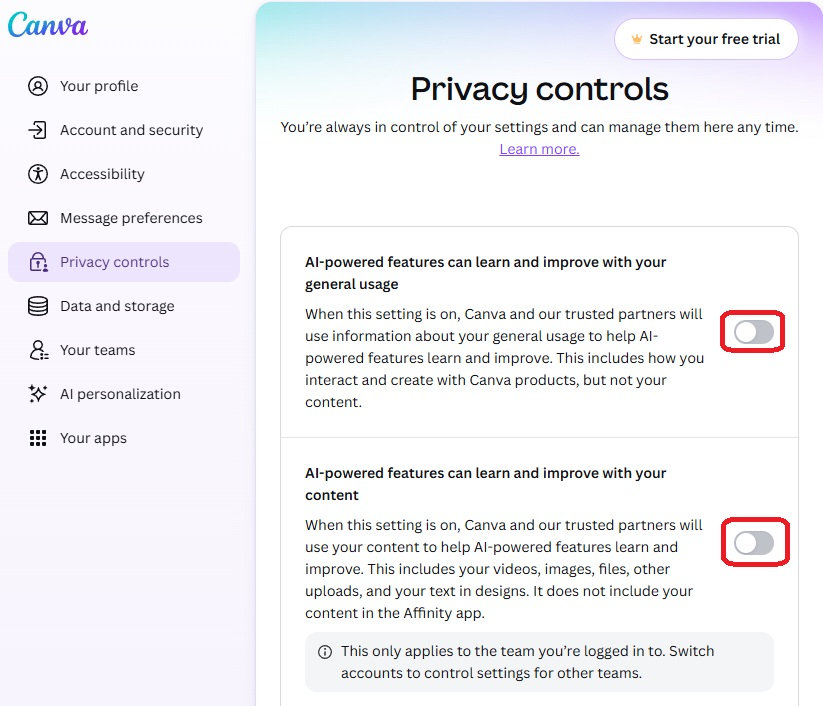
AI-powered features can learn and improve with your content
Your general usage
How you use Canva, never what you make. Canva's examples are which layouts, colors and fonts people pick, which features they use and which buttons they click.
AI-powered features can learn and improve with your general usage
Your settings don't reach these
Canva Creators' templates
Templates from Canva Creators who haven't opted out. They're paid out of $200 million in content and AI royalties that Canva committed to creators over three years.
Licensed stock media
Photos, video and other media licensed from stock agencies and other partners, whose contributors earn royalties from it.
Openly licensed content
Canva lists this one without saying what it covers, and doesn't mention paying for it.
AI settings may be locked on some accounts
Canva's privacy settings help page says a lock icon next to a setting means you can't change it, either because you're on a team someone else manages or because of your account type.
- Education. Both settings are locked off, and Canva's privacy policy says it won't train on Education content.
- Teams, Business & Enterprise. The content setting is locked off. If the general usage one isn't, turn it off.
That leaves Free and Pro accounts, where the settings work and the choice is yours to make.
Both your AI off buttons are in privacy controls
- 1
Open Privacy controls
Sign in at canva.com/login, then go to canva.com/settings/privacy-preferences. From the homepage, it's your profile icon, then Your account, then Privacy controls. In the phone app, start from More instead of the profile icon.
Canva is rolling out new navigation gradually, so if your profile photo isn't on the homepage, look under More.
- 2
Turn off the content setting
It reads AI-powered features can learn and improve with your content, and it covers what you make, meaning the text in your designs and everything you upload.
- 3
Turn off the general usage setting
AI-powered features can learn and improve with your general usage is the one for how you work, from the fonts and colors you reach for to the features you open.
More privacy settings to look at while in there...
Personalize your marketing communications
Canva uses your information to personalize the marketing it sends you.

Personalize Canva ads on other websites
Canva can use your profile and analytics data to show you Canva ads on other apps and websites.

Enhanced profile with information from 3rd party providers
Canva fills out your profile with information about you from third-party providers, such as your company, job title and industry, to tailor its recommendations.

Share my design usage with collaborators
It covers designs other people invite you into. Left on, anyone with edit access to one of those designs, its owner included, can see your email and usage metrics such as when you opened it. Turned off, those go anonymous, though your name and avatar stay visible.

Allow your sessions to be recorded
It's opt-in. Turned on, Canva can record how you use it to improve its products. It says it can't see your financial info, passwords or email, and it deletes recordings after 3 months.

If you use Adobe's apps as well, its settings split along similar lines, one setting for how you use the apps and one for your files, and our Adobe guide covers both.
Memories are a separate thing, and not AI training
Canva AI 2.0 added Memories, which learn your style from your recent designs and Canva AI chats. Canva says they aren't used to train its AI more broadly, and they have their own setting.
I'd turn it off unless you rely on Canva AI knowing your style. Go to your account icon, then Your account, then AI personalization, and turn off About Me under Memory. To clear what it's already written about you, move your About Me page to the trash.
Canva isn't the only app training on your work. Our AI opt-out hub lists what each major platform uses and how to turn it off.