How to Opt Out of AI Training on GitHub (copilot)
 Dan Saltman7 min read
On this page
Back on 4/24/2026, GitHub started using your Copilot interactions to train its AI models. This change was made unilaterally for Free, Pro, Pro+ and Max users, who were opted in by default, likely without clear and informed consent. Effectively, this means Copilot is able to train itself on your code, unless you'd already turned off the older product improvements setting or you've reviewed and adjusted your settings since. I recommend checking your platform privacy settings at least every 3 months. Changes like this are rarely communicated as clearly as they should be.
Turning it off takes about thirty seconds, and there's really no reason not to.
What GitHub started collecting on 4/24/2026
The word GitHub uses is "interaction data", and its own wording covers more than the prompts you type.
Business and Enterprise seats are excluded, since a Data Protection Agreement covers that data. So are Copilot Student and the free Pro educators get. So is anyone whose account belongs to a paid organization, as a member or an outside collaborator, even on a Free or Pro plan. Everyone else on an individual plan is in. Even if you're paying, your code is probably still being used as AI training data. What gets you out is a contract or a classroom, not a personal subscription.
Private repositories are a fair question, and GitHub answered it directly. It doesn't read them at rest, so nothing is taken from a repo you left alone. What counts is what you send. Paste a function from a private project into Copilot Chat and it's interaction data like any other.
Turning it off
The setting lives in your personal account settings rather than in your editor, and once you set it, it applies everywhere you use Copilot.
- 1
Open your Copilot settings
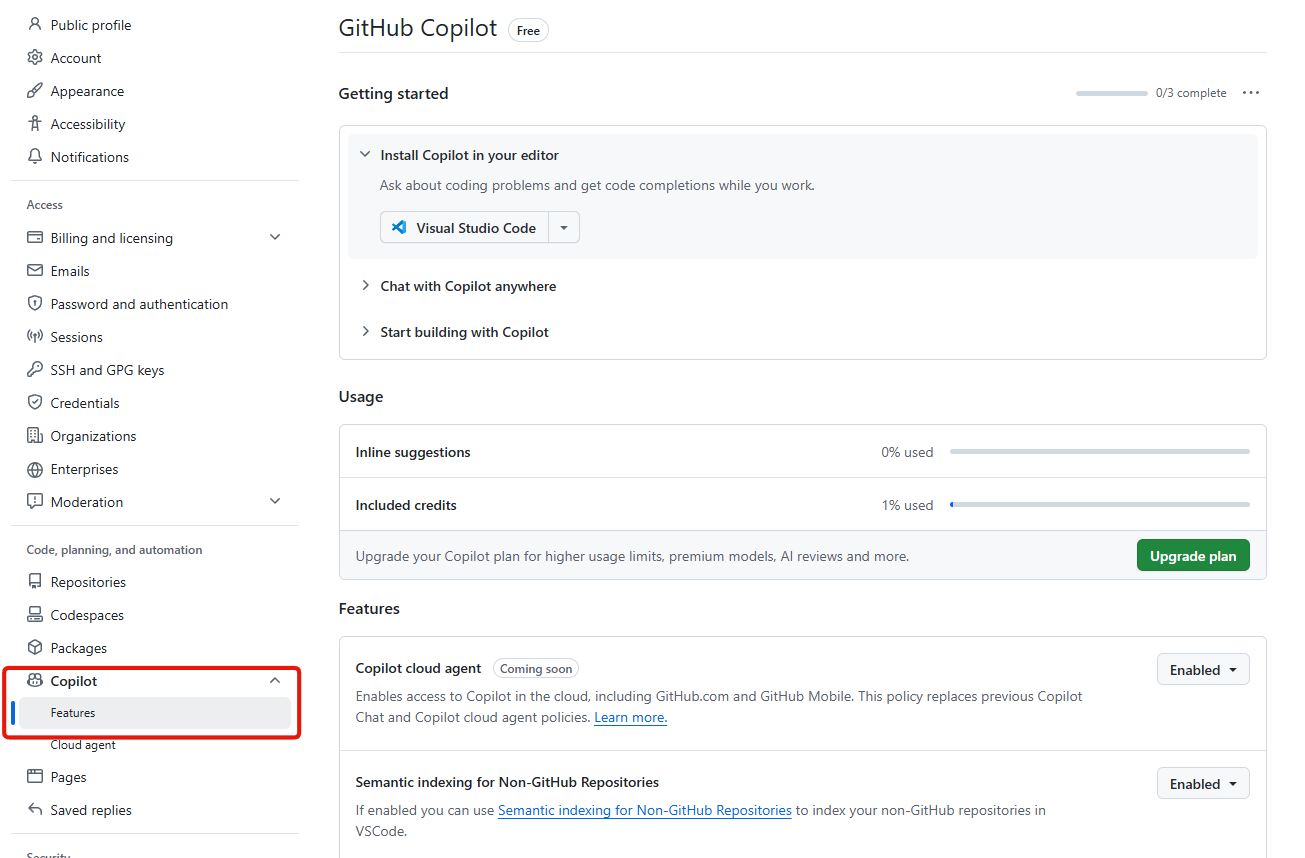
Go to github.com/settings/copilot, or open Settings from your profile picture, then Copilot in the left sidebar, then Features.
- 2
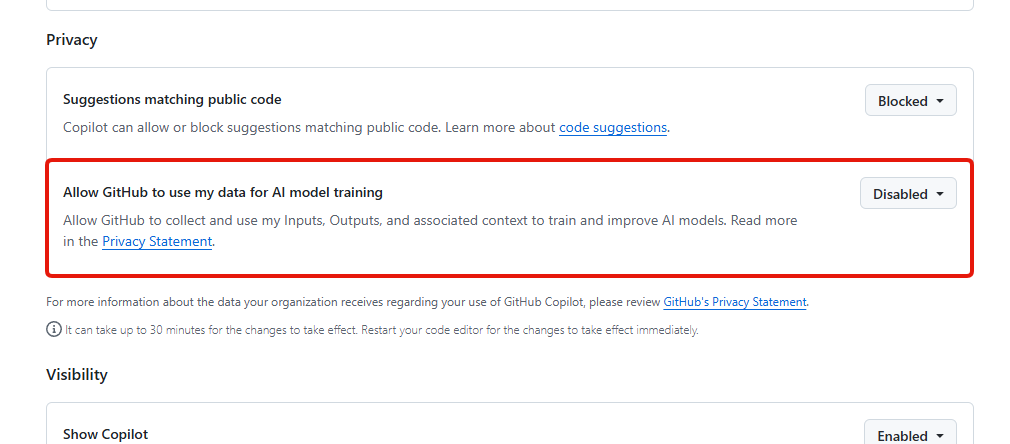
Find Allow GitHub to use my data for AI model training
Scroll all the way to the bottom of the settings page and it's the second from last option, under Privacy. Set the dropdown to Disabled. There's no confirmation step and no save button.
If the row isn't there at all, your Copilot seat comes from an organization on a Business or Enterprise license, and the answer has already been made for you.
- 3
Restart your editor
GitHub warns on that same page that the change can take up to thirty minutes to take effect, and that restarting your code editor applies it immediately. Worth the ten seconds, because otherwise Copilot carries on exactly as before while you assume the job's done.
Other settings worth adjusting since you're in there anyway
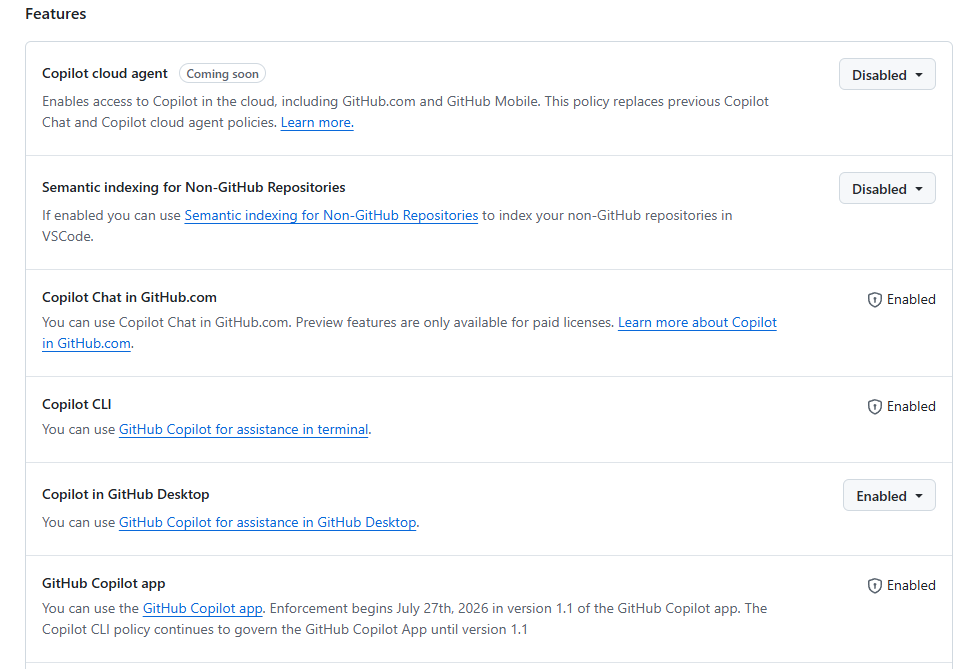
Three more settings sit on the same page, and it's worth seeing where each one is set rather than assuming. These are important settings for privacy, give them a look.
Suggestions matching public code
Checks a suggestion against public code on GitHub and drops it when it matches.
Set it to
Semantic indexing for Non-GitHub Repositories
Indexes repositories you open in VS Code that don't live on GitHub.
Set it to
Copilot cloud agent
Lets Copilot work on its own across GitHub.com and GitHub Mobile.
Set it to
Personal accounts only. A missing row means your seat comes from an organization and the choice is made there.
"Public code matching" is Copilot checking each suggestion, and about 150 characters around it, against public code on GitHub. Left on Allowed the suggestion still arrives, with its license type and source repository listed alongside it, and in Chat you have to click through to see them. Blocked means it never reaches you at all.
Semantic indexing matters if you open client work or private mirrors in VS Code. It decides whether Copilot indexes repositories that were never meant to touch GitHub.
Two things the opt-out above doesn't cover
Disabling that dropdown stops GitHub using your Copilot interactions. It does nothing about the code that's been public all along, and nothing can pull your code back out of a training dataset. What stays public from here is the only lever you've got.
1. Gists were never as private as the name suggests
GitHub's own documentation says "secret gists aren't private", and that anyone who finds the URL can read one. Secret means unlisted, not protected. That config file you pasted in to send a colleague in 2019 is still sitting on a live URL.
2. Every commit carries your email address
Add .patch to any commit URL on a public repo and the author email is right there, which is how a lot of personal addresses end up in scraped recruiting lists. Go to github.com/settings/emails and switch on Keep my email addresses private, which gives you a noreply address, and Block command line pushes that expose my email, which rejects a push carrying your real one.
Then point git at the noreply address it shows you, so your terminal commits match.
git config --global user.email "12345678+yourusername@users.noreply.github.com"
--global covers every repository on the machine, GitLab and work servers included, so your GitHub username would ride on commits that have nothing to do with GitHub. If you push anywhere else, drop the flag and run it inside each GitHub repo instead.
That fixes everything from here on rather than rewriting what you've already pushed, which for most people is the part that matters.
GitHub AI Training FAQ
Is my private repository code used to train Copilot?
Not from the repository itself. GitHub says it doesn't read private repos at rest. What it does collect is the code you actively send Copilot, and that includes snippets from private projects once you've sent them, so the opt-out still matters if you work in private repos.
Does this apply to Copilot Business or Enterprise?
No. Those seats are covered by GitHub's Data Protection Agreement, which rules this out without the customer agreeing to it. If you're on one, the setting won't even appear on your page.
I turned off the old product improvements setting. Do I need to do it again?
GitHub says no, and that it carried your answer over. Opening the page to confirm takes ten seconds and beats assuming.
Do I have to change anything in my editor as well?
There's no second setting to find. It lives on your GitHub account and applies wherever you use Copilot. The one thing worth doing in your editor is restarting it, because otherwise the change can take up to thirty minutes to reach you.
Can I get code out of a model that's already trained on it?
No, and nobody can. That's why the only real lever is what you make public from here, and why the gists and old repositories are worth a look rather than just the settings page.