The Complete Google AI & Privacy Settings Walkthrough Guide
 Dan Saltman19 min read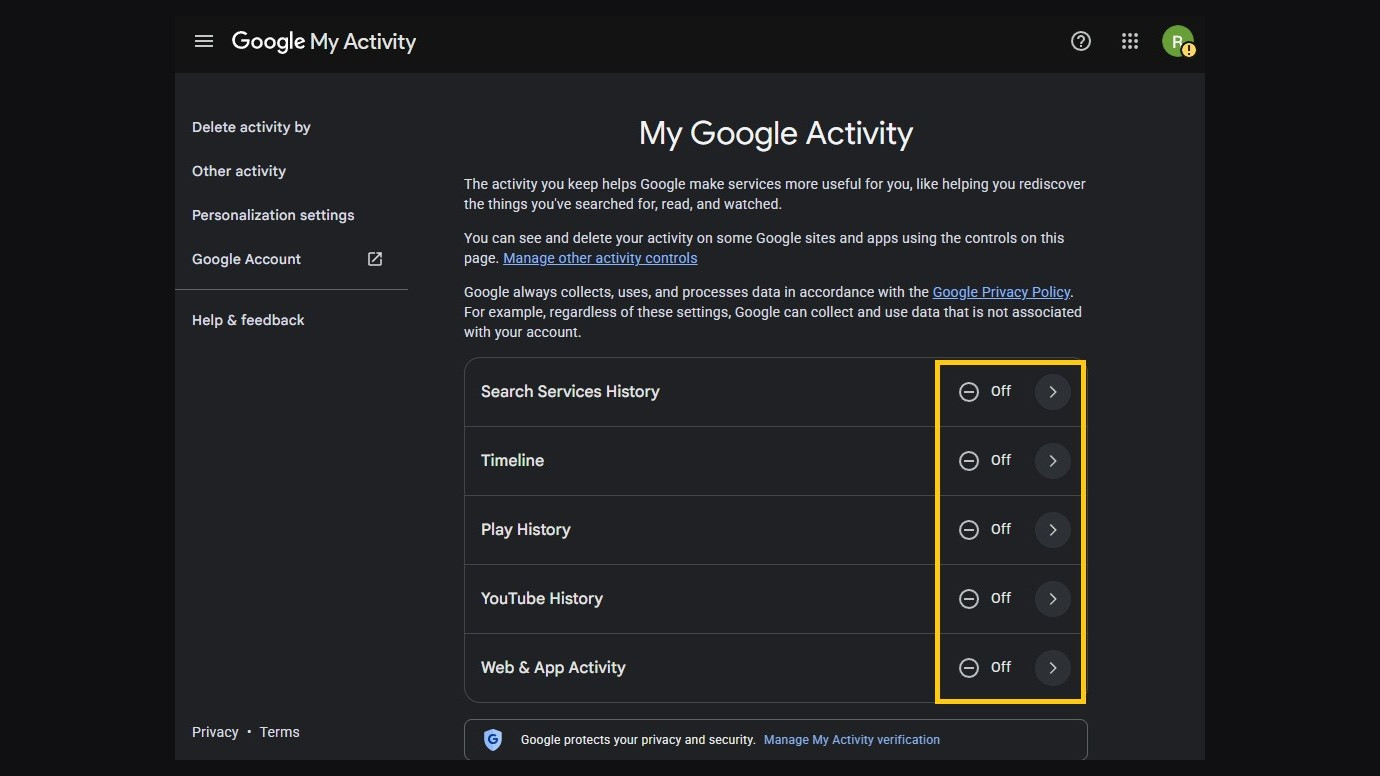
On this page
I made a brand-new Google account and went through every privacy and AI setting Google gives you, service by service. Google reorganized a lot of this in 2025 and 2026, so most of the guides already online point at pages that have been renamed or moved, and this one is built from what's on screen now. Pick a service or work top to bottom.
- Google Account
- Google Search
- YouTube
- Gmail
- Drive, Docs, Sheets and Slides
- Calendar, Keep and Meet
- Gemini
- Google Photos
- Google Maps
- Chrome
- An Android phone
What's on by default
A new account isn't a blank account. These are the settings a brand-new one starts with, and they're the reason this post exists.
Search and Play history are on. Search Services History keeps your searches, AI Mode chats and the photos you search with, and Google trains its AI on it while it's on. Play History logs the apps you open.
Keep activity is on. Every Gemini chat is saved for 18 months and used to train Google's models. Google's wording is that it's "on by default" for anyone 18 or over.
YouTube keeps three years. Watch and search history are on, with auto-delete set to 36 months on a new account. Web & App Activity gets 18 months.
Gmail's smart features are on in the US. They're off by default only in the EEA, UK, Switzerland and Japan, and they're what lets Gmail read your mail to personalize Gmail.
Chrome shares. Usage reports, search suggestions and preloading are on, third-party cookies are allowed, and "Smarter form understanding" sends pages with forms to Google.
YouTube uploads are public, and Shorts can be remixed. An adult channel's uploads default to public, automatic AI dubbing is on for eligible channels, and Shorts are opted into remixing automatically.
A few things start off. Timeline, Location Sharing and YouTube's third-party training all wait for you to opt in. The job with those is checking, not changing. The exception is Timeline's ads box, which lets Google use your Timeline to tell businesses whether their ads worked. It starts checked.
Google Account
Most of Google's history and ad settings live on your account page, whichever Google app you use.
- 1
Turn off every history setting
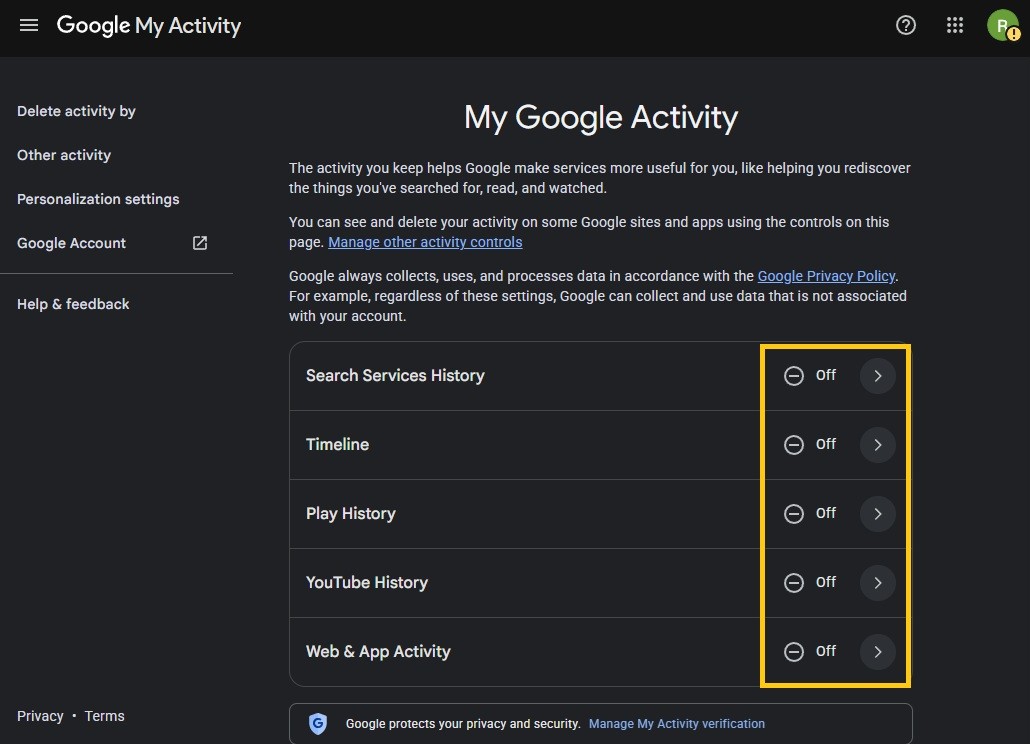
Go to your main Google Account settings page and click Data & privacy, then My Activity. Make sure each of these is off.
- Search Services History
- Timeline
- Play History
- YouTube History
- Web & App Activity
Inside each one, the main button is off and all the boxes are unchecked. Timeline's box can only be unchecked while Timeline is on, so the Maps steps cover it.
- 2
- 3
Turn off partner ads
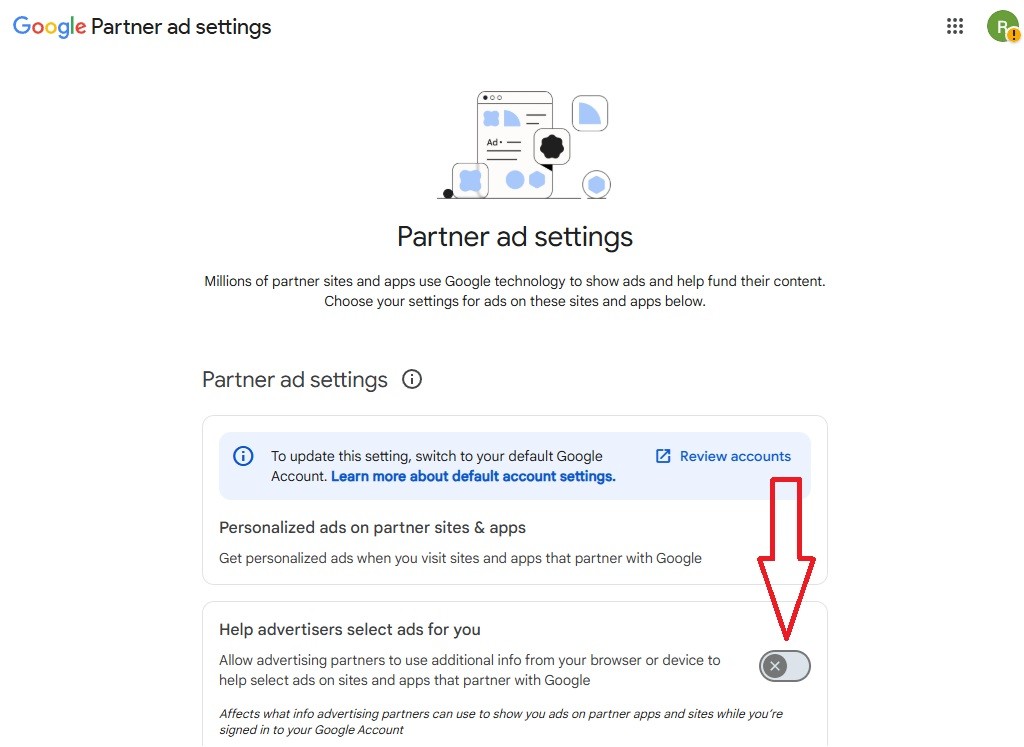
Go to Partner Ad Settings and make sure Help advertisers select ads for you and Personalized ads on partner sites & apps are off.
- 4
Go through People & sharing
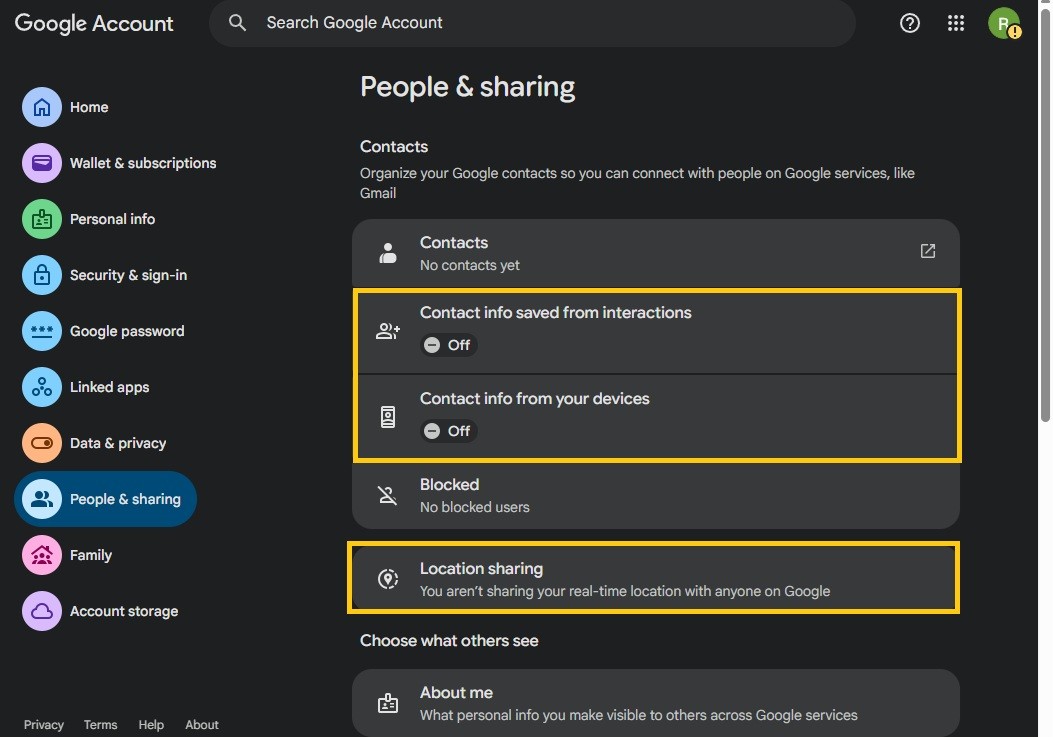
Go to People & sharing.
- Turn off Contact info saved from interactions
- Turn off Contact info from your devices
- Make sure Location Sharing is empty
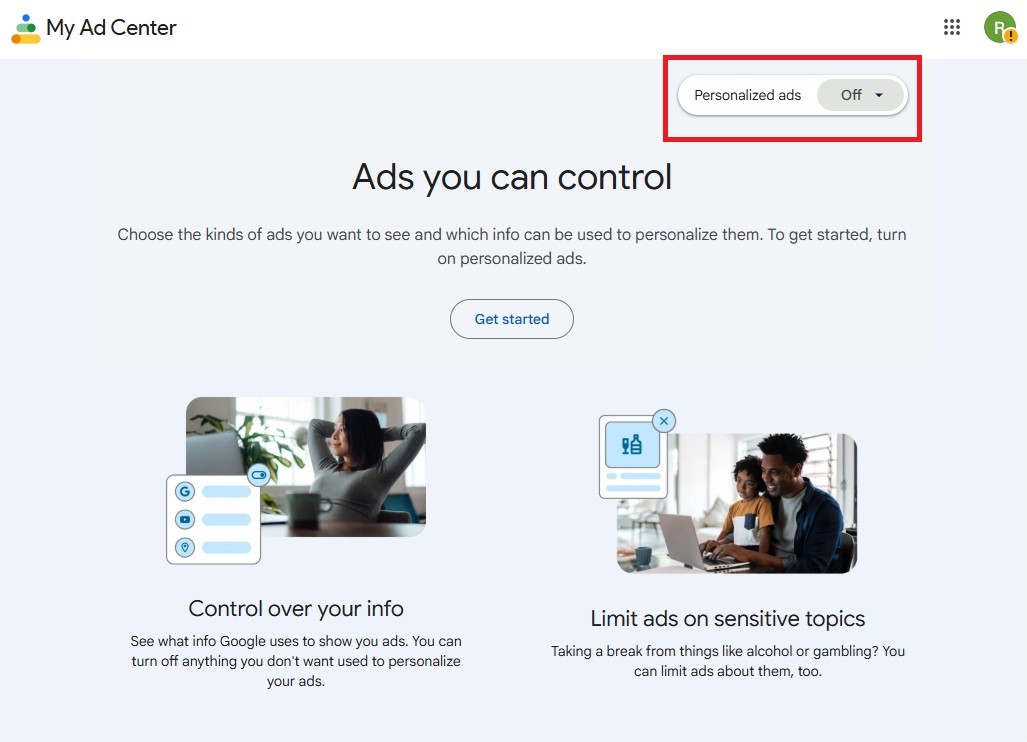
- Turn off Business personalization
- Make sure Shared endorsements in ads is off
- 5
Set About me to Only you
Under Choose what others see, open About me and set everything you can to Only you. Your name and profile picture stay visible to other people who use Google services.
- 6
Finish with Privacy Checkup
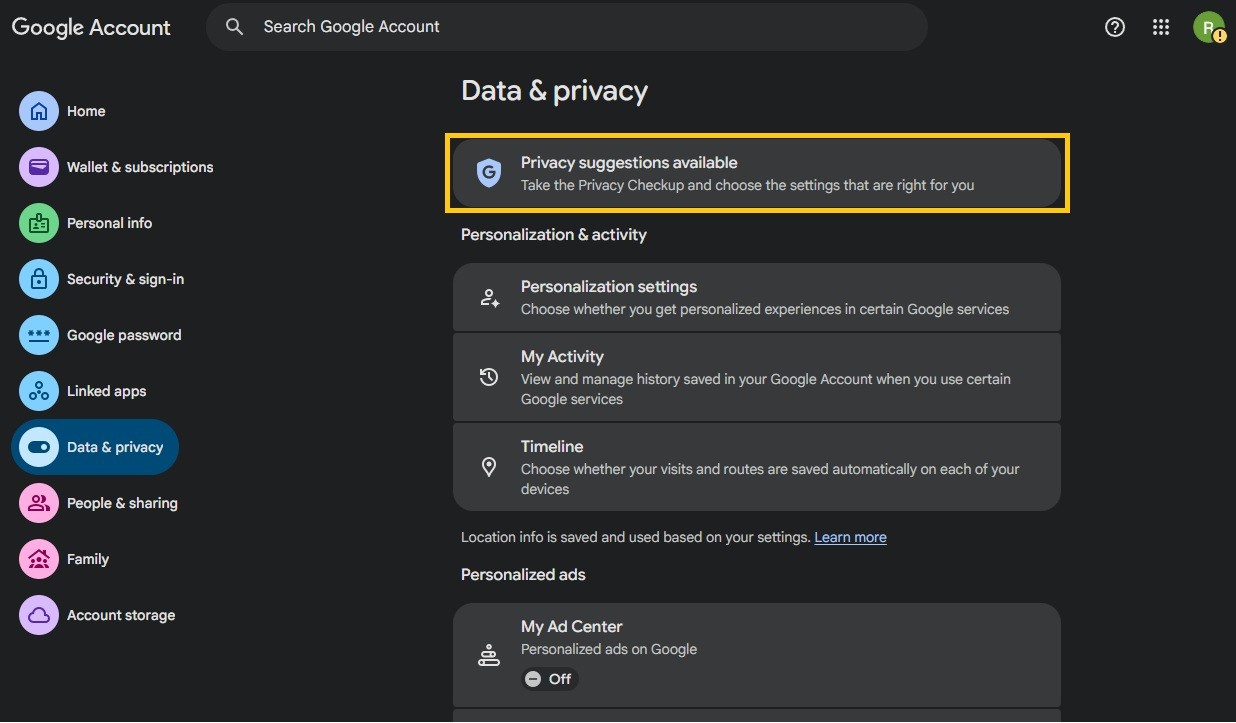
Back on Data & privacy, click Privacy suggestions available at the top and go through the Privacy Checkup as a last check.
Google Search
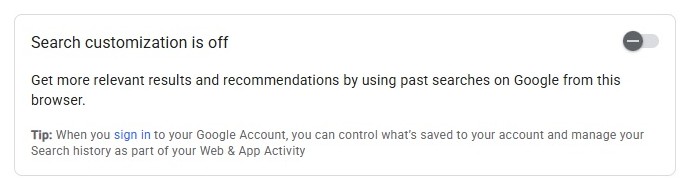
Your searches, AI Mode chats and the photos you search with are saved under Search Services History, which the first account step turns off. These are the rest. Results about you, which watches Search for your phone number, address and email, has its own guide.
- 1
Turn off personalized recommendations
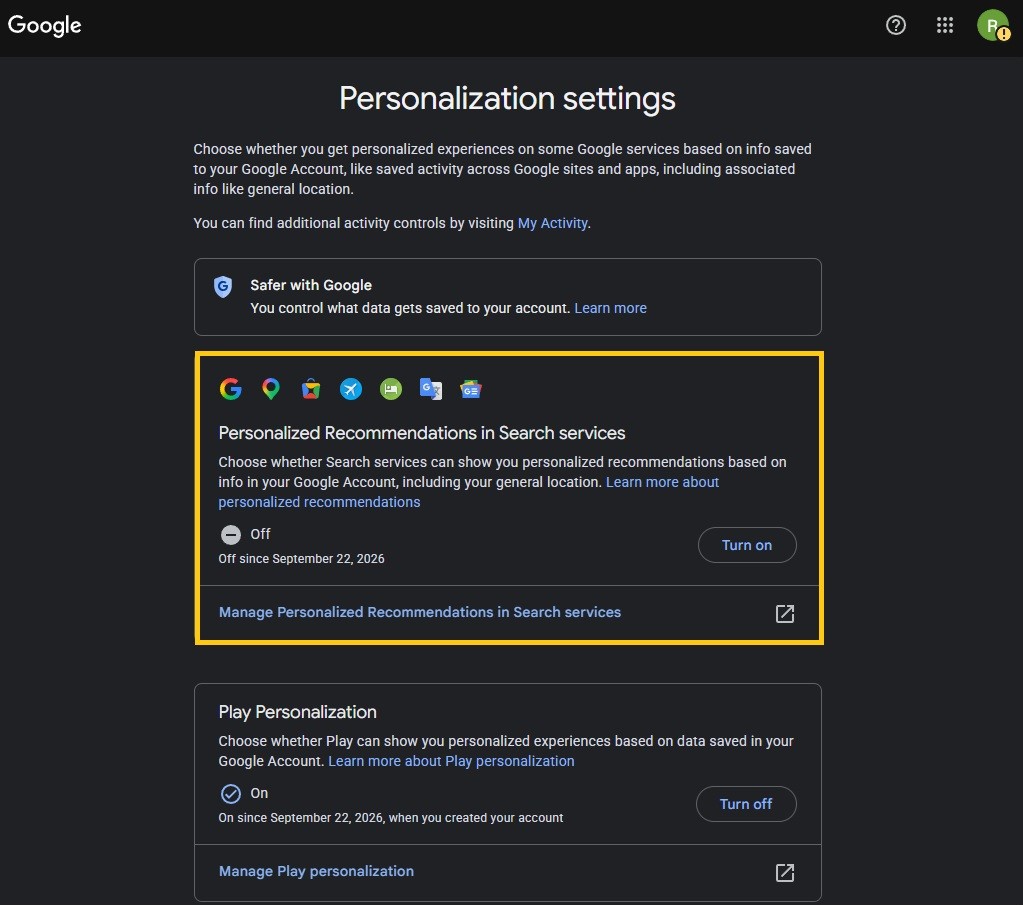
On your My Activity page, click Personalization settings in the left menu and turn off Personalized Recommendations in Search services.
- 2
- 3
Block location for google.com
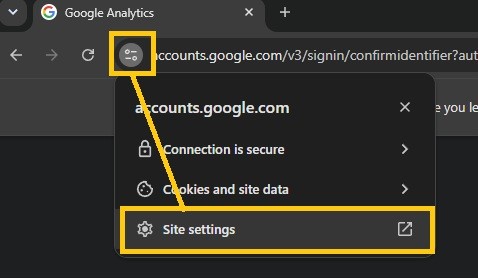
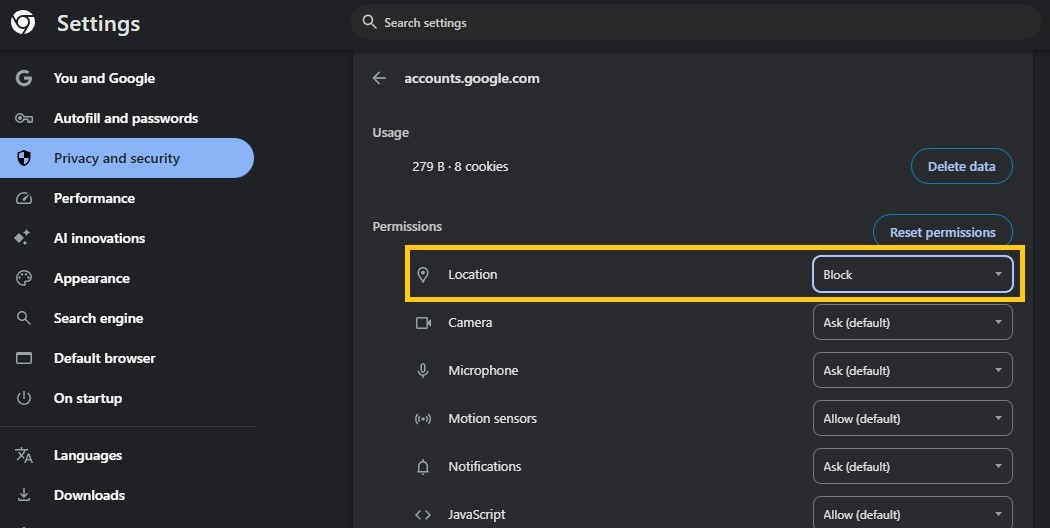
On google.com, click the icon to the left of the address bar, then Site settings at the bottom of the popup. On the page that opens, set Location to Block.
- 4
On a phone, turn off Discover
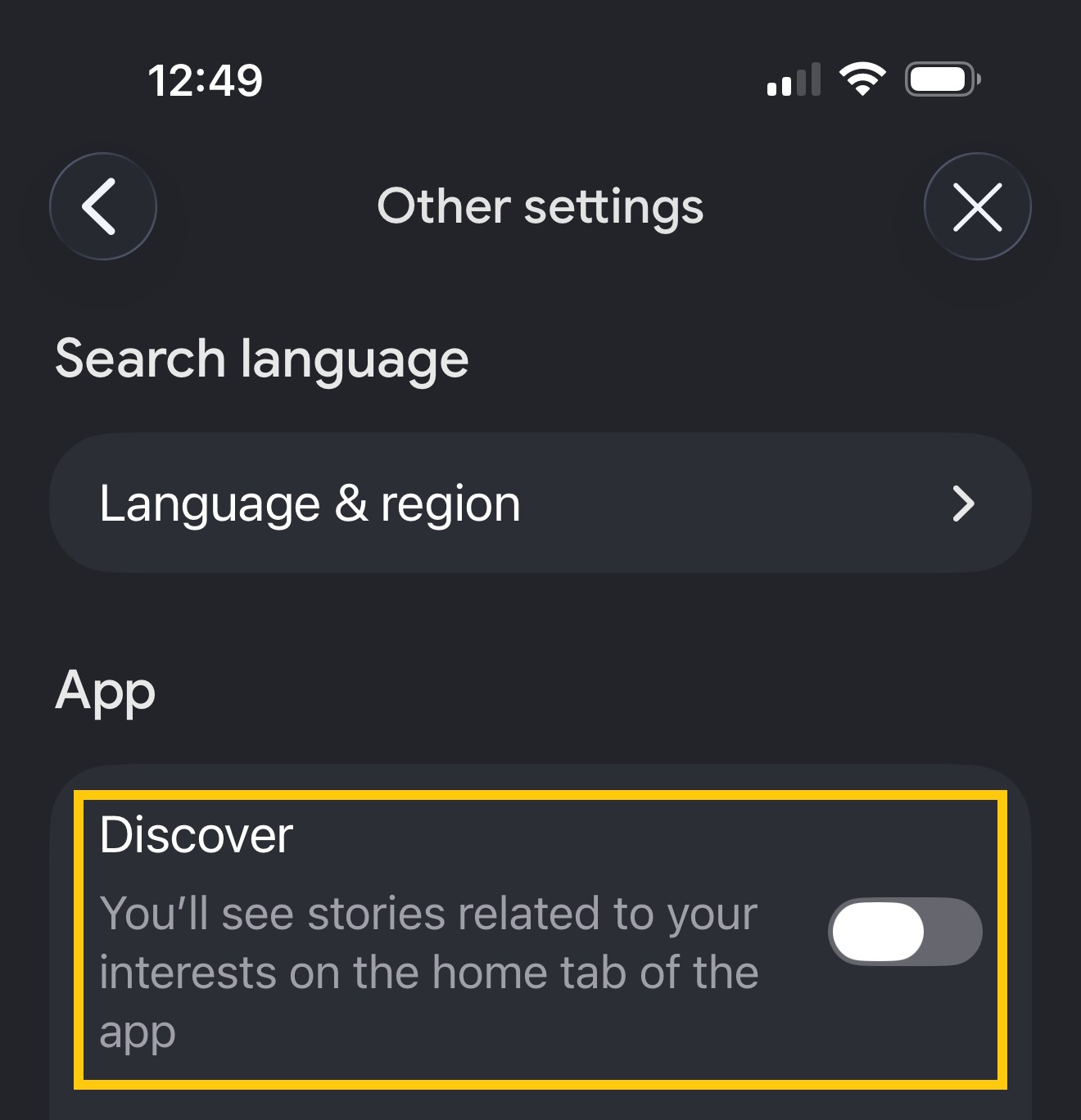
In the Google app, tap your profile picture, then Settings, then Other settings, and turn off Discover.
- 5
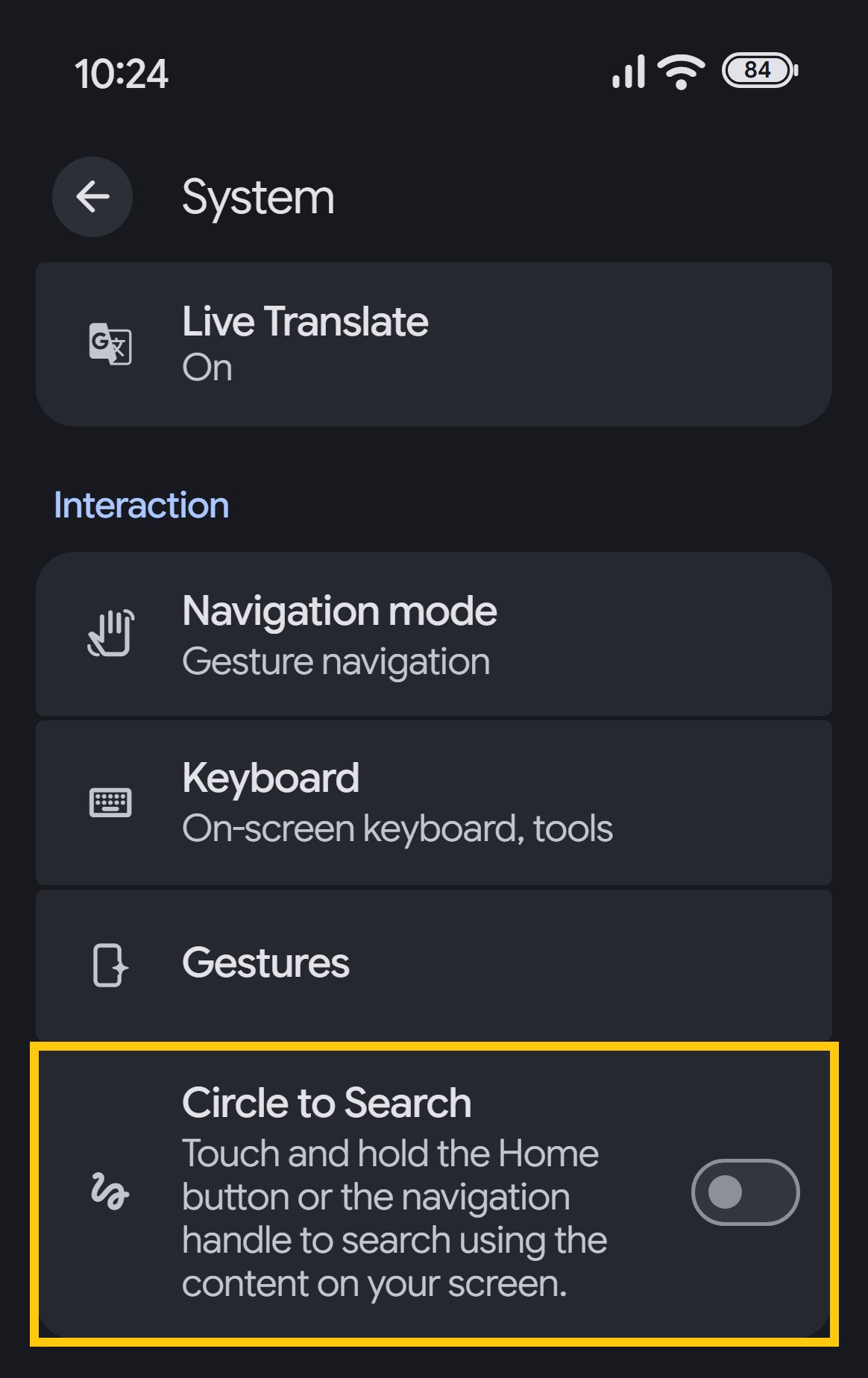
On Android, turn off Circle to Search
Open Settings, tap System and turn off Circle to Search. On a phone that isn't a Pixel, search Settings for Circle to Search instead.
YouTube
YouTube's creator settings ship public and remixable. YouTube History itself is turned off in the account steps.
- 1
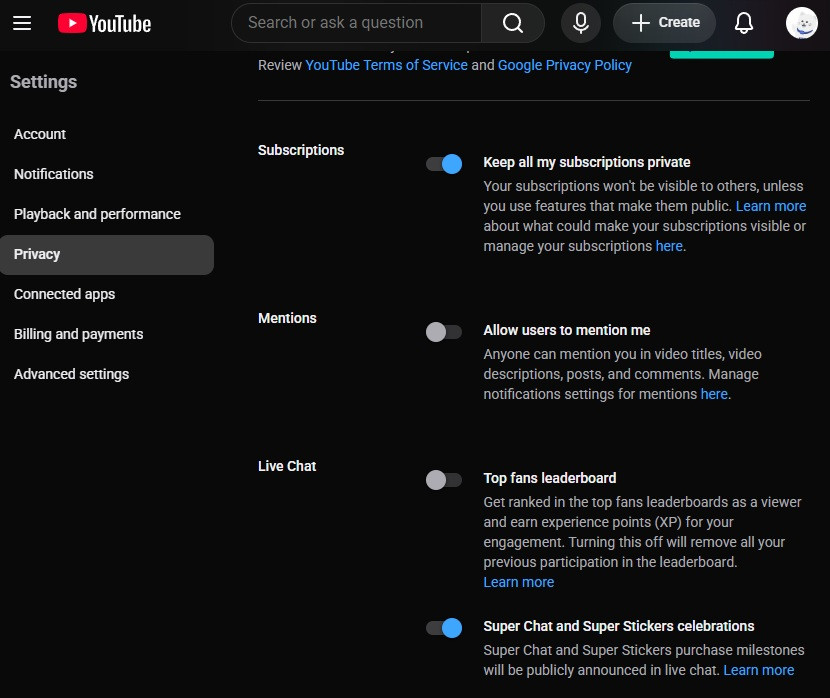
Go through YouTube's privacy page
Go to YouTube's privacy page.
- Turn on Keep all my subscriptions private
- Turn off Allow users to mention me
- Turn off Top fans leaderboard
- 2
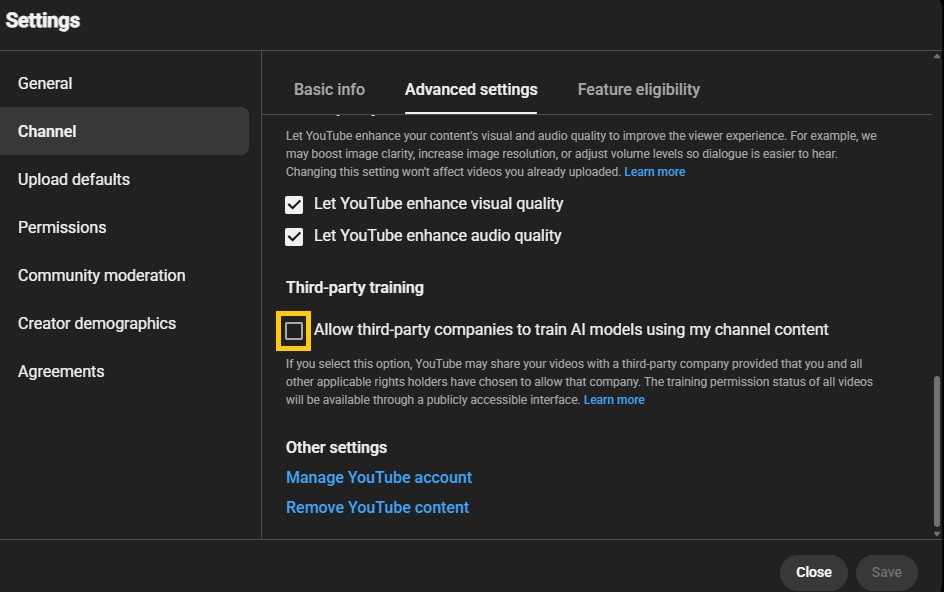
Leave third-party training off
In YouTube Studio, go to Settings, then Channel, then Advanced settings, and leave Allow third-party companies to train AI models using my channel content unchecked.
- 3
Make uploads private
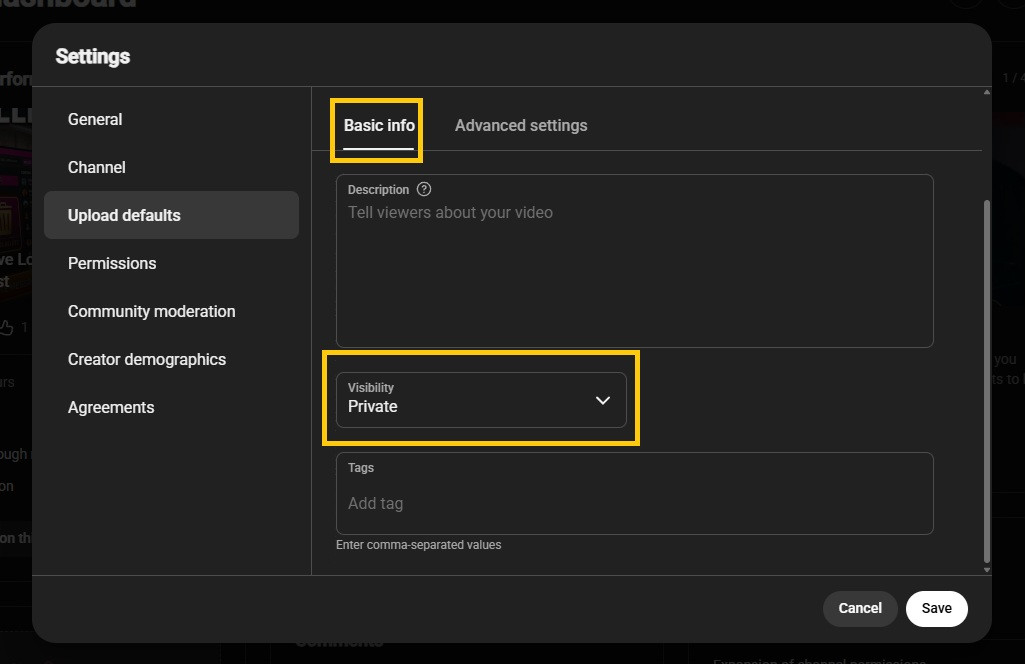
Still in Settings, click Upload defaults, then Basic info, and set Visibility to Private. This only covers uploads from a browser. Uploads from the YouTube app or a video editor ignore it, so set those to private by hand.
- 4
Hold comments for review
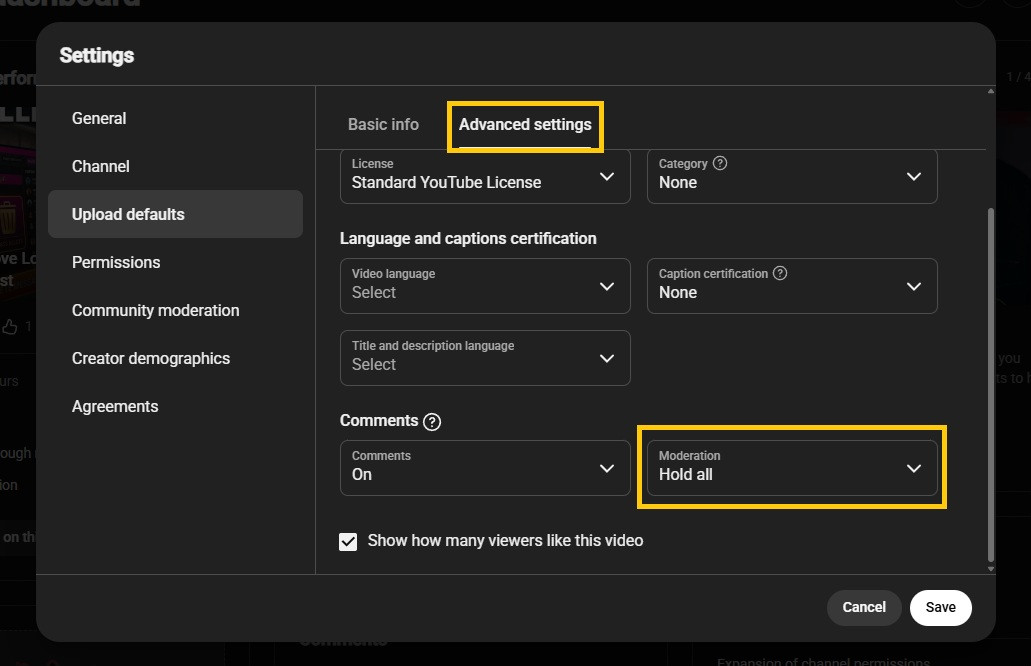
Still in Upload defaults, click Advanced settings, set Moderation to Hold all and click Save.
Gmail
Gmail's settings are one long page, and three settings near the bottom of it decide whether Gemini reads your mail.
- 1
Stop images loading on their own
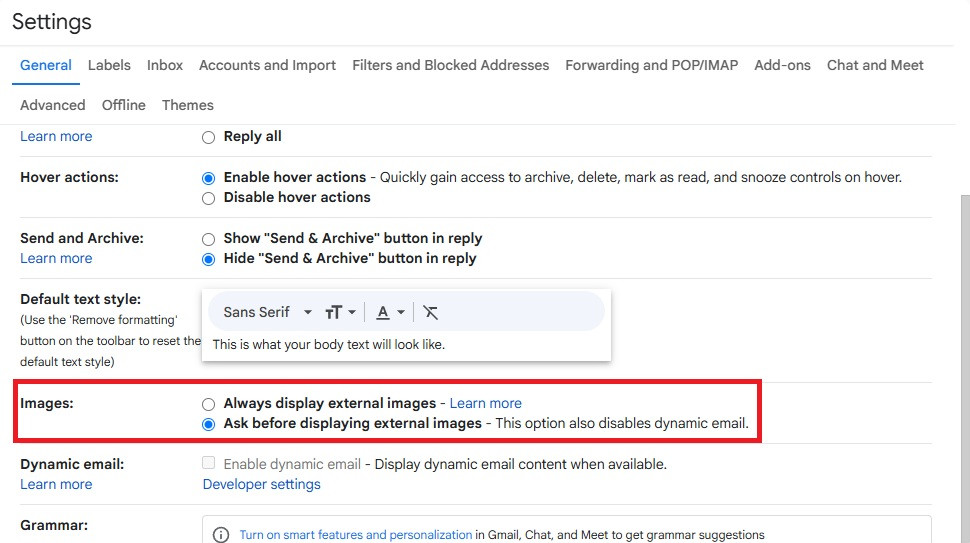
Open Gmail's settings and under Images, choose Ask before displaying external images.
- 2
Turn off smart features
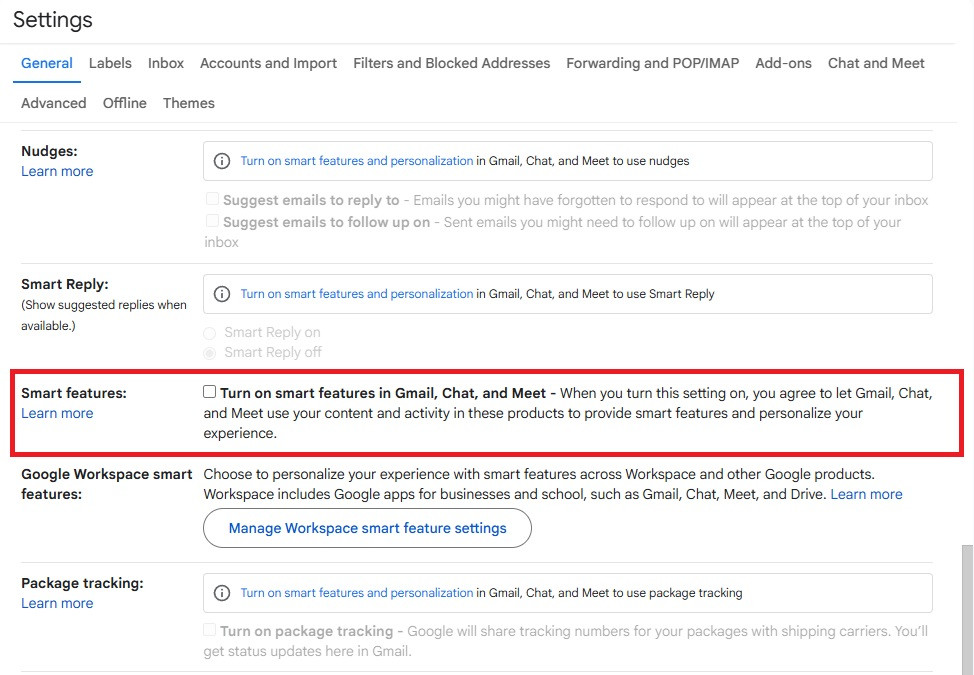
On the same page, under Smart features, uncheck Turn on smart features in Gmail, Chat, and Meet. That turns off Smart Compose, Smart Reply, Nudges and package tracking with it.
Set Create contacts for auto-complete to I'll add contacts myself and click Save Changes at the bottom. Check the Gmail app on your phone too, since the change doesn't always carry over.
- 3
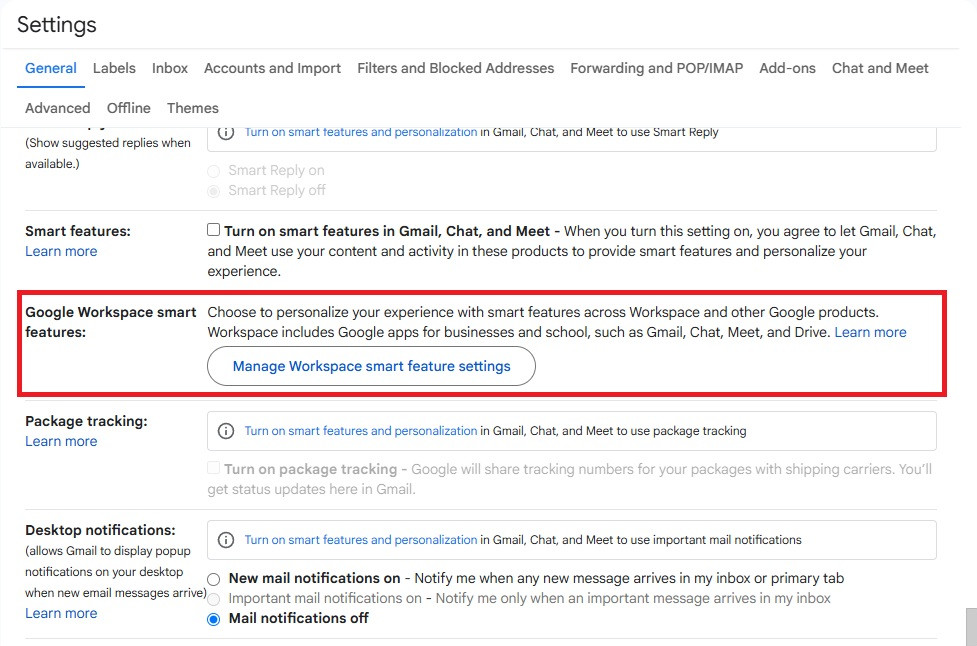
Turn off Workspace smart features
Under Google Workspace smart features, click Manage Workspace smart feature settings.
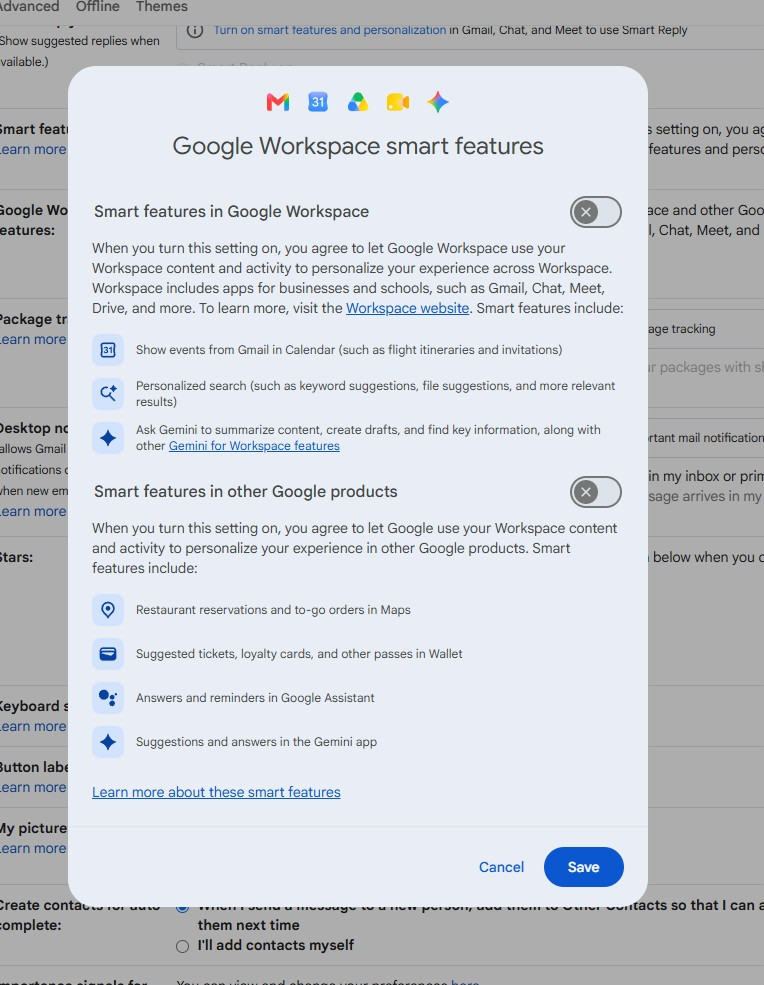
In the box that opens, turn off both Smart features in Google Workspace and Smart features in other Google products, then click Save. That turns off Gemini in Gmail, Docs, Sheets, Slides and Drive.
- 4
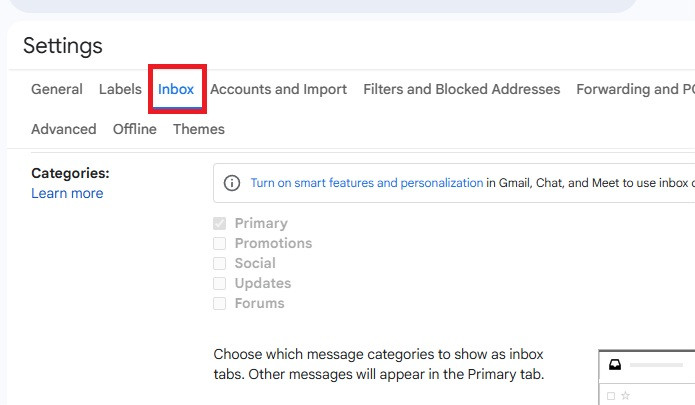
Turn off AI Inbox
Click the Inbox tab at the top of settings.
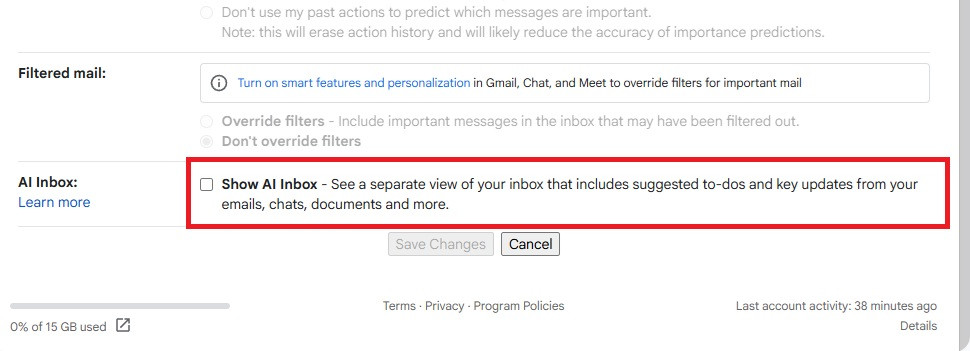
At the bottom, uncheck Show AI Inbox if it's there and click Save Changes.
Drive, Docs, Sheets and Slides
The Workspace apps mostly inherit the Gmail settings. A few things are their own.
- 1
Turn off offline files on a shared computer
In Drive settings, under Offline, uncheck Create, open and edit your recent Google Docs, Sheets, and Slides files on this device while offline.

- 2
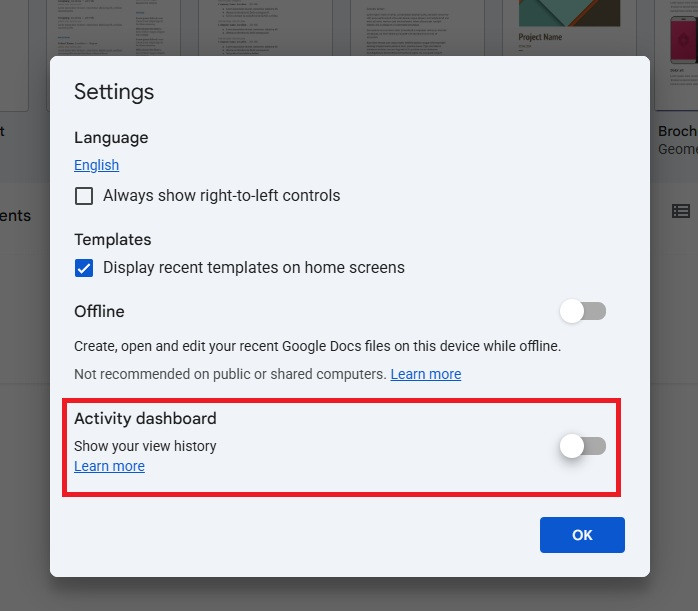
Turn off view history
On Docs, open the main menu, then Settings, and under Activity dashboard, turn off Show your view history.
- 3
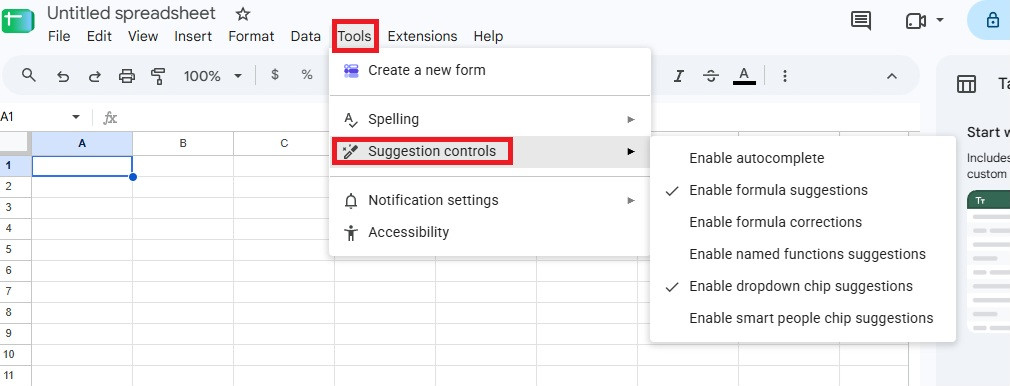
Turn off Sheets suggestions
In a sheet, go to Tools, then Suggestion controls, and uncheck each of these.
- Enable autocomplete
- Enable formula corrections
- Enable named functions suggestions
- Enable smart people chip suggestions
- 4
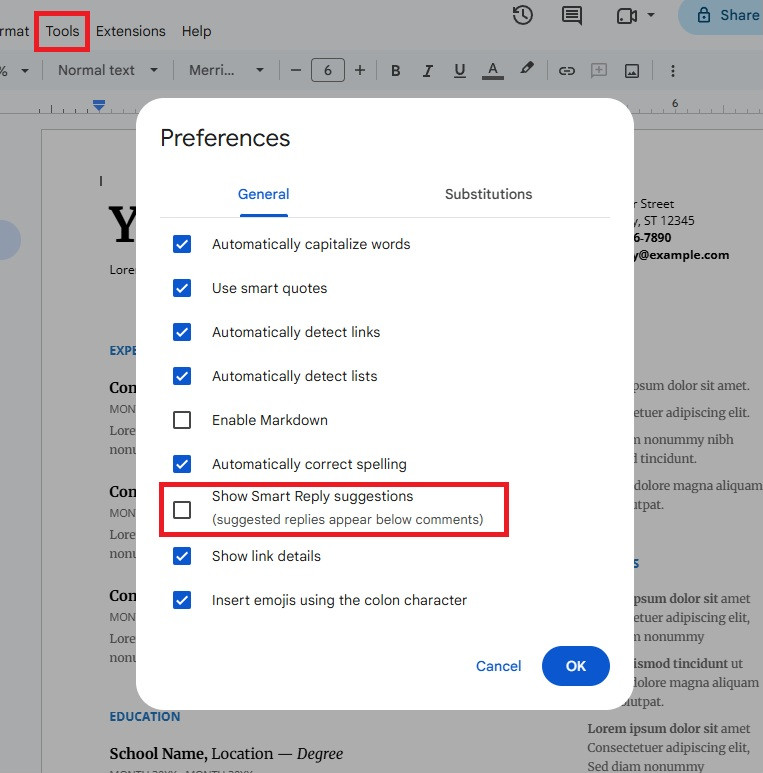
Turn off Smart Reply in Docs
In a doc, go to Tools, then Preferences, and uncheck Show Smart Reply suggestions.
Calendar, Keep and Meet
The small apps have one or two settings each, and Calendar's is the one strangers abuse.
- 1
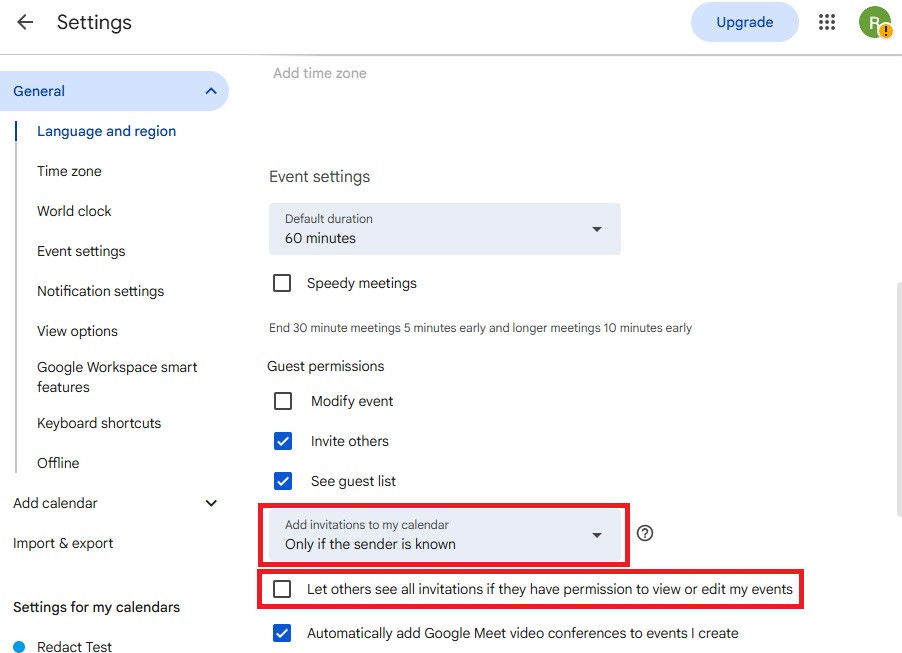
Stop strangers adding events
In Calendar settings, under Event settings, set Add invitations to my calendar to Only if the sender is known and uncheck Let others see all invitations if they have permission to view or edit my events.
- 2
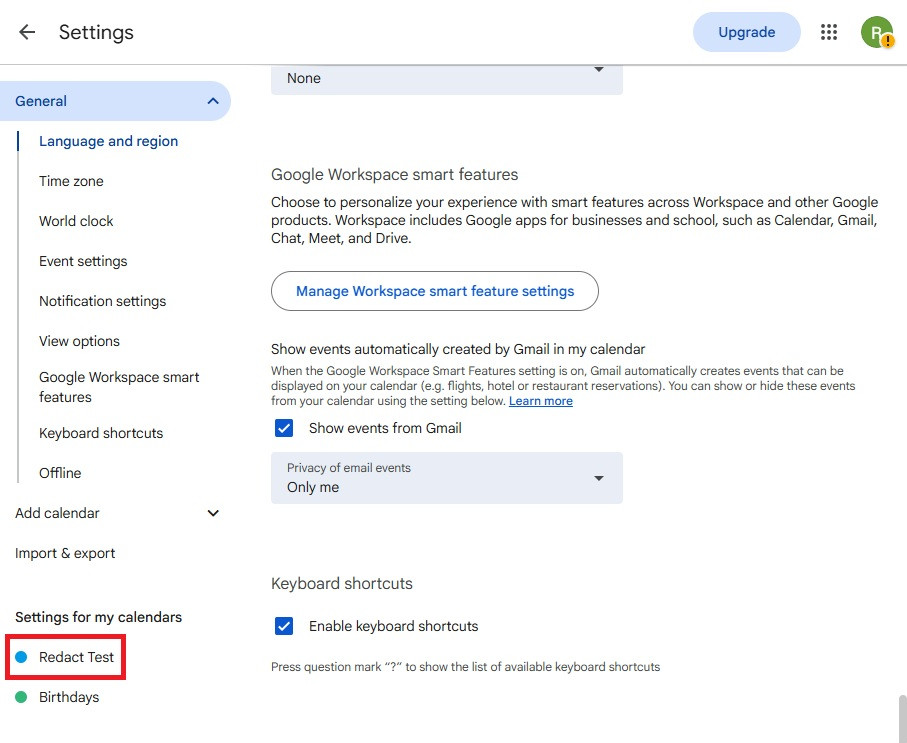
Keep your calendar off the public web
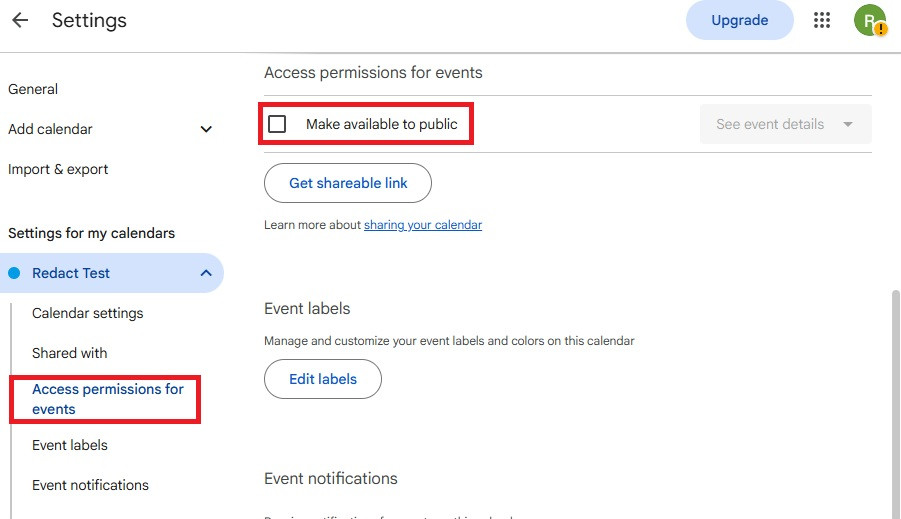
Under Settings for my calendars on the left, click your calendar.
Click Access permissions for events and leave Make available to public unchecked.
- 3
Turn off sharing in Keep
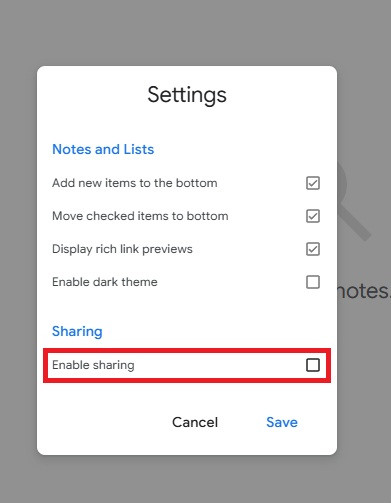
Go to keep.google.com, click the gear at the top right, then Settings. Uncheck Enable sharing and click Save.
- 4
Only take Meet calls from contacts
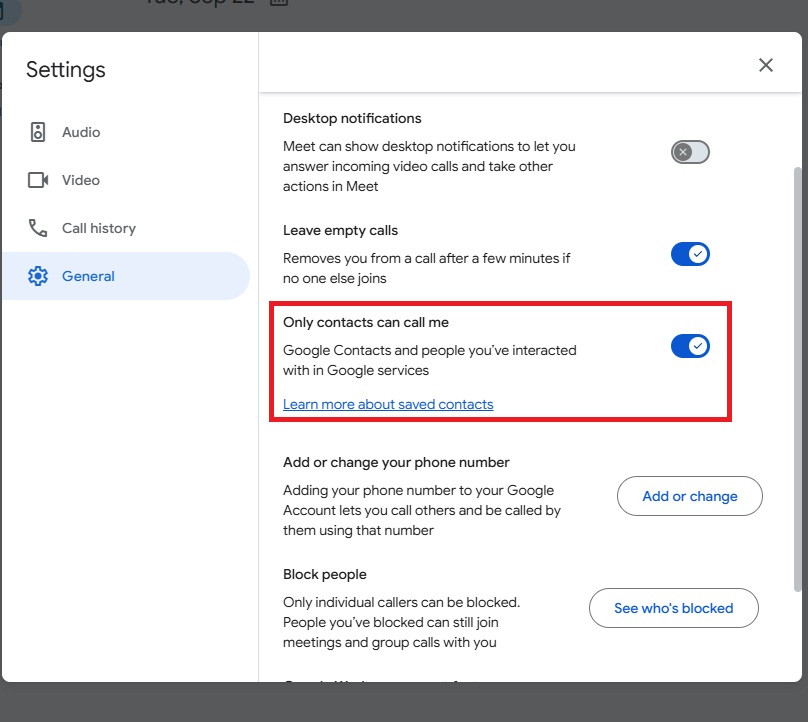
Go to meet.google.com, click the gear at the top right, then General, and turn on Only contacts can call me.
Gemini
The Gemini settings decide whether your chats are kept, whether people read them, and what Gemini remembers about you. There's a separate Gemini Apps Activity guide with the phone steps.
- 1
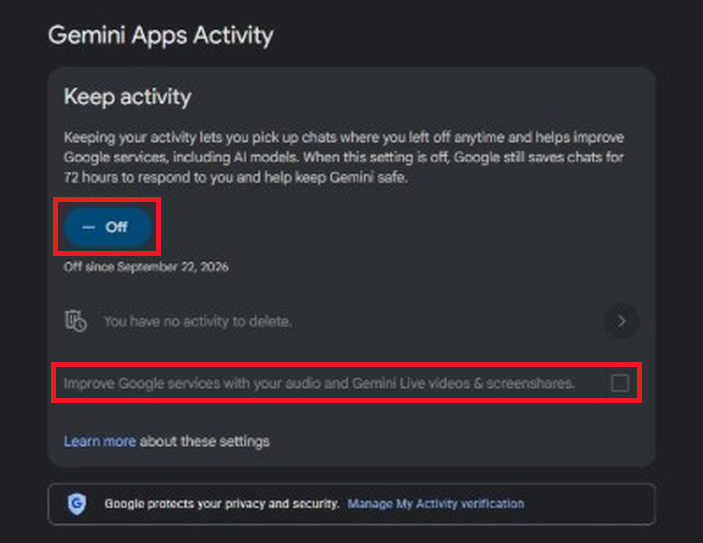
Turn off Keep activity
Go to Gemini Apps Activity. Make sure Keep activity is Off and the Improve Google services box is unchecked.
- 2
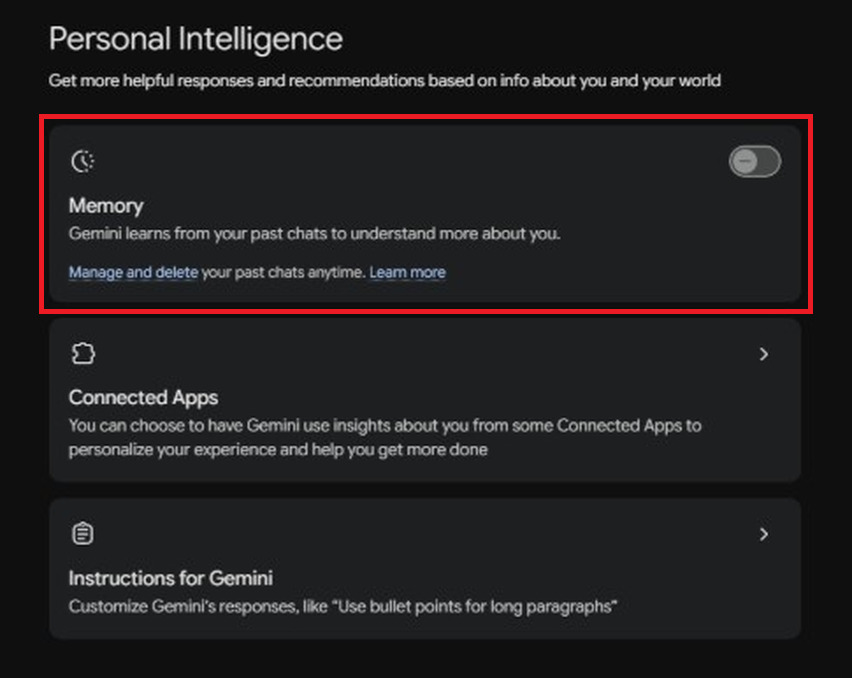
Turn off Memory
On gemini.google.com, click Settings & help, then Personal Intelligence, and turn off Memory.
- 3
On Android, keep Gemini off the lock screen
In the Gemini app, tap Menu, your profile picture, then Settings. Tap Gemini on lock screen and turn off Use Gemini without unlocking and Make calls and send messages without unlocking.
- 4
On Android, turn off screen context
Back in Settings, tap Screen context and turn off Use text from screen and Use screenshot.
- 5
On Android, turn off Hey Google
Back in Settings, tap Talk to Gemini hands-free and turn off Hey Google.
Google Photos
Photos has a face model of everyone in your library and a guess at where every photo was taken. Both are settings. Ask Photos and the rest of Photos' Gemini features only work with both on, so turning them off keeps Gemini out of Photos too.
- 1
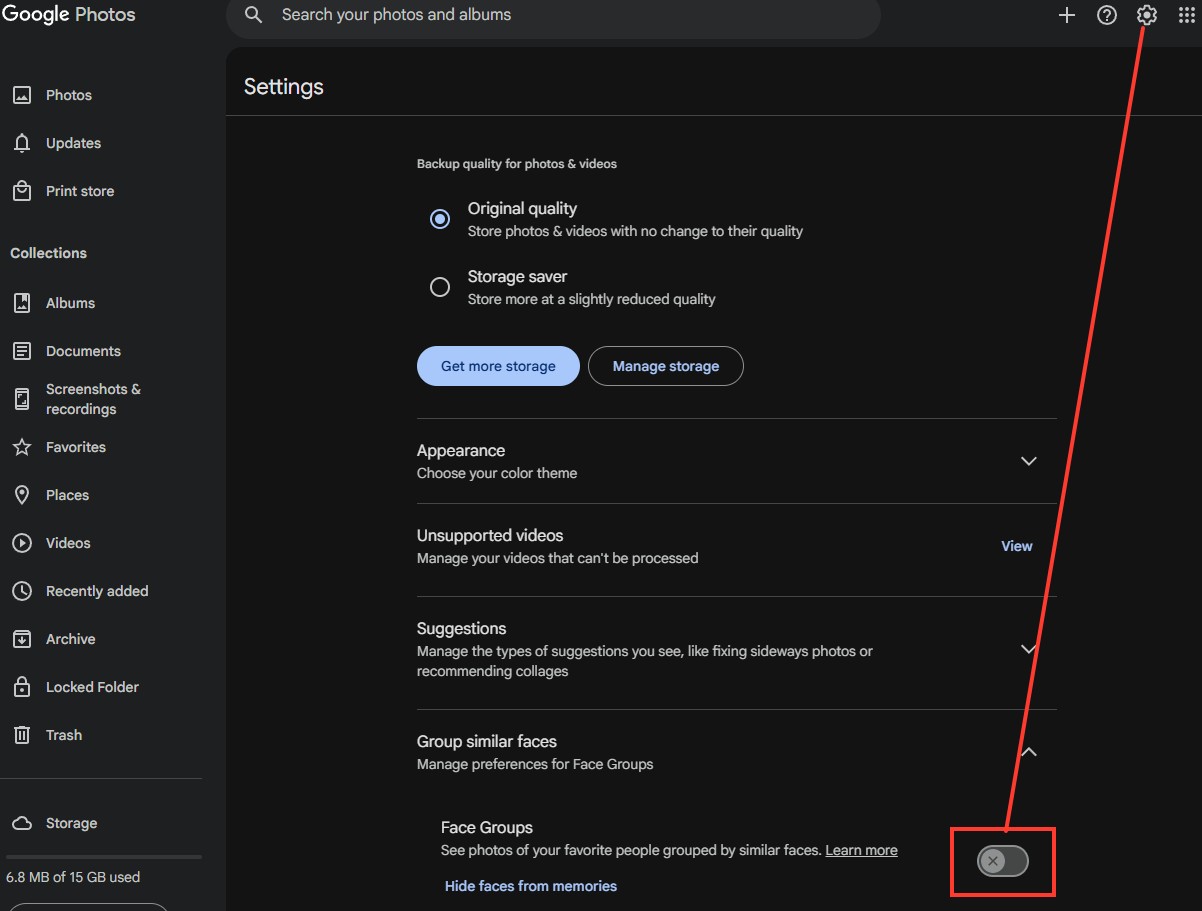
Turn off Face Groups
Go to photos.google.com and click the gear at the top right. Click Group similar faces and turn off Face Groups.
- 2
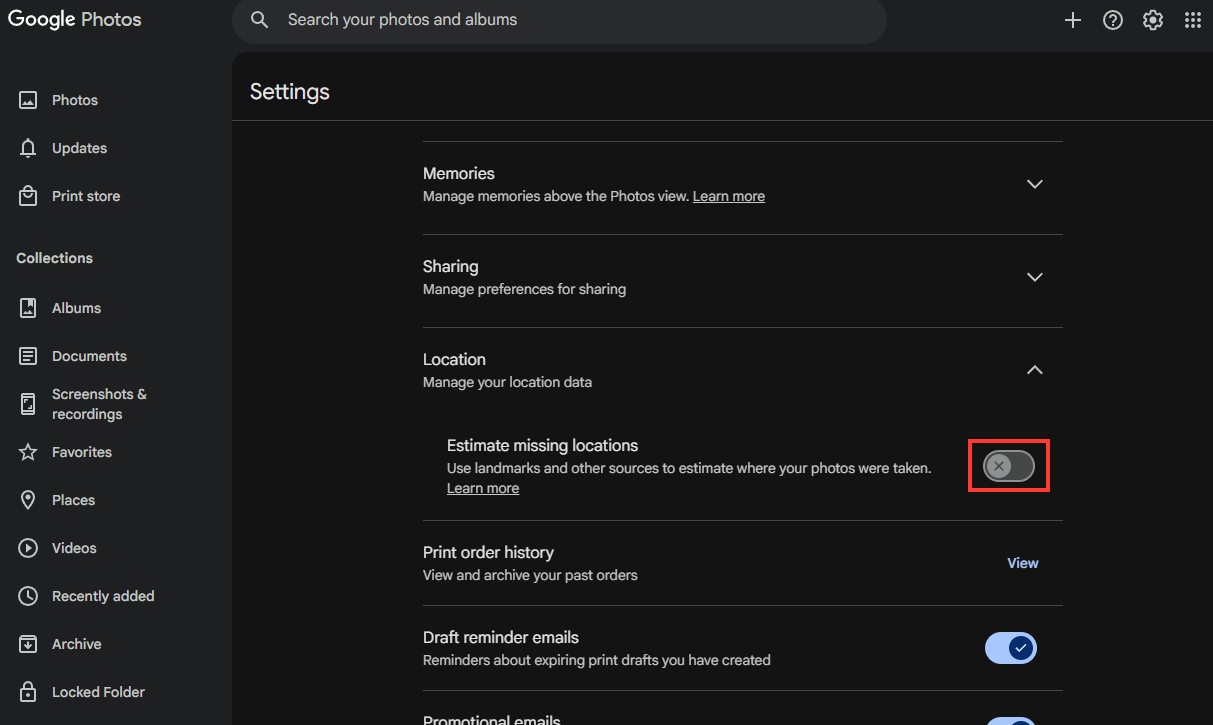
Turn off estimated locations
On the same page, click Location and turn off Estimate missing locations.
- 3
Leave Partner Sharing off
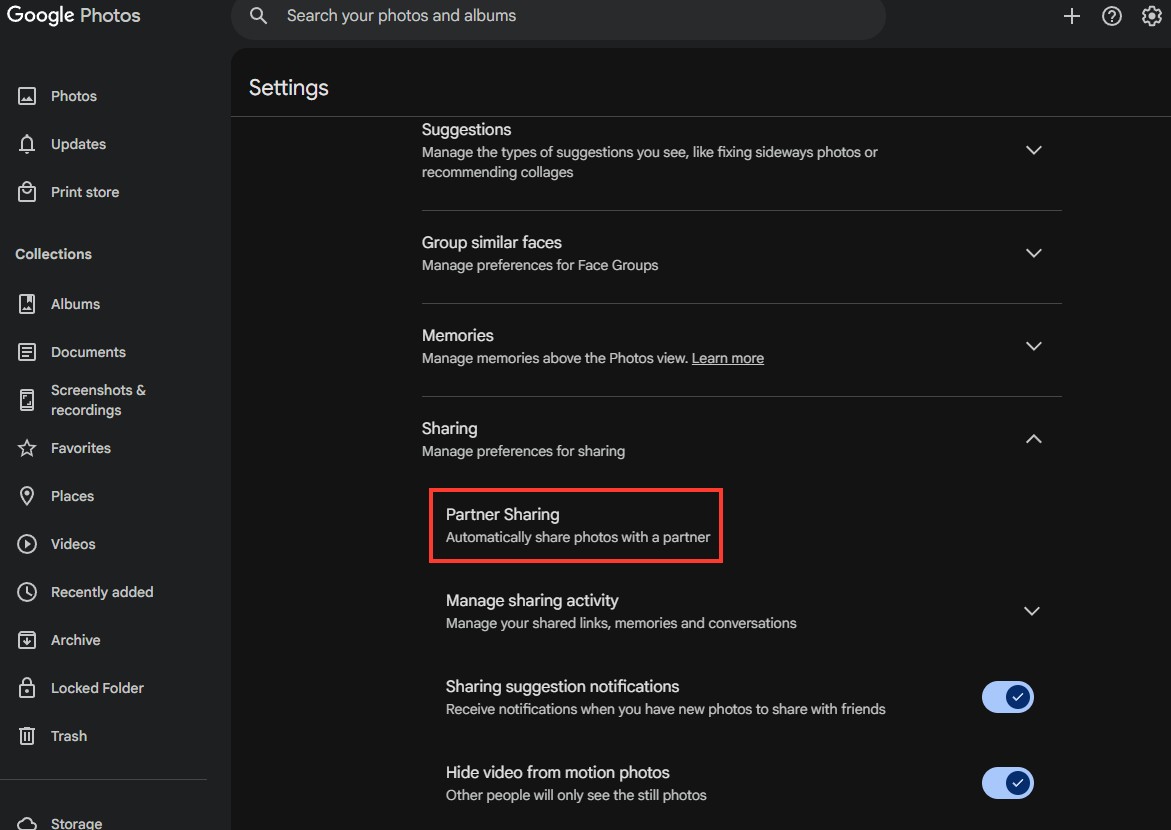
On the same page, click Sharing, then click Partner Sharing. It doesn't look clickable, but it is.
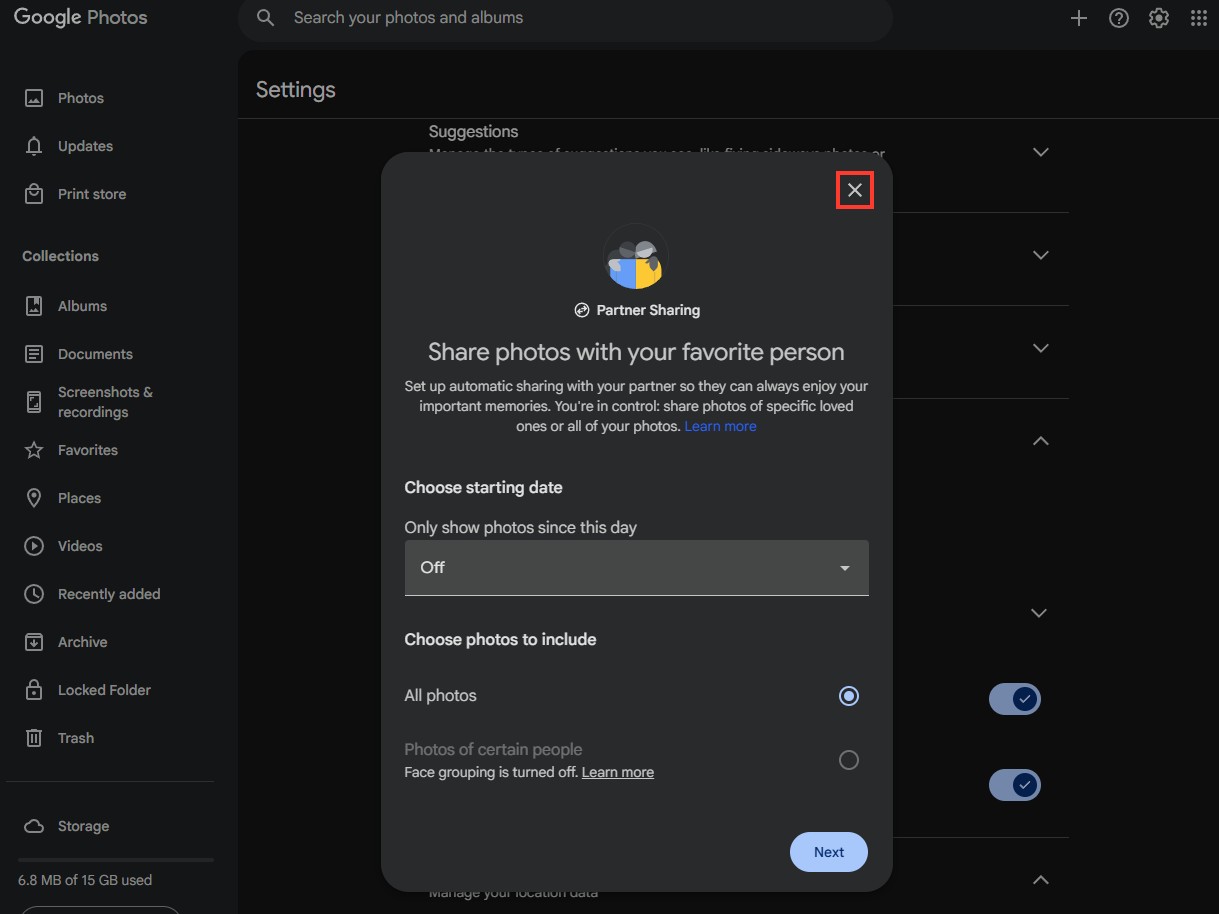
If a box opens asking you to share photos with your favorite person, Partner Sharing is off. Close it with the X and don't click Next.
Google Maps
Maps can keep a log of everywhere you go, share your live location with other people, and put all your reviews and photos on one public profile.
- 1
Uncheck Timeline's ads setting
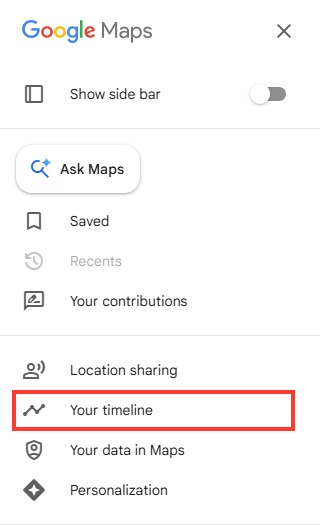
In Google Maps, click the menu at the top left, then Your timeline.
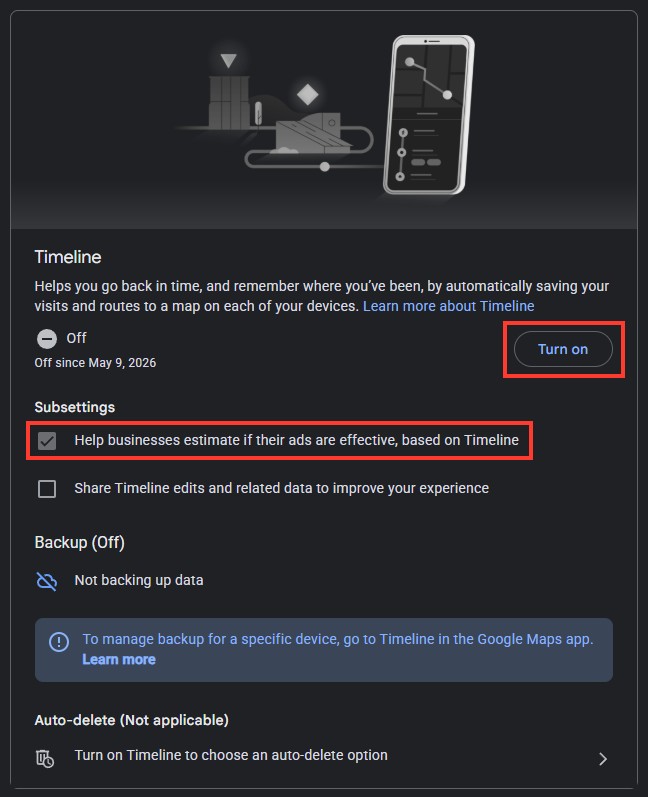
Click Activity Controls at the bottom of the Timeline panel. Help businesses estimate if their ads are effective, based on Timeline can only be unchecked while Timeline is on, so click Turn on, uncheck it, then turn Timeline off again.
- 2
Check location sharing
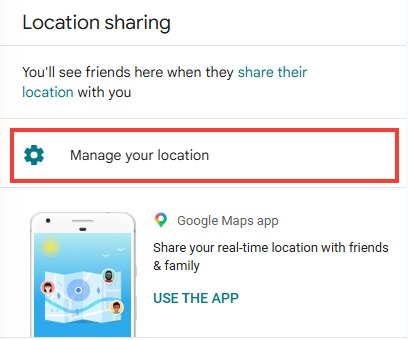
Back in the menu, click Location sharing, then Manage your location.
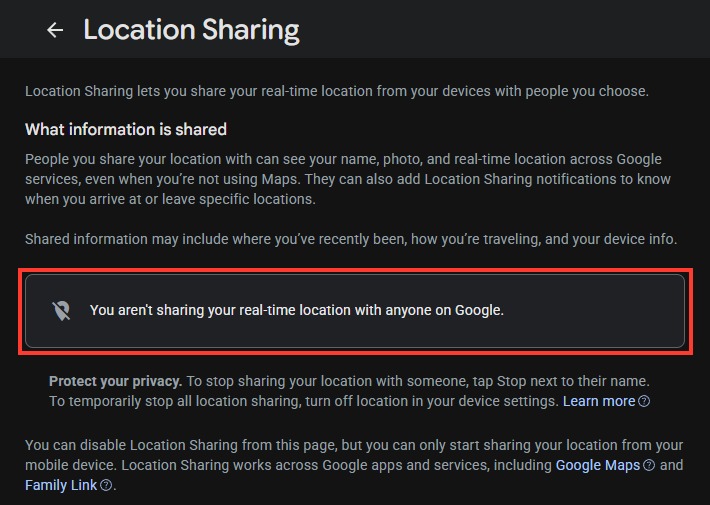
Make sure it says You aren't sharing your real-time location with anyone on Google.
- 3
Hide your posts from your profile
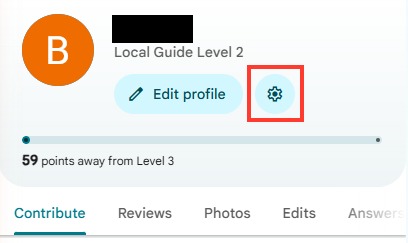
Back in the menu, click Your contributions, then the gear next to Edit profile.
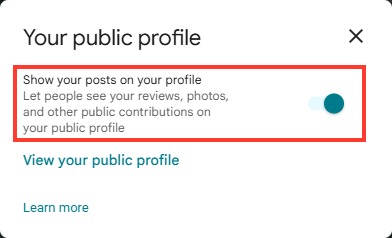
Turn off Show your posts on your profile.
Chrome
Chrome is where the AI features arrived fastest. The settings below are from Chrome 153, and the Ad privacy page older guides mention is gone.
- 1
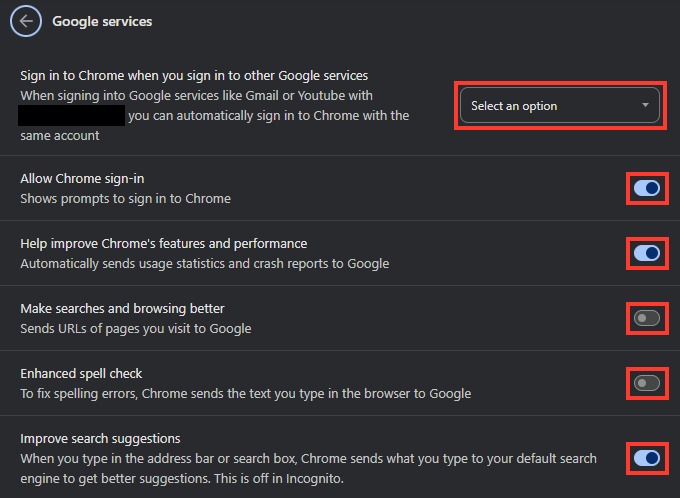
Go through Google services
Go to
chrome://settings/googleServices.- Set Sign in to Chrome when you sign in to other Google services to Don't sign in
- Turn off Allow Chrome sign-in
- Turn off Help improve Chrome's features and performance
- Turn off Make searches and browsing better
- Turn off Enhanced spell check
- Turn off Improve search suggestions
- 2
Block third-party cookies
Go to
chrome://settings/cookiesand choose Block third-party cookies.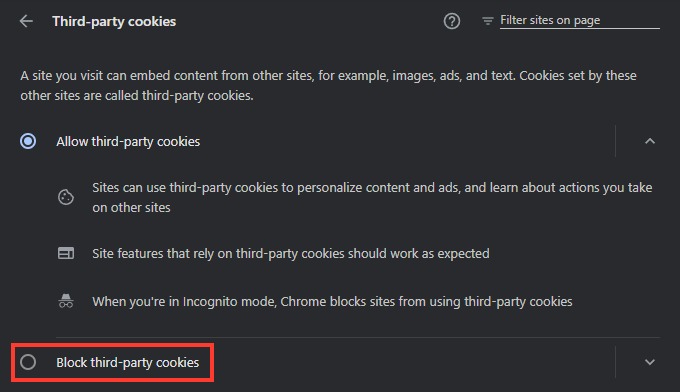
- 3
Block location requests
Go to
chrome://settings/content/locationand choose Don't allow sites to see your location.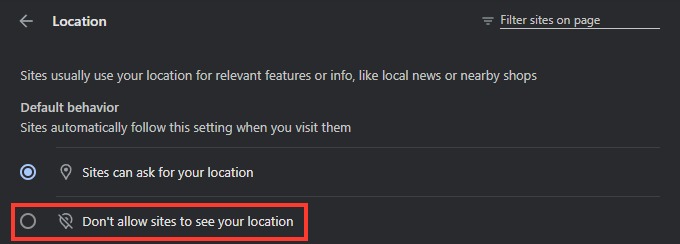
- 4
Block notification requests
Go to
chrome://settings/content/notificationsand choose Don't allow sites to send notifications.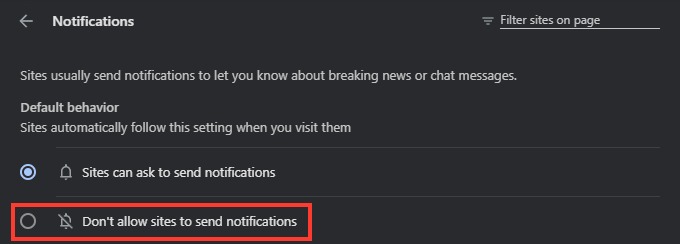
- 5
Turn off preloading
Go to
chrome://settings/performanceand, under Speed, turn off Preload pages.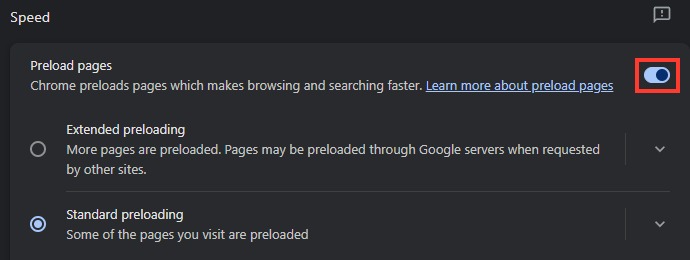
- 6
Turn off Chrome's AI settings
Go to
chrome://settings/ai. Make sure History search, powered by AI says This setting is off, and turn off On-device AI.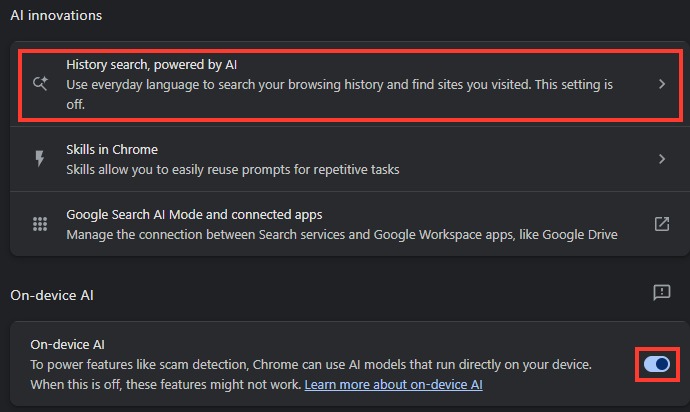
- 7
Unpin Ask Gemini
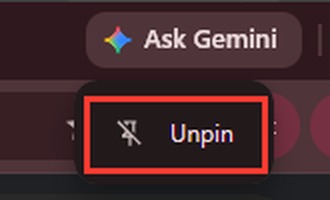
Right-click Ask Gemini at the top right of Chrome and click Unpin.
- 8
Take AI Mode off the address bar
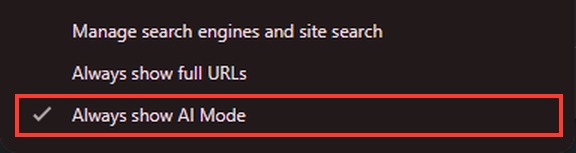
Right-click the address bar and uncheck Always show AI Mode.
- 9
Turn off Smarter form understanding
Go to
chrome://settings/autofill, open Autofill settings at the bottom, and turn off Smarter form understanding.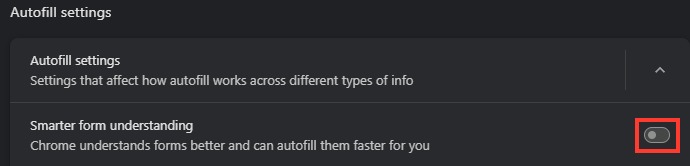
An Android phone
If the fresh account goes on an Android phone, the phone adds its own settings. On an iPhone, the Google app's Privacy & Safety settings are the only extra.
- 1
Delete the advertising ID
Go to Settings, then Google, All services, Privacy & security and Ads, and tap Delete advertising ID.
- 2
Turn off Personalize using shared data
Back on Privacy & security, open Personalize using shared data and turn off every source.
- 3
Turn off location scanning
Under Settings, then Location, then Location Services, turn off each of these.
- Improve Location Accuracy
- Wi-Fi scanning
- Bluetooth scanning
- 4
Turn off usage reports
Under Security & privacy, then More security & privacy, turn off Usage & diagnostics.
- 5
On a Pixel, turn off Magic Cue
On a Pixel 10 or 11, open Settings and turn off Magic Cue or Proactive Assistance.
- 6
Turn off Play Protect's app reports
In the Play Store, tap your profile picture, then Play Protect, then Settings, and turn off Improve harmful app detection.
- 7
Turn off Personalize Play
Back under your profile picture, open Personalization in Play and turn off Personalize Play.
- 8
Turn off Messages suggestions and Gemini
In Messages, tap your profile picture, then Messages settings, and turn off each of these.
- Send read receipts
- Show typing indicators
- Suggestions
- Automatic previews
- Show Gemini button
- 9
Decide on Messages spam protection
Back in Messages settings, tap Protection & Safety, then Spam protection. Enable spam protection is on by default. It sends links from your texts to Google and may use unencrypted texts to train its spam models. I'd leave it on for the scam warnings. Turning it off loses those, and Google may still check unencrypted texts on its side.
- 10
If you have Google Home devices
In the Home app, turn off each of these.
- Home History
- Voice Match
- Personal Results
- 11
If you have a Google TV
On the TV, turn on Apps only mode.
- 12
If you use Wallet
In Wallet, turn off the four settings under Manage data from Wallet and payments services.
The settings Google doesn't give you
Everything above is a setting. These aren't, and no amount of clicking changes them.
AI Overviews and AI Mode. Google's help page says "Features cannot be turned off". The Web filter is the workaround, and the history settings decide whether what you type is kept.
Google training on YouTube. The Studio setting covers outside companies. Google's own training on YouTube videos has no opt-out.
The retention floors. Every Gemini chat is held 72 hours with Keep activity off, and a chat a reviewer has looked at stays three years.
YouTube's Ask button, comment topics, the custom feed and age estimation. Age estimation applies to US accounts regardless of the birthday on file, and the way back from a wrong guess is a government ID, a card or a selfie.
Spam scanning in Chat. Chat scans for spam and phishing with history off. Messages has its own setting, in the Android steps.
Gemini for TV. It has no setting of its own. The only documented way to remove it is removing the TV from Google Home.
Old names vs new names
If a guide you're following names a setting on the left, look for the one on the right.
| What the older guides say | What it's called now | Where |
|---|---|---|
| Location History | Timeline | myactivity.google.com |
| Gemini Apps Activity | Keep activity | myactivity.google.com/product/gemini |
| Personal context, past chats | Memory, under Personal Intelligence | gemini.google.com |
| Saved info | Instructions for Gemini | gemini.google.com |
| Extensions | Connected Apps | gemini.google.com |
| Smart features and personalization in other Google products | Two settings, Smart features in Google Workspace and Smart features in other Google products | Gmail settings |
| Your connections to third-party apps & services | Linked apps | myaccount.google.com/linkedapps |
| Enhanced autofill | Smarter form understanding | chrome://settings/autofill |
| Autocomplete searches and URLs | Improve search suggestions | chrome://settings/googleServices |
| Clear browsing data | Delete browsing data | chrome://settings/clearBrowserData |
| Ad privacy | Removed in Chrome 152 | nowhere |
| Google Assistant | Gemini for Home, Gemini for TV | Home app, TV settings |
| Fitbit app | Google Health app | phone |