Discord Image Sizes for Your Profile and Chat + Free Resizer Tool
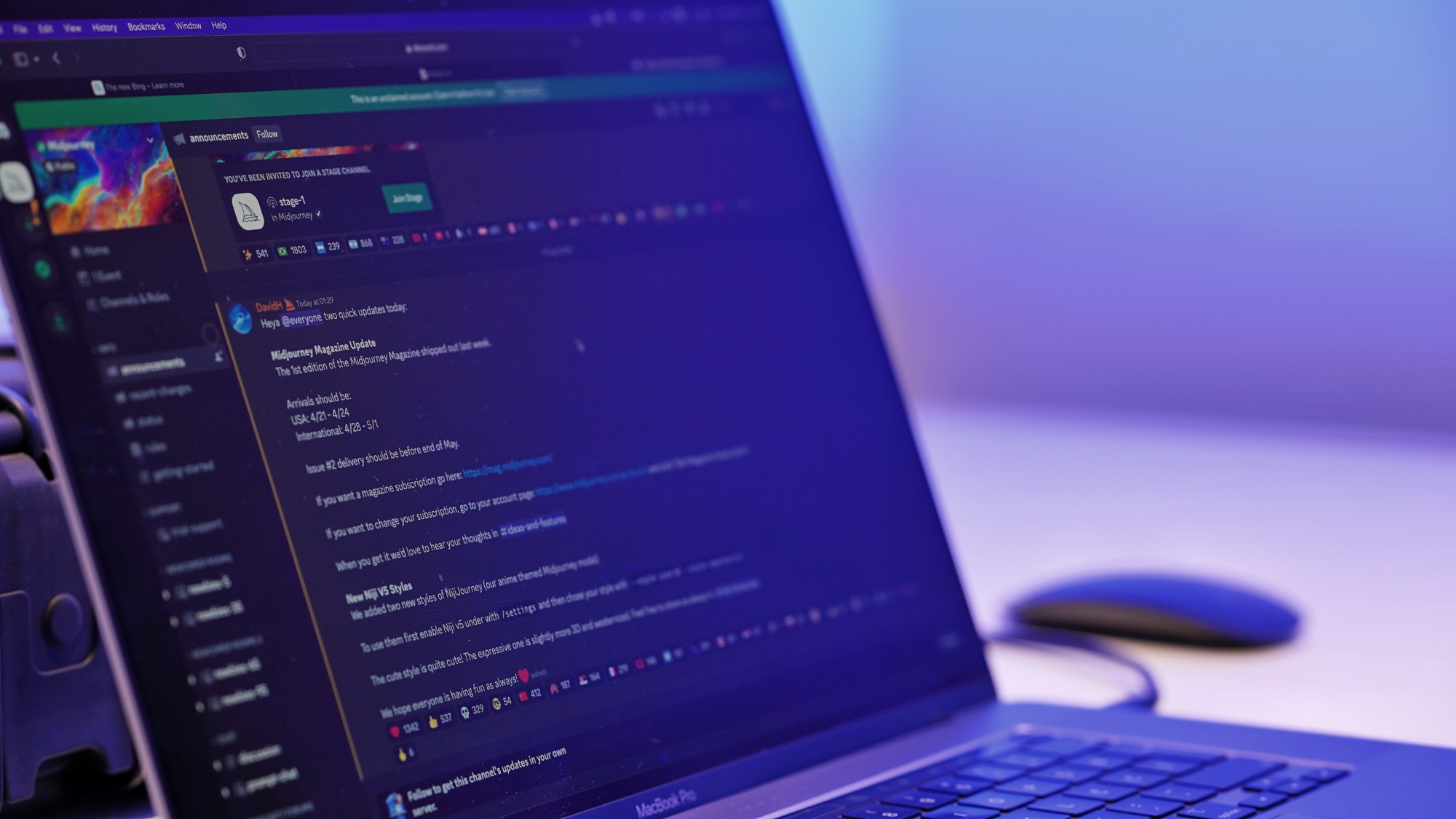
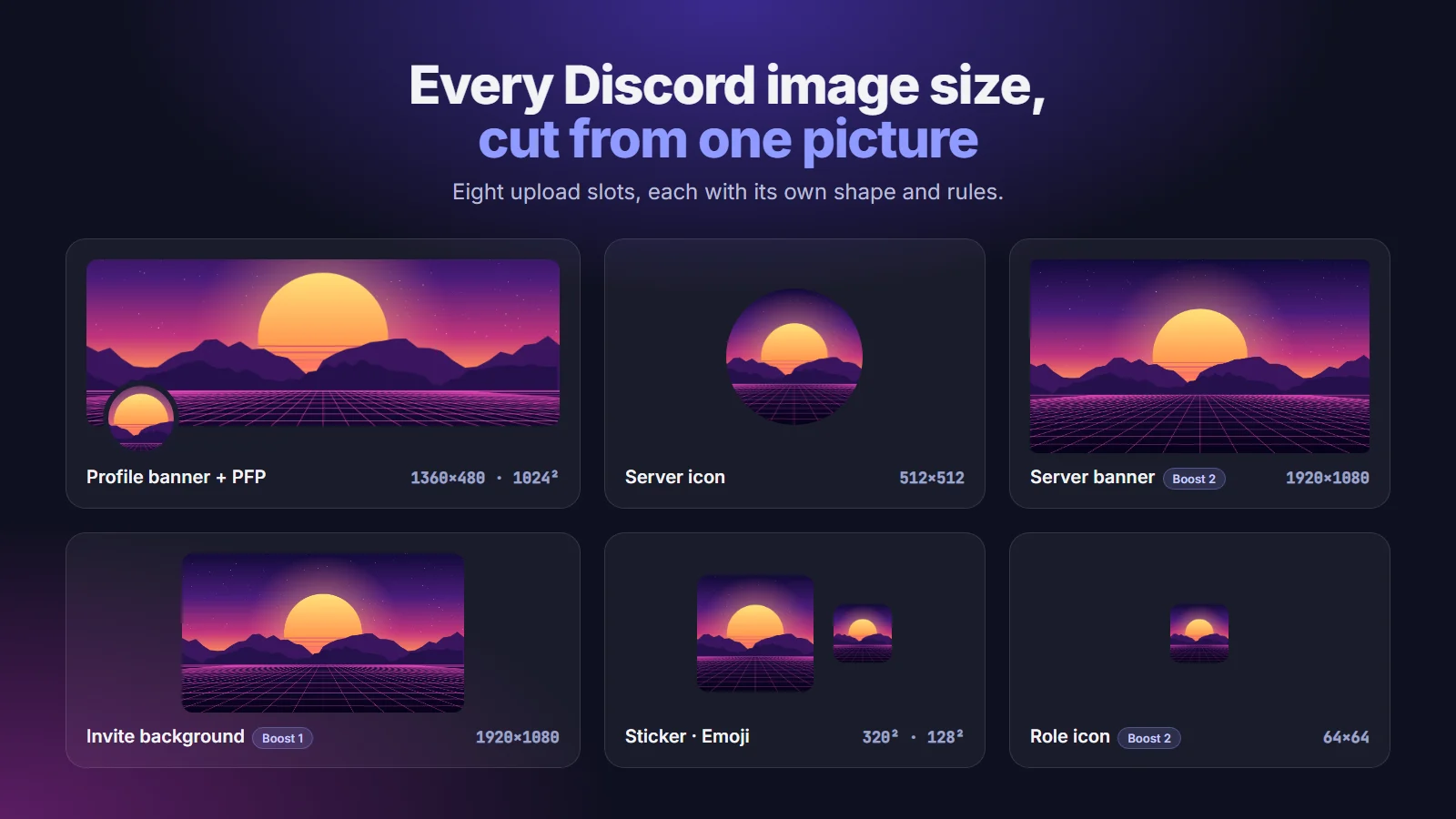
Meet the Discord Image Resizer, our free tool that turns one picture into every file Discord asks for, along with the full spec sheet behind it: shapes, pixel sizes, file limits and what Discord covers on each one.
 Dan Saltman
On this page
Discord's cropper trims both ends off your banner, your avatar lands on the best part of it, and a custom emoji gets turned away for being too big, all because each of Discord's eight upload slots wants its own shape, pixel size or file weight.
That's why we built the free Discord Image Resizer, which turns one picture into all eight files and checks each one against its slot's limit. Whether or not you use the tool, the full spec sheet for every profile, server and chat image follows below.
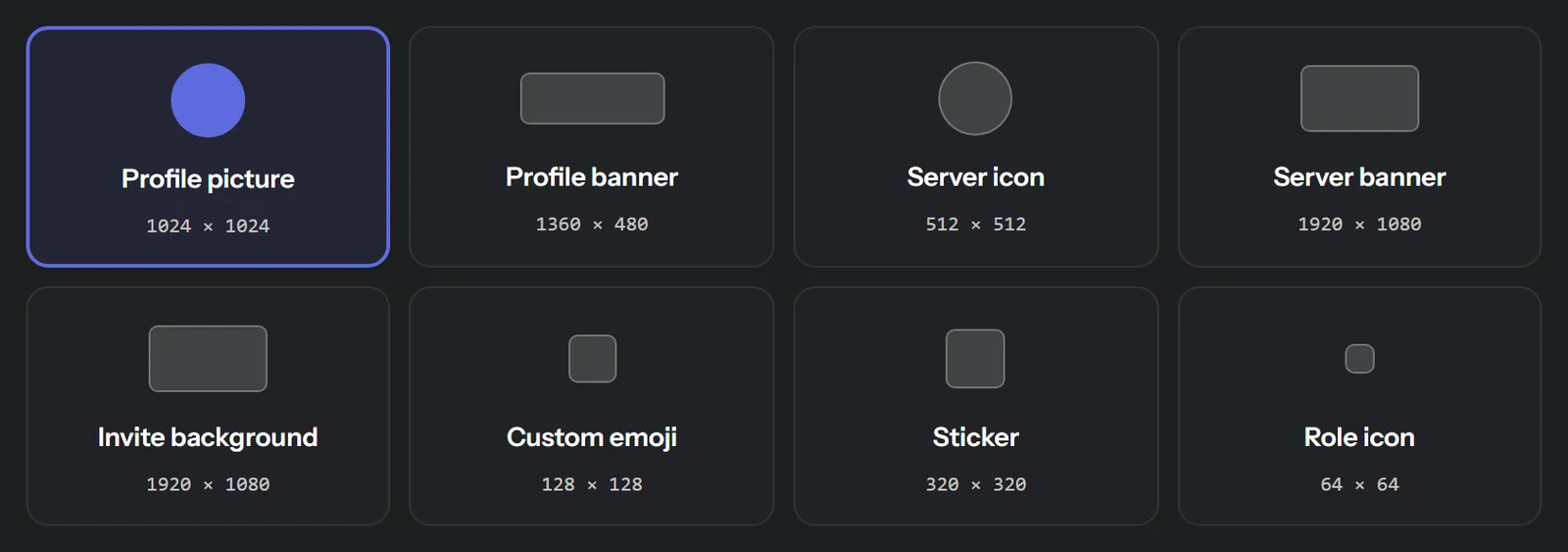
Every Discord image size & limit
Each rule in this table is taken from Discord's own help center, and every section below links to the page it came from. When Discord doesn't publish a number, the table says so, and the last column shows the file our resizer saves for that slot.
| Slot | Discord's size rule | File limit | File types | Needs | Resizer saves |
|---|---|---|---|---|---|
| Profile picture (PFP) | Not published (square, shown as a circle) | Not published | PNG, JPG, GIF (GIF needs Nitro) | No Nitro or Boost | 1024 × 1024 |
| Profile banner | At least 680 × 240 | 10 MB | PNG, JPG, GIF (GIF needs Nitro) | Nitro | 1360 × 480 |
| Server icon | Not published (square, shown as a circle) | Not published | Not published | No Boost (animated: level 1) | 512 × 512 |
| Server banner | 960 × 540 or larger, 16:9 | Not published | Image or GIF | Boost level 2 (animated: level 3), or a Partnered server | 1920 × 1080 |
| Invite background | Exactly 1920 × 1080 | Not published | JPG, PNG (no animation) | Boost level 1 | 1920 × 1080 |
| Custom emoji | Up to 128 × 128 | Under 256 KB | JPEG, PNG, GIF, WEBP | No Boost (50 slots), Create Expressions permission | 128 × 128 |
| Sticker | Exactly 320 × 320 | 512 KB | PNG, APNG | No Boost (5 slots), Create Expressions permission | 320 × 320 |
| Role icon | 64 × 64 | 256 KB | Not published | Boost level 2 | 64 × 64 |
Discord profile picture (PFP) size
You upload your PFP as a square, and Discord shows it as a circle nearly everywhere: beside your messages, in the member list, on your profile card. Discord's Custom Profiles page names PNG and GIF for avatars (a GIF avatar needs Nitro), its Per-Server Profiles page names PNG and JPG, and neither gives a pixel size or file limit. The resizer saves 1024 × 1024 so large screens get plenty of detail, and our sample came to 582 KB.
The circle is the part people forget. Anything in the four corners of your square gets cut off, so keep a face, logo or name centered with room to spare. The resizer shades those corners, and its dashed ring shows exactly where Discord's circle lands.
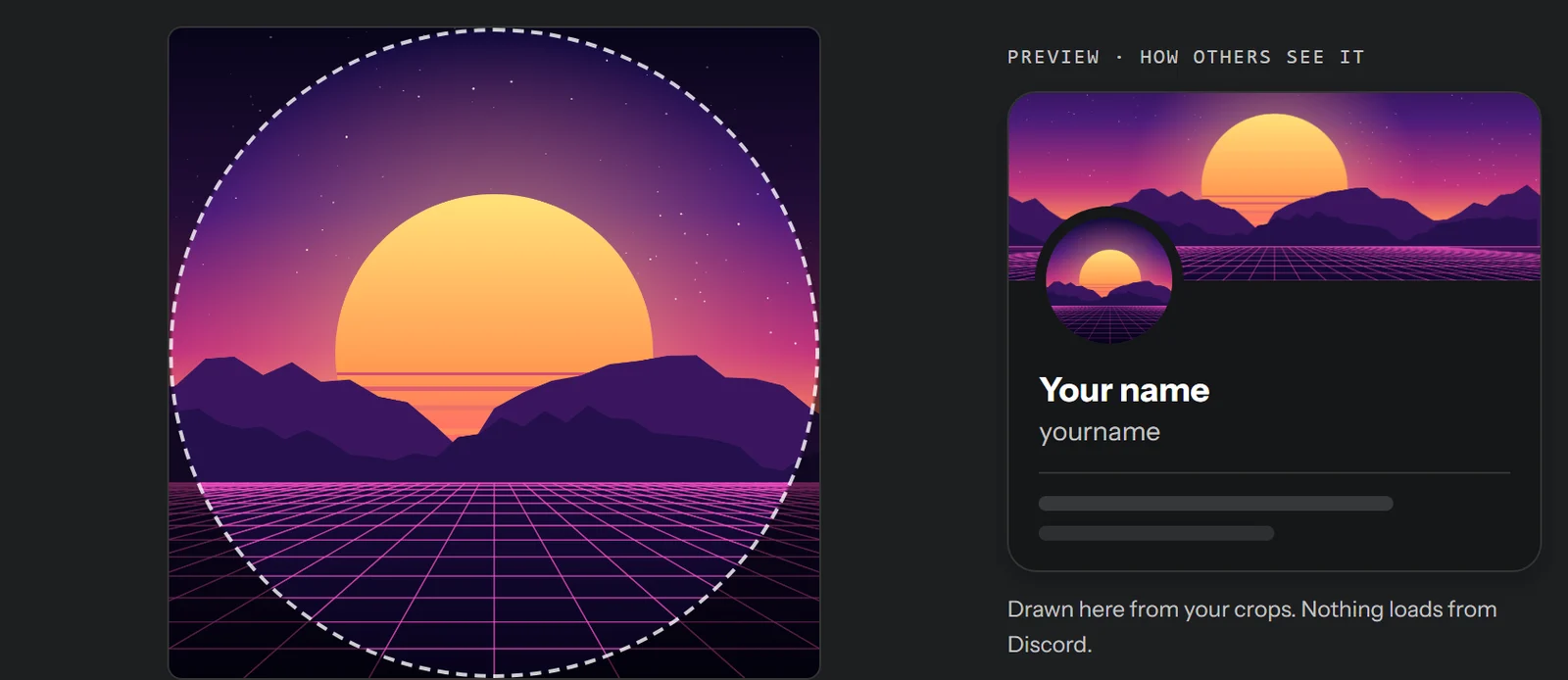
The preview on the right is built from your own crops, not pulled from Discord, so you can check the PFP and banner together before uploading either one.
Discord banner size (profile)
Your profile banner is the strip running across the top of your profile card, and Discord's Custom Profiles page asks for at least 680 × 240 pixels and a file under 10 MB, as a PNG, JPG or GIF. That works out to a 17:6 shape, far wider than the 16:9 that most phones and screenshots use. The mismatch explains why Discord's cropper eats the sides of an ordinary photo, and why a picture that's already 17:6 gives it nothing to cut.
We save it at 1360 × 480, twice the minimum, because a banner at exactly 680 × 240 looks blurry on high-resolution displays. You'll need Nitro for a profile banner, animated or not.
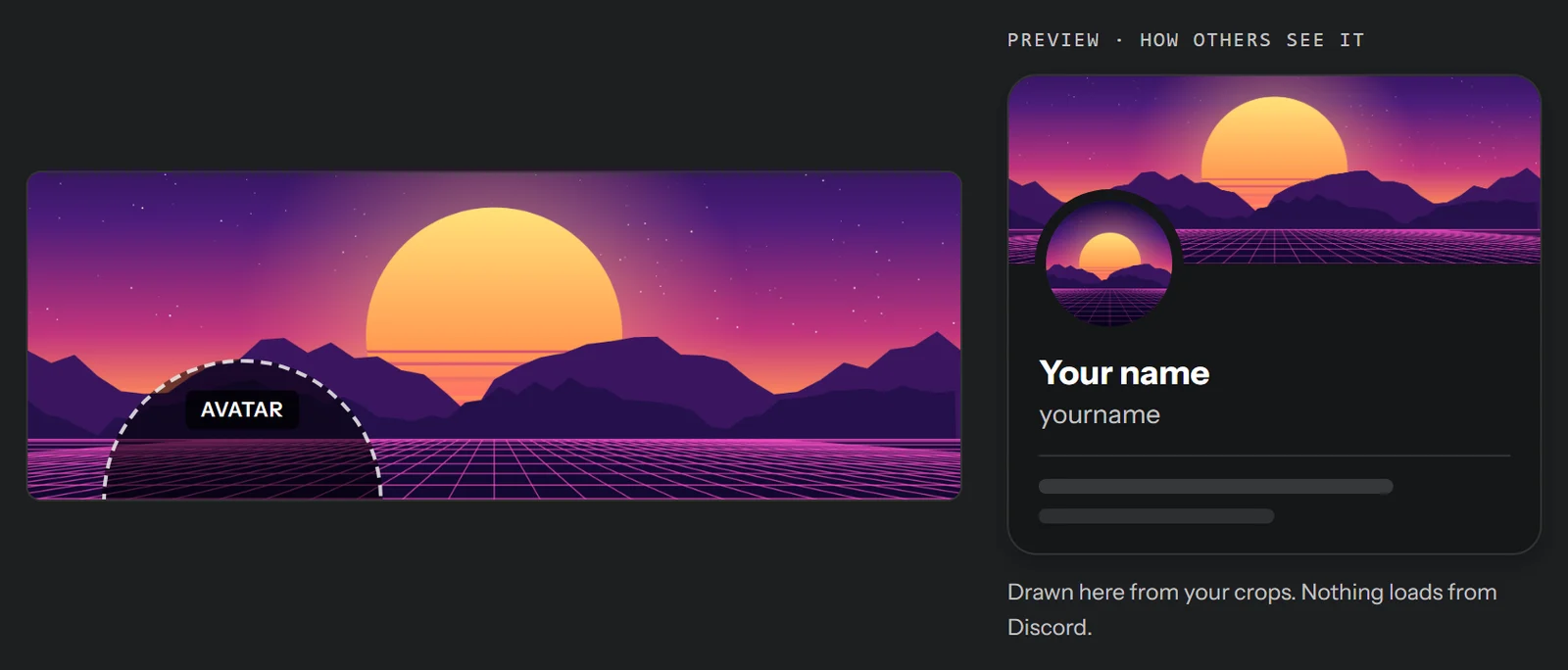
Keep an eye on the bottom left corner, since your avatar sits on top of it and anything there (text, a face, the best part of the view) gets hidden. The resizer marks that spot so you can drag the picture until the part that matters sits clear of it.
Discord server icon size
The server icon works like the PFP, a square upload that's shown as a circle, and Discord's help center gives no pixel size or file limit for it. An animated server icon unlocks at Boost level 1. The resizer saves 512 × 512, and since the icon shows up tiny in the server list on the left, simple artwork with bold shapes reads far better than a detailed photo.
Discord server banner size
The server banner sits at the top of the channel list, and it's the one most people get wrong, because it's 16:9 instead of 17:6 like the profile banner. Discord recommends an image or GIF of 960 × 540 or larger, and we save 1920 × 1080. A custom server banner unlocks at Boost level 2, and an animated one at level 3, according to Discord's Server Banners article, though a Partnered server gets the banner without Boosts (see Partnered vs Verified Servers).
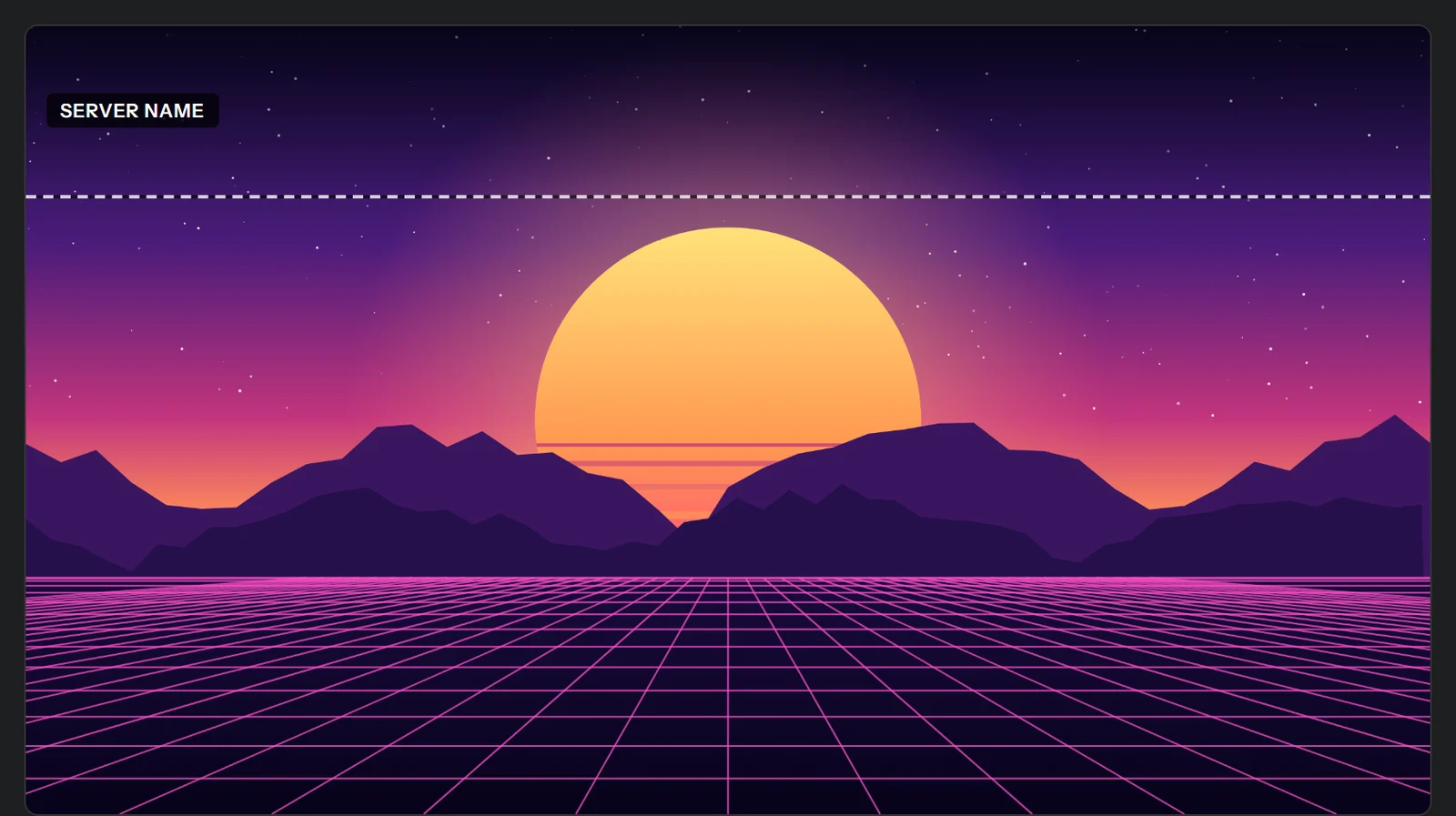
Discord prints the server name across the top of the banner, and its own advice is to keep the top 48 pixels simple so the name stays easy to read. In the resizer, a dashed line marks roughly where the name sits, which is a little deeper than those 48 pixels.
Discord invite background size
The invite background fills the page behind the invite card when someone opens one of your server's invite links in a browser. It unlocks at Boost level 1, one level before the server banner, and Discord's Server Invite Background article is strict about the file: exactly 1920 × 1080, JPG or PNG, and no animation.
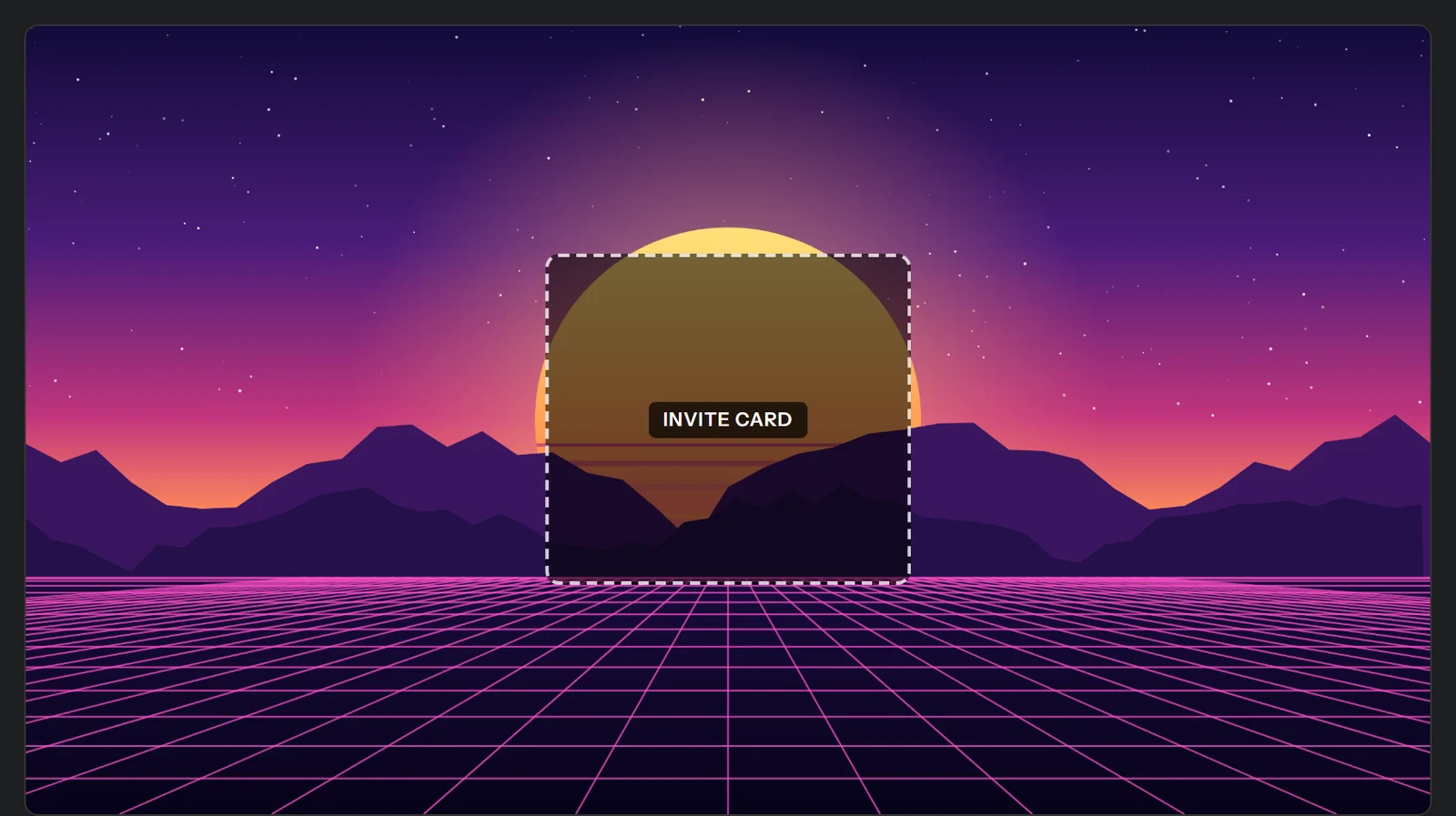
This one works the opposite way from the banners: the invite card covers the middle, so the edges are what people really see. Keep the interesting stuff toward the sides.
Discord chat image sizes: emoji, stickers and role icons
The small slots come with the strictest rules, and file weight catches people out more often than pixel size does.
- Custom emoji: Discord's guide to adding custom emojis gives 256 KB and 128 × 128 as the limits for the finished emoji, as a JPEG, PNG, GIF or WEBP, and it shows emoji at 32 × 32 in chat. Discord's own emoji guide says a file a bit over 256 KB gets compressed for you, so the safe target is a file already under it. The resizer keeps the full 128 × 128, and ours came to 18 KB. You'll need the Create Expressions permission (or to own the server) to upload one.
- Sticker: Discord's Custom Stickers FAQ wants exactly 320 × 320 and no more than 512 KB, as a PNG (or an APNG for an animated one). Since desktop chat draws stickers at 160 × 160, 320 × 320 stays sharp on high-resolution screens. The resizer always saves stickers as PNG, and you upload them on desktop or the web, not in the phone app.
- Role icon: the little badge beside a member's name. Discord's Custom Role Icons FAQ says the image must be 64 × 64 and no larger than 256 KB, and it needs Boost level 2. To set one you'll need the Manage Roles permission and, for now, the desktop app.
A failed emoji upload usually comes down to a phone photo or a big PNG that's several megabytes, and resizing it to 128 × 128 before you upload nearly always solves it. If an emoji or role icon would still be too heavy, the resizer moves to JPEG and drops the quality until it fits, though none of our test pictures have needed that. (JPEG has no transparency, so any see-through areas would turn white.)
Each server begins with 50 emoji slots and 5 sticker slots, and according to Discord's Server Boosting FAQ, that rises to 100 emoji and 15 stickers at Boost level 1, 150 and 30 at level 2, and 250 and 60 at level 3.
Which Discord images need Nitro or a Boost
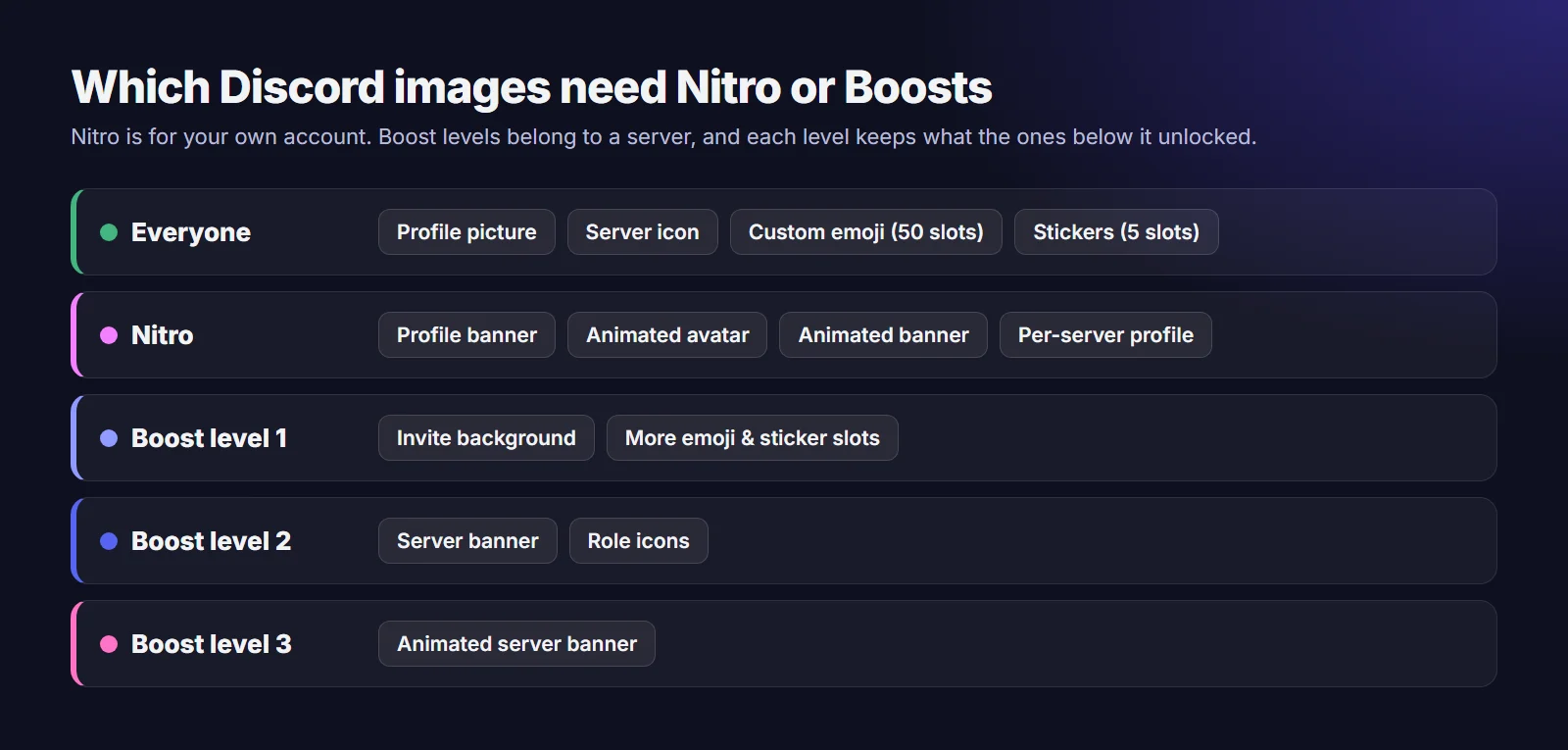
Nitro is yours, and it travels with your account into every server. Boosts belong to a server, and each level keeps all that the levels below it unlocked (Discord's Server Boosting FAQ lists every perk by level). That's why you can show a custom profile banner in a server with no banner of its own, and the reverse.
Make all eight from one picture
Open the resizer, drop in a picture and click through the slots. Every slot holds its own crop, so you can center the sun for the PFP and move it right for the banner without the two getting in each other's way. Once you're happy, All 8 sizes · .zip downloads every file in one go, and any slot you left alone gets a centered crop.
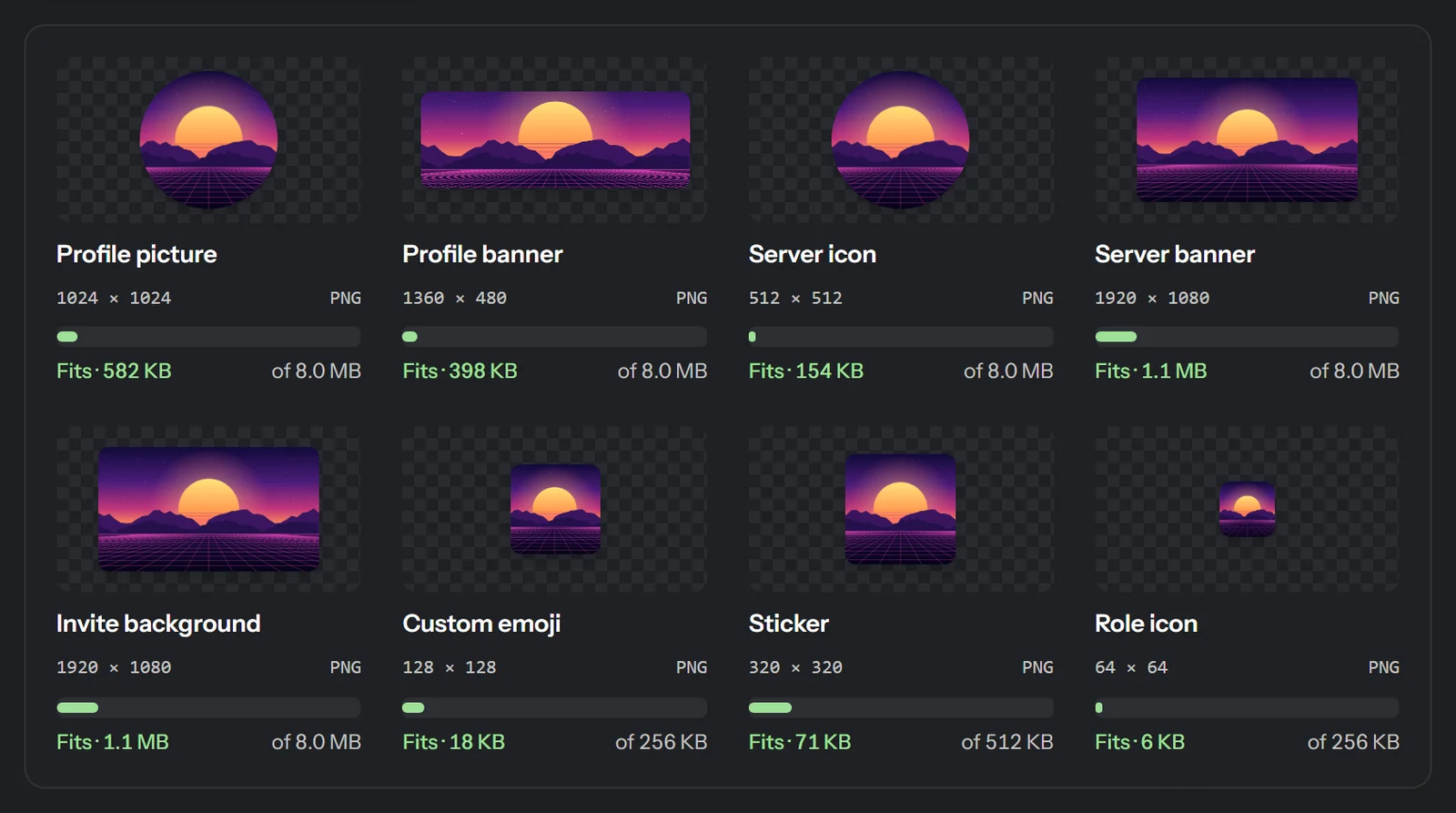
Every saved file shows its final weight next to the limit the resizer holds it to, so you know it'll go through before you open Discord. Since each file is drawn fresh from the pixels, none of them carry the hidden details a phone photo picks up, like where and when it was taken or which camera took it. Nothing is uploaded to us either, since the cropping and saving all happen in your browser tab.
A couple of honest limits: the resizer only opens PNG, JPEG and WebP files, so it can't take a GIF at all, and it saves still images, so an animated WebP comes out as its first frame. You'll need the original GIF for an animated avatar or banner.
Where to upload each one
- PFP and profile banner: User Settings, then Profiles, then Change Avatar or Change Banner. Nitro members can set a different picture for each server on the Per-server Profiles tab.
- Server icon, server banner and invite background: open the server menu, choose Server Settings, and look on the server's profile and overview pages.
- Emoji and stickers: Server Settings, then Emoji or Stickers, then Upload. You need the Create Expressions permission or to own the server, and stickers need the desktop app or the web.
- Role icon: Server Settings, then Roles, where you pick the role, open its Display tab and upload under Role Icon. This only works in the desktop app for now.
Leave Discord's cropper alone when it pops up after you pick a file, because the picture already has the right shape and the crop box covers all of it.
One last point before you choose a PFP: anyone who shares a server with you can see it, and some lookup sites scrape avatars from public servers. If you'd prefer not to be recognized from it, artwork or a cropped detail works just as well as your face.
Discord Image Size FAQ
What's the Discord banner size?
Discord asks for a profile banner of at least 680 × 240 pixels (17:6), under 10 MB, and it needs Nitro. Discord recommends a server banner of 960 × 540 or larger at 16:9, and it needs Boost level 2 unless the server is Partnered. Our resizer saves the two at 1360 × 480 and 1920 × 1080.
What size should a Discord PFP be?
Discord gives no pixel size for the PFP, only the file types: PNG, JPG and GIF (a GIF needs Nitro). Since it's square but shown as a circle, keep the subject centered. Our resizer saves it at 1024 × 1024.
Why does Discord say my emoji is too big?
Discord's help center gives 256 KB and 128 × 128 pixels as the emoji limits, and it only compresses a file that's a bit over. A photo straight off a phone is often several megabytes, so resize it to 128 × 128 first.
Can I use the same picture for my banner and avatar?
Yes. The resizer holds a separate crop for every slot, and its profile preview shows the two together so you can check how the avatar sits on the banner.
Redact for Discord
Cleanse your cringe Discord history by either nuking it all, or choosing a specific server or direct message, then specifying keywords and date ranges.