How to Mass Delete Media on Discord (Images, Photos & Videos)
Use Redact's automated tools to delete every image and video you've posted on Discord fast and easy, or only the servers, channels and dates you pick.
 Dan Saltman5 min read
On this page
Redact's Discord tools mass delete images, videos, links, chat messages, DMs and more from Discord. If you have a lot of history on Discord you need to quickly remove, Redact is the tool you need.
The 10 steps below delete images from Discord in bulk. If you have any questions, you can always hop on our Discord or reach out to support@redact.dev.
How to mass delete your Discord media with Redact
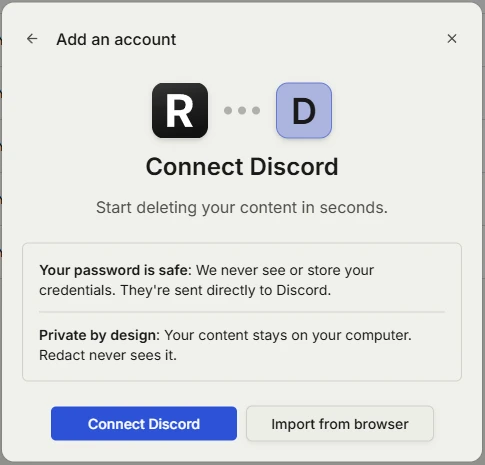
Step 1 Open Redact and connect Discord
Open or download Redact if you don't already have it. Then connect your Discord account to Redact. We never see or store your Discord password; it goes straight to Discord.
Step 2 Open your Discord account
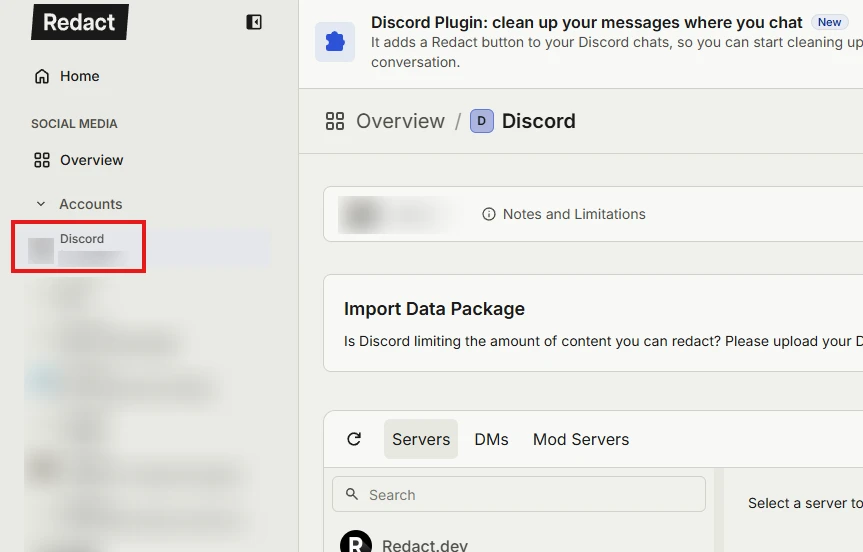
Select your Discord account in our sidebar to open its Discord page.
Step 3 Select the Advanced tab
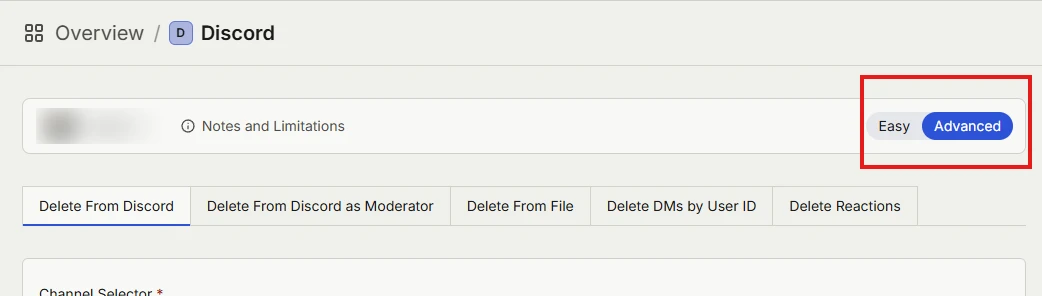
Select the Advanced tab from the top right corner of Redact's Discord portal.
Step 4 Choose servers or DMs
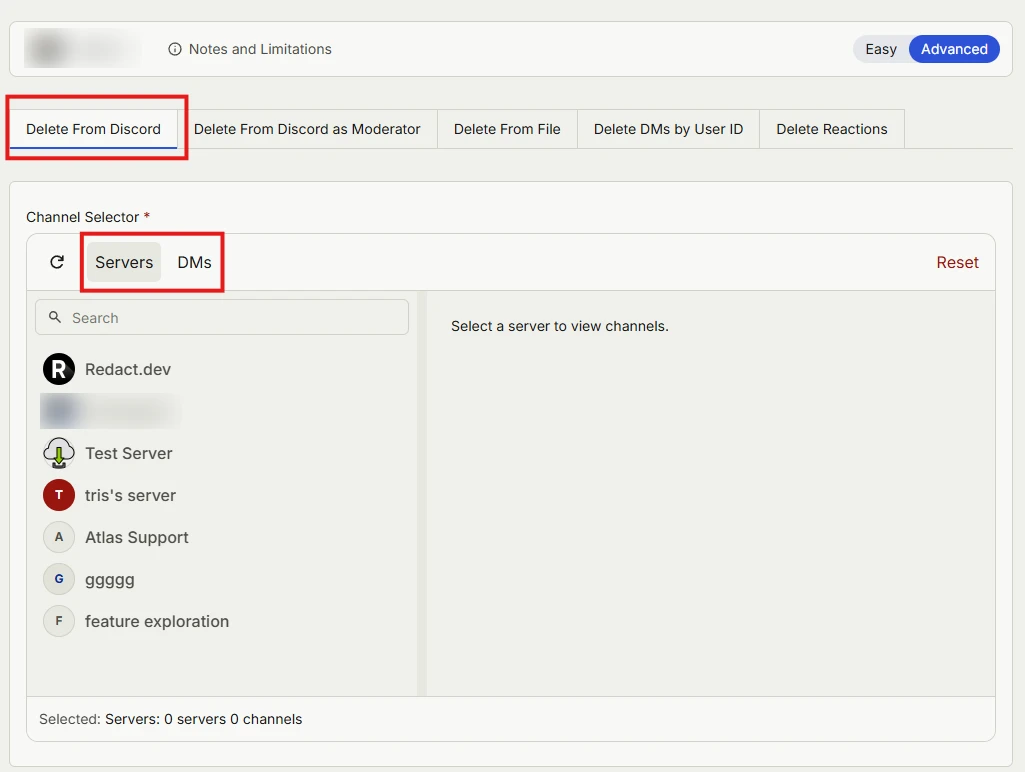
Make sure the first upper tab, "Delete From Discord", is selected. Down below, you can choose to find images in servers or DMs, whichever you want. For this guide we'll use servers.
Step 5 Pick your servers and channels
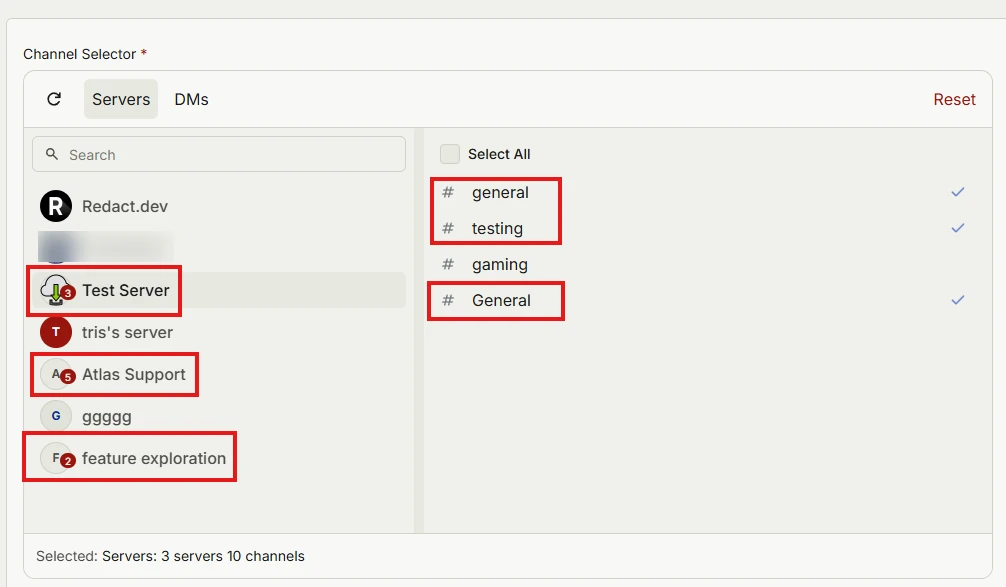
Select the servers you want to delete images from. After you select a server, Redact will allow you to pick and choose individual channels, as seen in the screenshot.
Step 6 Set the date range
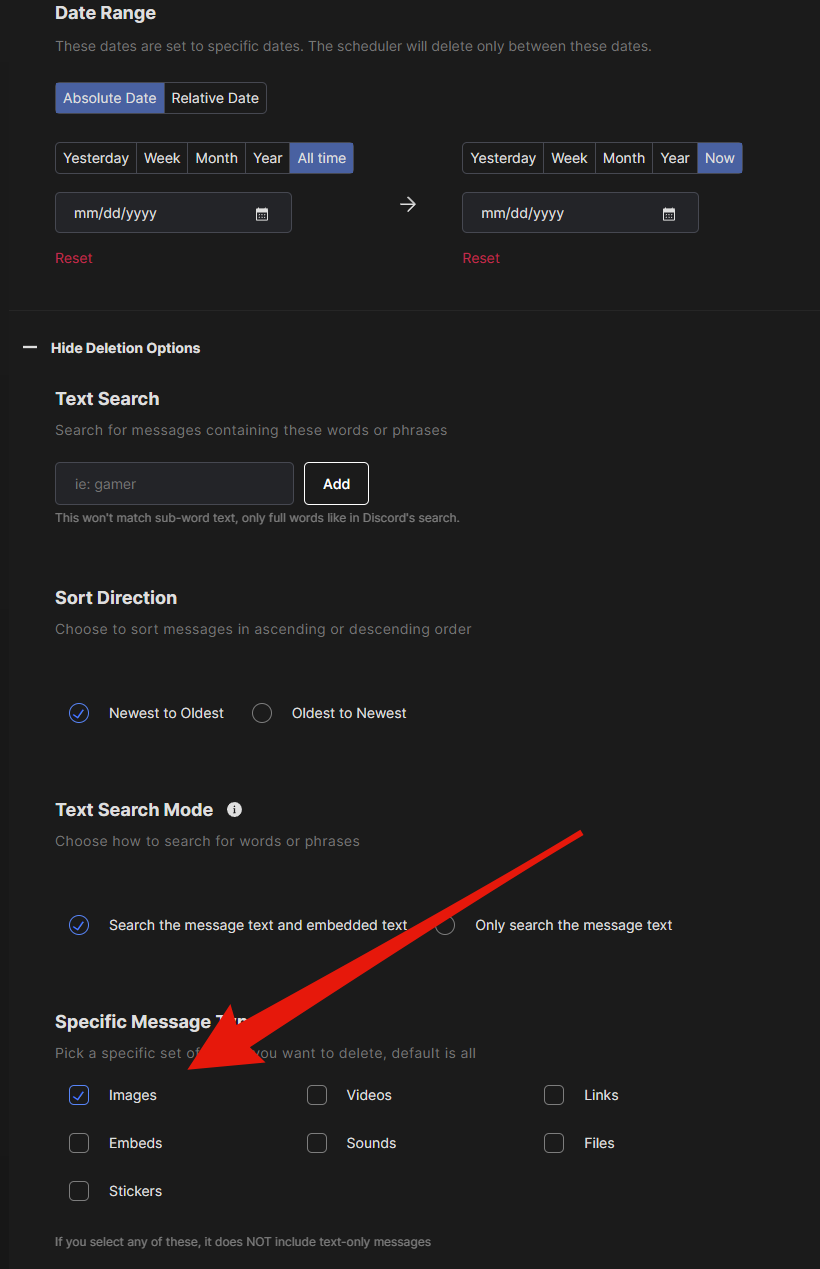
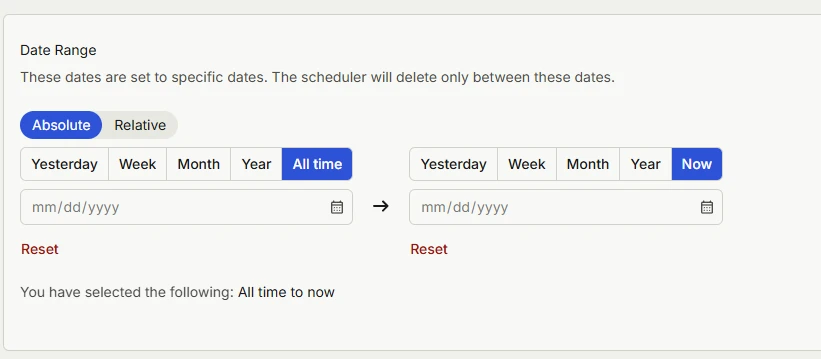
After you've selected the servers and/or channels, scroll down to the date selector, which is set to "All time" by default. Leave it there to search everything. If you'd rather narrow the search down to a specific time frame, this is where you can make that setting.
Step 7 Choose what to delete
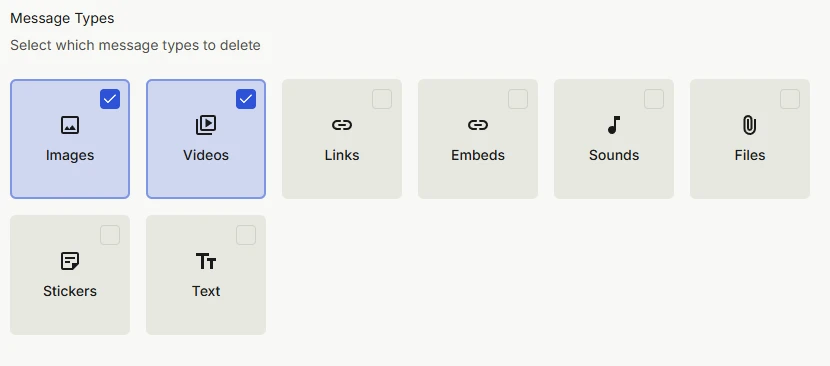
"Deletion Options" are the next set of choices you have. Since this guide is about deleting media, that's what we'll focus on, but as you can see, you can choose anything from stickers and text to videos and sounds. Every type starts out checked, so uncheck everything except Images and Videos. Leaving Text checked deletes your ordinary messages too.
Step 8 Fine-tune your filters
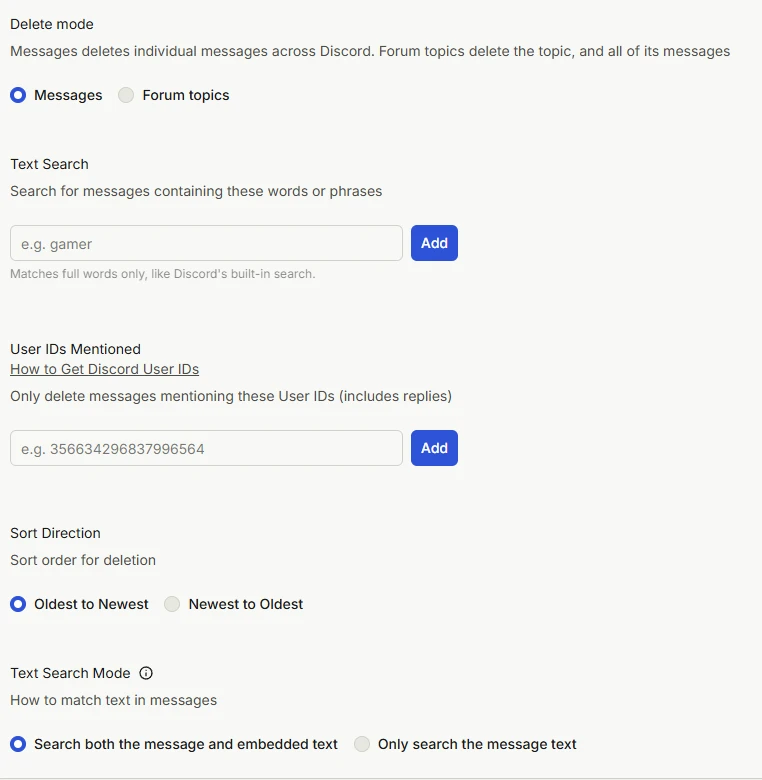
Once the main filtering is finished, you can further tune your search with delete mode, text / keyword search, user IDs mentioned (only messages that mention those users, replies included), sort direction and text search mode. All five are optional. For a media cleanup, leave delete mode on Messages, since Forum topics deletes a whole topic and every message in it. Delete mode, user IDs mentioned and sort direction need Redact Premium.
Step 9 Turn on Local AI Smart Filters (optional)
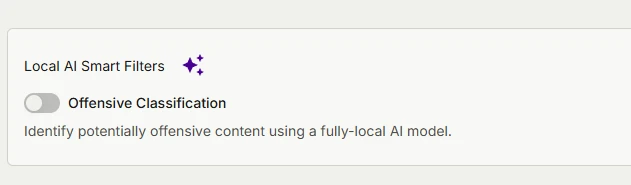
Your last filter is a new feature we've added, Local AI Smart Filters. Turn on Offensive Classification and Redact only deletes messages whose text an AI model running on your own computer flags as offensive. It reads the words in a message, not the pictures, so leave it off to delete all your media. Turning it on also switches the run to Review & Delete, which needs Local Archive turned on in Settings, and turns off Preview Mode, Deletion Mode and Schedule Deletion.
Step 10 Pick how to handle what Redact finds
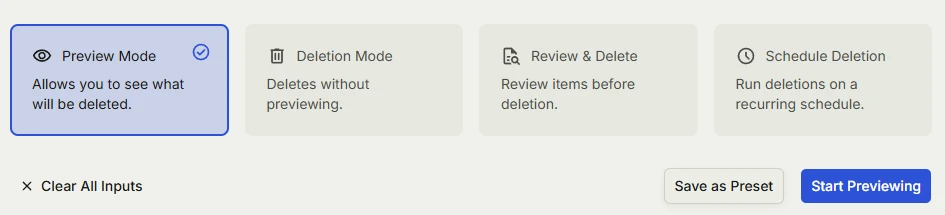
Your final choice is to determine how you want to handle the images Redact finds, and you can choose from the options seen in the screenshot. I always recommend using Preview Mode first until you get the hang of our app. I only say this because if you move straight to Deletion Mode without understanding your filters or how the app works, you're at risk of deleting content and images you didn't really mean to. So I always suggest new users take advantage of Preview Mode before moving into Deletion Mode.
- Preview Mode shows you everything Redact would delete, without deleting anything.
- Deletion Mode deletes everything that matches your filters, with no preview first.
- Review & Delete lets you review the items Redact found before they're deleted, and it needs Local Archive turned on in Settings.
- Schedule Deletion runs the same cleanup again on a recurring schedule.
That's it, that's how you mass delete all of your Discord images at one time, quick and easy. If you get stuck, message us on our Discord and I'll help you out.
Redact for Discord
Cleanse your cringe Discord history by either nuking it all, or choosing a specific server or direct message, then specifying keywords and date ranges.
![Mass Delete Discord DMs Quickly & Automatically [Redact Tutorial]](/blog-images/2024/02/1-1.png)
![How to Delete Your Own Discord DMs in Bulk from Both Sides [Redact Tutorial]](/blog-images/2024/02/62b0f5bede4cee0883ba5d8ce8432389.png)