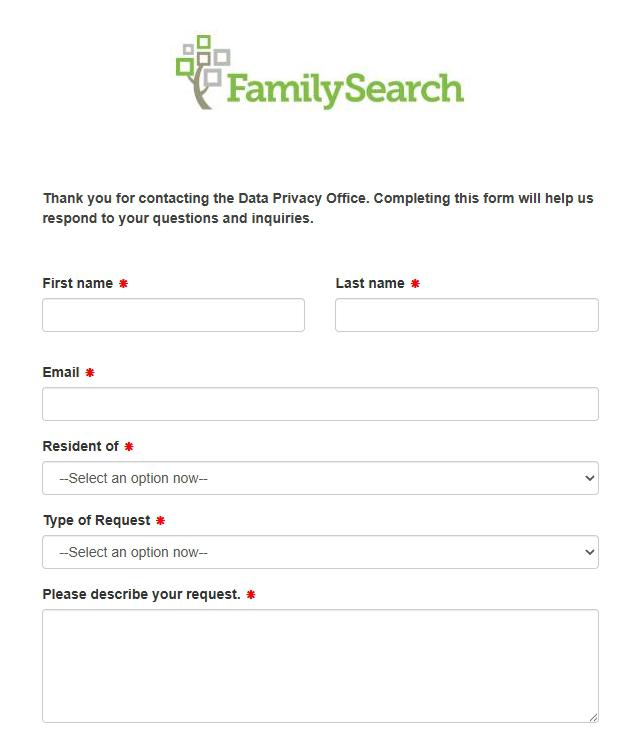
FamilySearch doesn't have a self-service deletion button on the site itself - removal requests go through a TrustArc-hosted Data Privacy Office form. The form doesn't need a FamilySearch account (it asks whether you have one) and its record-URL field is optional, but a URL is what lets the office tell your record from similar ones in a very large database, so the flow here is to find the record and copy its URL first if you can, then submit the form with an explanation. Plan on 10-15 minutes active time and at least four to eight weeks for the central LDS Data Privacy Office to process. The form supports six request types (access, correct, limit use, opt-out, close account, other). For mass-mail / postal questions or general inquiries, email DataPrivacyOfficer@ChurchofJesusChrist.org directly.
Before you remove your data: See the FamilySearch data broker profile for ownership (LDS Church), the proxy-baptism controversy, and the partnership network with Ancestry / MyHeritage / FindMyPast / Geneanet.
Quick facts
Removal Overview
TrustArc Data Privacy Office form
Method
TrustArc DSR form
Active time
~10-15 minutes
Processing time
4-8 weeks typical · no published deadline
Account required
No, though searching for the record URL needs one
Request types
Access · Correct · Limit use · Opt-out · Close account · Other
You can only remove records you have authority to remove. FamilySearch requires that any request to remove a living person's record come from that person directly, or from a legal guardian. Records of deceased people are different because FamilySearch treats them as public history, and a family relationship on its own generally isn't grounds for removal. The exceptions are a religious-ordinance objection and a record that wrongly attributes a living person's information to someone marked deceased; the Troubleshooting and Stay off sections below cover both. Records of public historical figures generally can't be removed on privacy grounds.
Living-person data is mostly already private. The Family Tree treats living people as confidential by default - only the user who entered them can see or modify them. If you're seeing your own information in a public search result, it's typically from an indexed historical record that was mis-attributed to a living person, not from someone's family tree.
Outside the US? The same form serves all jurisdictions - pick your country in the "Resident of" dropdown in step 4 and the form will apply the relevant local privacy framework (GDPR for EU / UK, PIPEDA for Canada, etc.).
Prereqs
What you'll need before you start
3 things
The record's URL, if you can get it. The privacy form accepts a request without one, but the URL is how the office separates your record from similar ones. Viewing a record page needs a free FamilySearch account, so steps 1 to 3 create one and find the URL. If you'd rather not hand FamilySearch a name and email just to file the request, skip to step 4 and describe the record in words instead.
The name (and ideally date / place of birth or death) of the person whose record you want removed. The more identifying detail you have, the easier the search in step 2 and the cleaner the URL match in step 4. If you have several candidate spellings, plan on running the search a couple of times.
A real email inbox you can check. The TrustArc privacy form sends its confirmation and the office's eventual reply to the address you give it, and FamilySearch account verification (if you take the optional steps 1 to 3) goes there too. Use a real address, not a masked one, so the Data Privacy Office can reach you when it processes the queue.
The 4 steps
Find the record if you can, then submit the privacy form
~10-15 minutes total
01
Create a FamilySearch account so you can search the records (optional)
Steps 1 to 3 get you the record's URL, which the privacy form treats as optional but which makes the request far easier to act on. If you don't want an account, skip to step 4.
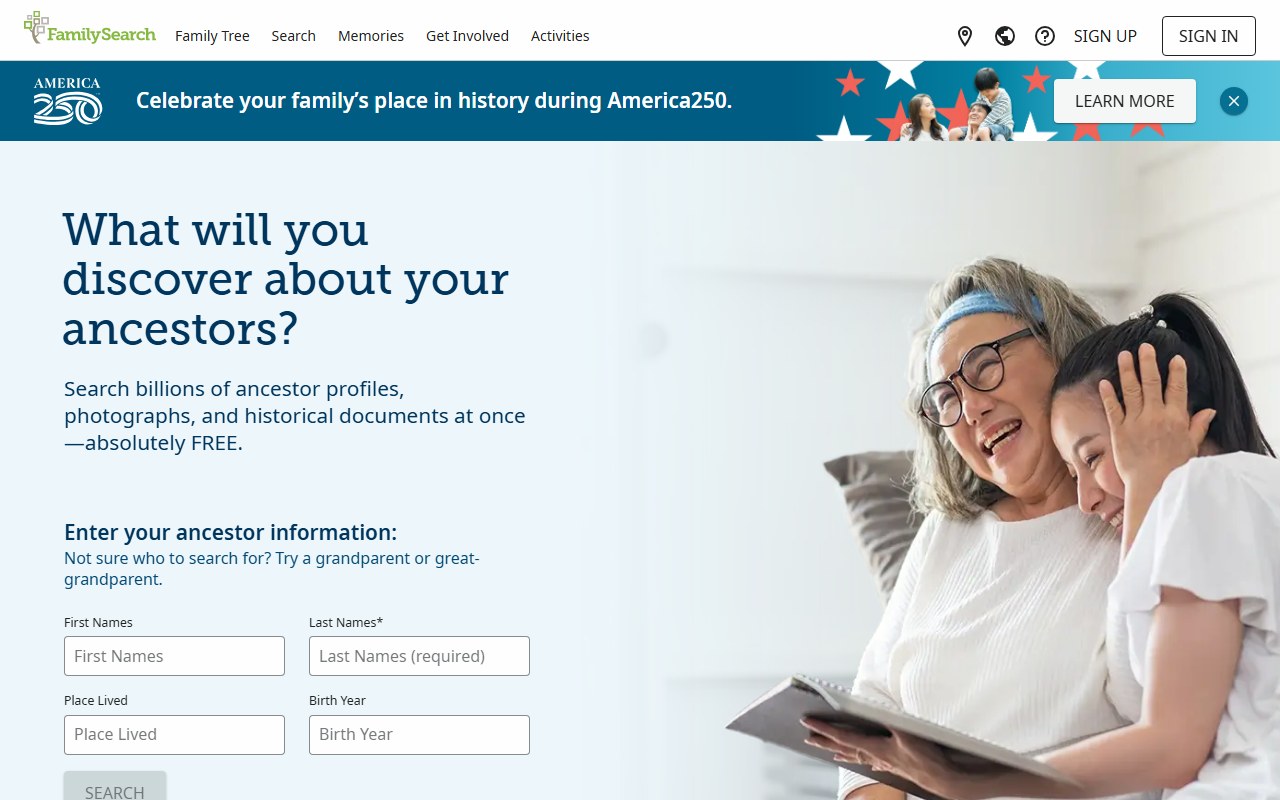
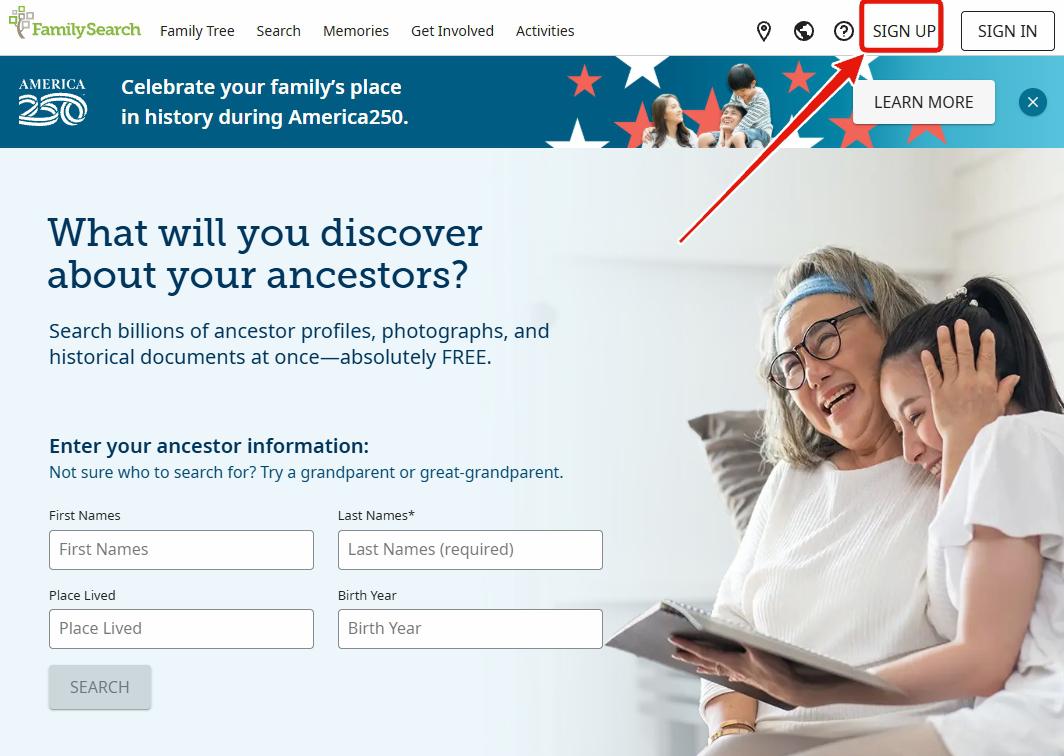
Open familysearch.org and click the Sign Up button in the top-right corner of the page (next to Sign In). The signup flow asks for name, email, password, and a country / region. The account is free; no LDS Church membership or affiliation is required.
You'll get a verification email - click the confirmation link inside it before continuing. Once your account is active you can sign in and proceed to step 2.
Click SIGN UP in the top right. The account is free and unlocks record search in step 2.
02
Search for the person you want removed
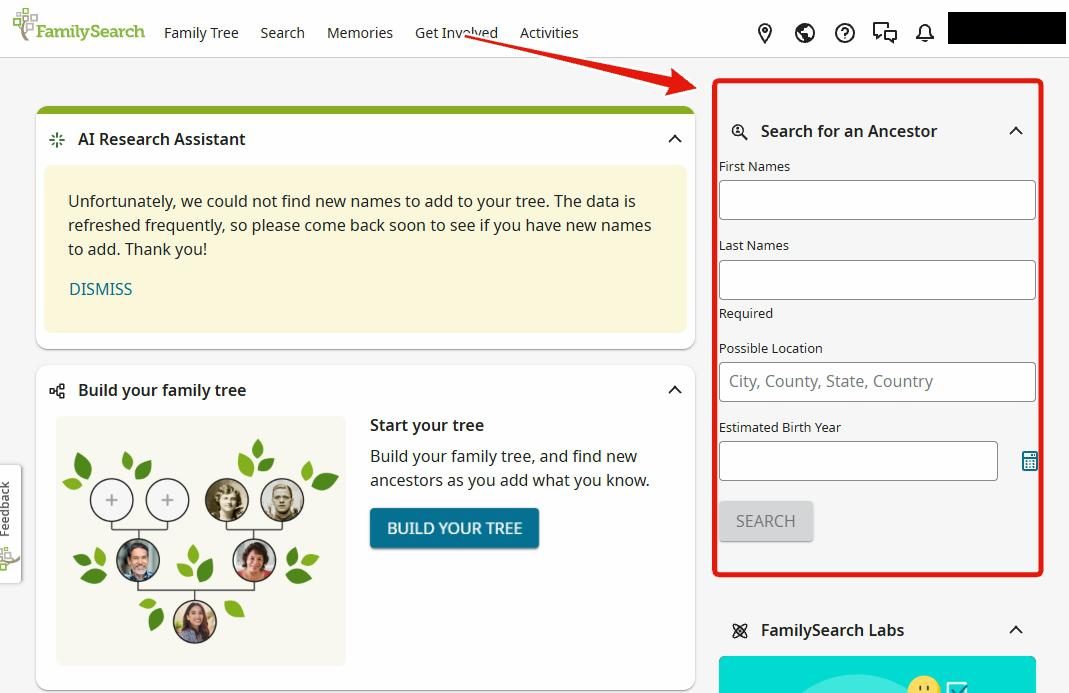
After signing in, go back to the FamilySearch homepage or use the Search menu in the top nav. Logged-in users see a "Search for an Ancestor" panel on the right side of the post-login homepage with fields for First Names, Last Names (required), Possible Location, and Estimated Birth Year. Fill in what you know and click SEARCH.
If the first search doesn't surface the record, try variations like alternate name spellings, approximate birth years, broader location terms. Historical records often have OCR errors or non-standard name formatting.
Use the right-side Search for an Ancestor panel after signing in. Last name is required.
03
Open the record and copy the profile URL from the browser address bar
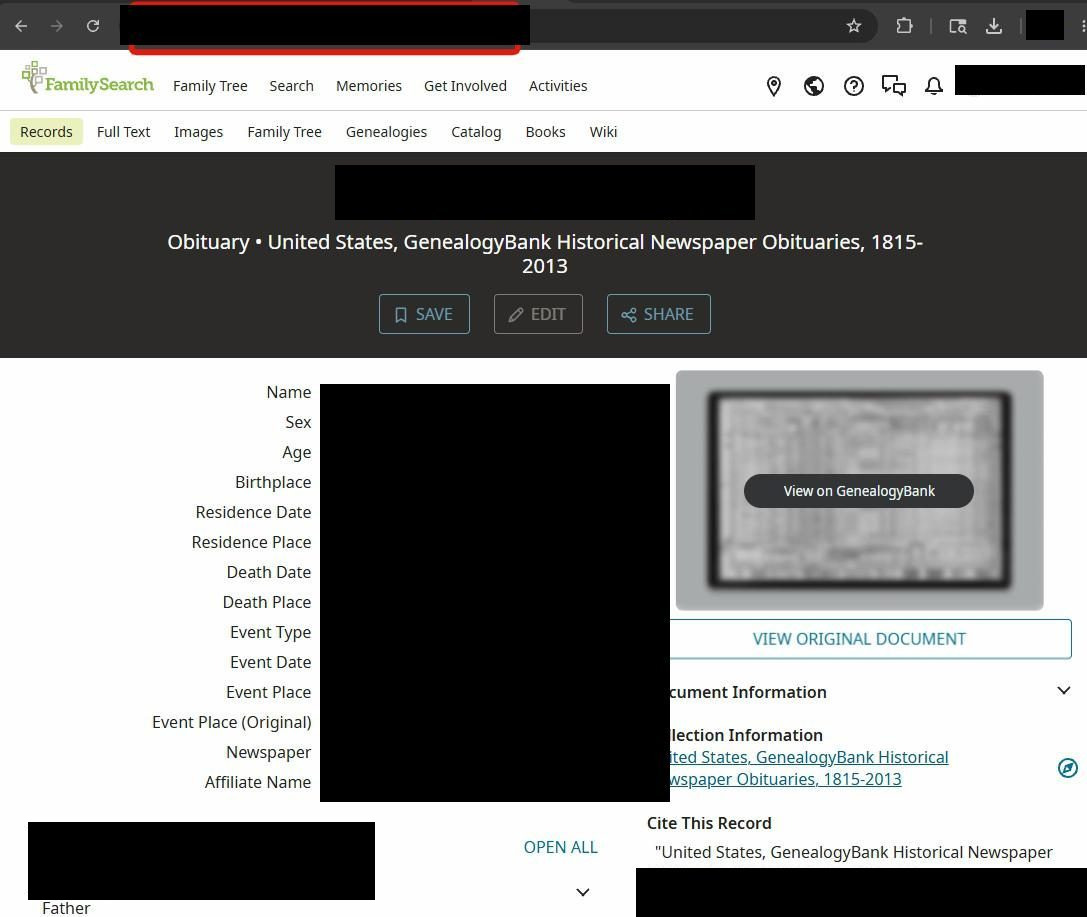
Click the matching result in the search list. It opens a record page (usually under Records, Family Tree, or Images depending on the source collection). The URL looks like familysearch.org/ark:/61903/1:1:XXXX-XXXX (the ark:/ portion is FamilySearch's permanent identifier for that record). Highlight the URL in the browser address bar and copy it to your clipboard - you'll paste it into the privacy form in step 4.
If your target appears in multiple records (e.g., separate census, obituary, and immigration entries), you'll need a separate privacy request per record URL.
Copy the URL from the address bar - the ark:/ identifier is what the privacy office uses to locate the record.
04
Submit the TrustArc privacy request form with your explanation, plus the URL if you have it
First name and Last name - the person submitting the request (you)
Email - where you want the response
Resident of - your state / country (this sets the applicable privacy law)
Type of Request - pick one of the six dropdown options: - Access my information - Correct or update my information - Limit use of my information - Opt-out or unsubscribe - Close my FamilySearch account - Other (for everything else, including record-removal requests)
Please describe your request - this is the key field. Give a brief explanation of who you are (the data subject, or the legal guardian and how you're related to the person), which record you mean, why you're requesting removal, and any context the privacy office needs to act.
The record URL field - optional, but paste the URL from step 3 here if you have it; the form says it's what lets FamilySearch tell your data from similar data in its database.
Do you have a FamilySearch Account? - required, with I have and I do not have as the options, so the form works either way.
The confirmation checkbox - required; it states that the information you gave is true and accurate.
Click Submit Request. You should receive a confirmation email shortly after. Save it - it's your reference for the 4-8 week processing window.
Describe who you are, which record you mean and why you're asking in "Please describe your request". The record URL from step 3 goes in its own optional field further down.
Confirm it worked
Did it actually work?
Indirect verification
Expect an automatic confirmation email from TrustArc within minutes of submitting. Save it; it's your reference for status follow-ups.
A human reply from the LDS Data Privacy Office typically follows within 4-8 weeks, sometimes longer because the office processes requests for all Church organizations centrally rather than for FamilySearch specifically. Don't count on a statutory ceiling: CCPA / CPRA generally exempts nonprofits, so the 45-day clock that binds commercial brokers probably doesn't bind FamilySearch.
Once the request is processed, sign in and go back to the record URL from step 3. Record pages send signed-out visitors to the sign-in screen, so a private window tells you nothing. If the record has been removed, the URL should now return a "not found" or similar message rather than displaying the profile. If you skipped steps 1 to 3 and have no URL, the office's written reply is your confirmation; to check for yourself you'd need a free account and a search for the record, as in step 2.
The record may still appear at partner sites. Removal from FamilySearch doesn't automatically remove the same data from Ancestry, MyHeritage, FindMyPast, or Geneanet. If you need the record gone everywhere, submit separate requests to each partner. The Ancestry profile in this directory has the Ancestry-specific path.
If the privacy office determines that your request doesn't qualify for removal (e.g., the record is a historical public document not subject to right-to- be-forgotten), you should receive a written explanation. Save it for any subsequent appeal or escalation.
Troubleshooting
If it doesn't work
Common failures
No confirmation email from TrustArc. Check spam / promotions for @trustarc.com sender. If not there after a few hours, re-submit. The email fallback is DataPrivacyOfficer@ChurchofJesusChrist.org; include the record URL in the email body, or describe the record (name, collection, dates) if you skipped the URL steps.
Can't find the right record in search. Try variations: alternate spellings (e.g., "Catherine" vs "Katherine"), approximate dates, broader location terms. Use the Catalog and Genealogies sub-nav tabs as alternative entry points beyond the standard Records search. The FamilySearch Wiki has research guides per country / state that can help.
Multiple records for the same person. You'll need one privacy request per record URL. FamilySearch treats each record as a separate item for removal purposes. Submit them as separate requests so each can be processed independently.
The Data Privacy Office says the record can't be removed. Historical public records (census, vital records published by the government, etc.) are generally not removable on privacy grounds because the source is a public document. The request might still be honored if you can show legal authority (guardianship, executor of estate) or a specific harm. Reply to the email with additional documentation.
You don't hear back in 4-8 weeks. Reply to your TrustArc confirmation email referencing the submission date and asking for a status; there's no statutory deadline to cite, since state privacy laws generally exempt nonprofits. If still no response, escalate to DataPrivacyOfficer@ChurchofJesusChrist.org directly.
The record was about a deceased relative being used for proxy temple ordinances and you want that stopped. This is the religious-ordinance objection rather than a data-removal request. Email DataPrivacyOfficer@ChurchofJesusChrist.org directly with the record URL (or, without one, the person's name, dates and the collection) and an explanation; this is handled separately from the standard DSR form. The Church has a process for Holocaust victims and other protected groups per the 1995 Jewish agreement (see the FamilySearch profile).
Stay off
Keep your data out of FamilySearch
Re-indexing is constant
FamilySearch continuously digitizes new records. The Granite Mountain Records Vault adds new microfilm and digital collections from ~100 countries on an ongoing basis. A successful removal today doesn't prevent a future indexing project from re-importing a similar record from a different source. Annual rechecks are reasonable.
Submit separate requests to the partner sites.Ancestry, MyHeritage, FindMyPast, and Geneanet ingest records from FamilySearch and vice-versa. Opt-outs are per-site. The Ancestry profile in this directory has the Ancestry-specific path.
Watch the user-contributed Family Tree. Even if all your indexed records are removed, relatives can still add you (or your deceased family members) to their personal trees. Living-person data in trees is private by default - only the entering user sees it - but the policy doesn't prevent the data from existing in someone else's private space.
For deceased relatives: the standard FamilySearch position is that genealogical records of deceased people are part of public history. The removal of identifiers happens primarily when there's a religious-ordinance concern (the 1995 Jewish agreement governs Holocaust victims) or when the record incorrectly attributes information about a living person to a deceased label.
The reliable channel is the direct one. The most dependable remedy is the direct email channel to the LDS Data Privacy Office - persist there with your reference number rather than waiting on third parties.
Take yourself off data broker sites
Redact scans data broker sites from your device, finds where your details are listed, and submits the removal requests for you. If a broker relists you, it files again.