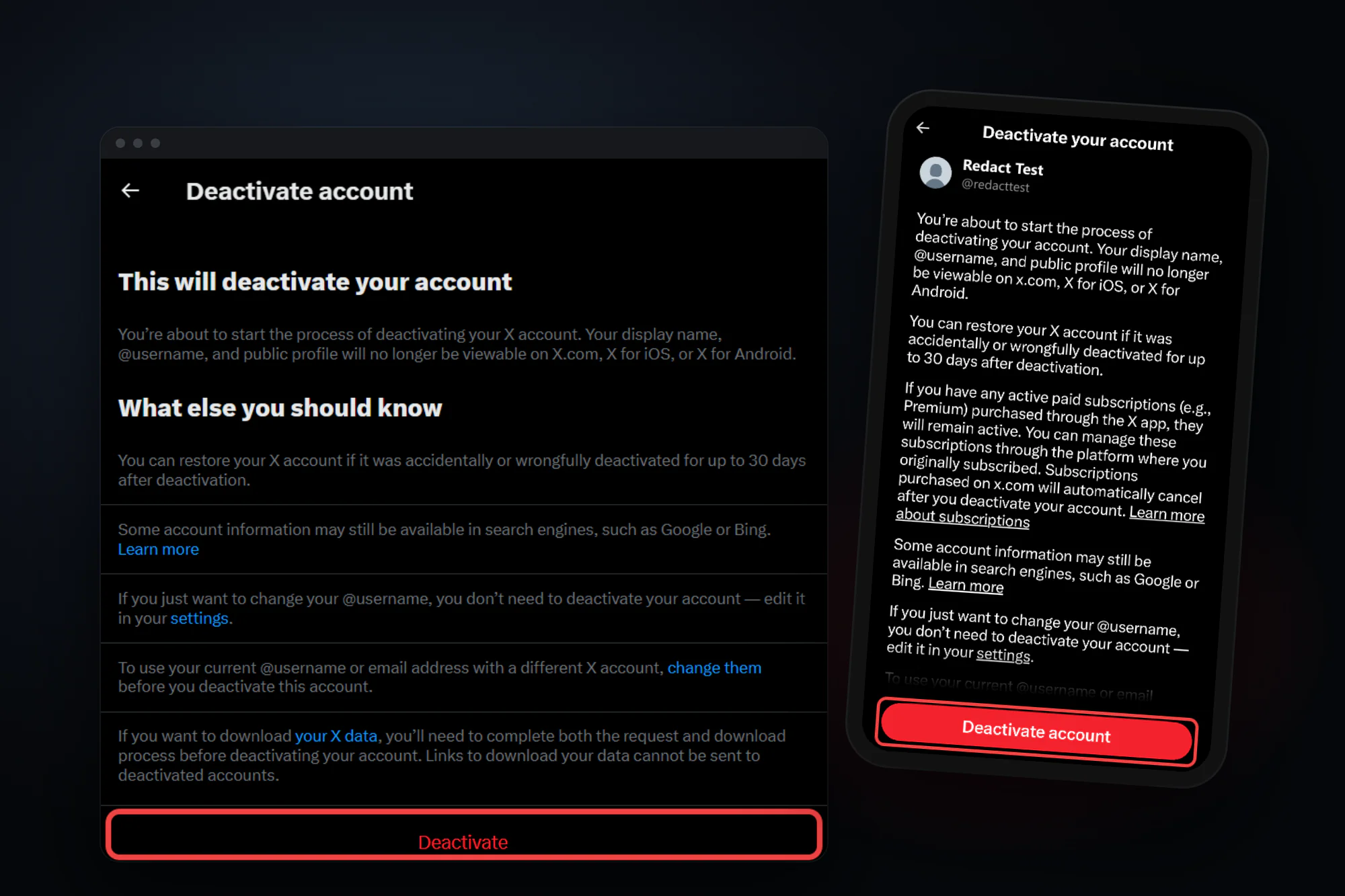
How to Delete All Your Tweets and X Posts at Once
 Dan Saltman9 min read
On this page
You can't delete all your tweets at once inside X. There's no button for it, so the only built-in way is opening each post and deleting it by hand. To clear everything in one go you need a bulk deletion tool. With Redact you connect your account, tick tweets, replies, reposts and likes, leave the date range on All time, preview what matched, and start the deletion. If you've got more than about 1,000 tweets, import your X archive first so Redact can reach the older ones faster.
Why X won't let you delete everything

X has never offered a delete-all option, and I don't expect it to. I'd guess your old posts are worth more to X left up, especially now that its terms let it train AI models on them.
By hand, that means opening and deleting every post one at a time. X also rate-limits how fast any app can remove posts, so big cleanups take a while even with a tool.
Deleting a post removes it and its media from your profile. Screenshots, embeds and other people's quote posts stay where they are.
How to delete all your tweets at once with Redact
- 1
Download Redact for free
Get Redact from our download page. It runs on Windows, macOS and Linux, plus iOS and Android, so you can run a cleanup from your phone. Open it and create a free account.
- 2
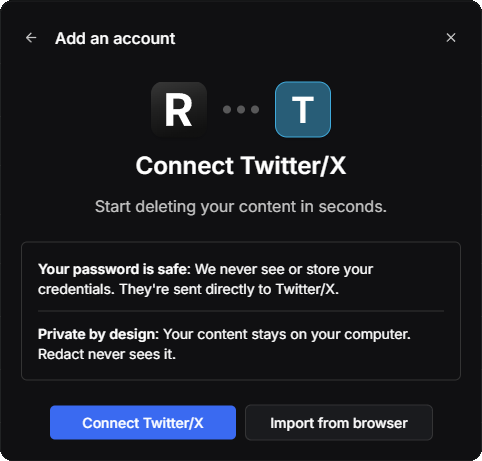
Connect your X account
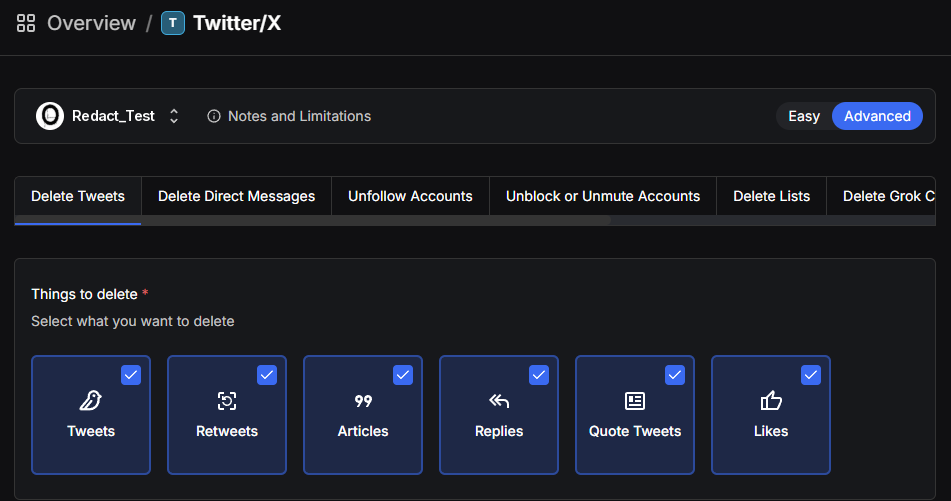
Add an account, pick Twitter/X, and click Connect Twitter/X. Your login goes straight to X from your own device and never passes through a Redact server.
- 3
- 4
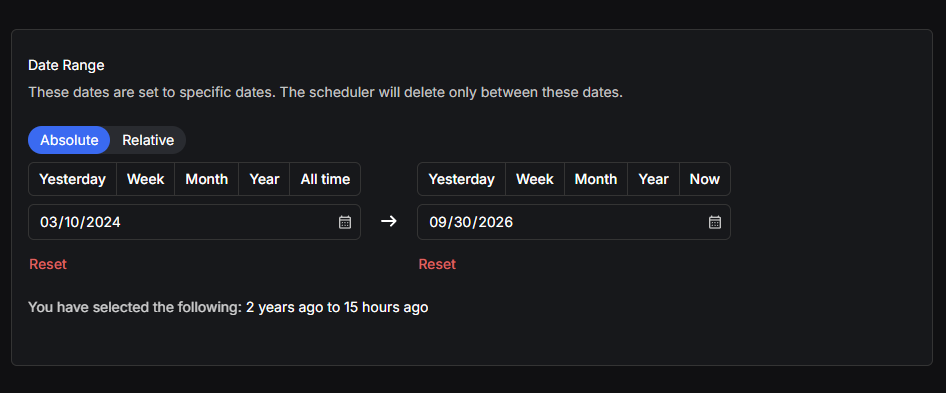
Set the date range
For a full wipe, set the date range to All time through Now. To keep your recent posts and clear the old ones, pick an end date instead. Relative does the same job in plain terms, like everything older than a year.
- 5
Narrow it down with deletion options
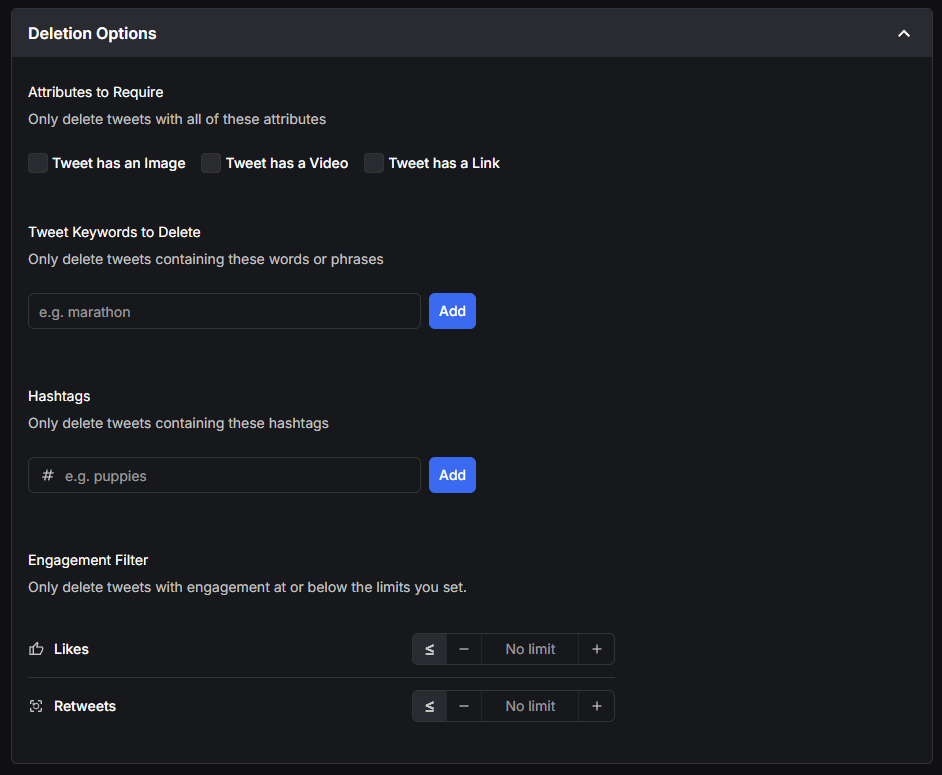
Skip this step for a full wipe. Otherwise, Deletion Options decides which tweets in that range go.
- Attributes to Require only deletes tweets that have every attribute you tick. Tick Image and Link, and a tweet needs both to go.
- Tweet Keywords to Delete only deletes tweets with the words or phrases you add.
- Hashtags only deletes tweets with the hashtags you add.
- Engagement Filter only deletes tweets at or under the likes and retweets you set, so your posts that landed stay up.
- 6
Protect the tweets you want to keep
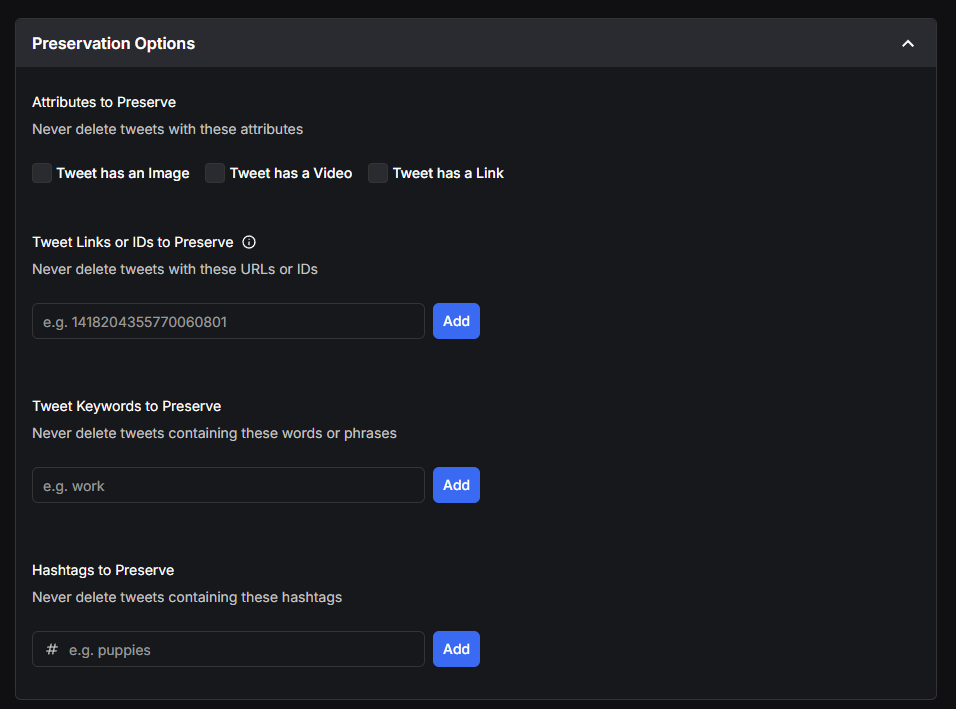
Preservation Options works the other way round. Anything that matches here is never deleted, even when it matches everything else.
- Attributes to Preserve never deletes tweets with any attribute you tick. Tick Video to keep every tweet with a video. Nothing is protected until you tick one.
- Tweet Links or IDs to Preserve keeps the exact tweets you paste in, like a pinned post.
- Tweet Keywords to Preserve and Hashtags to Preserve keep any tweet with those words or tags.
- 7
Let AI find the problem tweets
Not sure what's worth deleting? Turn on Offensive Classification under Local AI Smart Filters. An AI model digs through your tweets and flags the ones likely to read as offensive today, so you don't have to guess at keywords. It runs on your own device, so your tweets aren't sent off to an AI service. While an AI filter is on, Review & Delete is the only mode you can run in the next step, so you look at each flagged tweet and delete only the ones you agree with.

- 8
Pick a mode and start
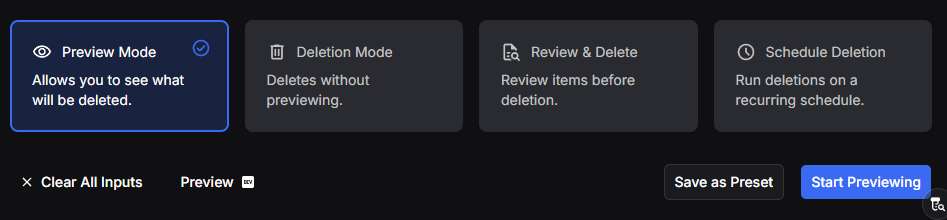
Choose how Redact runs the job, then start it.
- Preview Mode lists every post that matches your settings and deletes nothing. I'd run it first every time, since it's the easy way to catch a post you meant to keep.
- Deletion Mode removes everything that matches in one pass. It's the one for a full wipe once the preview looks right.
- Review & Delete gives you the list of matches to go through before anything is deleted, one at a time or several at once. It suits a careful cleanup where you want to keep a handful of posts.
- Schedule Deletion runs your settings again on a recurring schedule, so new posts get cleared as they age. Once your account is clean, this is what keeps it that way. Scheduling is a Premium feature.
Save as Preset keeps these settings for next time.
Redact works through your history and shows each post as it goes. Keep the app open until it finishes so nothing gets skipped. A few thousand posts can take a while because of X's rate limits.
Reaching older tweets with your X archive
If you're clearing more than about 1,000 tweets, the live route gets slow, and older posts are the hardest part to reach. The faster way is your X archive, the full copy of your account that X lets you download.
Request it from X under Settings and privacy, then Your account, then Download an archive of your data. X emails you when the .zip is ready, which can take a day or more. Then import the .zip into Redact on the desktop app. Redact reads your post history straight from the file, so it doesn't have to page back through years of timeline first, and the deletions still run at X's pace from there. There's a longer walkthrough in our guide to importing your Twitter data.
Archive import is a Premium feature, and it works on the desktop apps only.
What's free and what's paid
The free plan clears your tweets, replies, retweets and likes from the last 30 days only. That's handy for tidying up recent posts, but it won't wipe a full history on its own.
Anything older than 30 days needs a Premium plan. So do archive import, scheduled deletions and deleting DMs. You don't need X Premium for any of it.
Why delete your old tweets
Old posts come back at the worst times. A joke from 2014 can be quoted today with none of its context, and there's nothing stopping a stranger from digging it up.
Employers look, too. In a CareerBuilder survey, most employers said they check candidates' social media before hiring, and creators can lose sponsors over a post they forgot about.
Years of posts also add up to a detailed picture of you, with places, routines and opinions that scammers use for phishing. And X's terms let it use your posts for AI training, though you can opt out of Grok and xAI training. The less you leave up, the less there is to scrape.
If you'd rather compare options before picking one, we've rounded up the best tools for mass deleting tweets, including free ones.
Deleting all your tweets FAQ
Can I delete all my tweets at once inside X?
No. X only lets you delete posts one at a time, and it has no option to wipe your whole history. Clearing everything at once takes a bulk deletion tool like Redact.
Is there a free way to delete all my tweets?
Redact's free plan deletes your tweets, replies, retweets and likes from the last 30 days. Clearing anything older, importing your archive or scheduling cleanups needs a Premium plan.
Does deleting a tweet remove its photos and videos?
Yes, the attached media comes off your profile with the post. Copies outside X, like screenshots and embeds on other sites, can stay up.
What's the difference between deleting a post and undoing a repost?
Deleting removes your own post or reply. Undoing a repost only removes your share of someone else's post, and their original stays up. Redact treats retweets as their own content type, so you can clear them separately.
Will deleting my tweets change my followers or settings?
No. A deletion only touches your content. Your followers, the accounts you follow, your lists and your settings stay as they are.
Should I download my X data before deleting everything?
I would. Your X archive is the only full record of what you posted, so request it and keep a copy on your own drive before a big wipe. It's also the file Redact imports to reach older posts faster.
Redact for Twitter/X
Delete old tweets, posts, pictures, and videos for rebranding, spring cleaning, or just plain peace of mind.