YouTube Comment: History Viewer
Drop your Google Takeout export and see every YouTube comment still in your export, with a link to the video or post when the export names one.
- What it reads:
- Comments
- Replies
- Community post comments
- Older Takeout exports
Here's what you can do with Redact's YouTube tools
What the comment history viewer shows you
Your YouTube comments, all in one place, read from the export Google gives you.
Every comment in one list
14 comments, Jan 2013 to Oct 2026
- This is the only bread recipe that's ever worked for meOct 28, 2026
- lol you clearly never played the originalSep 9, 2026
- Bring a coat, it gets cold up thereJul 2, 2016
- anyone else watching in 2013??Jan 5, 2013
YouTube's own page loads a few at a time. This one shows them all at once.
Sort and filter by year
Search what you wrote
Bring a coat, it gets cold up there
A link back to each one
Opens the video or post it's on, when the export names one, with your comment shown first.
Save it as a spreadsheet
Opens in Excel or Google Sheets.
Nothing gets uploaded
Your browser opens the export right here. No Google sign-in, nothing sent to a server, and it's gone when you close the tab.
What Google's export has, and what it leaves out
The viewer can only show what Takeout puts in the file.
In your export
- Every comment and reply still up, on videos and community posts
- The date and time you posted each one
- The video or post it's on, with a link, for most comments
- Your words as written, mentions and timestamps included
Not in your export
- Likes on your comments
- Reply counts from other people
- Comments you deleted, or that YouTube removed
- Live chat messages, which come in a separate file
More free tools
- YouTube Embed Code GeneratorEmbed a YouTube video that loads nothing from Google until play.
- Twitter Archive ViewerRead your posts, likes and DMs from your X archive, and see what X kept about you.
- Instagram Data ViewerRead and search every Instagram chat from its first message, from your own download.
- TikTok Data ViewerDrop in your TikTok data download and read your watch history, your searches, comments and chats.
YouTube comment history: FAQ
The questions people ask about finding, downloading and deleting their YouTube comments.
Export your comments with Google Takeout and drop the zip on this page. Every comment still up shows up at once in one list, with its date and, when the export names it, a link to the video or post it's on, and you can search, sort and filter it by year.
YouTube has a Comment history page next to your other history, at youtube.com/feed/history/comment_history when you're signed in. It loads a few comments at a time and has no download button. The menus that lead there change between app versions, so the link is the quickest way in.
Open youtube.com/feed/history/comment_history in your phone's browser while you're signed in. In the YouTube app the path moves between versions, so the link is quicker. This page works on a phone too: download the Takeout zip from Google's email, then tap the box at the top of this page to pick it.
YouTube's Comment history page loads a few dozen comments at a time, and on a long history it can stop with Unable to load or Some activity may not appear yet. The Takeout export doesn't page like that. It holds every comment that still exists, and this page lists them all at once.
Yes, with Google Takeout. Tick only comments under YouTube and YouTube Music, and the zip you get holds a comments.csv file in YouTube and YouTube Music/comments/. Older exports had a my-comments.html file instead. Drop either one here to read it, then save a clean CSV with real dates and links.
YouTube has no delete-all button, so each comment comes off from its own menu, on the Comment history page or under its video. Redact deletes them in bulk from your own computer. Delete all of them, or filter by date, by words in the comment or by the video title, and preview the list before anything goes. It works with your own channel, not Brand Account channels. Your last 30 days of comments are free to delete, and going further back needs Premium. This page only reads your export, so it can't delete anything.
Not as a list. Your Comment history page only shows up for you, signed in to your own account. Each comment still shows under its video, with your channel name on it, to anyone who can see that video, so deleting a comment is the only way to take it down.
No. YouTube only shows you your own comment history, and Google Takeout only exports your own account. Another person's comments can only be found one video at a time, under each video they commented on.
Takeout only has comments that still exist, so anything you deleted or that was removed isn't in the export. Neither are comments you made after asking for it. Live chat messages are kept in a separate file. If your channel is on a Brand Account, switch to it before you make the export.
Google writes each comment as a small block of JSON, with the text cut into pieces wherever there's a mention, a timestamp link or a hashtag. Opened in Excel, that's hard to read. The viewer puts the pieces back together so you see each comment the way you wrote it.
No. Your browser opens the zip right here, and nothing in it is sent to Redact or anyone else.
Step-by-Step Guide
How to download your YouTube comments from Google Takeout
YouTube doesn't have a download button for your comments, but Google Takeout does. These are the steps on a computer as of November 2026.
The short version
- Open takeout.google.com and click Deselect all.
- Tick YouTube and YouTube Music.
- Keep only comments under All YouTube data included.
- Click Next step, then Create export.
- Wait for Google's email and download the zip.
- Drop the zip in the box at the top of this page.
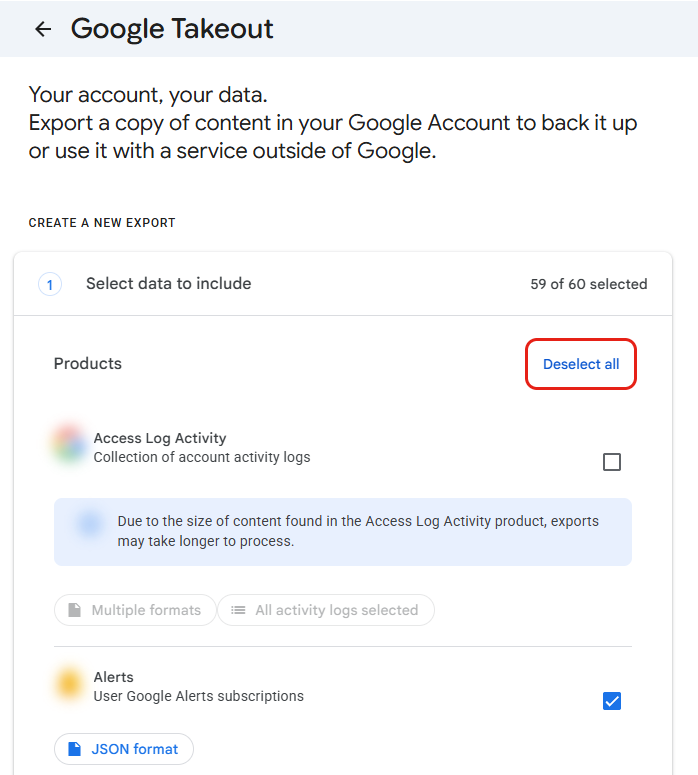
Step 1 Open Google Takeout
- A On a computer, go to takeout.google.com and sign in to the Google account your YouTube channel is on.
- B Almost everything starts out ticked, so click Deselect all at the top of the list.
Step 2 Tick YouTube and YouTube Music
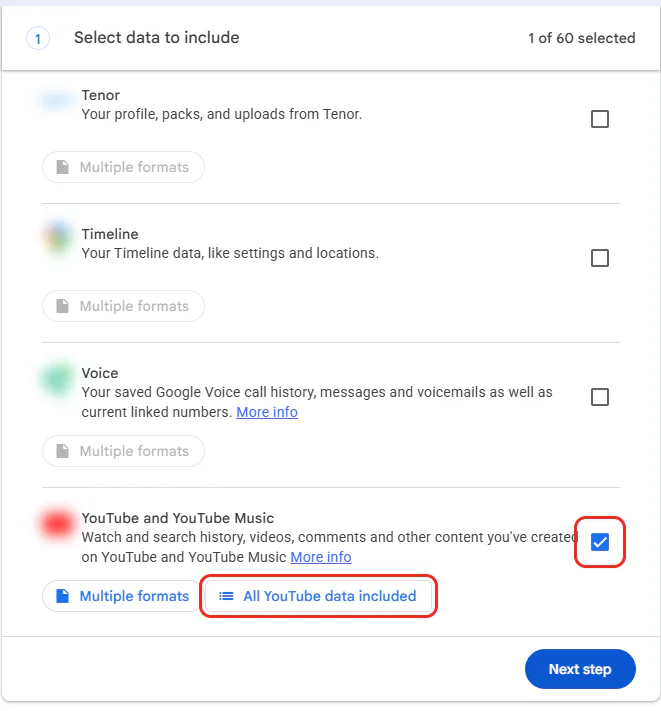
- A Scroll to the bottom of the list and tick YouTube and YouTube Music.
- B Click the All YouTube data included button under it.
Step 3 Keep only comments
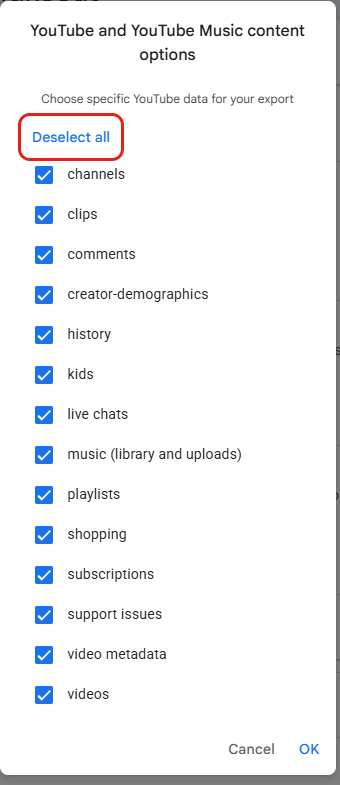
- A In the box that opens, click Deselect all.
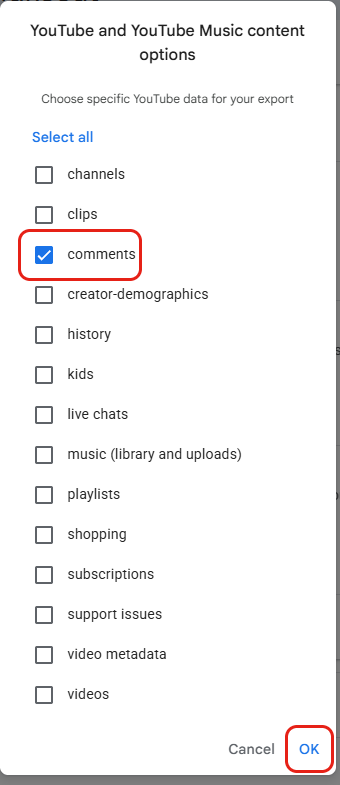
- B Tick comments and click OK. Leaving out your videos and history keeps the file small, so it's ready sooner.
- C Takeout only lists comments for an account that has commented. If it's missing and your channel is on a Brand Account, switch to it with your profile picture in the top right and start again.
Step 4 Go to the next step
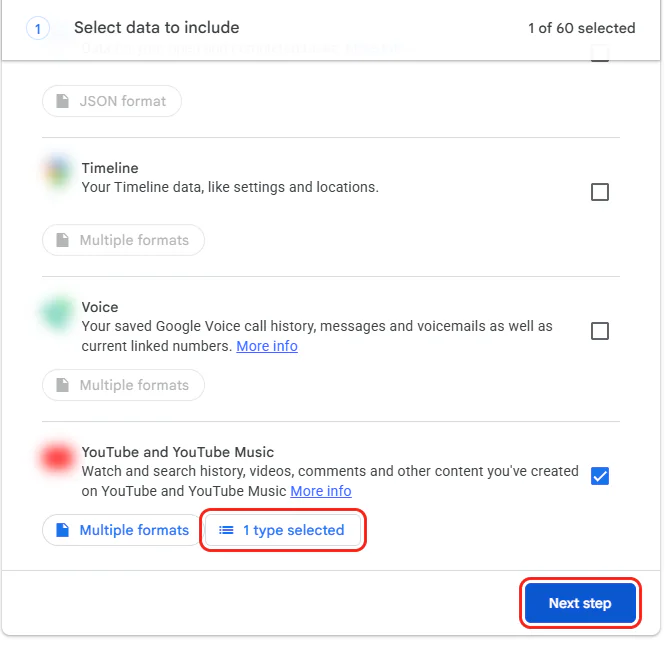
- A The button under YouTube now says 1 type selected.
- B Click Next step.
Step 5 Create the export
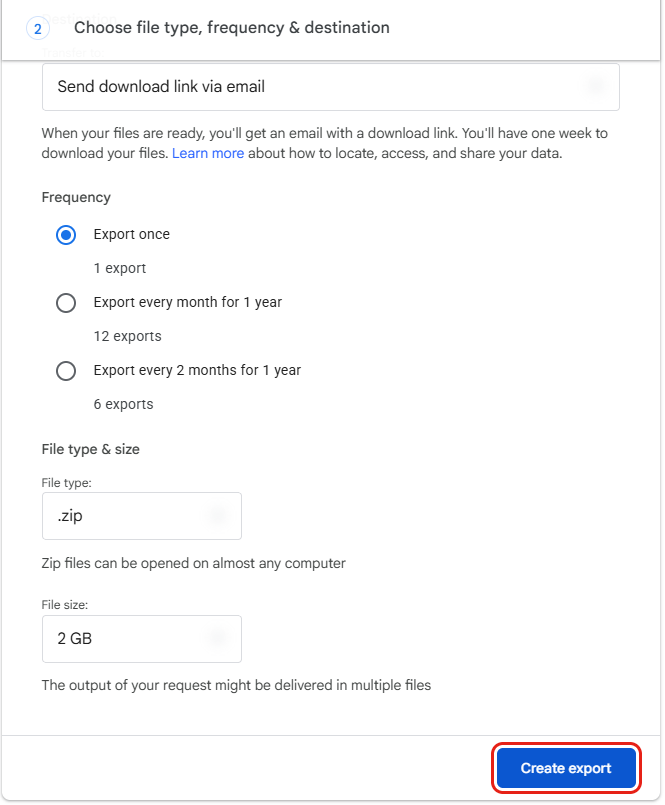
- A Leave the settings as they are: Send download link via email, Export once, .zip and 2 GB.
- B Click Create export. Google emails you a download link when it's ready, which can be just a few minutes when comments are all you picked, and the link works for a week.
Step 6 Drop the zip on this page
- A Download the zip from Google's email.
- B Drop it into the box at the top of this page without unzipping it. If Google split it into several zips, drop them all in together.
- C If you've already unzipped it, drop the Takeout folder or the comments.csv file from YouTube and YouTube Music/comments instead.
Done reading?
Take the comments you don't want down
Redact deletes thousands in one run, by word, video or date, from your own computer. Your last 30 days are free.
