Removal guide · Public Information Services

How to remove your info from Public Information Services

Public Information Services lets anyone ask for a listing to come down, free, through a form in its help center. The awkward part is that the site checks your email twice. Before it shows you a record it sends a code to type in, and after you've chosen the record it sends a link, and by the site's own wording that link is only good for 60 minutes. Set aside about ten minutes, keep your inbox open the whole time, and expect the listing to drop within a few days to a couple of weeks based on what other guides report.

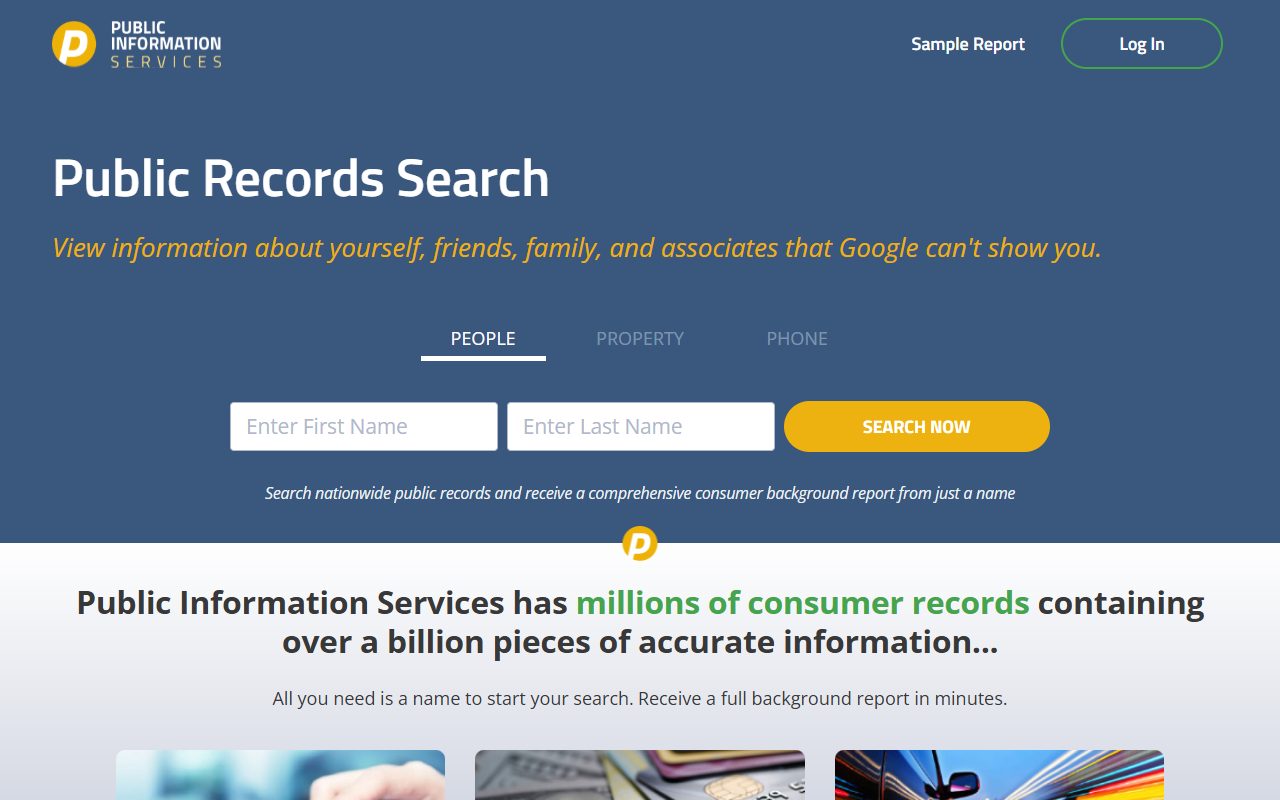
Public Information Services homepage screenshot

Who's behind the site? Ownership, the $1 trial that becomes $29.94 a month, and the 2021 class action over its preview pages are all in the Public Information Services data broker profile.

Quick facts

The short version

What to choose

Do Not Sell My Info, already selected. Delete My Info is only for account holders' own account data

What it asks

Name, city, state, ZIP and age, matching your listing

Emails

Two. A code to type, then a link to click

How long the link lasts

An hour, according to the Request Submitted page

Time

Around ten minutes

Cost

Nothing

Results

Not stated by the site. Other guides report a few days up to two weeks

Before you start

How the flow is put together

It helps to know the shape of the thing before you open the form, because the order is unusual. Most people-search sites show you your record first and ask for an email at the end. This one does the reverse. You describe yourself on the form, prove you own an email address by typing in a code, and only then does the site show you the record it matched. Choosing that record isn't the end either. One more email follows with a link, and the site treats the request as filed only once that link has been clicked, with an hour to do it.

So you'll want three things at hand. The details from your listing, meaning first and last name plus city, state, ZIP and age as the site shows them, because the form searches on exactly what you type. An email address you can read straight away, and which you're content for a data broker to hold. And a few spare minutes, since the form, then the email page, then the code page each stop for a Cloudflare check on the way through.

On the email address. A masked or secondary address works. The site only needs to reach it twice, and nothing in the flow ties it to an account or to the listing.

The steps

Removing your listing

01

Open the Privacy Requests form

The form lives at publicinfoservices.com/help-center/privacy-requests, inside the help center rather than behind a footer link. Some older write-ups point at a "Remove Me From Website" page. This form is the route.

At the top, Request Type is already set to Do Not Sell My Info, and that's the setting you want, because it's the one that suppresses a public listing. Delete My Info, the other item in that list, covers a paying member's account data and leaves a public listing where it is.

Fill in First Name, Last Name, City and ZIP, choose your State and Age from the dropdowns, and tick the Cloudflare box. All six fields are required. Use the version of you that the listing shows, since a current address the site doesn't have will simply return nothing. Press Continue.
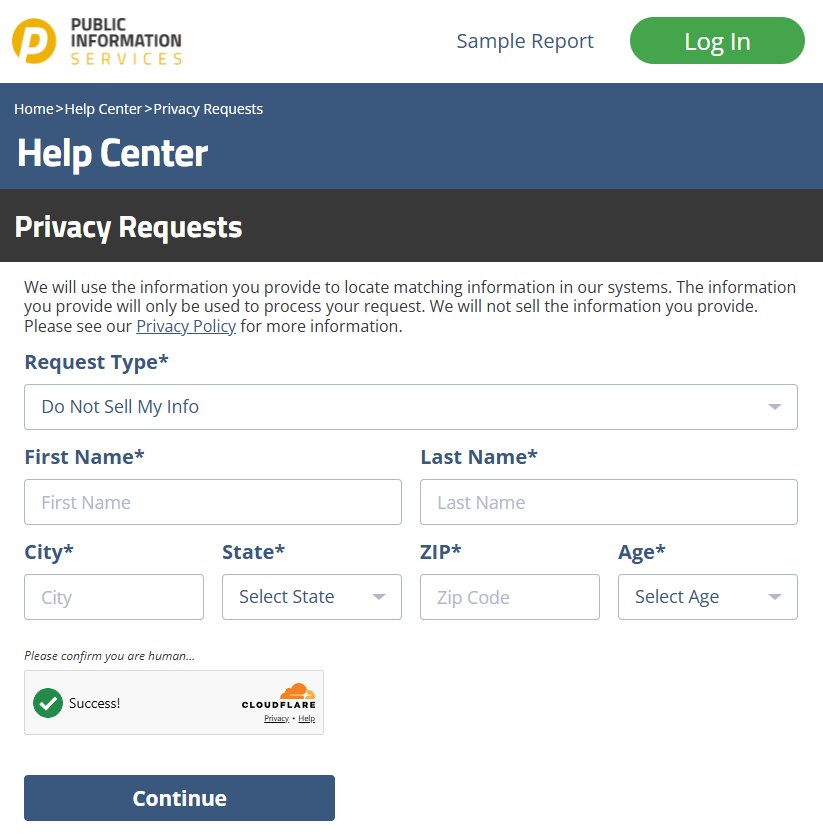
Public Information Services' Privacy Requests form. Request Type reads Do Not Sell My Info, and there are required boxes for first and last name, city, state, ZIP and age above a Cloudflare check.
Do Not Sell My Info is the setting that suppresses a listing.
02

Give an address for the code

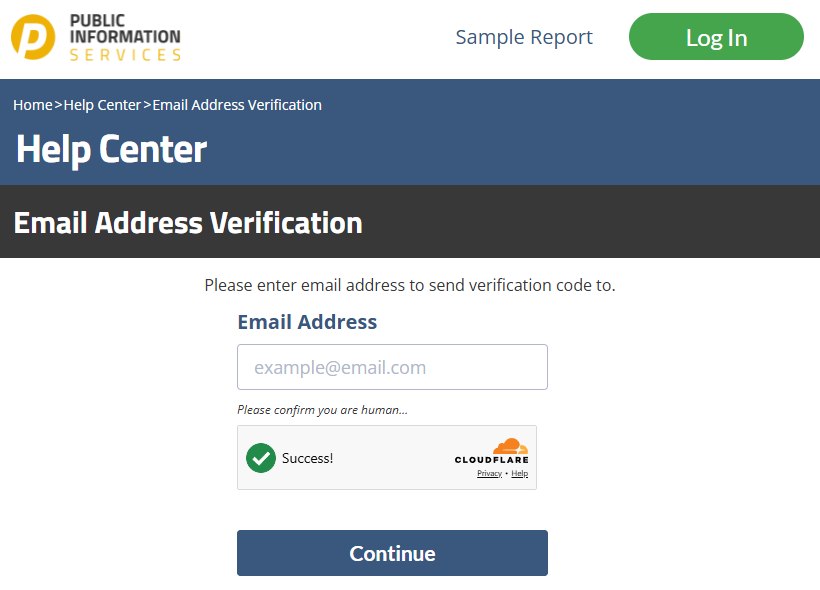
The Email Address Verification page asks where to send a verification code, and that's all it asks. Type the address, pass the Cloudflare check, press Continue. The code is on its way, and the site hasn't done anything to your record.

The Email Address Verification page on Public Information Services, with one Email Address field, a Cloudflare check and Continue.
The site wants an inbox before it will show you anything.
03

Enter the code

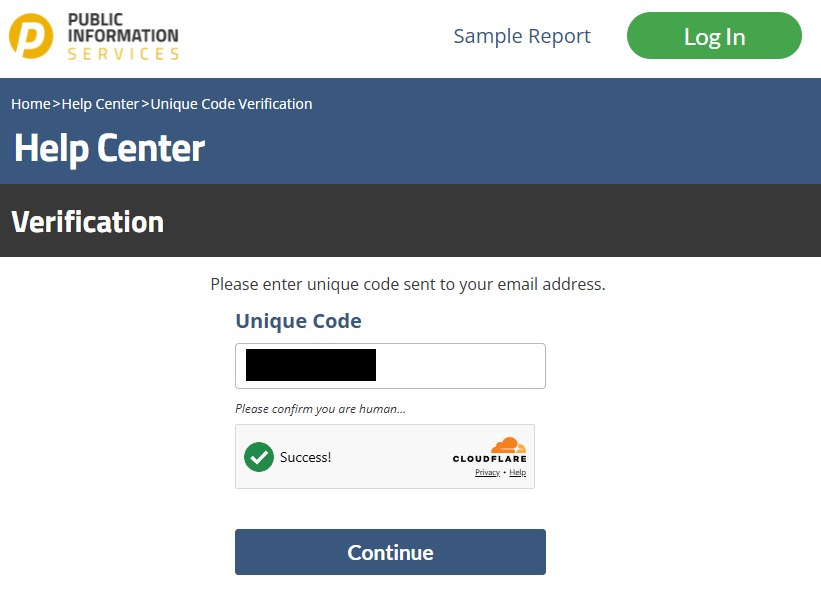
Find the email, read the code out of it and type it into the Unique Code field of the Verification page. One more Cloudflare check, then Continue.

Note what kind of email this was. It carried a code, and you typed it. The later email carries a link, and you click it. People who remember only one of the two tend to stop after this screen and assume they've finished.

Public Information Services' Verification page, with a Unique Code box for the emailed code, a Cloudflare check and a Continue button.
A code to type. The link is still to come.
04

Confirm the record is yours, then press Remove

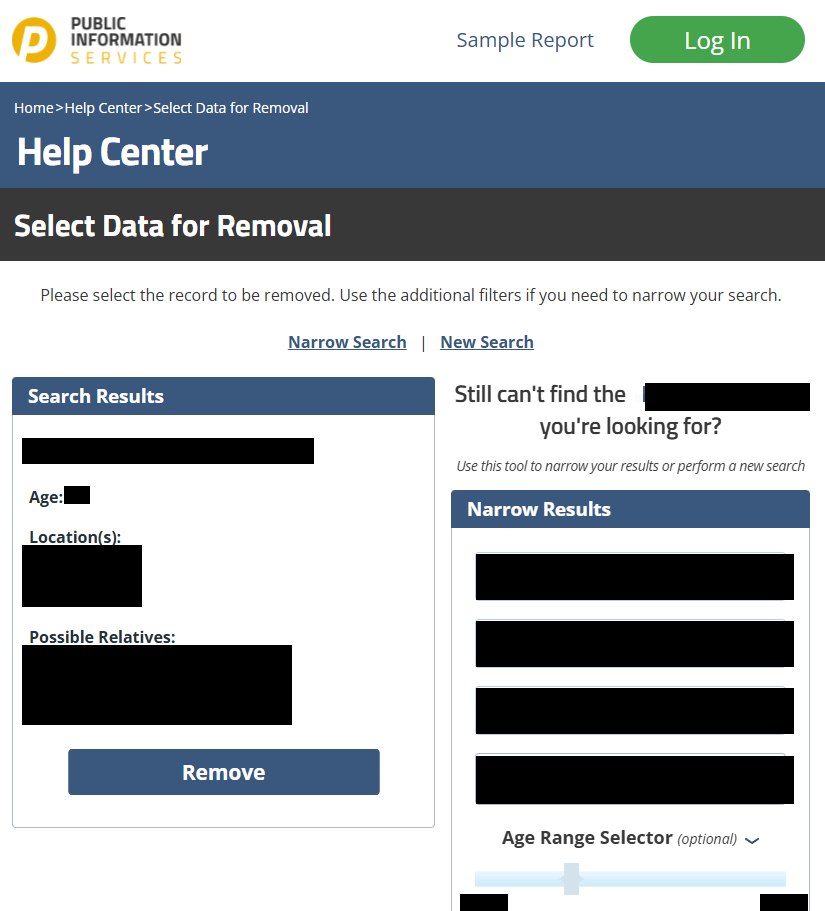
Now the site shows what it matched, on the Select Data for Removal page. The Search Results box on the left holds one record showing a name, an age, locations and possible relatives, which is the same set of facts the site sells to anyone who pays.

Look at it properly before pressing anything. If it's a different person with your name, leave it alone and use the Narrow Results panel to the right, which takes a name, a city and a state, plus an optional age range, and reruns the search when you press Update Results. The New Search link above the results starts from scratch. Once the record in the box is you, press Remove.

The Select Data for Removal page on Public Information Services. The matched record and a Remove button sit in a Search Results box, and a Narrow Results panel with name, city, state and age-range filters sits to the right.
Values are blacked out here. The labels show what the site holds on a person.
05

Click the finalizing link within 60 minutes

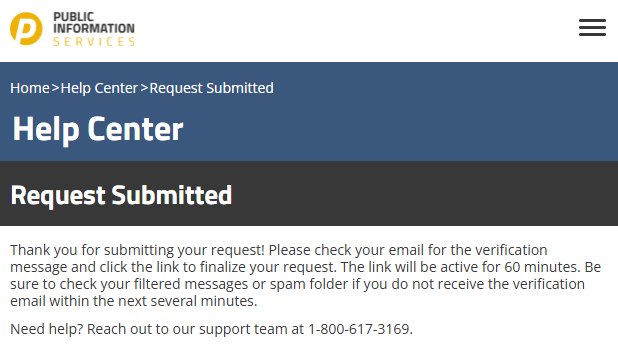
Pressing Remove brings up the Request Submitted page, and the wording on it deserves a close read. The site thanks you, tells you a verification message has gone to your email, asks you to click its link so the request is finalized, and says the link is active for 60 minutes. It suggests looking in filtered and spam folders if the email doesn't show within several minutes.

That sentence is the whole point of this guide. Until the link is clicked, nothing has been filed, and if the hour runs out there's no reminder, no error and no request. The page also gives the site's support number, 1-800-617-3169, if you need a person.

Public Information Services' Request Submitted page, whose text asks the reader to click an emailed link within 60 minutes to finalize the request.
Filed only once the link is clicked, and only inside the hour.

Afterwards

What happens next

Once the link is clicked the site goes quiet. There's no message confirming the record has gone, so the check is to search for yourself on the site again. Public Information Services doesn't publish a turnaround. The guides that follow this broker report anything from a few days to two weeks, which is why a week or two is the sensible interval before you worry. If the listing is still up after two weeks, write to privacyinfo@publicinfoservices.com, give the date you clicked the link, and ask for the status of the request.

If it fails

Common problems

  • The code or the link never shows up. Spam and promotions folders first. If there's still nothing, start over from the form with another address. Nothing is filed until the last link is clicked, so a repeat run doesn't create a duplicate request.

  • The link expired. Run the form again from the beginning. Each pass issues its own code and its own link, and the old one can't be revived.

  • Still listed after two weeks. Email privacyinfo@publicinfoservices.com or support@publicinfoservices.com, or ring 1-800-617-3169. The BBB record adds a second line, 1-800-718-4610.

  • Making a request under a state privacy law. Use the same Privacy Requests form. There's no separate state-law page to find. The privacyinfo@ address above is the one Information Data Resources filed with California's privacy regulator, so put the request in writing there as well if you want a paper trail.

  • A charge, not a listing. The $1 trial that became $29.94 is a billing matter and the privacy form won't help. Cancel through support@publicinfoservices.com, 1-800-617-3169 or your login, and dispute with your card issuer if charges keep coming.

Stay off

Keeping the listing down

  • Search for yourself again every three months or so. The database takes in new public-records data, and a fresh record with a different spelling or an old address can appear that the earlier request never touched.

  • Check Public Data Check and Kids Live Safe while you're at it. They list the same BBB principal as this site and use the same form, but each keeps its own suppression list.

  • Redact's data-broker scan can do the rechecking for you and refile when a record comes back.

Take yourself off data broker sites

Redact scans 120+ data broker sites from your device, finds where your details are listed, and submits the removal requests for you. If a broker relists you, it files again.

Last updated:

August 27, 2026 · Every step and screenshot reflects a complete run through the live form on that date, from the Privacy Requests page to the 60-minute link. The profile's company research is dated separately above.