Our Free PDF Redactor Now Reads Scans and Lets You Write Your Own Redaction Text
Black out names, numbers and whole pages in your browser, pick from 24 box styles, and stamp your own words on every box.
 Dan Saltman
On this page
Most people have done it at least once. You open a PDF, draw a black rectangle over a Social Security number, save, and send it out. Then someone drags their cursor across the black bar, presses copy, and the number pastes out cleanly. The box was a sticker over the page. The text never went anywhere.
We made the PDF Redactor so that can't happen, and as of this update it does far more than draw boxes. It reads scanned pages, it spots the usual private details for you, and you get to pick what each box looks like, all the way down to typing your own words onto it. It costs nothing, there's no account, and the PDF never leaves your browser.
The whole thing in four steps
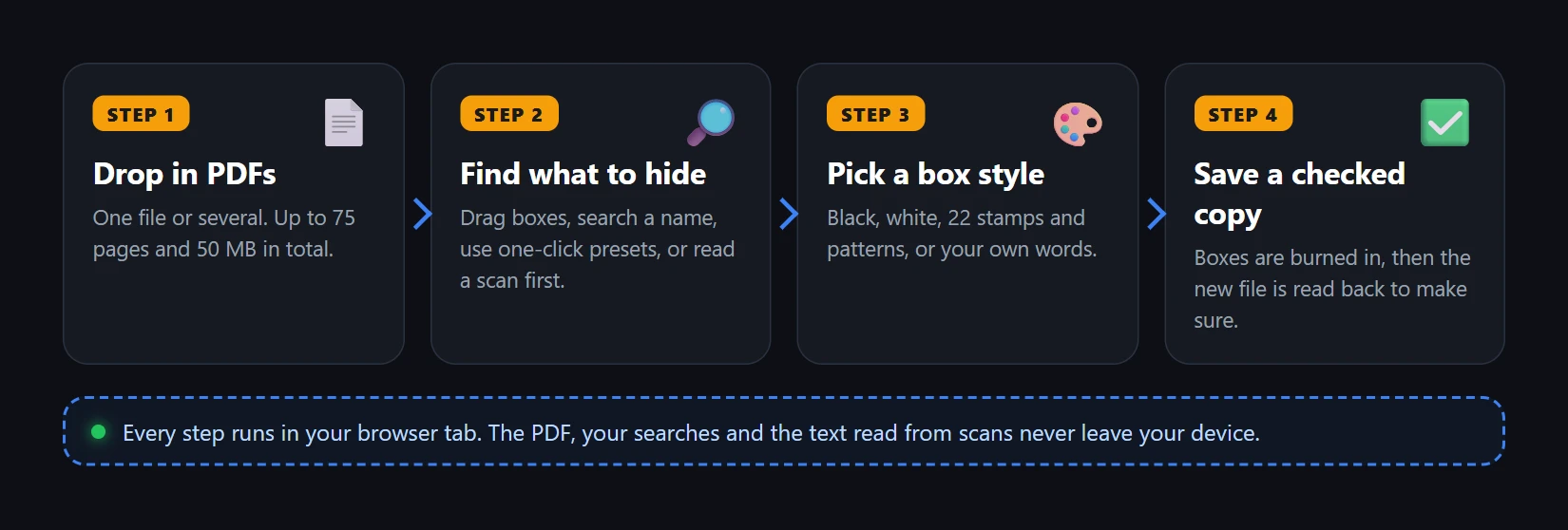
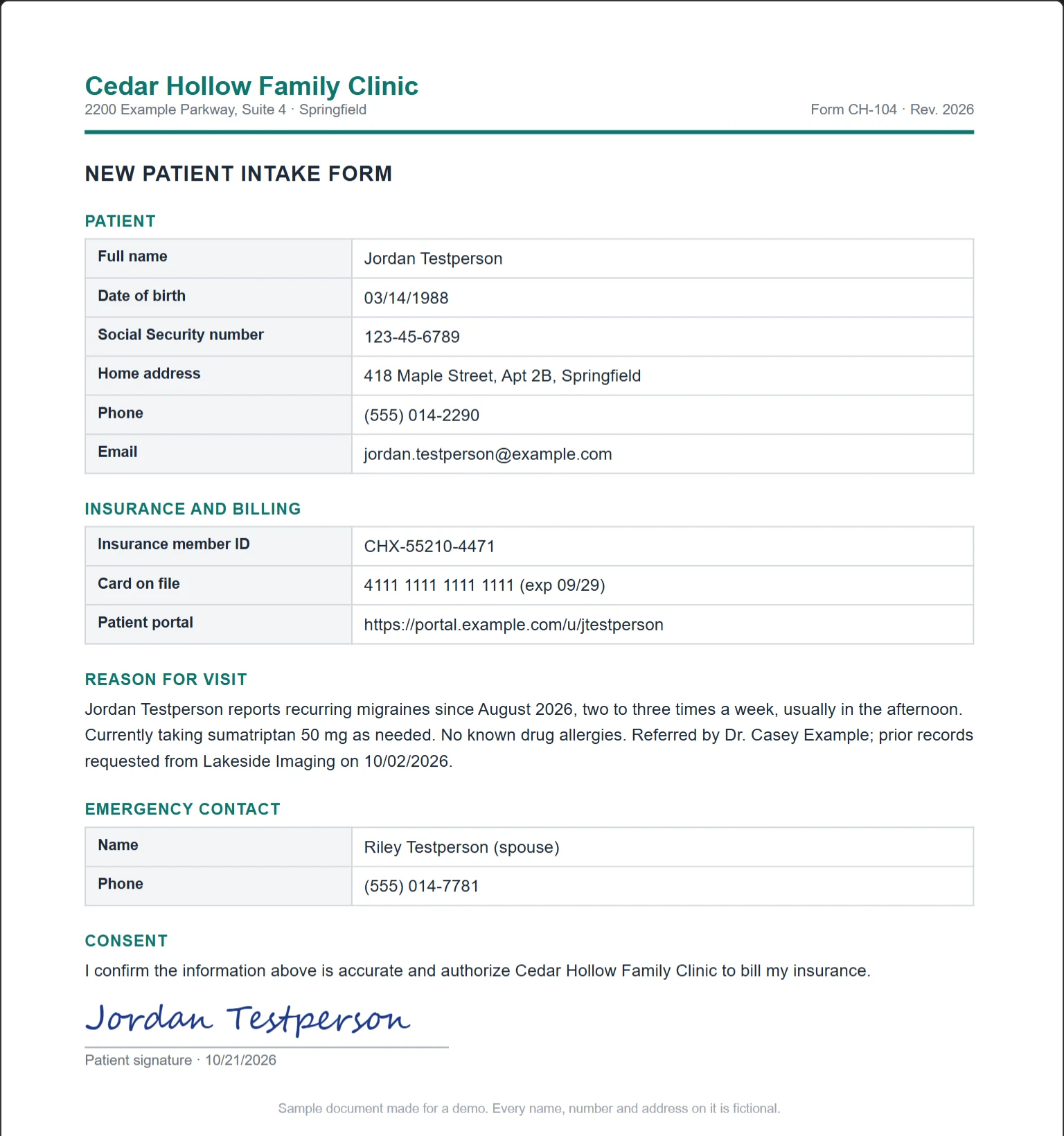
The rest of this post goes through what each step can do, using a fake patient intake form and a fake scanned letter. Every name and number in the screenshots is invented.
Let it find the private stuff
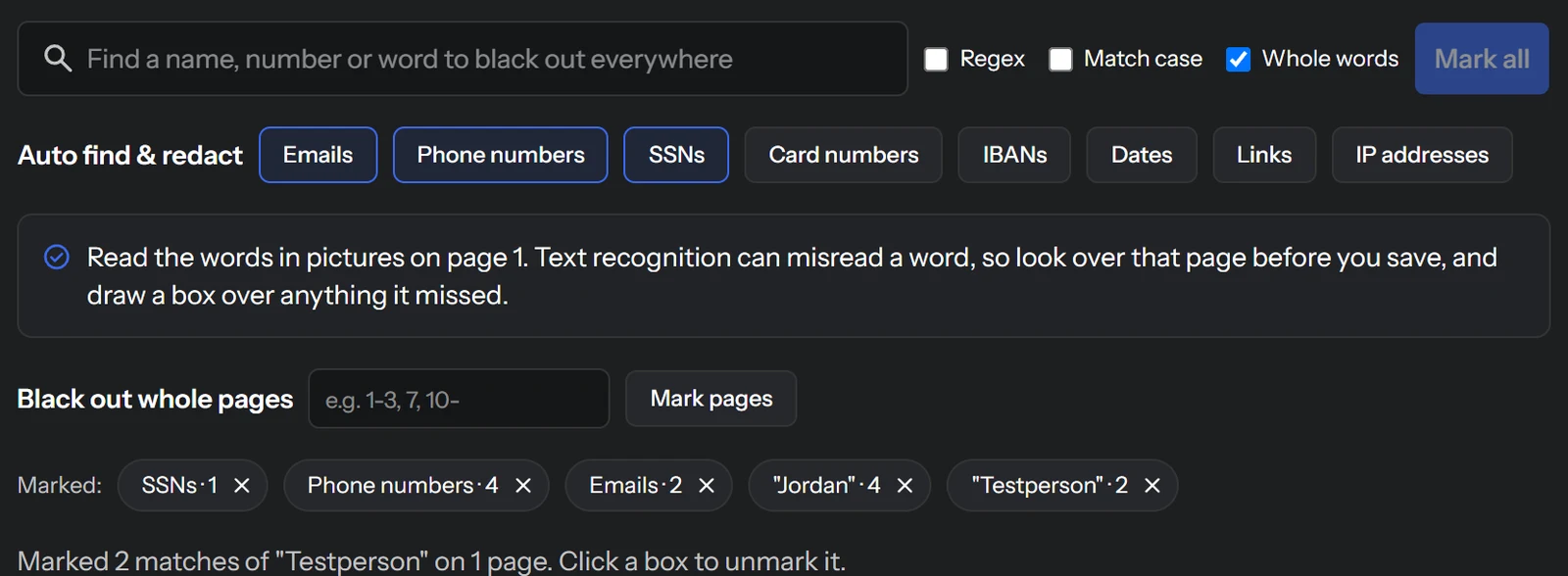
Searching for a phone number across 40 pages is painful work, so the tool does the searching. Under Auto find & redact there's a button for each kind of detail people typically need removed:
- Emails
- Phone numbers
- SSNs
- Card numbers
- IBANs
- Dates
- Links
- IP addresses
Click one and every match in the PDF gets a box. Each button you've used appears in the Marked row with a count, so you can tell at a glance that it found two phone numbers and three dates. If one grabbed too much, click the × on its chip and those boxes come off again.
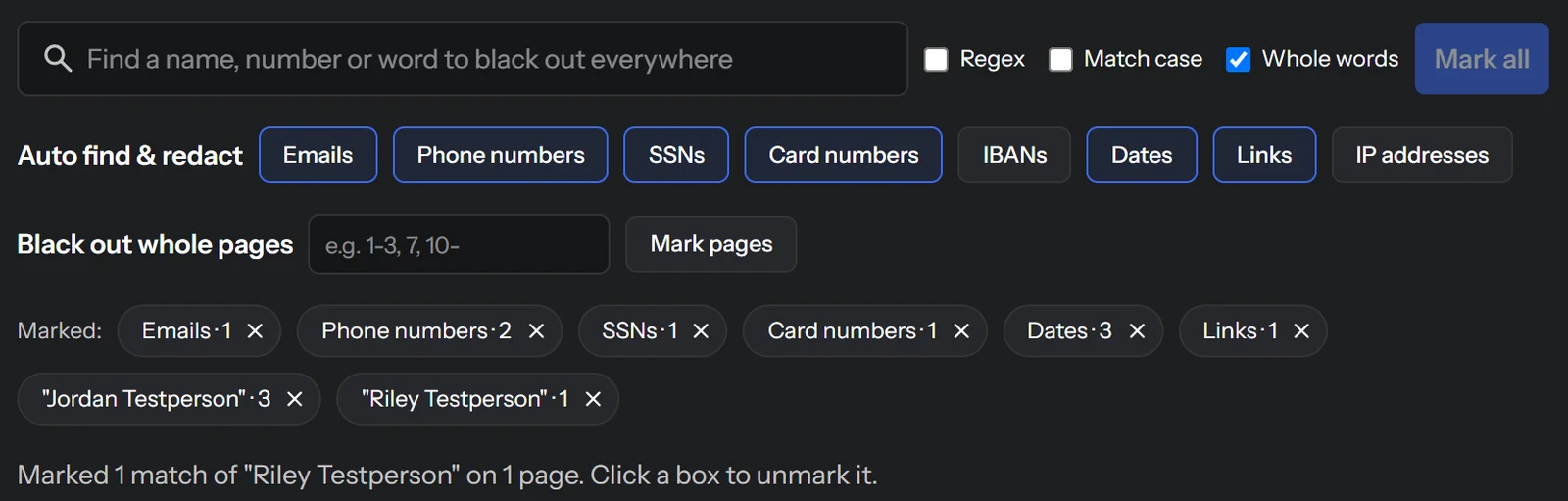
For a name, a case number or a phrase, type it into the search bar and click Mark all. It boxes each match on every page of every PDF you have open. Whole words is on by default so "Ann" won't box the start of "Annual", and if you're comfortable with regular expressions, check Regex for your own patterns.
Here's the form after six presets and two name searches:
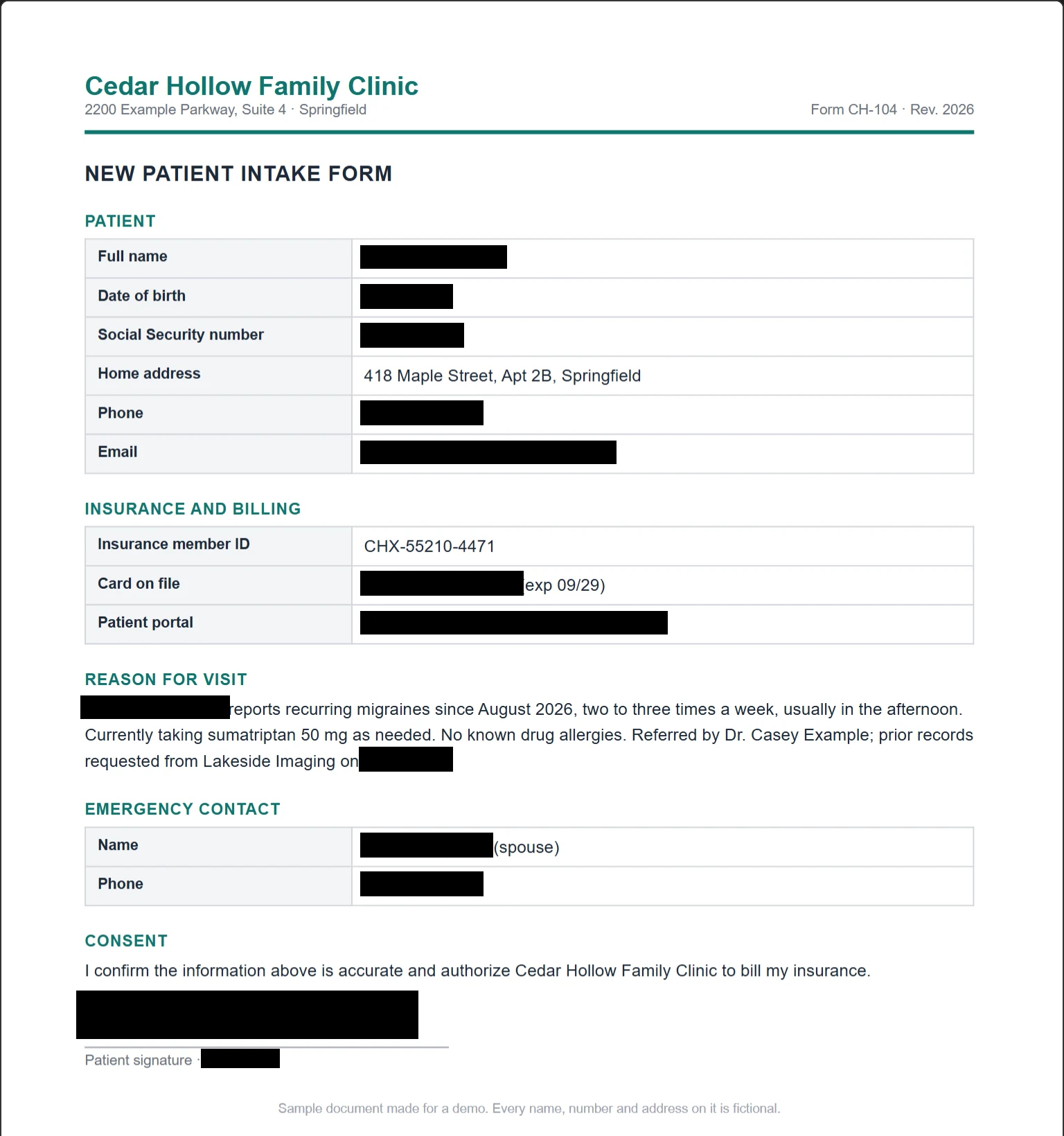
Look at what it left alone. The home address and the insurance member ID are still visible, since no preset covers them. For those, drag across that area of the page and it gets a box. Text, a photo, a handwritten signature, a logo, it makes no difference what's underneath. And when an entire page has to go, enter its number into Black out whole pages (ranges like 1-3, 7, 10- work) and it's covered from edge to edge.
Scanned pages: the new part
A scan is a picture of a page. There's no text inside the file for search to find, so without OCR your only choice is to draw every box by hand.
When the PDF Redactor opens a page like that, it lets you know and offers a button: Read text in pictures.
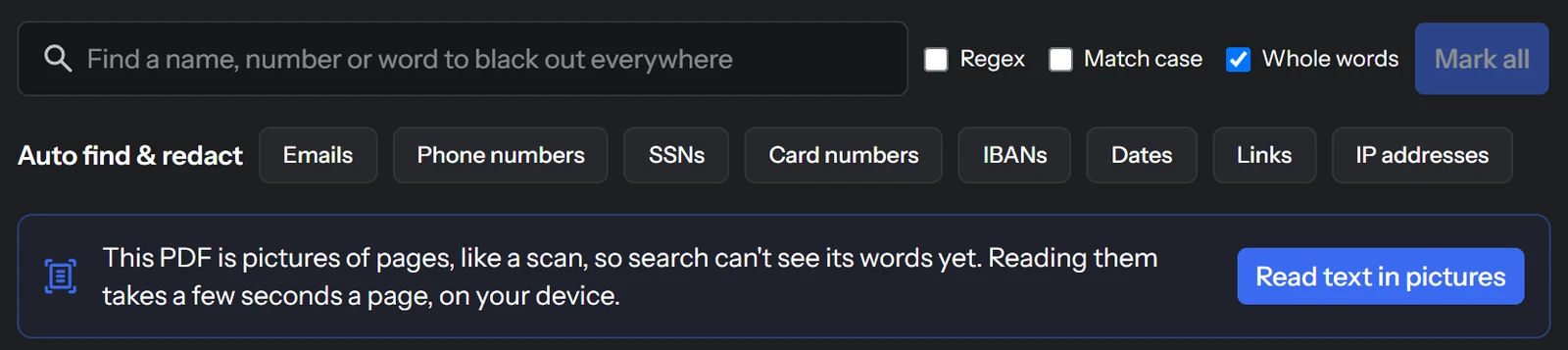
Click it and your browser reads the English words on each page. This is OCR (optical character recognition), and the key part is where it happens: the text reader loads from our site and runs on your device. The scan isn't uploaded to a cloud OCR service, and neither is the text it reads. It takes a few seconds per page.
Once the words are read, search and the presets work on the scan exactly like they do on a regular PDF. We put the fake employment letter below through it, then clicked SSNs, Phone numbers and Emails and searched for the employee's name:
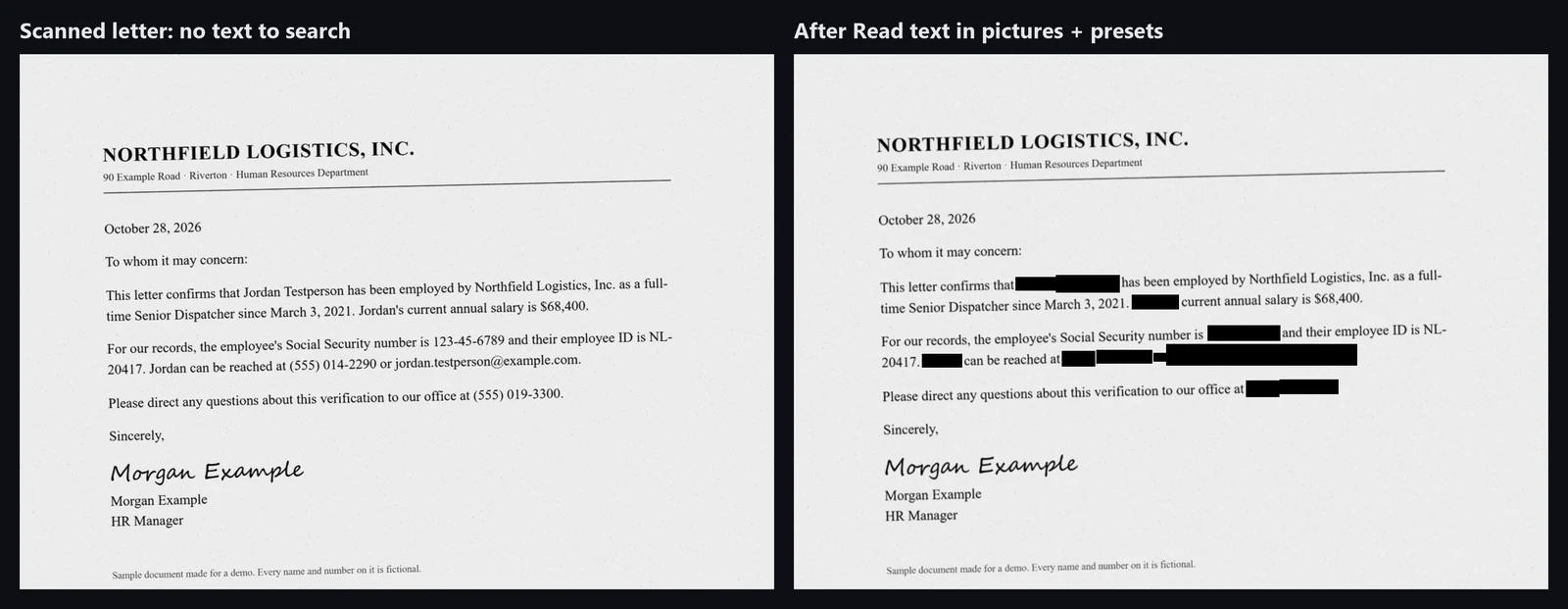
OCR isn't flawless, and the tool admits it. A fax, a phone photo or a fuzzy low-resolution scan can throw it off. When a page is hard to read, a warning names that page so you know to check it by eye and drag a box over anything it missed. On our test letter, it found everything we asked for.
24 ways for a box to look
Black is the classic choice and still the default. But a redaction box can say something too, so Box style and options now has 24 styles in five rows:
| Row | Styles |
|---|---|
| General | Black, White, Flowers, Redact logo |
| Secret stamps | Confidential, Top secret, Top secret black, Classified, Private |
| Government | Official use only, Government use only, Law enforcement, FOIA (b)(6) |
| Law | Privileged, HIPAA, FERPA, GDPR, CCPA, GLBA |
| Personal info | PII, Personally identifiable, PHI, PCI, COPPA |
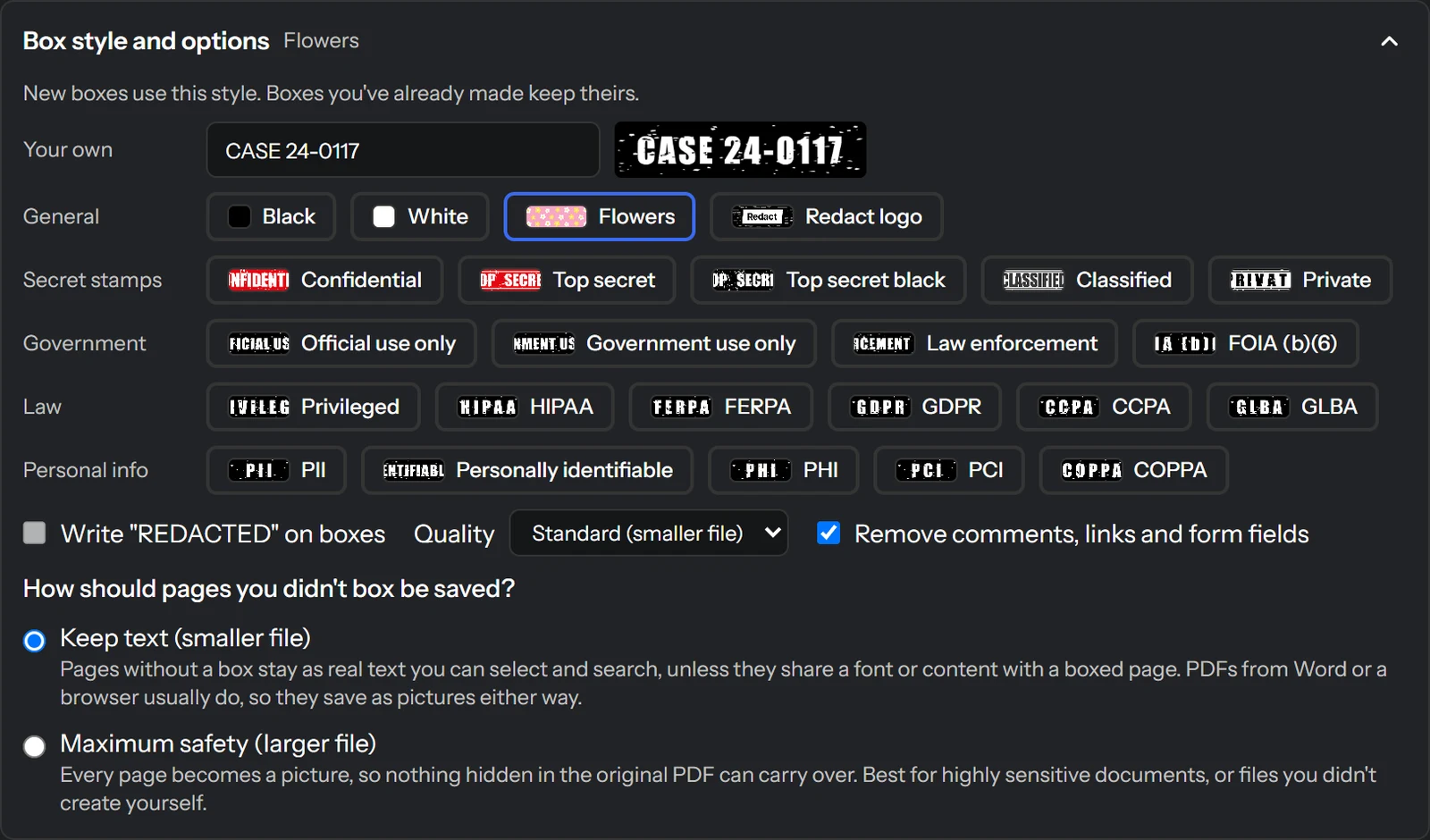
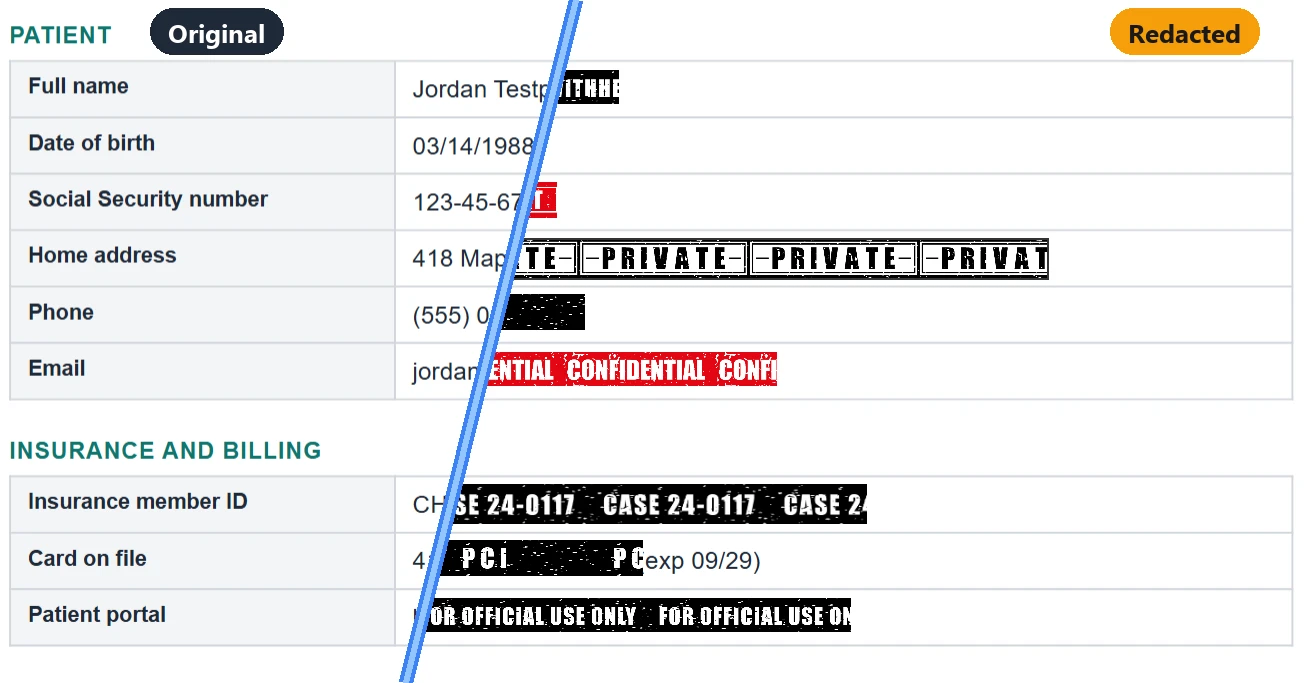
The style applies to new boxes. Boxes you've already drawn keep theirs, so one document can mix them freely. Choose Top secret, click SSNs. Change to HIPAA, click Dates. Change to Confidential, click Emails. Each kind of detail ends up with its own label:
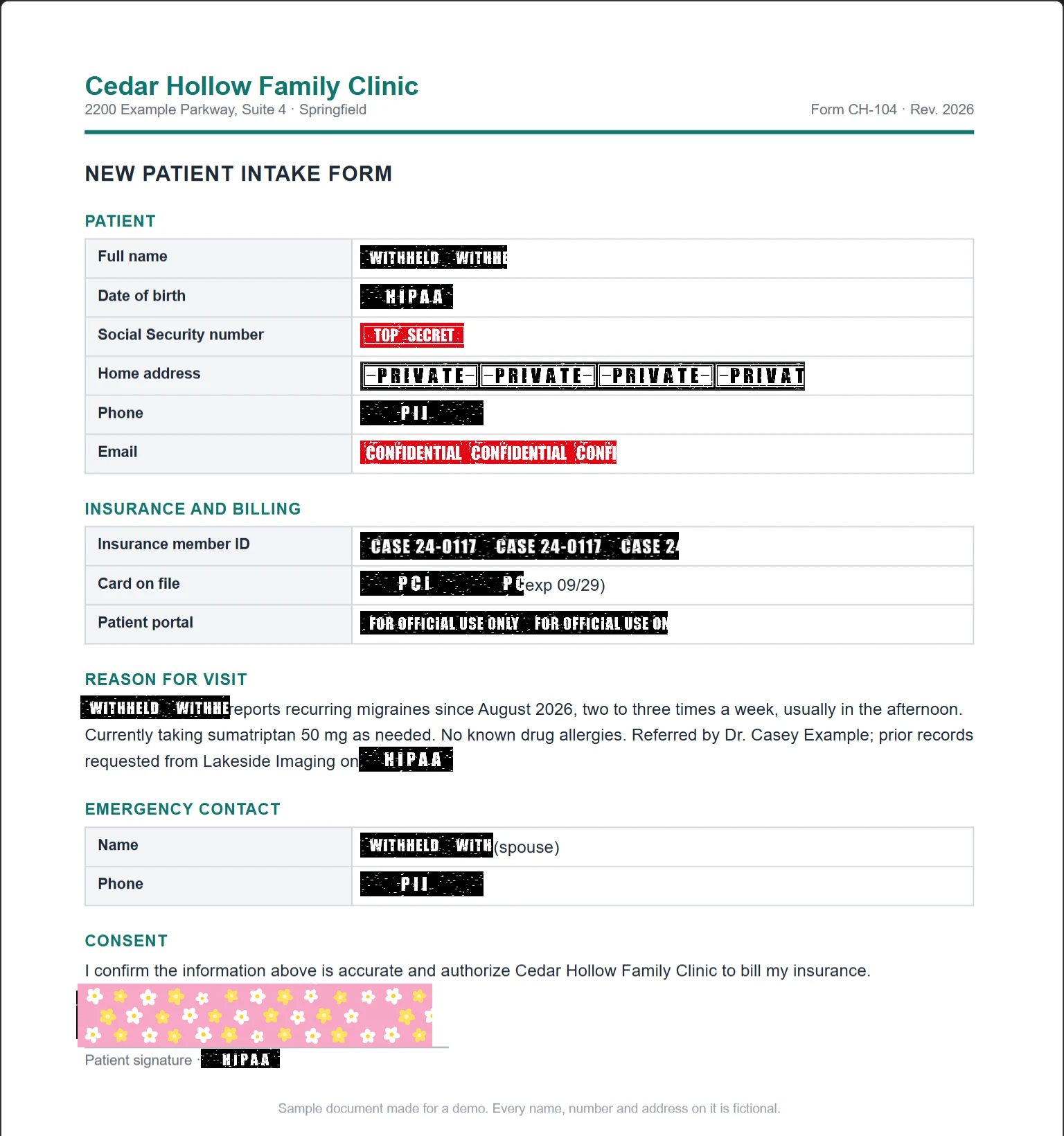
Where the labels pay off:
- HIPAA, PHI or PII boxes show whoever reads the copy why a line is gone, so you get fewer "what was here?" emails.
- White boxes look neat on a page that's going to be printed and mailed.
- FOIA (b)(6) matches the exemption agencies cite when they withhold personal privacy details in a public records release.
- Flowers are for when the document is headed to your group chat and nobody needs to feel like they're reading a case file.
Every style is completely solid, so the flowers hide what's beneath them just as well as black does.
If you'd like plain black or white boxes with a label, check Write "REDACTED" on boxes.
Write your own redaction text
In the Your own row at the top of the style panel, enter up to 40 characters. The strip beside the field previews your words in white on rough black, the same stamped style as the built-in ones, and from then on every new box shows them.

Some PDF editors call this overlay text. Here's what it's useful for:
- WITHHELD or REMOVED for anything sent in response to a request
- A case or matter number, like the
CASE 24-0117strip on the insurance ID in the example above - EXHIBIT B, ATTORNEY EYES ONLY or a reviewer's initials when you're marking up documents for a file
- A reason, like
MINORorNOT RELEVANT, so a reader knows what sort of thing was removed
Like the other styles, each box keeps the words it was made with. Type WITHHELD, search for a name, change the text to a case number, drag over an ID, and both labels stay where you placed them. Text longer than its box is cut off at the box edge.
Covered vs. deleted
Back to the copy-and-paste problem from the start of this post.
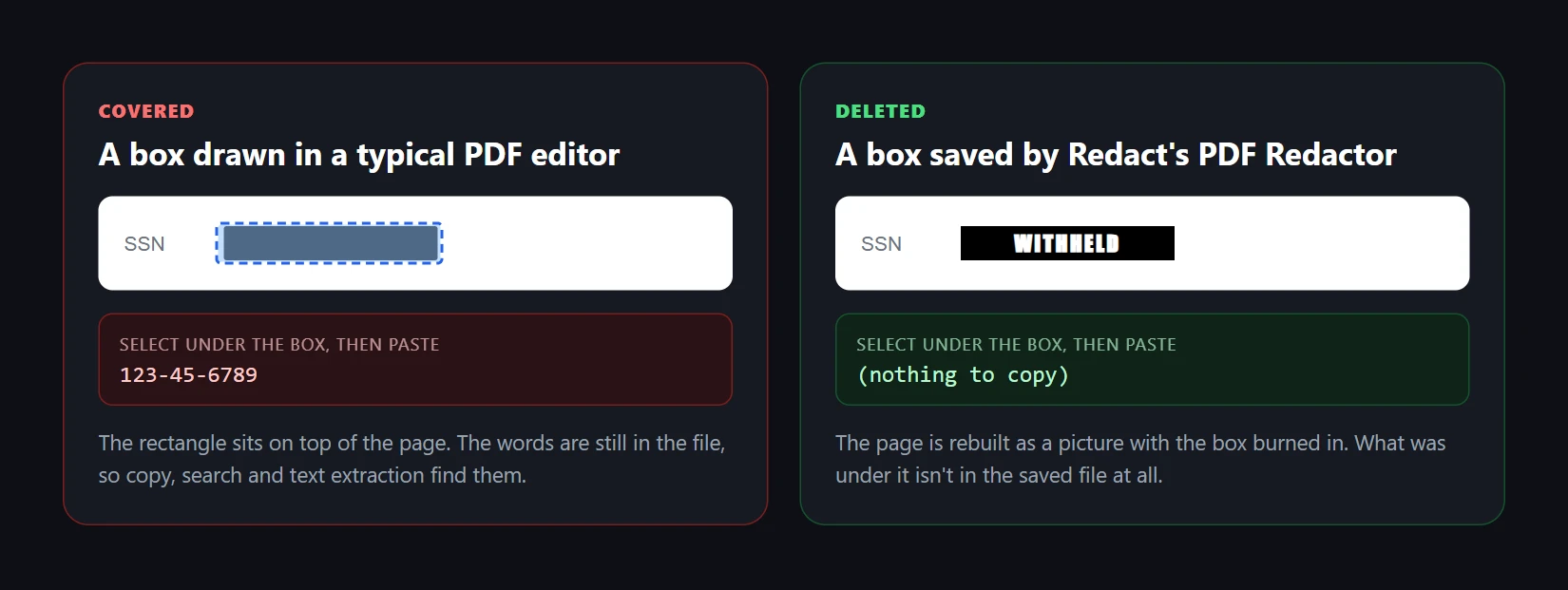
When you save, each page with a box on it is remade as an image with the box baked into it. Whatever was under the box just isn't in the new file. We tested our two example copies the hard way, extracting every character of text from them with a PDF library: zero characters came back from the redacted pages.
The tool does its own version of that check each time. After saving, it reads the new copy the way someone trying to reverse your work would. The green message refers to what's under your boxes. If a word you searched for can still be found in the copy's text, or in a scan you had the tool read, a warning below it names the page so you can box it and save again.

The saved copy also strips the parts of a PDF you never see: the title, author and creation details, attachments, scripts and bookmarks. Comments, links and form fields are removed too, unless you uncheck that option.
Two other settings in the same panel control how the rest of the file is saved:
- Keep text (smaller file) keeps pages you didn't box as real, selectable text when it's safe. PDFs created in Word or a browser usually share fonts across pages, so those frequently turn into pictures anyway.
- Maximum safety (larger file) converts every page into a picture. Use it for very sensitive records, or for any PDF you didn't create yourself and can't vouch for.
Quality offers a High option for documents with small print that has to stay sharp.
The fine print
- Size: up to 50 MB and 75 pages at a time, counted across all the PDFs you have open. Break larger files into parts.
- Several PDFs: open them together and each gets its own tab. Searches, presets, OCR and saving can run on all of them at once, and each one downloads as a separate file.
- Passwords: enter it when asked, and the redacted copy is saved without one.
- Your original stays just as it was, since you only ever download a new copy.
- It works on phones, but long files take some time and can run a mobile browser out of memory.
Automatic search is an aid, not a guarantee. A name spelled two ways, a number split across lines, or a word OCR misread can get past it. Read every page before you share the copy, and drag a box over anything it missed.
The PDF Redactor sits next to the other free tools we've made for keeping private things private. If what you actually need to clean up is years of old posts, photos and messages instead of a single document, that's what the Redact app is for.