Radaris's opt-out is URL-based with an email-link verification. Here's the flow. Search for yourself, copy your profile URL, paste it into the URL field at radaris.com/control-privacy, confirm the matching profile, click Start Removing, enter your email, and click the confirmation link Radaris sends. About 5 minutes including the email round-trip - though honestly, I'd treat the on-site form as the first attempt rather than the last one. Radaris has a BBB-documented pattern of ignoring or re-creating opted-out profiles, so we recommend documenting everything as you go.
Before you remove your data: See the Radaris data broker profile for ownership, contact details, litigation history, and related sites.
Quick facts
Removal Overview
Email-verified
Method
Profile URL paste + email link
Active time
~5 minutes
Difficulty
Easy
Account required
No
Verification
Email link
Processing time
30-60 minutes
One opt-out per listing
Yes - URL-based
Re-listing risk
High · Re-check every 90 days
Radaris is BBB-documented for ignoring opt-out requests. The BBB explicitly cites a pattern of failing to respond to consumers seeking removal as a reason for the company's C rating. We'd treat the on-site opt-out as the first attempt, not the last one - and I'd recommend documenting everything (screenshots of the form, the verification email, the post-removal search) so you hold a dated record of every attempt.
Prereqs
What you'll need before you start
3 things
Your first name and last name, plus the city / state you live (or have lived) in - used to find your matching Radaris profile.
A real email inbox you can check. Radaris sends a verification link with a confirmation code; the opt-out is not active until you click the link. I'd recommend a masked / forwarding address (Apple Hide My Email, Firefox Relay) given Radaris's documented history of holding onto contact data longer than it should.
The ability to copy a URL from the browser address bar.
The 7 steps
Remove your listing
~5 minutes total
01
Search Radaris by name and city / state
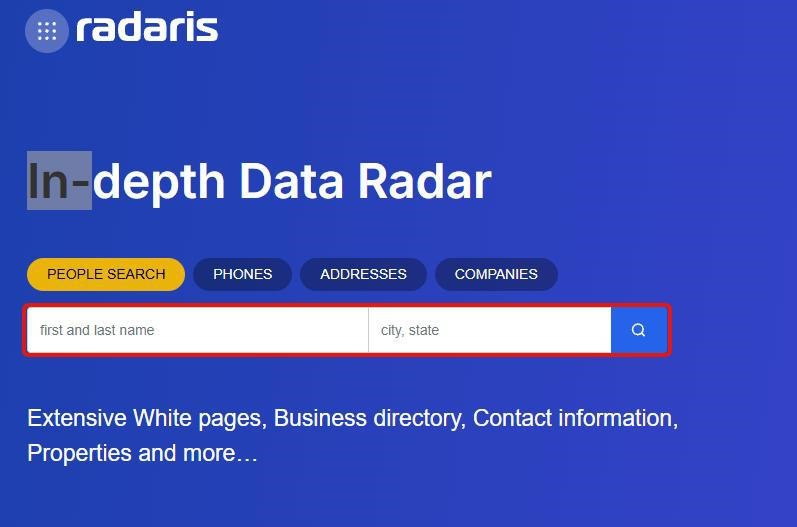
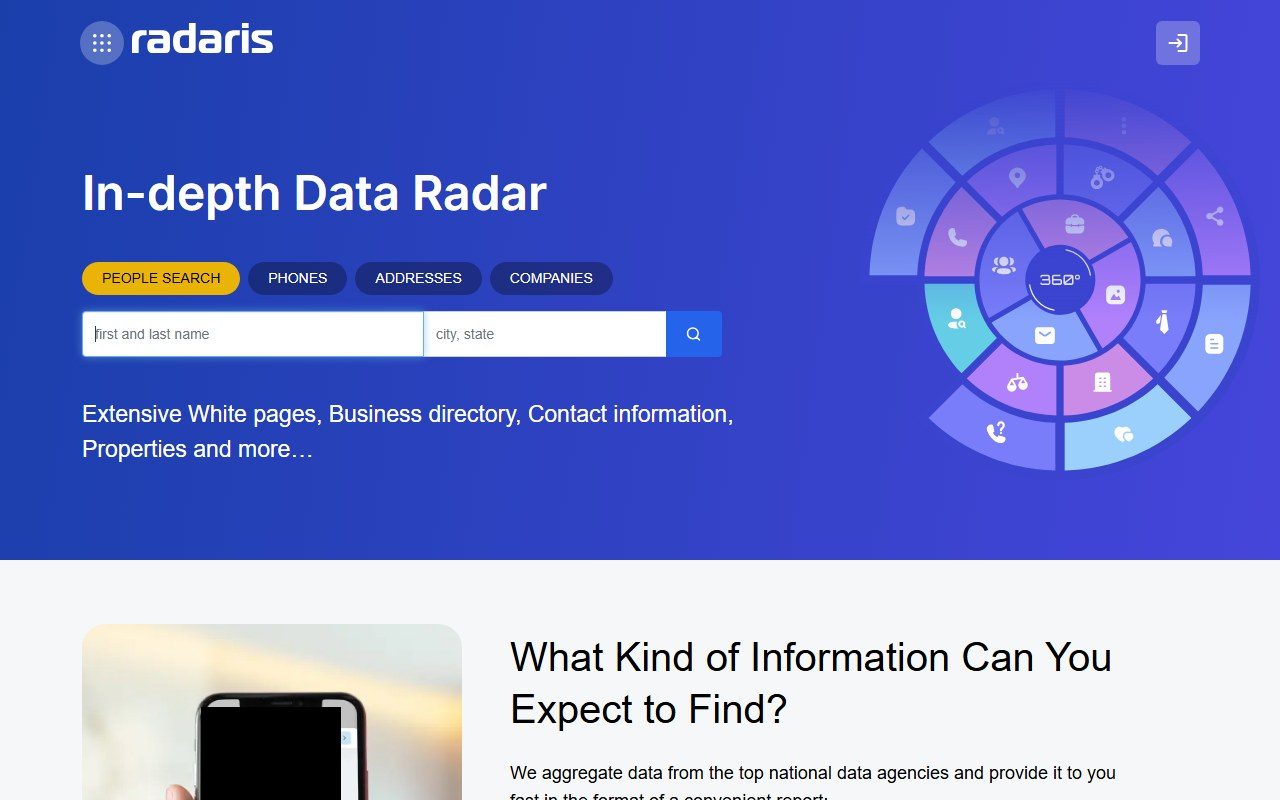
Go to radaris.com. Type your full name and your city / state into the search field, then press the search button.
Search by name and city / state.
02
Find your profile, click the blue "View Profile" button
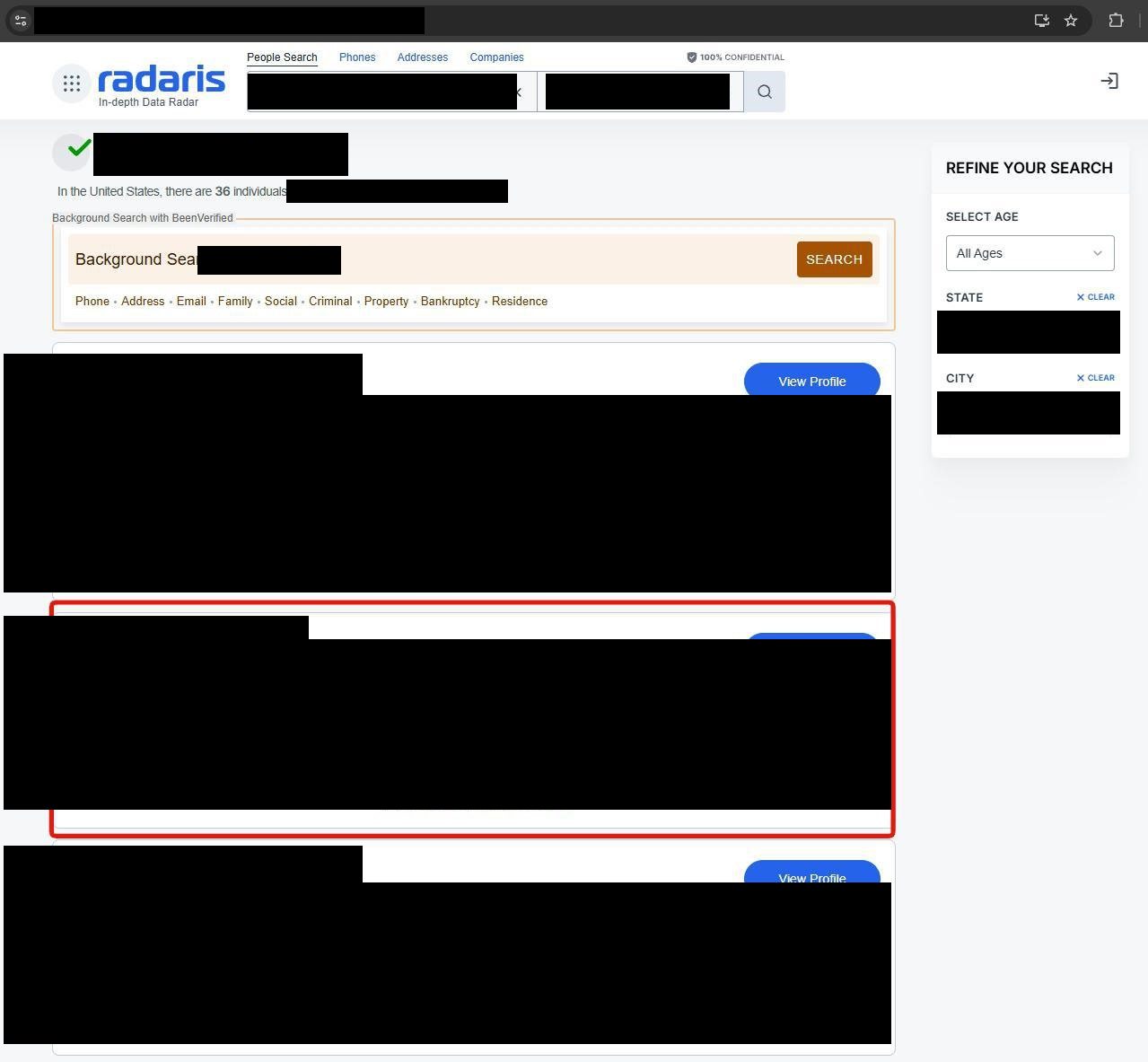
The results page lists every matching profile Radaris has for the searched name. Find the listing that matches you and click the blue View Profile button on that row.
Click View Profile on your matching listing.
03
Copy the profile URL from the address bar
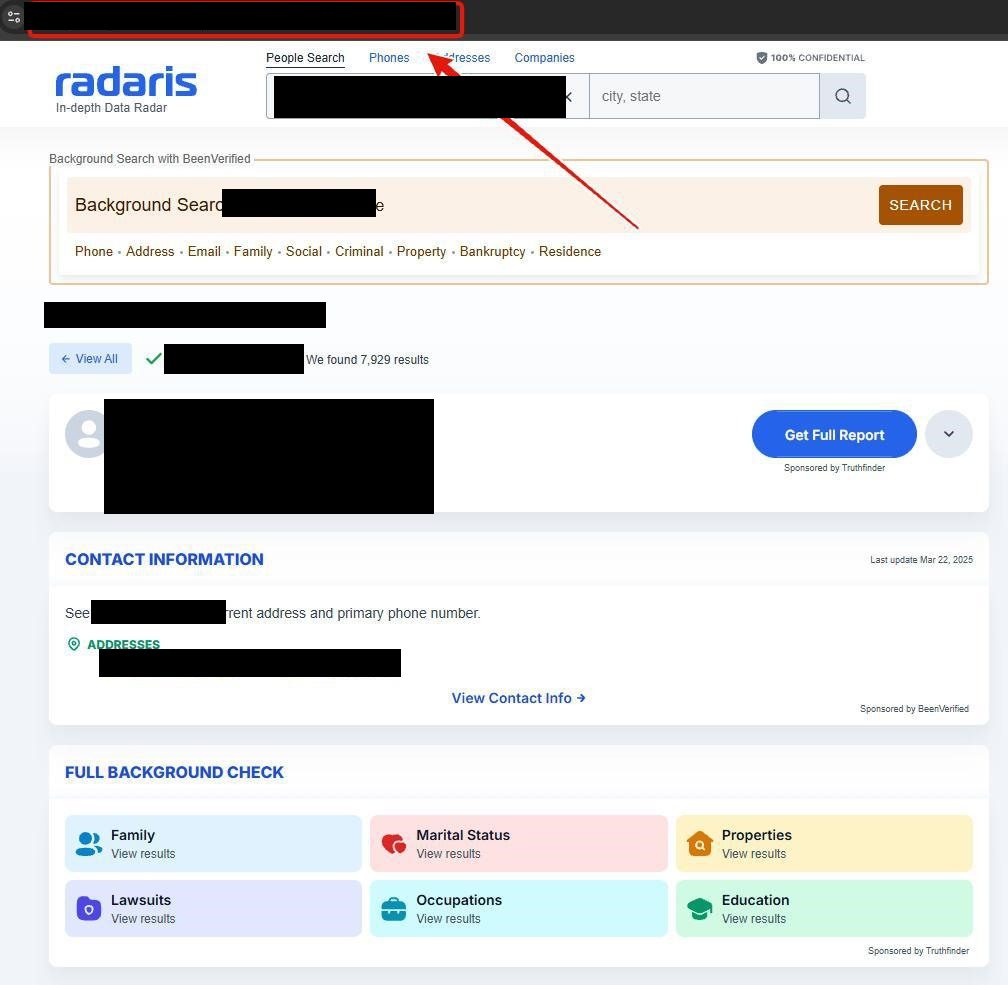
With your profile open, click into the browser's address bar and copy the URL. Keep it on your clipboard - you'll paste it on the next step.
Copy the profile URL from the address bar.
04
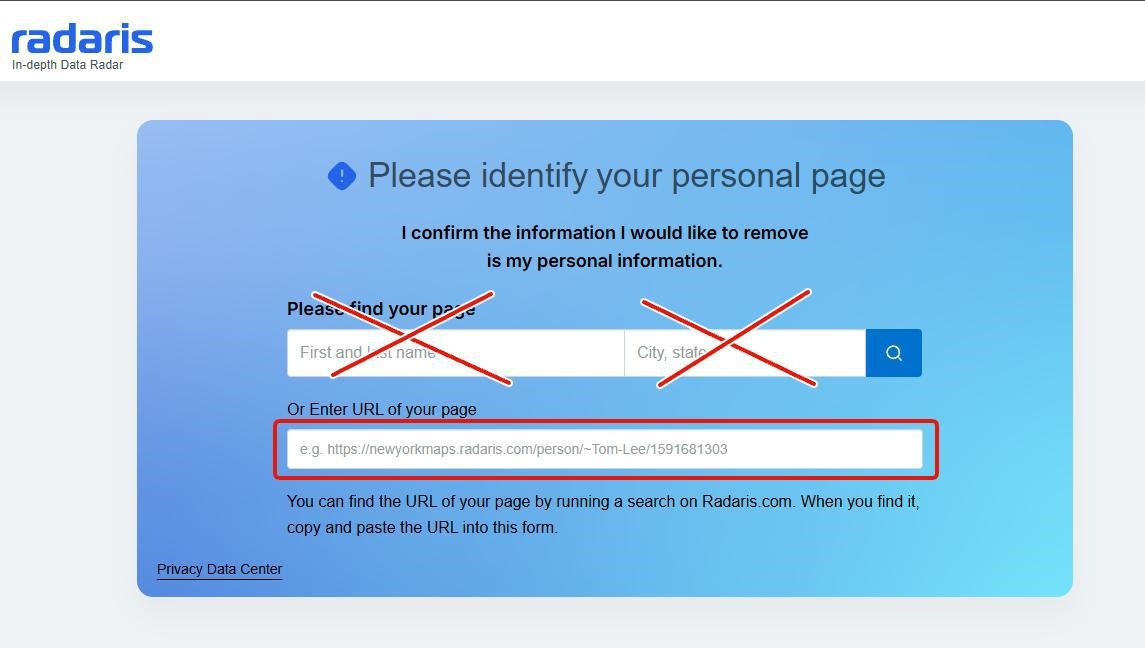
Paste the URL into the "Or Enter URL" box at radaris.com/control-privacy
Go to radaris.com/control-privacy. The page titled "Please identify your personal page" shows two top fields ("First and last name" and "City, state") and a second box below labeled "Or Enter URL of your page".
Skip the top two fields - leave the name and city/state blank. Paste the profile URL you copied in step 3 into the "Or Enter URL of your page" box and submit.
Skip the top two name and city fields. Paste your URL into the second box.
05
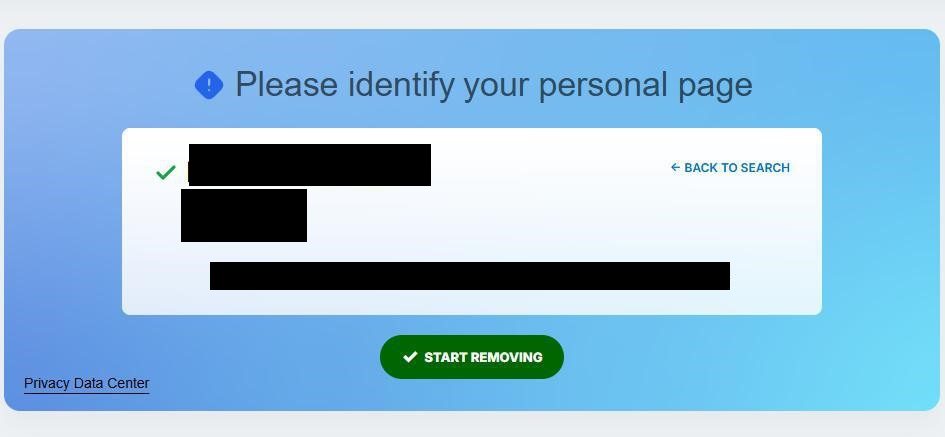
Confirm the matching profile, click the green "Start Removing" button
Radaris displays the profile you just submitted - name, age, city, and the full URL. Verify it matches you, then click the green "Start Removing" button. If it's the wrong record, use the "Back to Search" link in the top-right corner.
Verify the listing matches you, click the green Start Removing button.
06
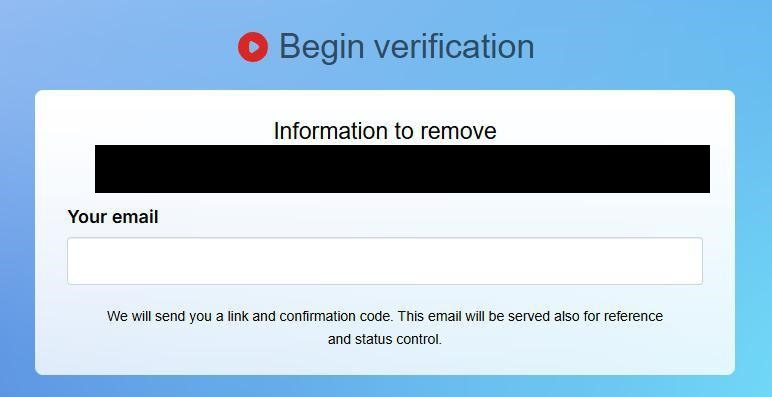
Enter your email on the "Begin verification" page
The next page is titled "Begin verification". It shows the URL you're removing under "Information to remove" and asks for Your email. Radaris notes: "We will send you a link and confirmation code. This email will be served also for reference and status control."
Enter an email you can check and submit.
Enter your email - this gets the verification link.
07
Check your email and click the confirmation link
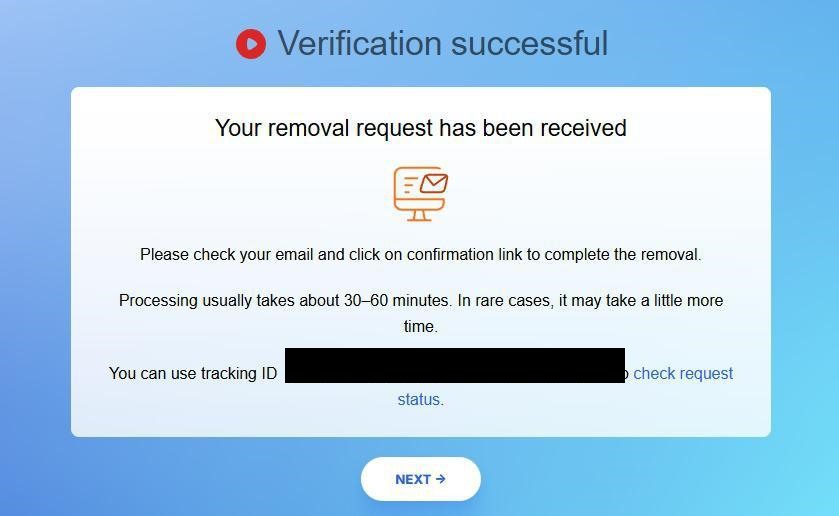
Radaris shows a "Verification successful" page with the message "Your removal request has been received. Please check your email and click on confirmation link to complete the removal."
Open the inbox you used in step 6 (check spam / promotions if you don't see it within a few minutes), find the email from Radaris, and click the confirmation link inside it. Processing usually takes about 30-60 minutes after verification.
The page also shows a tracking ID you can use to check request status later.
Removal request received - click the email link to finalize. Save the tracking ID.
Confirm it worked
Did it actually work?
30-60 min later
Wait 30-60 minutes after clicking the email confirmation link.
Open a private / incognito window and go to radaris.com.
Search for the same name + city / state you used in step 1.
Your record should no longer appear in the results, or the link to your old profile should resolve to a "Profile not found" page.
If status is unclear, use the tracking ID from step 7 to check request status on the Radaris site.
If you matched multiple Radaris listings (e.g. an older address or a nickname variant), repeat steps 1-7 once per listing - each URL needs its own opt-out.
We recommend setting a 90-day reminder to re-check. Radaris is documented for re-creating opted-out profiles when new public-records data surfaces, and we've seen this in our own re-verification passes.
Troubleshooting
If it doesn't work
Common failures
Verification email never arrives. Check spam / promotions. If after 30 minutes nothing arrives, re-run the flow with a different email address.
Verification link is expired. Re-do the form from step 4 - the new request supersedes the unverified one.
The form rejects the URL. Make sure you copied the full URL of the profile page (the one opened after clicking View Profile), not the search-results URL. Radaris profile URLs typically look like https://\[state\]maps.radaris.com/person/~First-Last/1234567890.
Listing still appears after 60 minutes - or reappears later. This is a documented Radaris pattern. The BBB cites the company in its C rating for ignoring opt-out requests. If a re-run of the on-site flow doesn't fix it, we'd recommend escalating: California residents can file a Delete Act complaint with the CPPA; other states can file with their AG or with the FTC at reportfraud.ftc.gov. Keep your tracking ID and verification-email screenshot as evidence - in our experience, complaints land harder when there's a paper trail.
You're being charged. The opt-out is free. If you see a recurring charge from Radaris, you accidentally signed up for the paid people-search product (not the opt-out). Cancel via Radaris support and dispute with your card issuer if needed.
Stay off
Keep your record off the site
Re-listing is common
We recommend re-checking every 90 days. Radaris has a documented pattern of re-adding opted-out profiles when new public-records data surfaces, and in our re-verification passes it shows up more aggressively than the other people-search brokers we've profiled.
Watch for multiple profiles. We've seen Radaris hold more than one profile per person when there's any address history or a nickname variant. Each profile gets its own URL and needs its own opt-out.
Suppress the upstream sources where possible. Whitepages, Spokeo, BeenVerified, and similar feed the same upstream public-records aggregators Radaris uses. In our experience, removing your record from the larger brokers reduces the surface area Radaris's scraper can rediscover.
I'd suggest a forwarding mailbox or PO Box for non-essential mail. New property and voter records associated with a residential address are the biggest re-listing triggers we see.
Take yourself off data broker sites
Redact scans 120+ data broker sites from your device, finds where your details are listed, and submits the removal requests for you. If a broker relists you, it files again.