How to Delete All Your Slack Messages and DMs
Delete every channel message and DM at once with Redact, or one by one in Slack.
 Dan Saltman7 min read
On this page
There are two ways to delete your Slack messages and DMs. Redact.dev deletes them in bulk, across every channel and DM you pick, and can repeat the cleanup on a schedule. Slack’s own way deletes one message at a time, which works for a handful of messages but not for years of history.
Option 1 below is the bulk, automated method with Redact. Option 2 walks you through deleting messages by hand in Slack.
Option 1: Mass Delete Slack Messages and DMs with Redact (Automated)
Your workspace can still read your old messages after you leave, one of many reasons to delete old chat messages. Redact deletes them in bulk. Slack cleanup needs a Redact Ultimate subscription, and the app is free to download.
What Redact can delete
- Your messages in any channels you pick
- Whole DM conversations, or just part of one by date or keyword
- Only messages that mention a word like “HR” or a name
- Files you uploaded, using the Filter Types setting
Or wipe your entire Slack history in one run.
Step 1 Download & Install Redact.dev
Visit redact.dev/download and install the desktop app (Windows or macOS). It’s free to download, and all you need to set up an account is an email address.

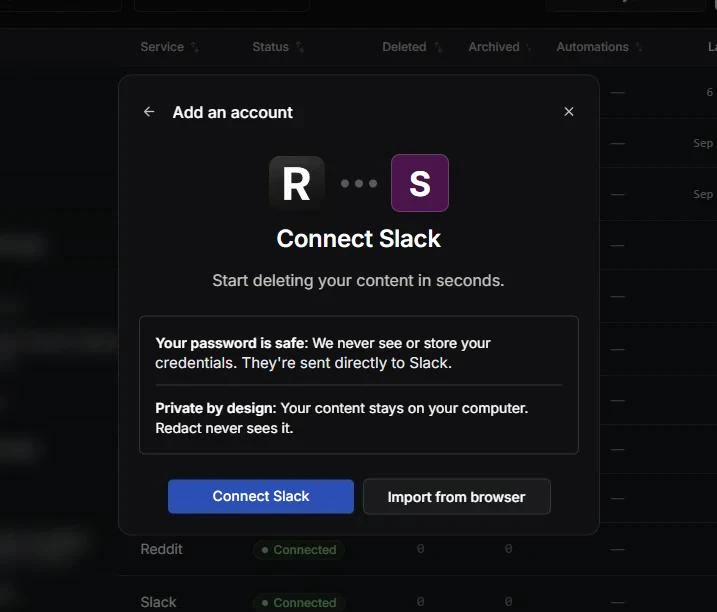
Step 2 Log In & Connect Your Slack
Select Slack from the services list and follow the prompts to securely connect your workspace. Your Slack login is stored locally on your device, so Redact never sees your account or login details.
Step 3 Pick Channels or DMs
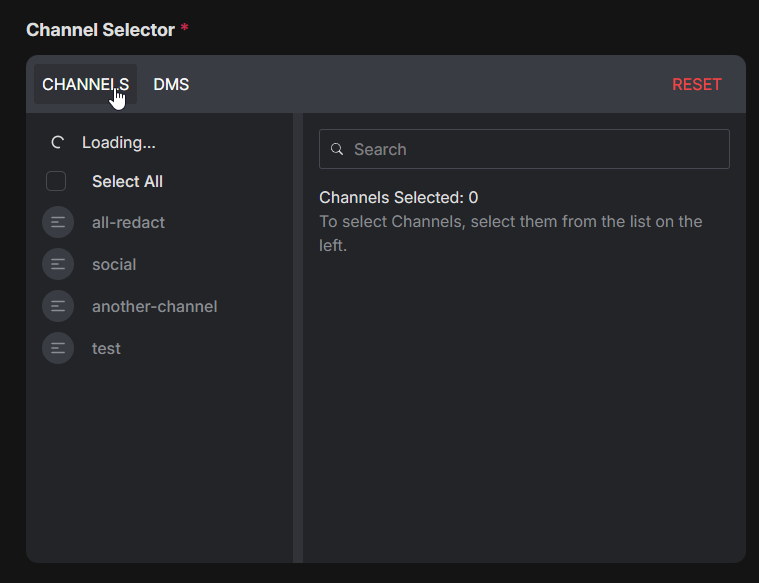
In the selector, pick the channels you want to delete from, or switch to the DMs tab and select the conversations you want gone, from one person to everyone you’ve messaged. Use the RESET button to clear your selections and start over.
Step 4 Set Filters (Optional)
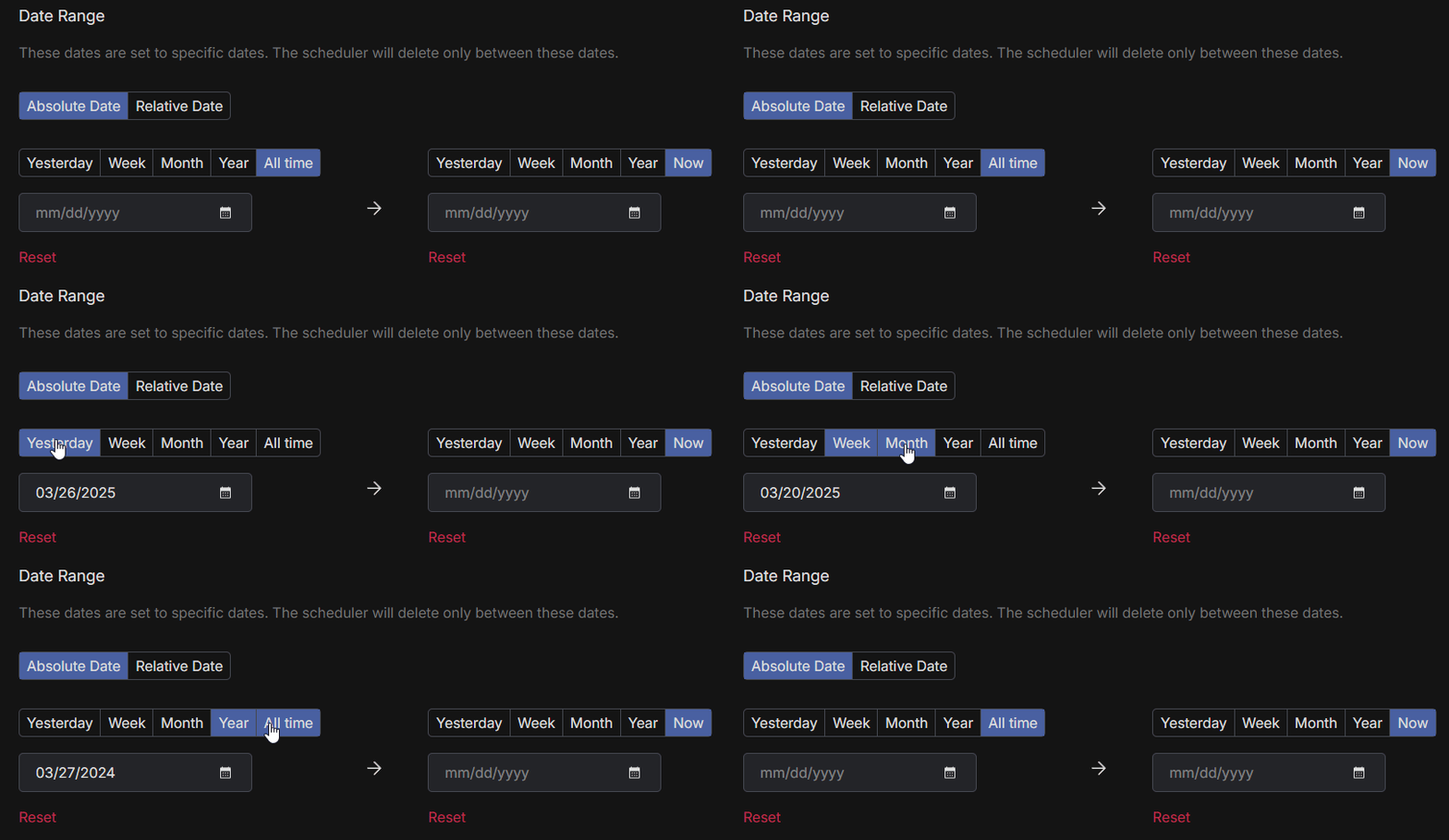
- Date range: Only messages sent between the start and end dates are deleted. Set one date to delete everything before or after it, or leave both empty to delete across all time. Click the month or year labels to jump through your timeline.
- Keywords: Enter words like “HR” or a coworker’s name, and Redact only deletes messages that contain them.
- Filter Types: Choose messages, files, or both.
Or skip the filters to delete everything.
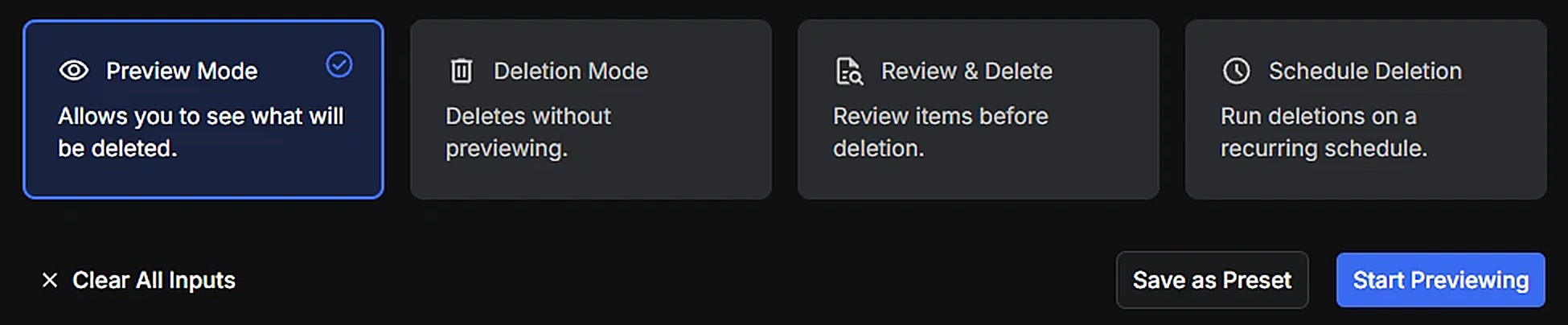
Step 5 Preview, Pick & Delete
- Preview Mode: See what will be deleted first
- Review & Delete: Pick specific messages to delete, in batches
- Start Deleting: One click to wipe it all
- Schedule Deletion: Repeat the cleanup daily, weekly, or monthly so new messages don’t pile up
Step 6 Done!
Redact.dev will work through your Slack history and clean it up exactly the way you told it to. Just keep the app open until it finishes.
Option 2: Delete Slack Messages Manually in Slack
Slack lets you delete your own messages one at a time. It works the same in channels and in direct messages, and the message disappears for everyone in the conversation.
Step 1 Find the message
On desktop or the web, hover over the message you want to delete, and its action bar appears at the right. On iPhone, iPad, or Android, tap and hold the message.

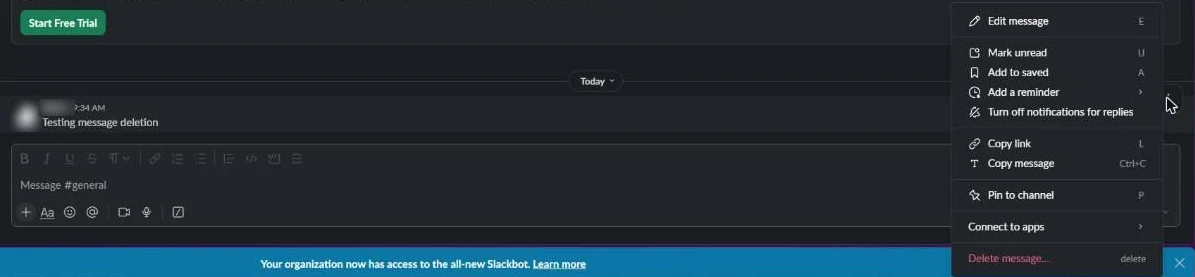
Step 2 Pick Delete message
On desktop, click the three-dot More actions icon, then click Delete message at the bottom of the menu. On your phone, tap Delete Message.
Step 3 Confirm
Click Delete to confirm. On your phone, tap Delete Message again.
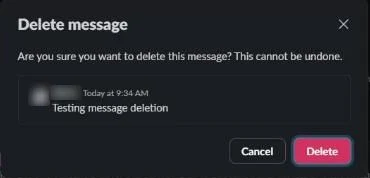
The steps are the same in a channel, a group DM, or a one-to-one DM. Slack treats deletion as permanent, so there’s no undo.
What Slack won’t do
- No bulk delete. Slack’s help center says you can’t bulk delete messages. Every message goes through the menu on its own.
- No delete button for a whole DM. You can close a DM to hide it from your sidebar, but that only hides it for you. Every message is still there for both people, and the conversation comes back the next time either of you writes.
- Workspace owners can turn deletion off. Members can delete their own messages by default, but an owner can restrict that. If the Delete option is missing, that’s why.
- Admins have other tools. Owners and admins can delete members’ messages in public channels, private channels, and group DMs they’re in, delete a whole channel, or set a retention policy on paid plans so old messages are removed automatically. Those are workspace-wide settings. When an owner allows it, members can also set retention on their own private channels and DMs, which deletes everyone’s messages there, not just yours.
Deleting Slack DMs: What Happens on Both Sides
This works the same whichever option you use.
- Your messages disappear for both of you. When you delete a message you sent in a DM, the other person no longer sees it either.
- Their messages stay. In a one-to-one DM you can only delete what you sent, so the other person’s half is theirs. In group DMs, workspace owners and admins can delete other members’ messages. With Redact’s Business plan and the right workspace permissions, Redact can delete other people’s messages in your channels and DMs too.
- Copies outside the conversation stay too. Screenshots, forwards, exports, and anything an admin retained under a workspace policy aren’t touched by deleting the message.
If you want a DM gone completely, the other person has to delete their side as well.
Slack Messages and DMs FAQ
If I delete a Slack DM, does the other person still see it?
No. When you delete a message you sent in a DM, it’s removed from the conversation for both of you. Copies made outside Slack, such as screenshots or exports, aren’t affected.
Can I delete the other person’s messages in a Slack DM?
Not in a one-to-one DM. You can only delete the messages you sent, so their half stays unless they delete it themselves. In group DMs, workspace owners and admins can delete other members’ messages. With Redact’s Business plan and the right workspace permissions, Redact can delete other people’s messages in your channels and DMs too.
Can I delete a whole Slack DM conversation at once?
Not in Slack. Closing a DM only hides it from your sidebar. Redact can select a DM conversation, or every DM you have, and delete all of your messages in it in one run.
Do deletions also remove files, threads, and message attachments?
Deleting a message in Slack removes that message and its preview. Files you uploaded can stay in Slack as separate items, so delete them too. Redact deletes your thread replies along with your messages, and the files you uploaded when Files is ticked.
Does Redact store my Slack credentials or message content on Redact servers?
No. Redact runs on your device and uses the minimum access required to execute your actions. You can disconnect Slack from Redact at any time.
Redact for Slack
Rapidly comb through your history and remove your Slack messages.