How to Delete All Your Facebook Photos at Once
 Dan Saltman8 min read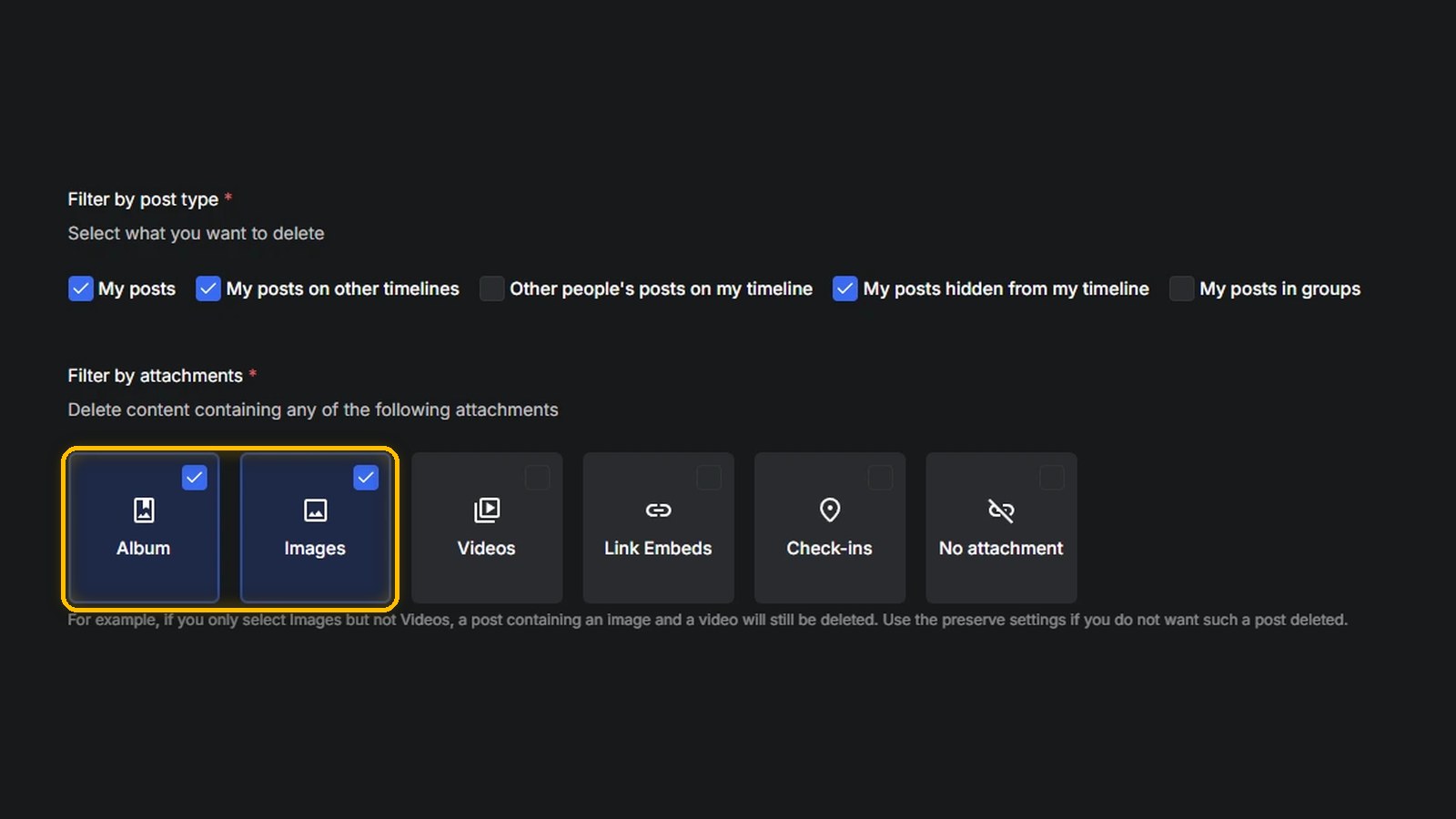
On this page
Facebook doesn't have a button that deletes every photo you've ever posted. What it gives you is three partial tools. You can delete an album, which takes every photo inside it. You can delete posts 50 at a time from Manage posts. And you can tick posts in your activity log and send them to Trash. For a few hundred photos those are fine. For ten years of uploads, I'd use Redact, which finds every photo post on your profile and deletes them in one run.
Facebook's Options Next to Redact's
| Method | What it reaches | How many at once |
|---|---|---|
| Delete an album | Every photo in one album you made | One album |
| Manage posts | Posts on your profile, photos or not | Up to 50 |
| Activity log | Your posts, photos and videos, newest first | However many you tick |
| Redact | Every post carrying a photo, filtered by date and keyword | All of them, in one run |
Delete a Whole Album
This is the fastest of Facebook's own options when your photos are sorted into albums. Deleting an album deletes every photo in it, and Facebook can't bring it back.
Open your profile and click Photos, then Albums. Click the three dots on the album's cover and choose Delete album. Facebook asks you to confirm.
Profile pictures and Cover photos don't have a Delete album option. Their menu only offers Download Album and Transfer album. Facebook's help page on albums says the same goes for Mobile uploads. You can still delete the photos inside them one at a time, and that's usually where most of your pictures sit.
Delete Photo Posts From Manage Posts
On your profile, click Manage posts above your posts. Tick the posts you want gone, or use Select all beside a month. The counter in the corner stops at 50, so a big profile means a lot of rounds. Click Next, pick Delete posts, then Done.
The Filters button narrows the list by year, who posted, privacy and tagged posts. There's no filter for photos, so you'll be picking photo posts out by eye. Manage posts only lists what's on your own profile, so photos you posted in groups won't show up there.
Trash Photos From Your Activity Log
Open your activity log. On the left, open Your Facebook activity, then Posts, then Your posts, photos and videos. Tick the posts you want gone, or tick All at the top, and click Trash. Archive hides them from everyone but you instead.
Trashed posts wait 30 days before Facebook deletes them for good, and the Trash link on the left lets you delete them sooner or put them back. The list mixes photo posts with everything else you've posted, and the Date filter is the only way to narrow it. Facebook's help page notes that not everything in your log can be moved this way.
Delete Every Photo With Redact
On Facebook a photo is an attachment on a post. Redact deletes the posts that carry photos, so the pictures go with them, and it keeps going until there's nothing left that matches. The steps below limit it to posts you made yourself. Everything runs on your own device.
- 1
Download Redact and connect Facebook
Download Redact, create your account and choose Facebook. Log in to Facebook inside the app when it asks.
- 2
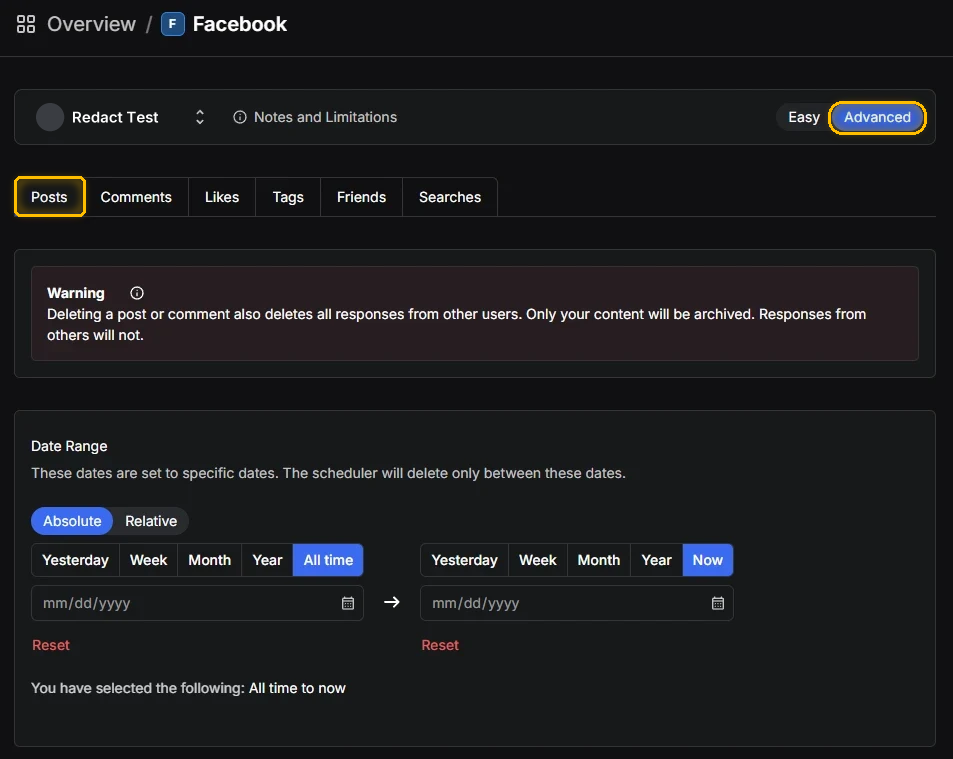
Switch to Advanced and open Posts
Click Advanced at the top right, then the Posts tab. Leave the date range on All time to Now to reach every photo, or set a window if you only want one era gone.
- 3
Limit it to your own posts
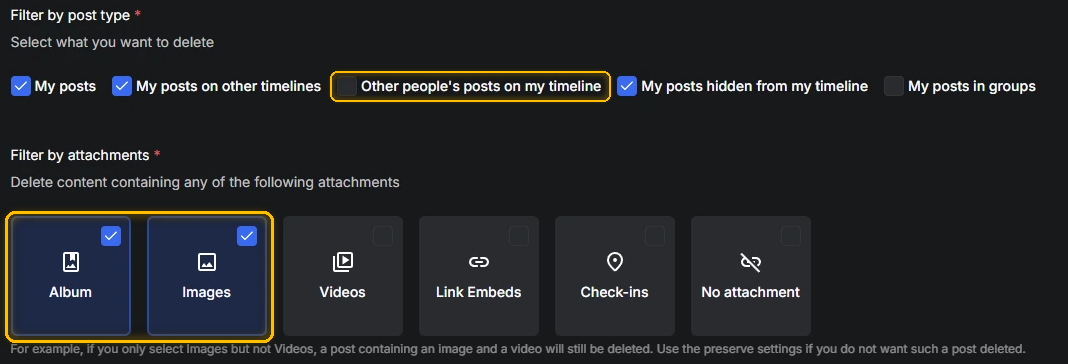
Under Filter by post type, untick Other people's posts on my timeline. Left ticked, Redact also deletes photo posts your friends and family made on your timeline, and Facebook can't bring those back. Tick My posts in groups if you shared photos in groups.
- 4
Tick Album and Images only
Scroll to Filter by attachments. All six boxes start ticked. Untick Videos, Link Embeds, Check-ins and No attachment so only Album and Images are left.
- 5
Preview the list
At the bottom, pick Preview Mode and press Start Previewing. Redact lists every matching post and nothing is deleted yet. Scroll through and make sure it's what you meant.

- 6
Switch to Deletion Mode and start
Pick Deletion Mode and press Start Deleting. Keep the app open while Redact works through the list. Review & Delete is the middle road, where you approve the items before they go.

Clearing photos from the last 30 days is free. Going further back, and turning on a schedule that clears new photos as they age, need Premium. The photos and videos page covers the attachment filter in more detail, and there's a video walkthrough below.
Keep the Photos You Want
A full wipe isn't the only choice. Two filters on the same Posts tab let you carve out what stays.
- Keywords to preserve protects any post that contains a word you list. Add names, "wedding", "graduation" or whatever your keepers have in common.
- Date range limits the run to the years you pick, so you can clear 2010 to 2016 and leave recent photos alone. The date range page explains absolute and rolling windows.
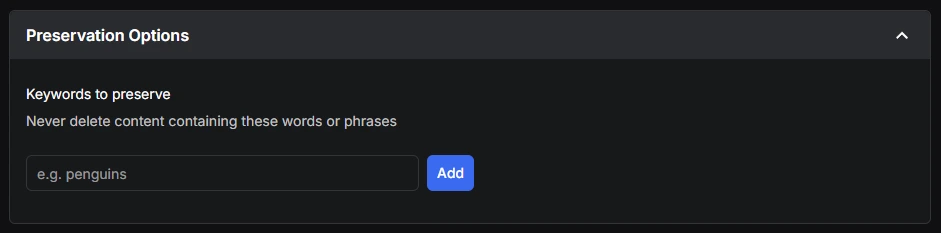
Keywords to delete works the other way round, only clearing posts that contain your words. Both keyword boxes read more than your caption. They also check the attachment's title and, on a post you shared, the text of the original post. So a photo you shared from someone else can match on their words. Whatever you set, run a Preview first and check that the keepers aren't in the list.
Photos Other People Tagged You In
A photo a friend uploaded to their own profile and tagged you in belongs to them, and you can't delete it. What you can do is take your name off it. On Facebook, open the photo, click the three-dot menu and choose Remove tag. Redact's Tags category does the same thing across every tag at once, which needs a paid plan. If you want the photo itself gone, ask the person who posted it.
Save a Copy First
Deleted photos don't come back, so download them before a big cleanup. Each album's three-dot menu has Download Album for a quick copy of one album. For everything, Facebook's Download your information tool in Accounts Center packs your photos into a file you can keep offline. Pick photos and videos, choose the date range, and set the media quality to high. Our Facebook data download guide walks through it.
If you're clearing more than photos, the delete everything page covers posts, comments, likes, tags and friends. Redact works the same way on Instagram if your photos live there too.
Deleting Facebook Photos FAQ
Can I delete all my Facebook photos at once inside Facebook?
No. Facebook lets you delete a whole album, delete up to 50 posts at a time from Manage posts, or tick posts in your activity log and move them to Trash. None of them picks out every photo for you.
Why can't I delete my Profile pictures or Mobile uploads album?
Facebook doesn't offer Delete album on Profile pictures, Cover photos or Mobile uploads. You can delete the photos inside them, one at a time on Facebook or as part of a Redact run.
Does deleting a post delete the photo too?
Yes. The photo is attached to the post, so it goes when the post goes, along with the likes and comments on it.
What happens to photos I moved to Trash?
They stay in Trash for 30 days, visible only to you, and then Facebook deletes them for good. You can restore them or delete them sooner from the Trash folder.
Can I delete photos someone else posted of me?
No, but you can remove your tag so the photo no longer links to your profile, and you can ask the uploader to take it down.
Is Redact free for this?
Deleting photo posts from the last 30 days is free. Older photos and scheduled cleanups need Premium, and the app is free to download and set up first.