How to quickly remove all images from Discord [Redact App]
 Dan Saltman4 min read
![How to quickly remove all images from Discord [Redact App]](/blog-images/2024/02/1df12454974a617bffd82bb1ad8d4218.png)
Hey everyone, today we are going to discuss how you can use the Redact App to quickly locate and remove images from Discord chats and/or DMs.
Over time you can accumulate tons of message history on Discord, including images. There are a few ways to find and remove these images, none easier or faster than using Redact.
Redact quickly searches through your entire message history, locating images from years ago and marking them for removal. It’s as simple as adjusting a few settings within the app and running the program. Redact will do all the heavy lifting.
How to Remove Your Discord Images, Step by Step
- 1
Step #1: Download / Load
Download Redact’s Discord Tool. If you already have it installed, open the app. You will need to log in through the Redact App on the popup screen.
- 2
Step #2: Channel Selector
Now you need to choose which servers to delete images from. You have the option to remove images from every server and every channel, or specific ones. This is where you make that selection. Your screen will look like the one below.
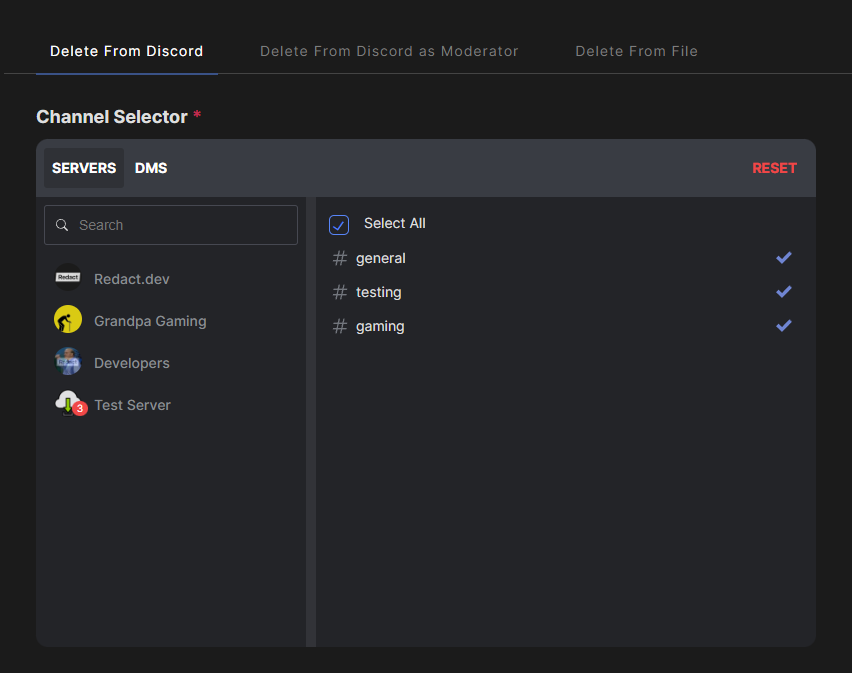
The left side is your server list, the right side is your channel list. Choose as many or as few channels as you need. This will tell Redact where to find and remove your images from. If you want to remove your entire image history from everywhere, you need to go through each server and check “select all” on the channels box.
- 3
Step #3: Date Selection
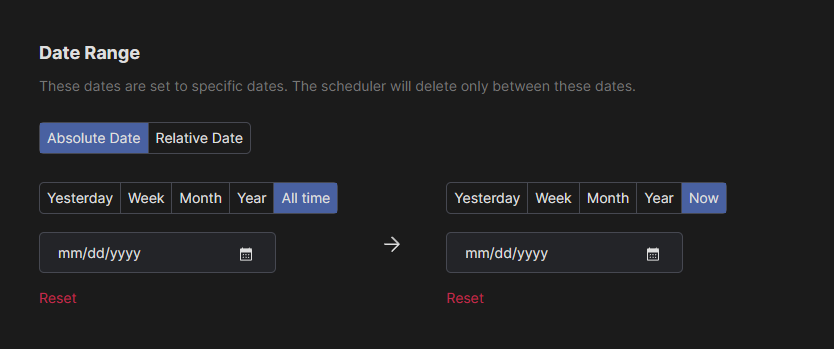
The date selection box tells the software what dates to search for your images. If your goal is to remove images from the beginning of your Discord history, you will leave the options set to default selections, which is what you see in the picture above.
- 4
Step #4: Keyword Search
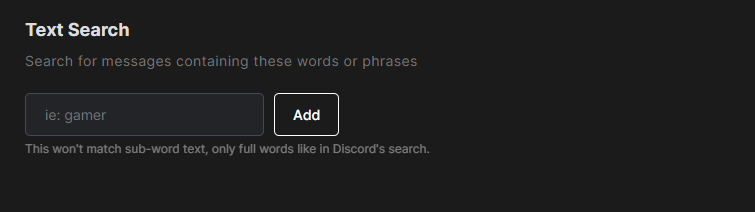
The keyword options allow you to choose specific keywords to help narrow down your search.
- 5
Step #5: Search Direction
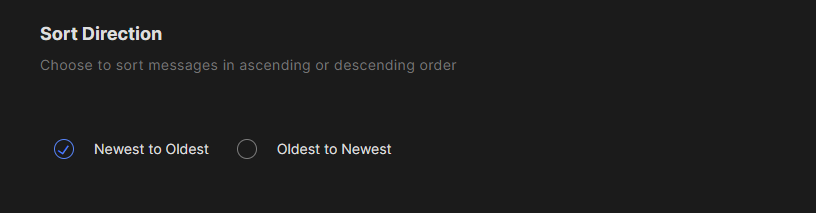
This is a fairly inert filter setting that doesn’t make a lot of difference. You can leave this setting alone or you can change it, it doesn’t affect the outcome very much.
- 6
Step #6: Text Search Mode Selection
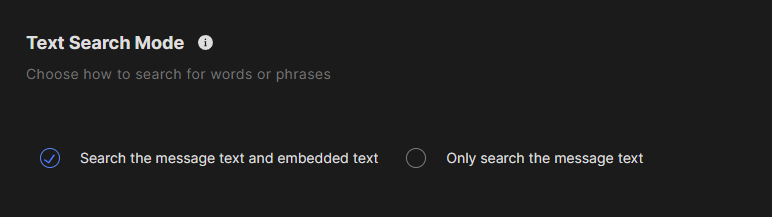
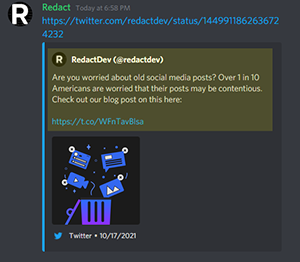
Embedded text (highlighted above) is additional text included in a message when posting links or attachments. If you’re looking in your entire Discord history, I recommend leaving this alone.
- 7
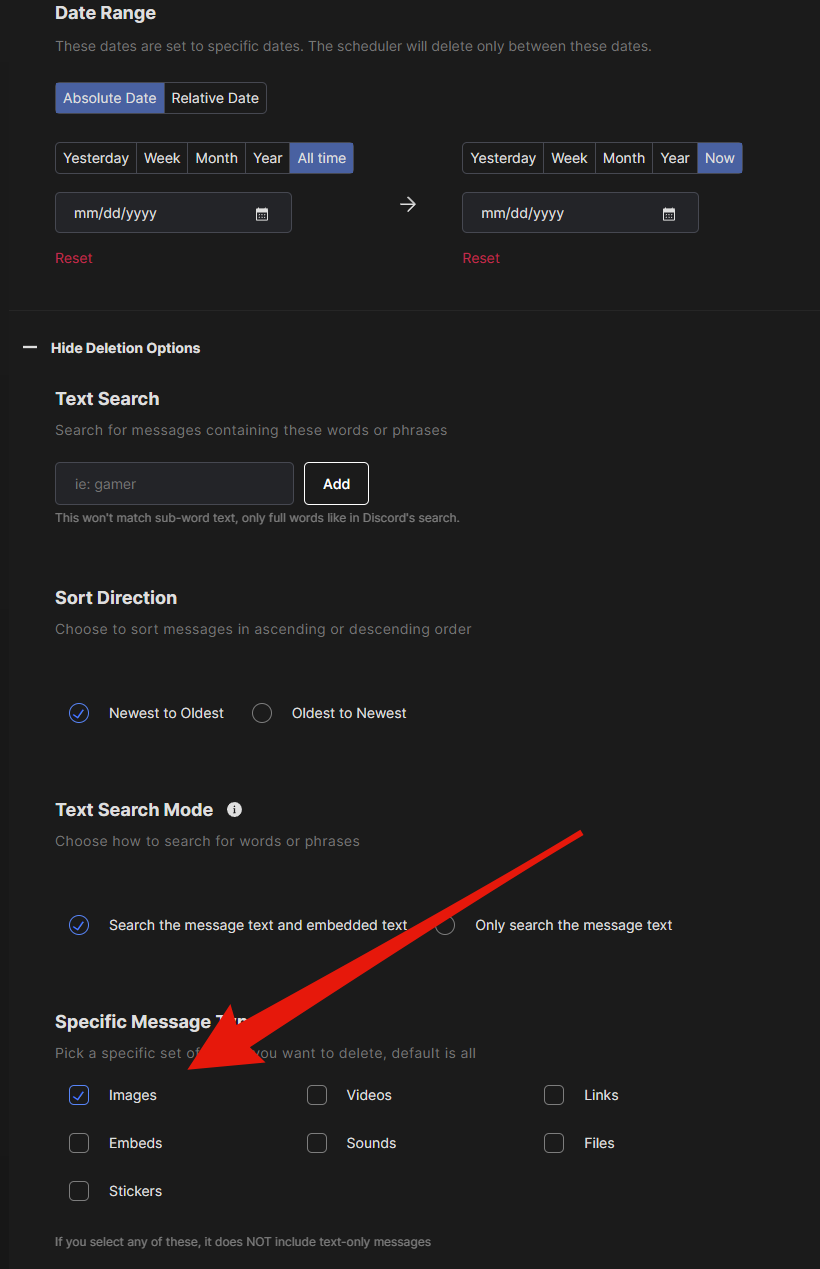
Step #7: Specific Message Types
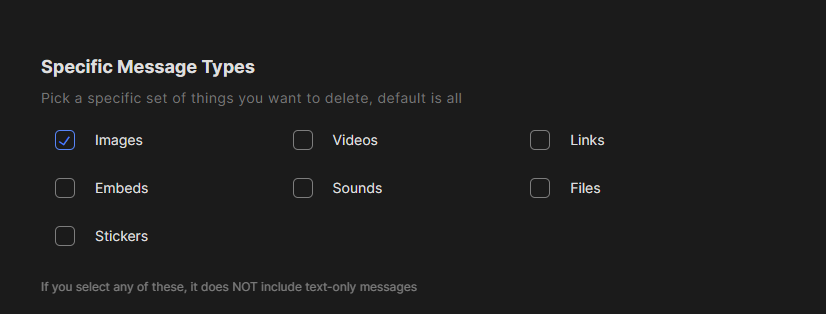
We are searching for images to delete, so we only want to have the image box selected. Leave the rest unchecked.
- 8
Step #8: Preview Before Delete
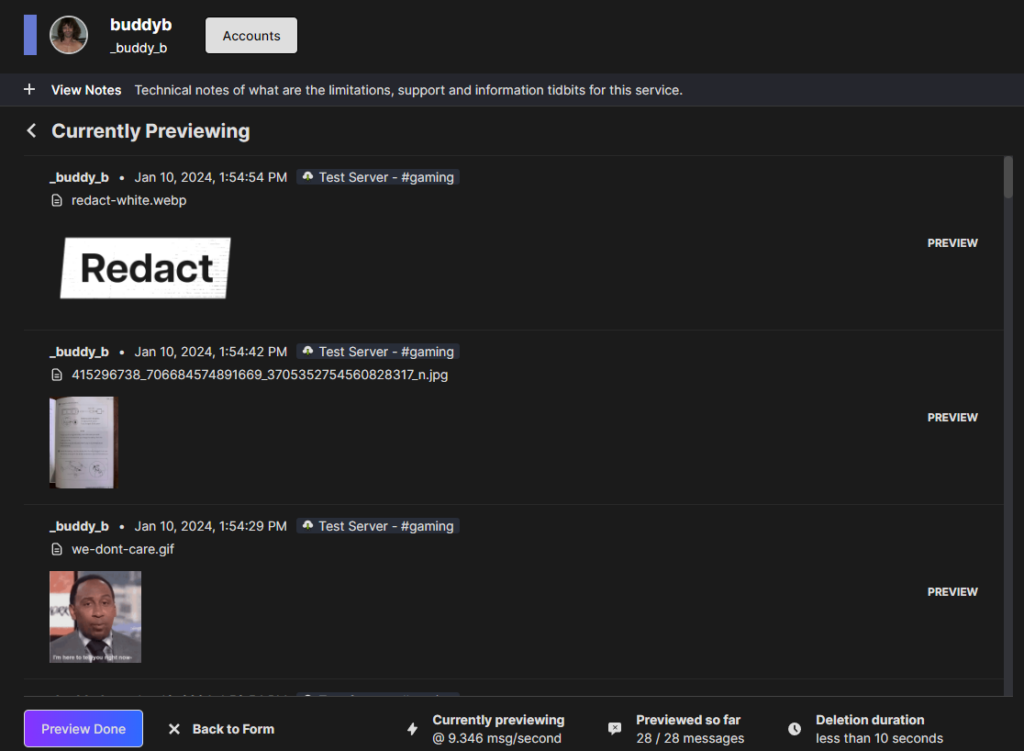
Use preview mode to see the results based on your filtering options we set. If you use preview mode and all the images that come up are the images you want removed, then you can proceed to “deletion mode” and formally remove the images from Discord.
Redact for Discord
Cleanse your cringe Discord history by either nuking it all, or choosing a specific server or direct message, then specifying keywords and date ranges.
![How to Delete Your Own Discord DMs in Bulk from Both Sides [Redact Tutorial]](/blog-images/2024/02/62b0f5bede4cee0883ba5d8ce8432389.png)
![Mass Delete Discord DMs Quickly & Automatically [Redact Tutorial]](/blog-images/2024/02/1-1.png)