How to automatically delete everything from Facebook in bulk
 Dan Saltman4 min read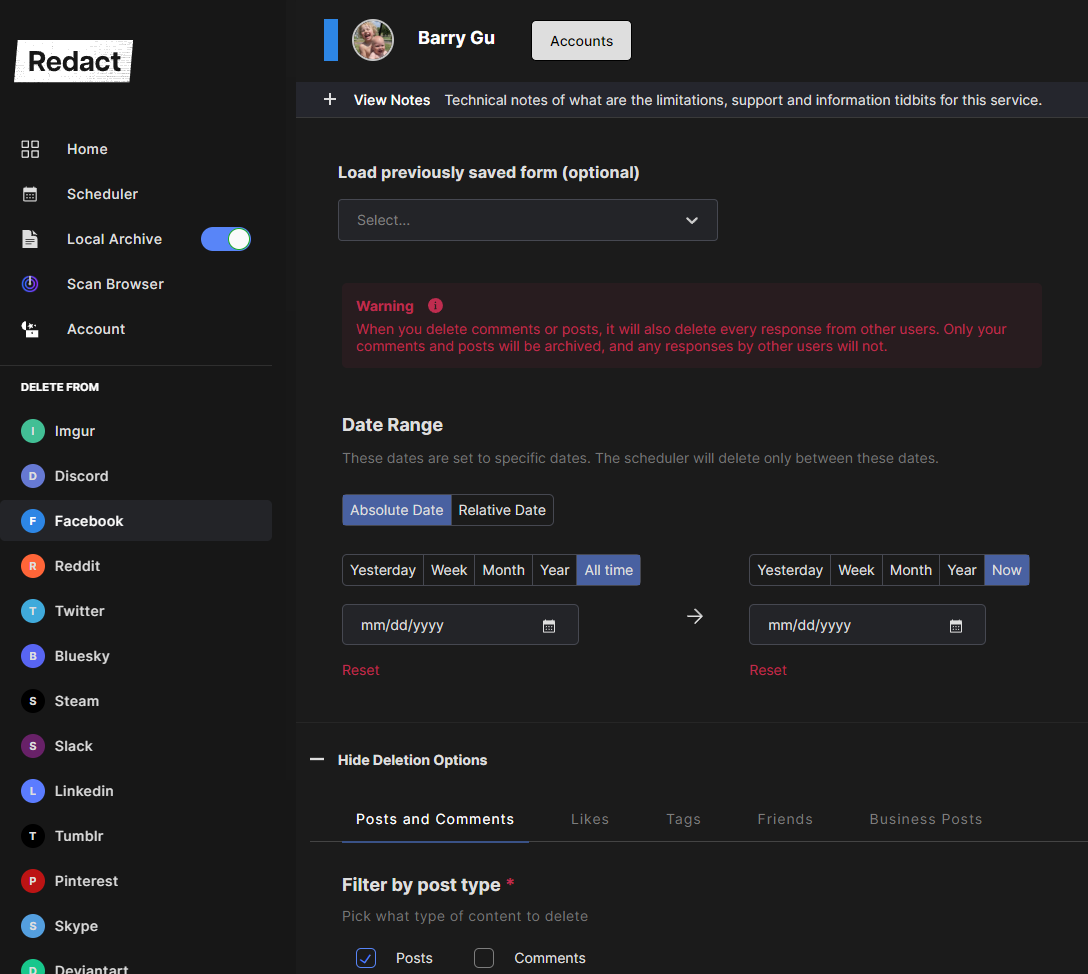
On this page
Are you planning on deleting your Facebook Account? There are a few ways of going about it. Let’s go over your options.
Option #1
Do a vanilla deletion through the default Facebook channel. You’ve probably heard the stories about Facebook retaining your data and not truly deleting your content. However, we have a solution to that here at Redact. Read on to option #2.
Facebook's current steps, the 30-day window and what stays after are in our guide to deleting your Facebook account.
Option #2 (The Redact Method)
This is the nuclear Armageddon option. This combines both deletion methods to create the most extreme Facebook content removal option. We will first use Redact to mass remove your actual content such as images, videos, posts, comments, ETC. Then, we will use the Facebook Account removal to delete your actual account. Sounds exciting, doesn’t it?
What we’re going to do is mass delete all of our Facebook content, THEN we are going to go back to option #1 and do the vanilla removal through the official Facebook method.
Video Tutorial / Walkthrough
This is a short video walkthrough for those of you who don’t want to read the wall of text below. It basically covers everything below, in video form.
Let’s Get Started!
First, you’ll need to visit the Redact FB page and download the app. It’s free to download and test.
After you download and install Redact, you will need to login to Facebook through the Redact login screen. After you get logged in, you should be looking at a screen like the one you see below:
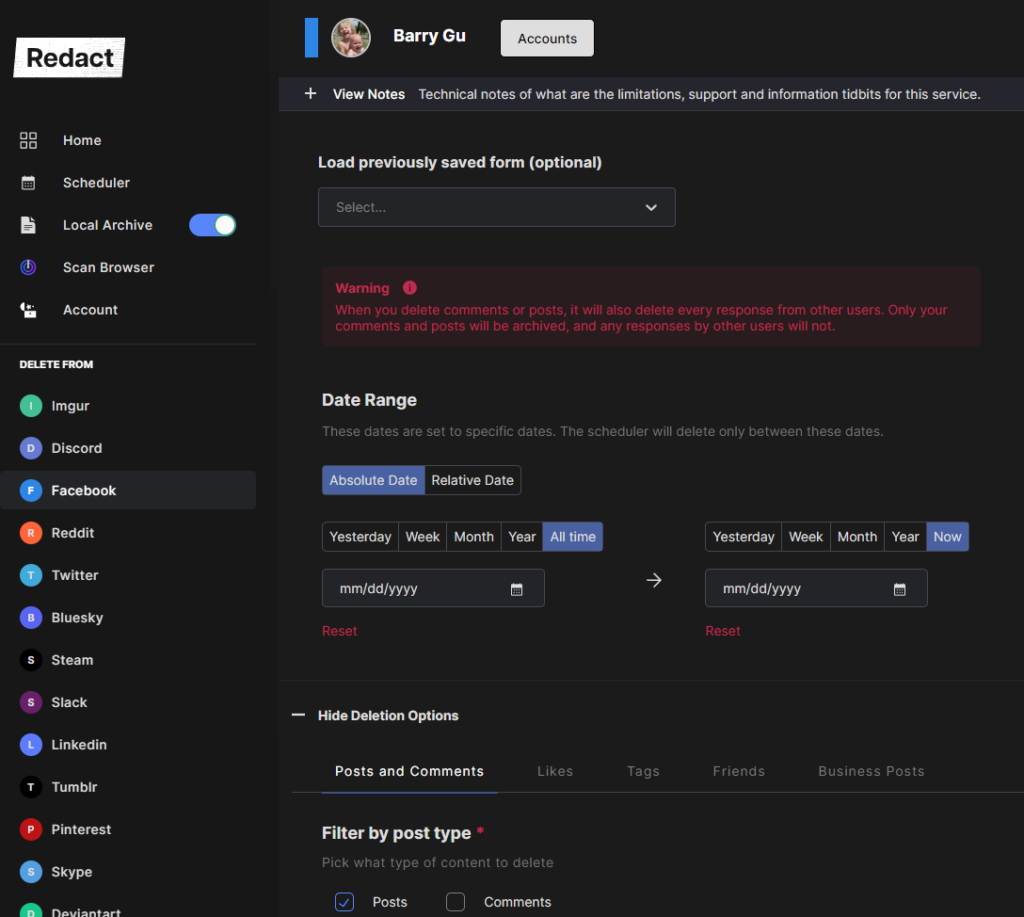
The first set of options you need to set are the dates. In order to find and remove all your content from your entire time on Facebook, you date settings need to look like the image below.
- 1
Date Settings
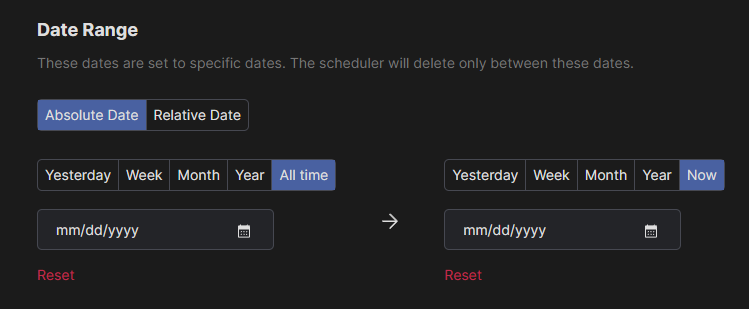
Your date search settings should look exactly like what you see in the image above. This is the “all time” search settings. This will tell the Redact Software to go back in time from the beginning of your Facebook Account activity.
- 2
Remove Post Type
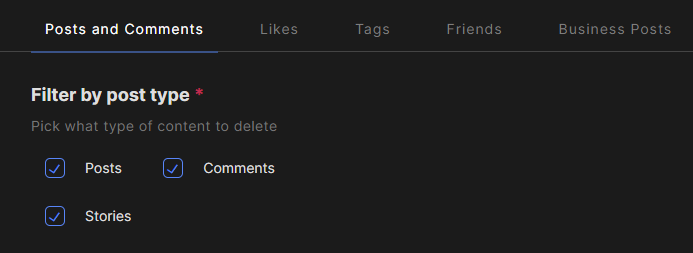
Your next option is where you tell Redact what time of posts to target for removal. Since we are trying to delete everything from our FB history, make sure all three of these boxes are checked like you see above.
- 3
Remove By Post Location
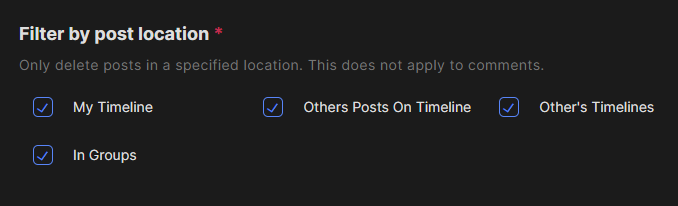
Make sure all these boxes are checked. This tells Redact to search all of these places for your content to remove.
- 4
Keyword Options
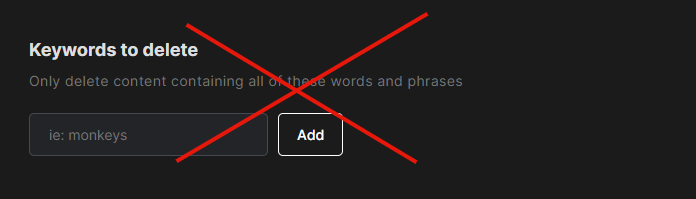
Skip the keyword options. We want to remove everything, so we don’t want to segment the search to only specific keywords.
- 5
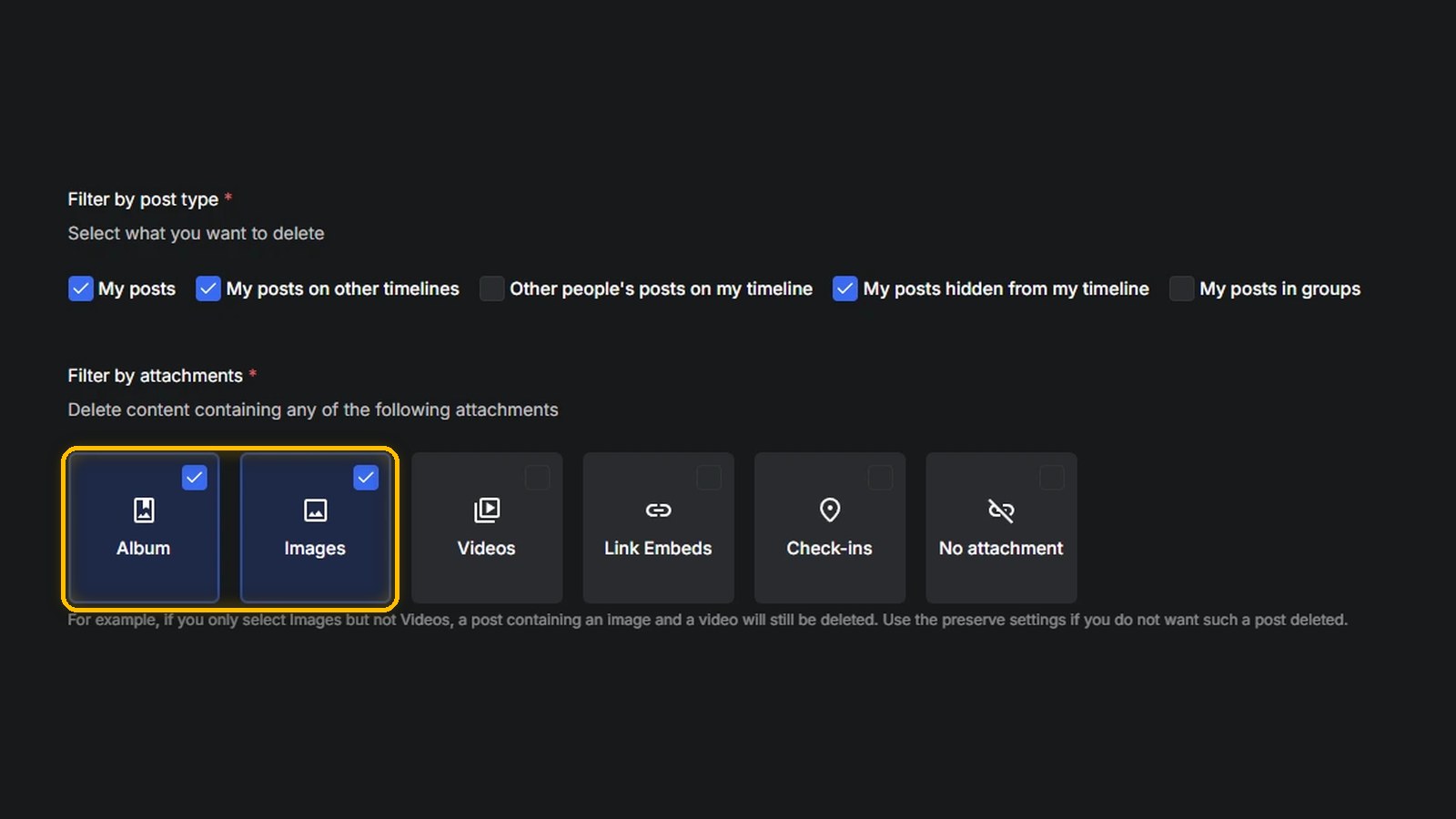
Remove Attachment Types
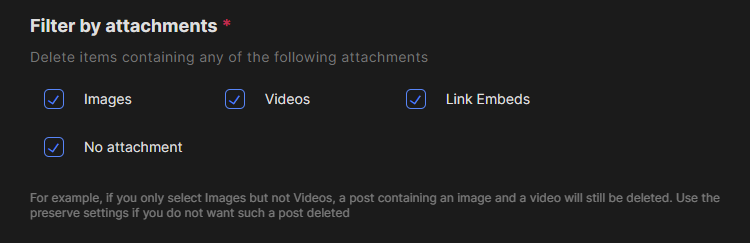
Make sure all these options are checked. This tells Redact what type of attachment types we want to find and mark for removal.
- 6
Filter By Your Text Content

You will want to have both of these boxes checked.
- 7
Keywords to Preserve
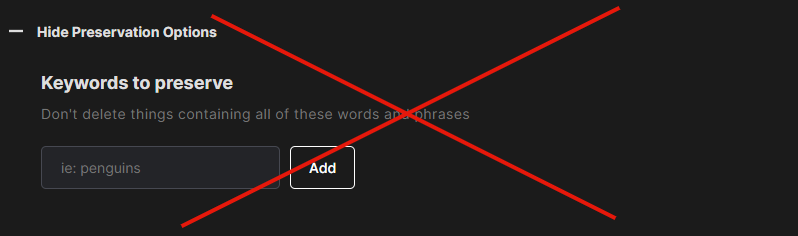
Don’t enter anything into the preservation box.
- 8
Override Options

Make sure this box is unchecked.
- 9
Time to Remove Content!
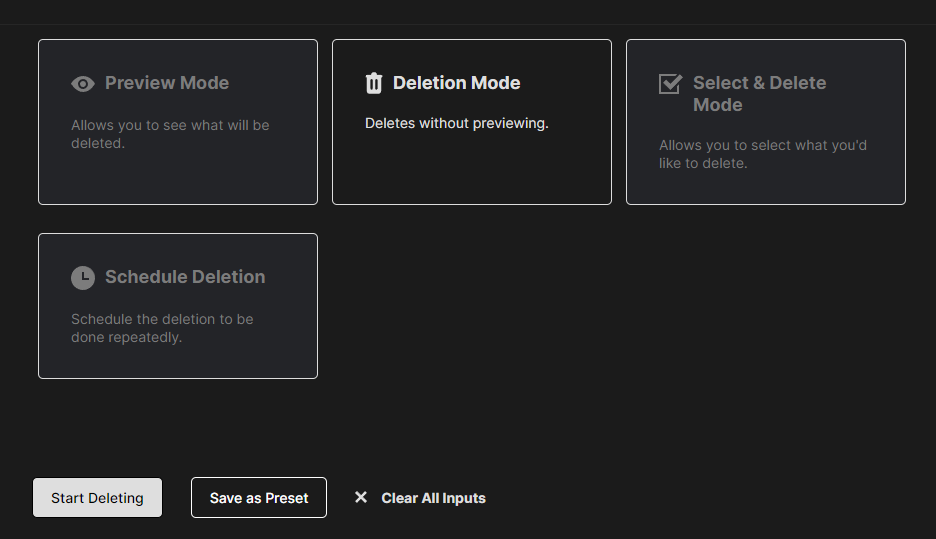
Now we are going to start deleting all of the content based on the above search settings. You can either use preview mode to double check what content you are about to delete before actually doing it. Or you can skip straight to deleting your content in mass.
Redact for Facebook
Delete anything that you posted either on your own profile or somebody else's